
Key Rotation Service (KRS)
To change the hosting of KRS from HTTP to HTTPS using the existing certificate, for e.g. 'HclTech.iautomate.Web', please follow the below steps:
- Press Win+R and type inetmgr.
- Click OK to open IIS.
Figure 1. Hosting KRS from HTTP to HTTPS 
- Expand Sites and click HCLiAutomateKRS.
Figure 2. Hosting KRS from HTTP to HTTPS (cont.) 
- Click on Bindings in the Edit Site section.
Figure 3. Hosting KRS from HTTP to HTTPS (cont.) 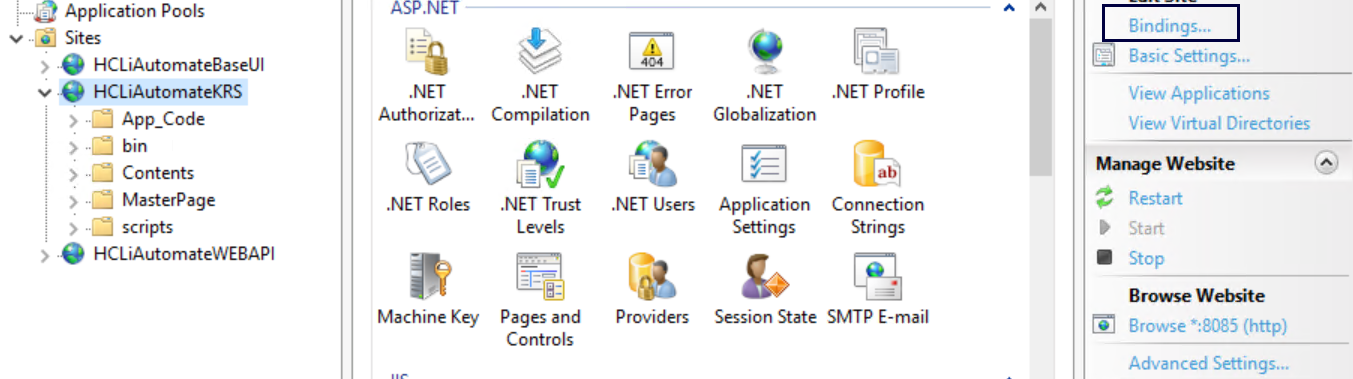
Figure 4. Hosting KRS from HTTP to HTTPS (cont.) 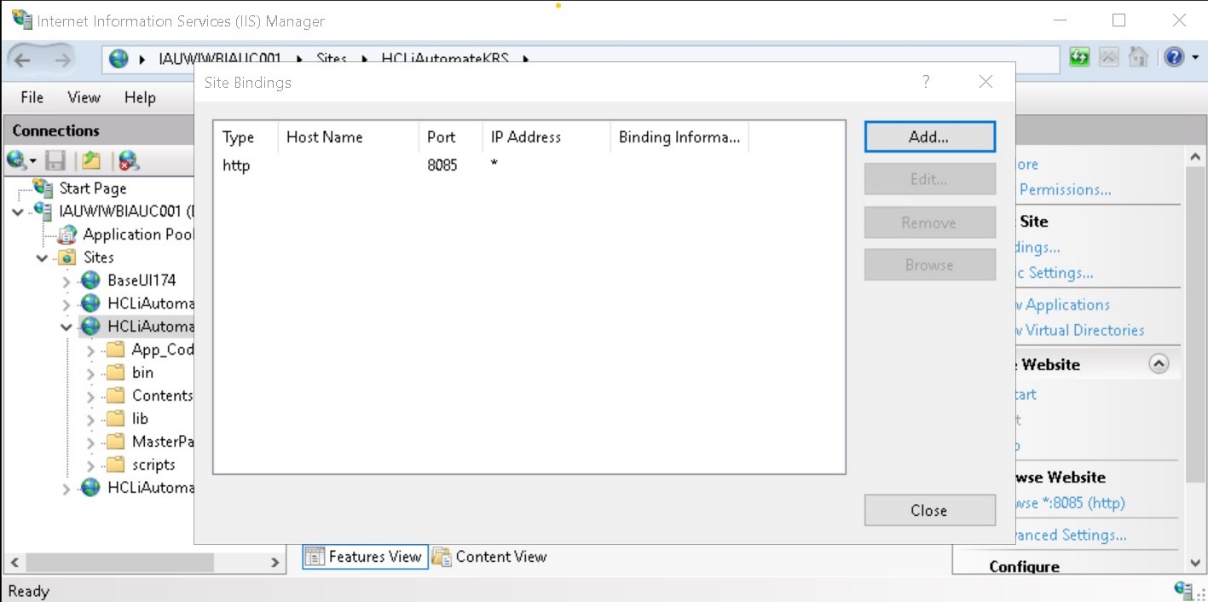
- Click Add New.
- Select Type as ‘https’. Port information gets populated automatically. Select the SSL Certificate .
- Click OK.
Figure 5. Hosting KRS from HTTP to HTTPS (cont.) 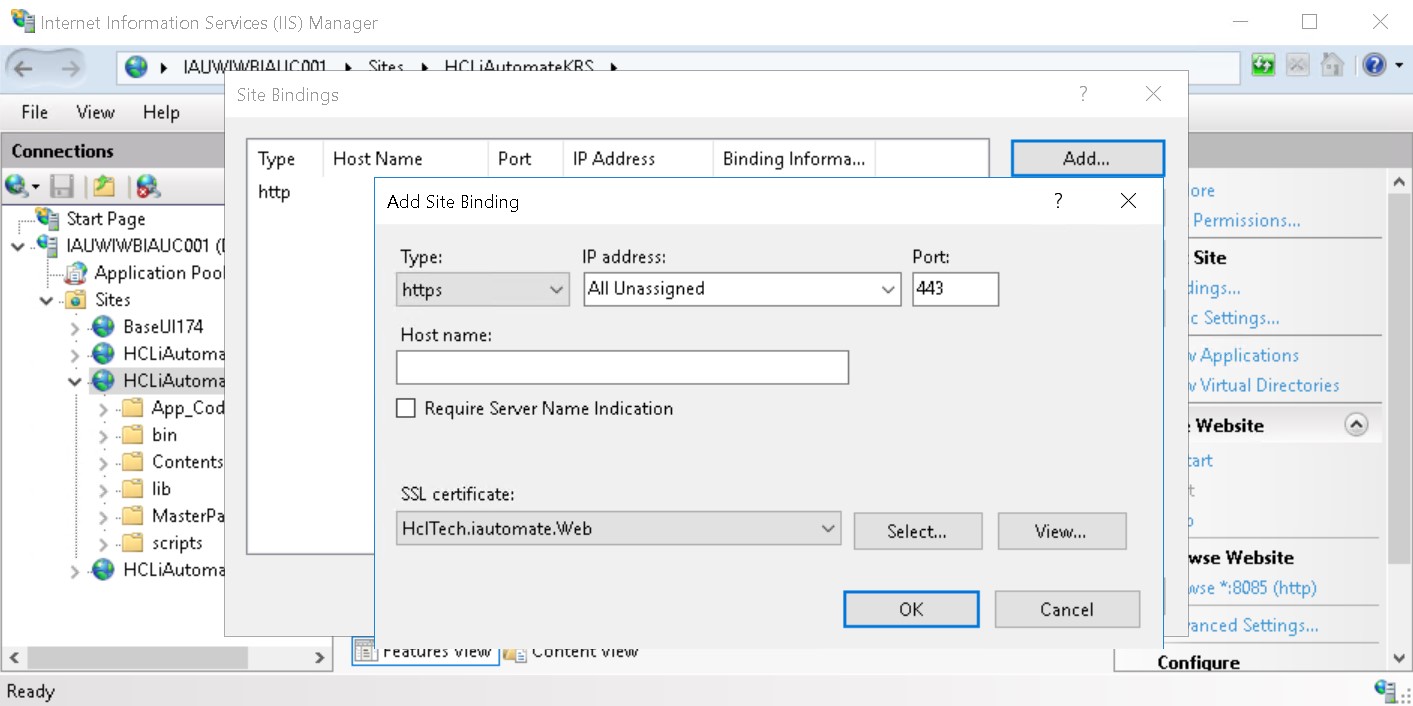
- Right click HCLiAutomateKRS .
- Click Explore.
- Find Web.config file and open it in a Notepad.
Figure 6. Hosting KRS from HTTP to HTTPS (cont.) 
- Within the Web.config file, find the tag <security> and change it to
<security mode= "TransportWithMessageCredential">.
Figure 7. Hosting KRS from HTTP to HTTPS (cont.) 
- Save the file for changes to be reflected.
- Select the service and click Restart to restart the services.