
Running the Application
- Once the environment variable and configuration are set, run the
executable:
./GenAI-Studio.exe - To run the executable as a service, run the following command
./GenAI-Studio.exe
            --register-service
If the application service does not start automatically after registration, you may need to manually adjust the service properties in Windows Services. Follow these steps:
- Go to Windows "services."
Figure 1. Windows Services Option in Start Menu 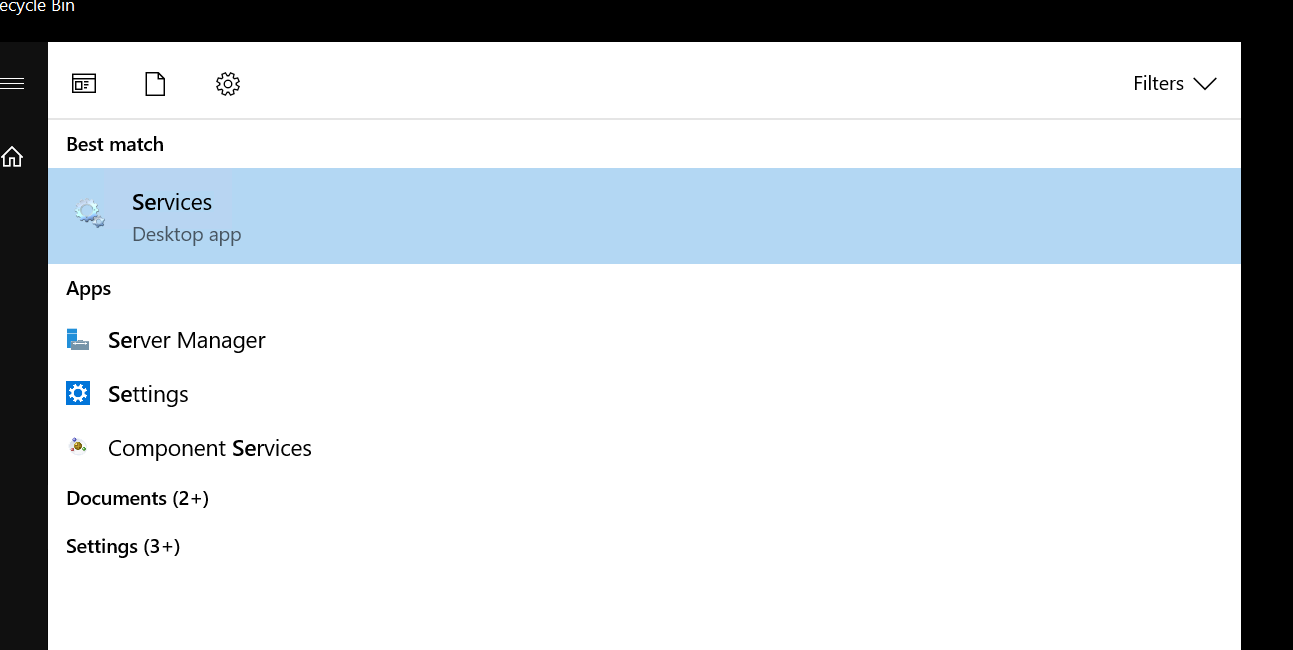
- Right-click on "GEN AI Studio Service" and select "Properties."
- Navigate to the "Log On" section.
- Browse if the user is not there and enter the username, then click on “Check Names” and
“OK.”
Figure 2. Log On Section in Service Properties (When the Browse button is clicked) 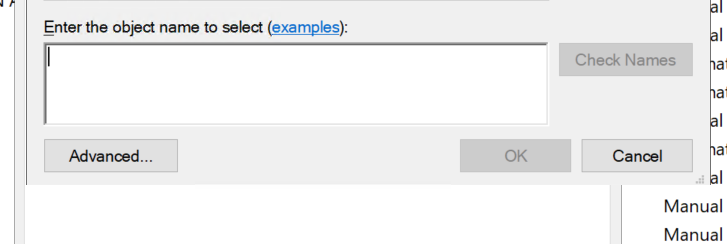
- Enter the password, click “Apply,” then click “OK.”
Figure 3. Log On Section in Service Properties 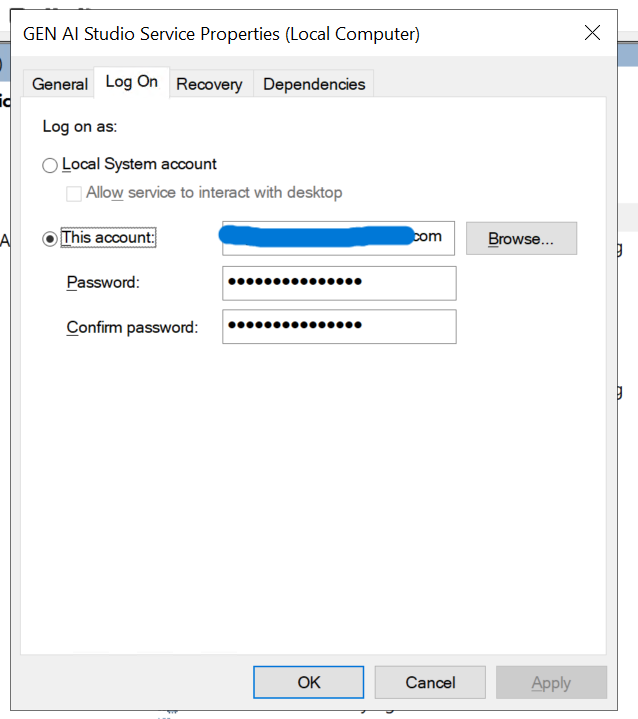
- Start the service.
Figure 4. Right Click on the Service 
For simplified on-premise configuration, use the GenAI configuration generator tool. If reinstalling or removing on-premise components, follow the provided steps.
- Stop the service .
Figure 5. Services 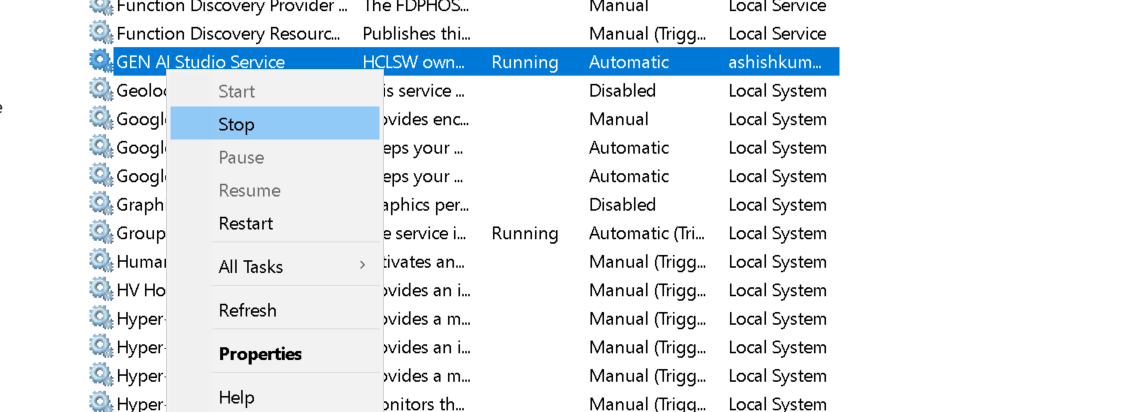
- Delete the Service using this command on powershell.
sc.exe delete
            "GENAI-Studio-service"