
Solution
- Open iAutomate Web URL and login with Super Admin credentials.
- Create User – TestUser
- Go to RBAC and click User Management.
Figure 1. User Management 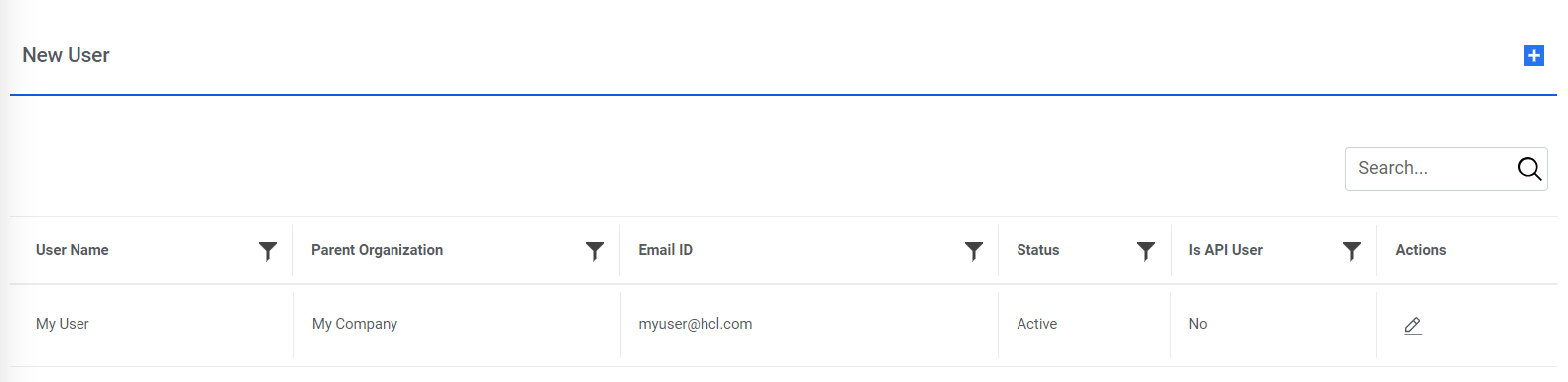
- Expand NewUser
Figure 2. User Management 
- Enter the User ID as ‘TestUser’, Email ID as ‘TestUser@hcl.com’.
- Select the organization created earlier from Parent Organization dropdown.
- Enter the Username as TestUser. Password will be auto filled.Note:
Note down the password and provide the email id and password to the user for login.
- Select Time Zone, Select Group.
Figure 3. New User 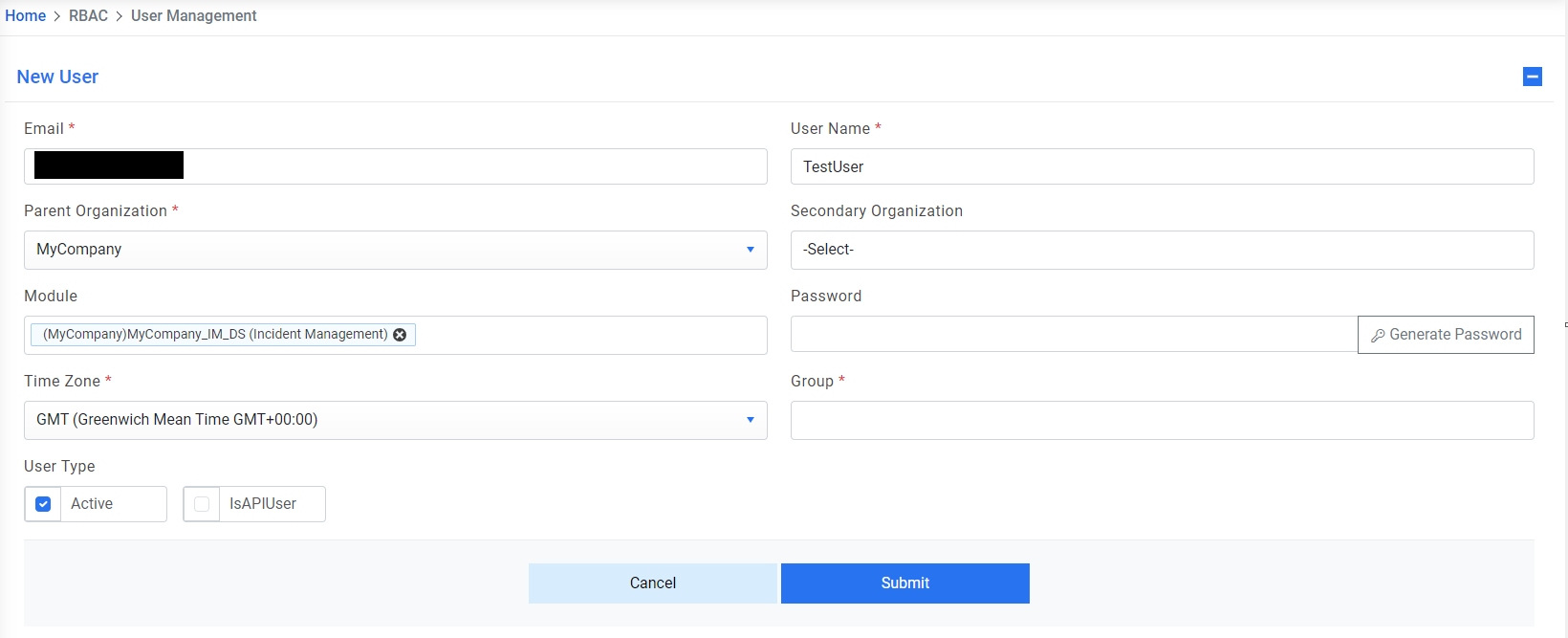
- Click on the Submit.
Figure 4. New User (Cont.) 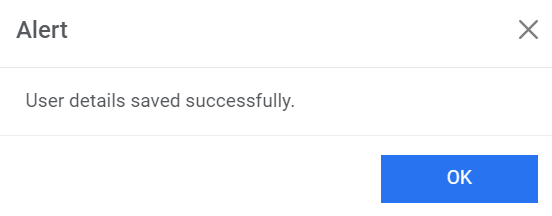
- User will be created successfully. E.g. TestUser
- First time login for the new organizational admin user.
- Open Web URL and enter provided email in Email field.
- Click Next.
Figure 5. First Time Login for the New Organizational Admin User 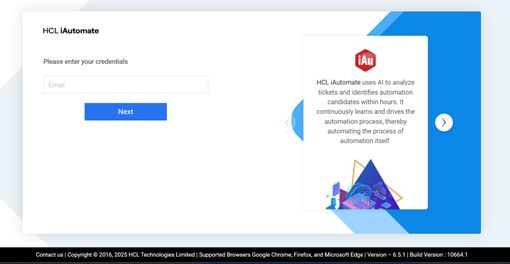
- You will be redirected to Reset Password screen at the time of first login. Enter the Old Password (auto generated while creating the user), and the new password in New Password and Confirm Password fields.
- Click Submit.
Figure 6. Reset Password Screen 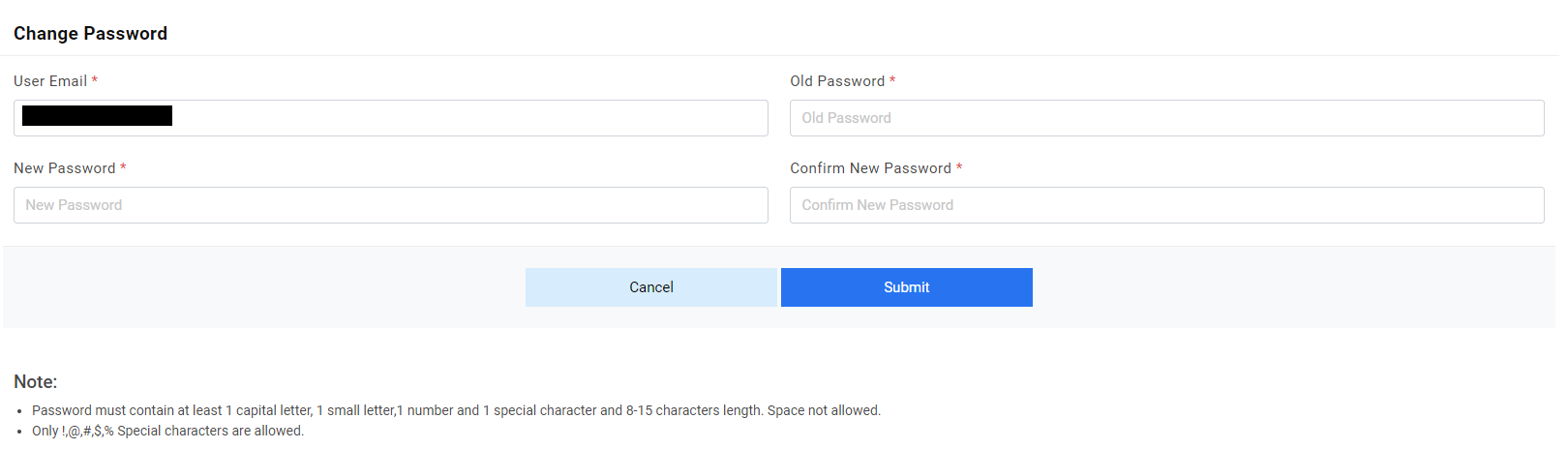
- You will be redirected to the Login page. Enter the Email ID and the new password to login.
- You will be directed to the Organization Console.
- First time login for the new Operations User.
- Follow the steps mentioned in Step 5 for the user on successful login after password change, user will be directed to the Operations console.