
Solution
- Open iAutomate Web URL and login with Organization Admin credentials.
- Go to Runbooks and click Manage Runbook Tool.
Figure 1. Manage Runbook Tool 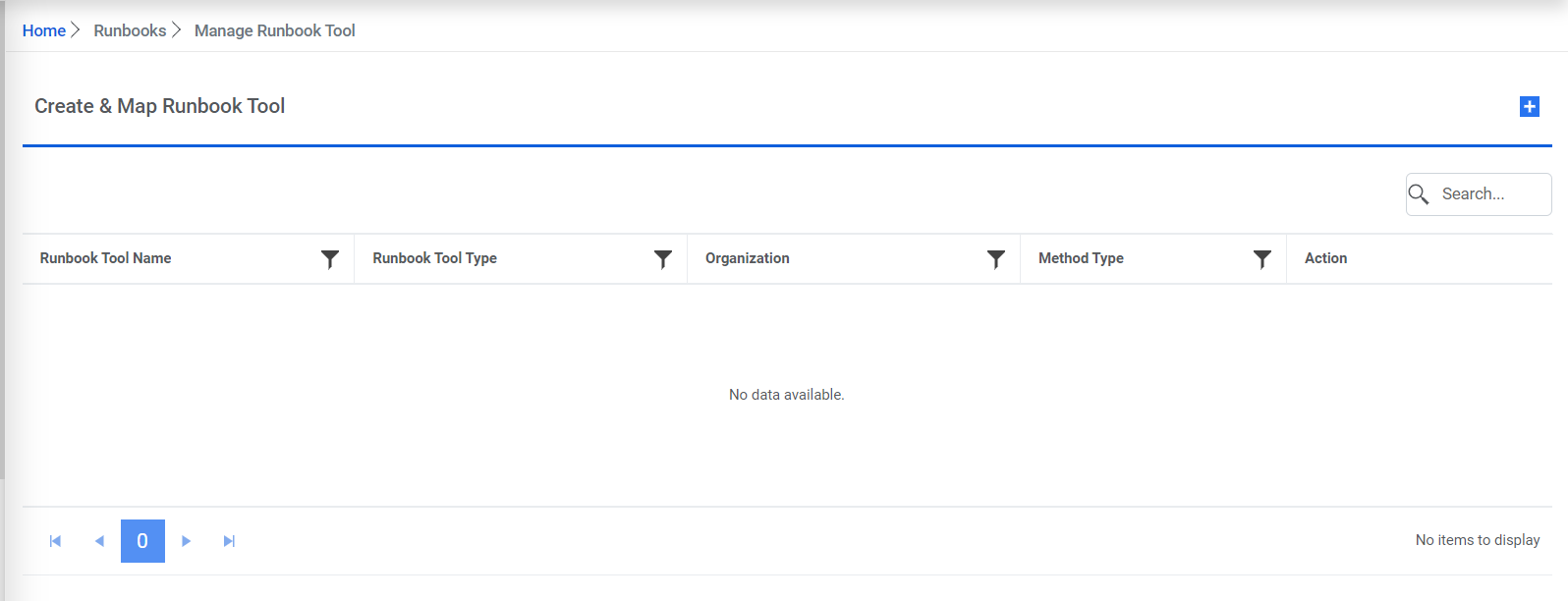
- Click Add New to add a new runbook tool.
- Provide the information below -
- Select the Organization.
- Enter Runbook Tool Name into the Runbook Tool Name field.
- Select ‘ITPAM’ as the Runbook Tool Type.
- Select ‘SOAP API’ as the Integration Method.
- Select ‘BasicAuth’ as the Authentication Type.
- Enter http://sample_itpam.com/itpam/soap (sample) in the API URL field.
- Select ‘Post’ as the Integration Method Type.
- Enter the User ID, Password, Master Runbook Path, Is Proxy Required, Return Code Key, Return Message Key provided by the Runbook Automation Tool team in the respective fields.
- Enter the Toil Value (For Manual Execution) which is the maximum manual execution time of runbook (in minutes). By default, it takes the value of the one configured on iAutomate Configuration page.
- Enter the Toil Value (For Auto Execution) which is the maximum Auto execution time of runbook (in minutes).
- Enter the Connection Retry Count which is the number of retries in case connection with RBA tool server is failed when a ticket is triggered for runbook execution.
Note:In case you are attending a classroom training, you get the above information from the instructor.
Figure 2. Manage Runbook Tool (Cont.) 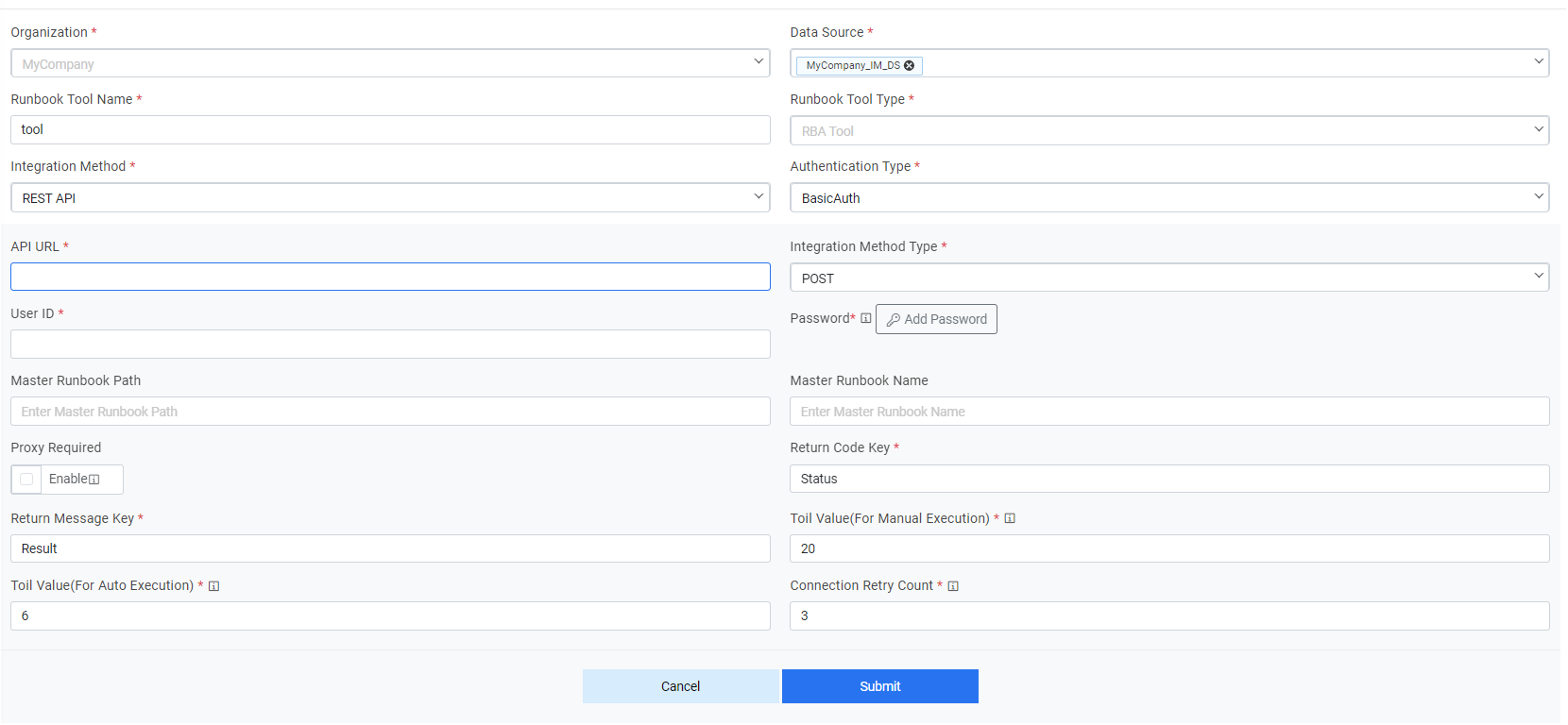
- Password- For password, click on icon next to it. If the password is available in plaintext, then select Input type as Input Text and enter the password in Value field. Else if it is available in Azure Key Vault then select Input Type as Azure Key Vault and then select any of the configured details from the value field. Else if it is available in any Key Vault such as CyberArk then select Input Type as CyberArk and then select any of the configured details from the value field. Else if it is available in Internal Secret Manager then select Input Type as Internal Secret Manager and then select any of the configured details from the value field.
Figure 3. Password in Plaintext .jpg)
Figure 4. Password from Key Vault (CyberArk) .png)
Figure 5. Password from Internal Secret Manager 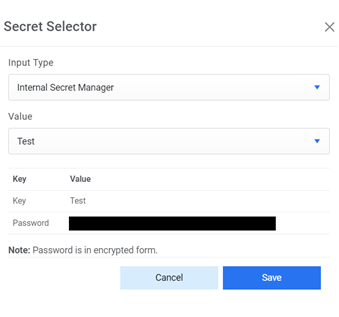
Figure 6. Password from Azure Key Vault .png)
- Click Save to create the runbook automation tool.
- To view the newly created Runbook Tool, go to Action -> Runbooks -> Manage Runbook
Tool. It will be visible in the list. You can edit/delete the tool by clicking the
respective icons under the Actions column.
Figure 7. Manage Runbook Tool (Cont.) 