‘EmailProcessing’ job is enabled, and status of job
is FAILED
Modules Impacted
EmailService
Resolution Steps
If root cause is ‘Not able to reach the component’ then check if
the EmailService service is up or not. For that, go to the server where
services are installed. Open ‘services’ by pressing win+R, type
‘services.msc’.Figure 1. EmailService – Scenario 2
Locate service ‘HCL.iAutomate.EmailService’ and check the status whether it is
in running or stopped state.Figure 2. EmailService: Scenario 2
If the service is not running, start the service.
To check if EmailService is running properly, load the WSDL file of
EmailService. To load the WSDL file of the EmailService, enter the
Heartbeat URL (http://serverip:port_for_ EmailService /EmailService/) for
EmailService on browser. You can find this URL in the config file of EmailService
by performing the following steps:
Click Win+R. Type services.msc and click OK.Figure 3. EmailService: Scenario 2
Locate HCL.iAutomate.EmailService. Right Click on service
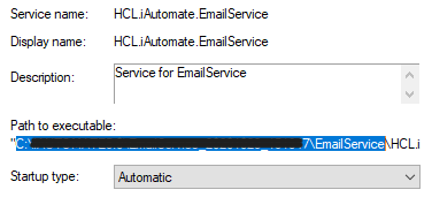
(HCL.iAutomate.EmailService), and click on Properties. Copy Path to Executable
as shown below.Figure 4. EmailService: Scenario 2
Open the selected folder. Locate
HCL.iAutomate.EmailService.Service.Host.exe.config file.
Open this config file in Notepad and search for key ‘ServiceHostURL’. The
value corresponding to this key is the heartbeat URL.
Paste the URL on the browser. If the following page appears, it means the
service is not running or there is some issue with EmailService.Figure 5. EmailService: Scenario 2
If the following WSDL gets loaded, it means that the service is running as
expected.Figure 6. EmailService: Scenario 2

.png)

.png)
.png)
.png)