
Manage SMTP
To make the configuration changes, please follow the below steps:
- Login into iAutomate console with Super Admin credentials.
- On the main menu bar, click Configuration and then click Manage SMTP. The
Manage SMTP page appears.
Figure 1. Manage Proxy 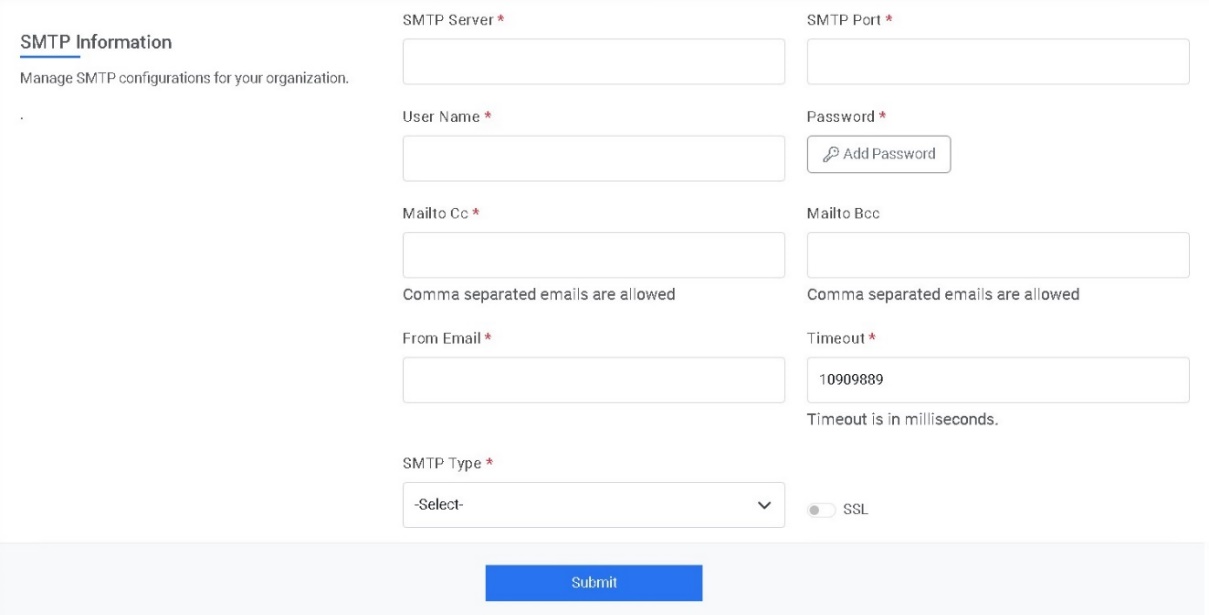
- In the SMTP Server field, type the SMTP Server.
- In the SMTP Port field, type the SMTP port.
- In the SMTP UserName and SMTP Password
fields, type the username and password to access the SMTP
server.Note:For password, click on icon next to it. If the password is available in plaintext, then select Input type as Input Text and enter the password in Value field. Else if it is available in any Key Vault such as CyberArk then select Input Type as CyberArk and then select any of the configured details from the value field. Else if it is available in Internal Secret Manager then select Input Type as Internal Secret Manager and then select any of the configured details from the value field.
Figure 2. Password in plaintext 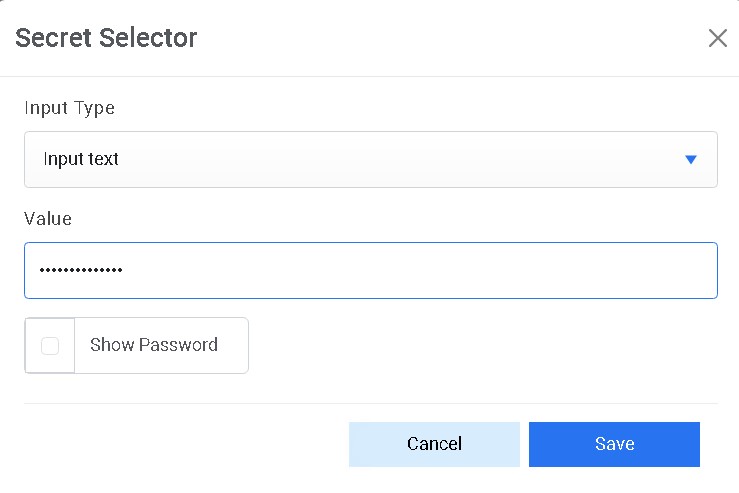
Figure 3. Password from Key Vault (CyberArk) 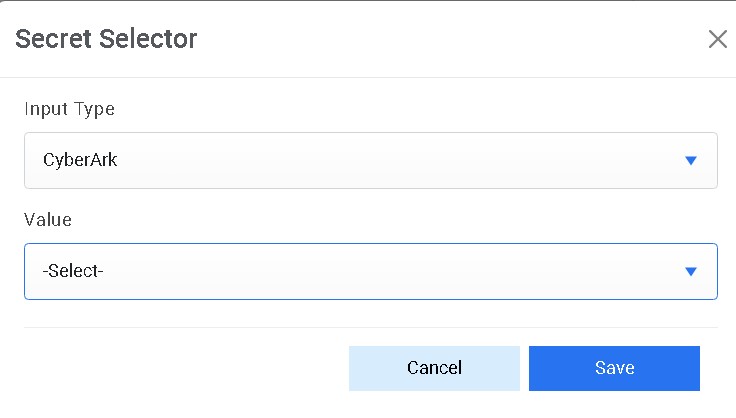
Figure 4. Password from Internal Secret Manager 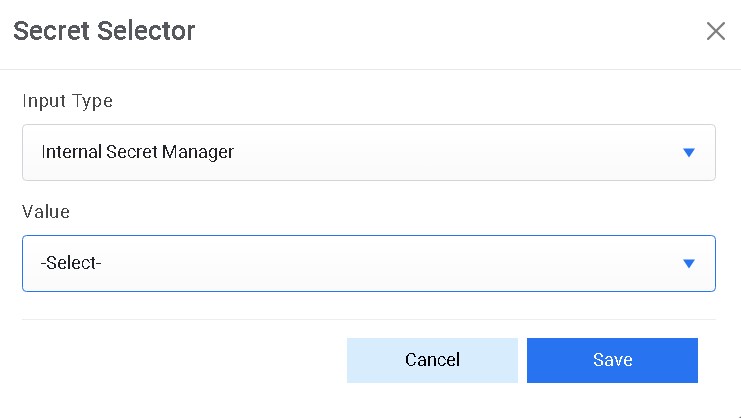
- In the Mail to Cc field, type the email of CC User.
- In the Mail to Bcc field, type the email of BCC User.
- Select SMTP Type.
- In the From Email field, type the email of user whose id is used to send email.
- Click Save.