
Server Configuration
This section describes how to set up and configure a server for BigFix Runbook AI installation.
To configure servers, provide the following details:
- All the server configurations are pre-populated based on the previously selected
previously selected server host/IP. Note:User can only change the username and password.
Figure 1. Server Configuration 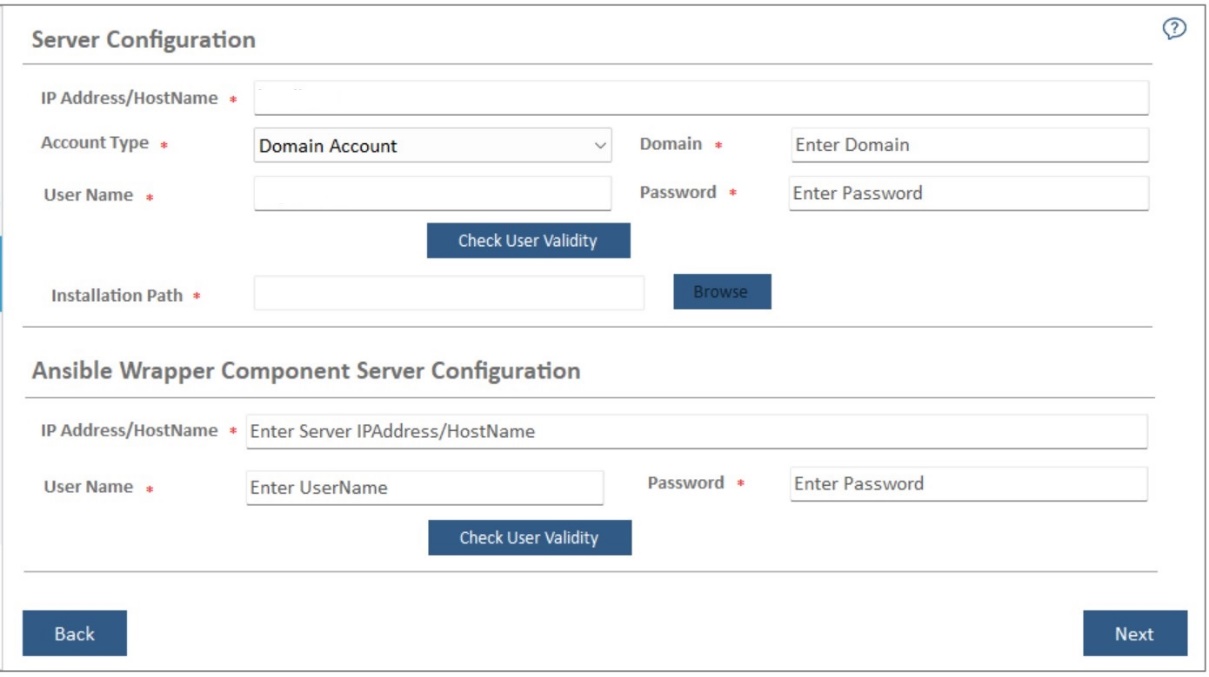
- Enter Password and Click Check User Validity to validate the user to connect to the server.
- On successful connection to the server, a Validation Successful message
appears beside the Password field.
Figure 2. Server Configuration (cont.) 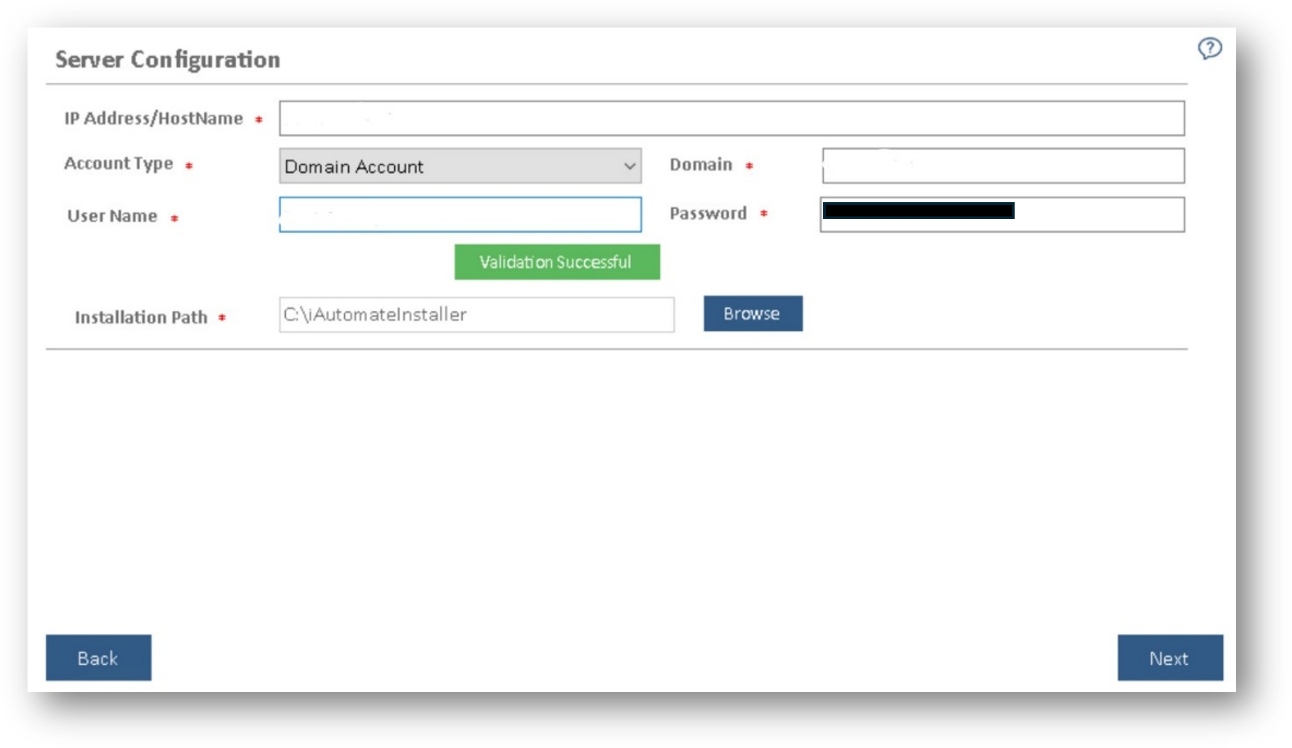
- Click Next. The Pre-Requisite Checker page appears. Note:All fields marked with an asterisk (*) are mandatory.
- If “Ansible CLI Wrapper Component” has been chosen below screen appear,
Figure 3. Server Configuration .jpeg)
- Ansible Wrapper Component Server Configuration:
- The IP Address/Host Name, where user wants to install the components.
- In the Username and Password fields, type the login credentials to access the server.
- Click Check User Validity to validate the user to connect to the server.
- On successful connection to the server, a Validation Successful message appears beside the Password field.
Note:The Ansible CLI Wrapper is installed on server where Ansible Wrapper is installed.Figure 4. Successful Validation 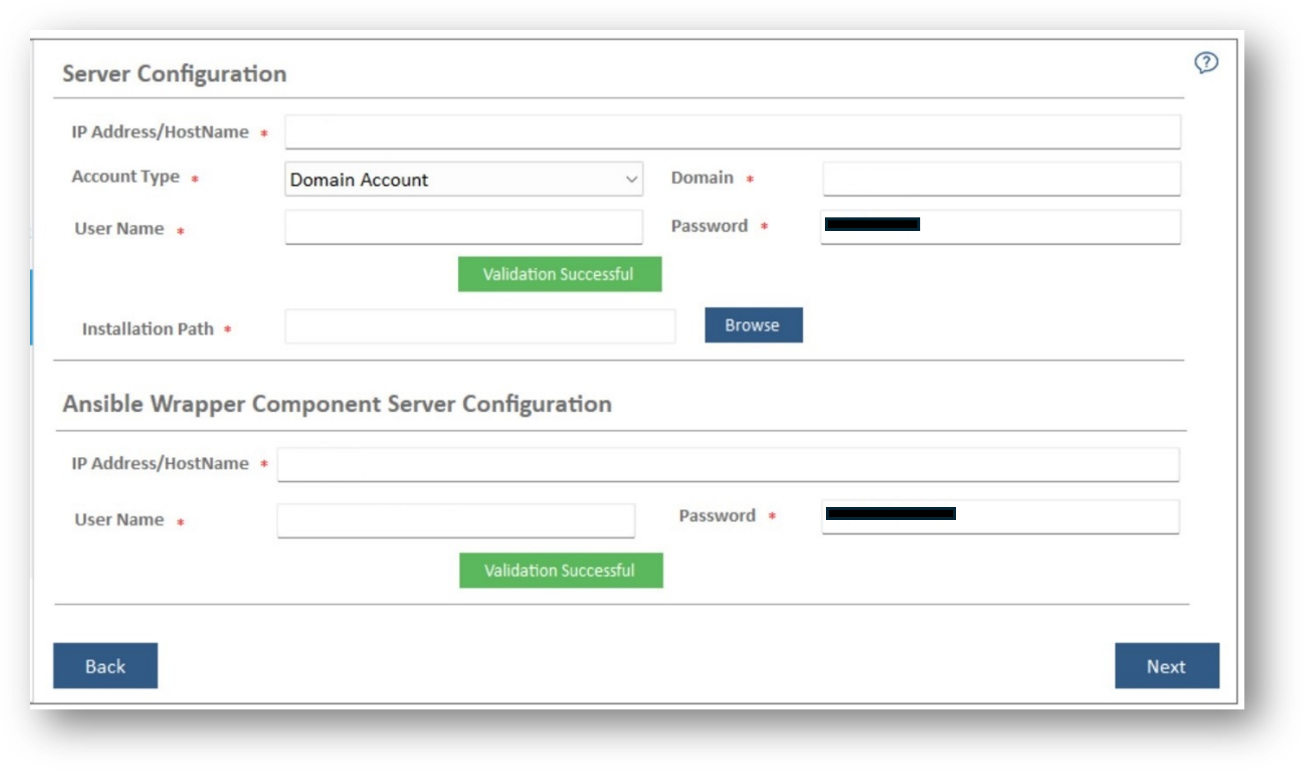
- Click Next.
-
The Pre-Requisite Checker page appears.
Note:
All fields marked with an asterisk (*) are mandatory.