
Accessing BigFix CLM
- Obtain the URL and user credentials for BigFix CLM.Note:Contact the person who has configured BigFix CLM or drop an email to bigfixclm-prodsupport-team@hcl-software.com
- Launch a web browser (Chrome, Mozilla, and Edge) and use the BigFix CLM URL and user credentials to login to the system.
- Enter the Email ID .
- Click CONTINUE.
Figure 1. BigFix CLM Login Page 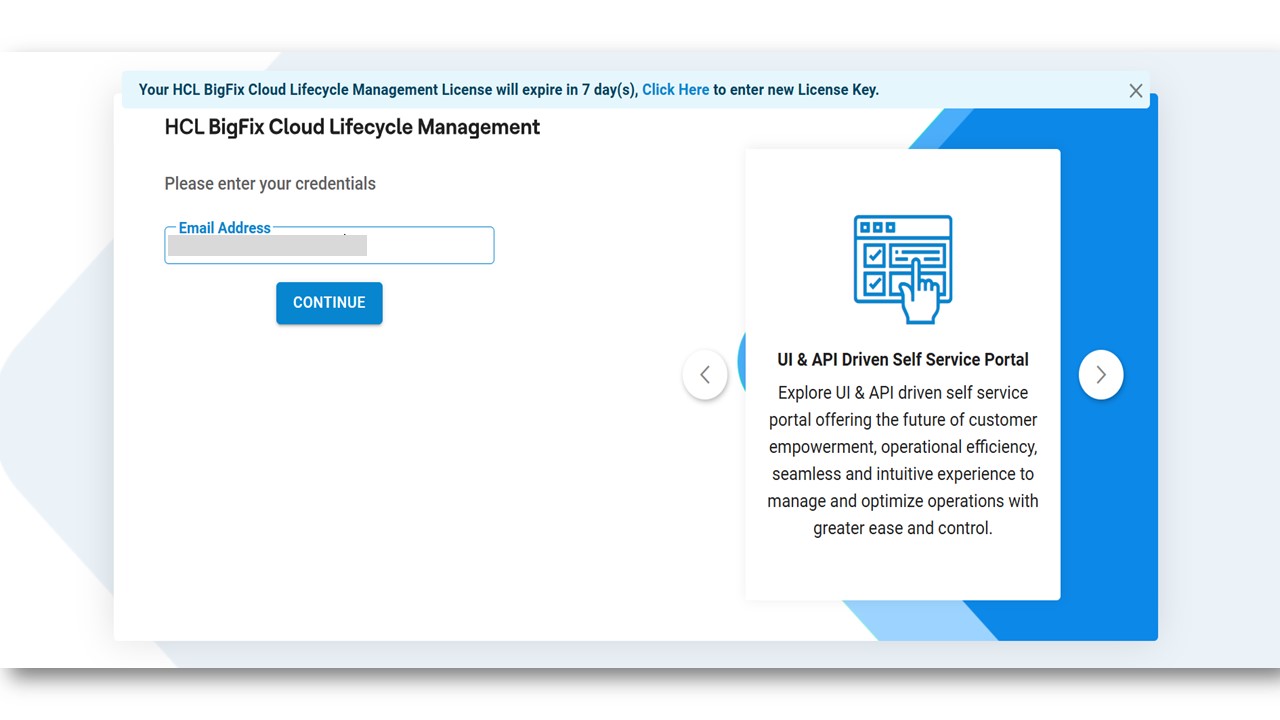
- Enter Password.Note:For security purposes, it is advised to change the password frequently and log out when you are not using the application.
- Select the Authentication Type. The following authentication types are available
for login:
Table 1. Authentication Type Authentication Type Description Form Based Authenticates the user through the credentials which are stored in the database LDAP Authenticates the user through Active Directory (AD) credentials SAML Based Authentication Authenticate the user through the third- party Identity Access Management (IAM) which supports SAML based authentication Note:If there are no login credentials, then drop an email to bigfixclm-prodsupport-team@hcl-software.com
If the login type is Form Based , no domain selection is required.
If the login type is LDAP , domain credentials need to be entered with domain selection.
If the login type is SAML, user gets re-directed to the authentication page.
Figure 2. BigFix CLM Login Page (Cont.) 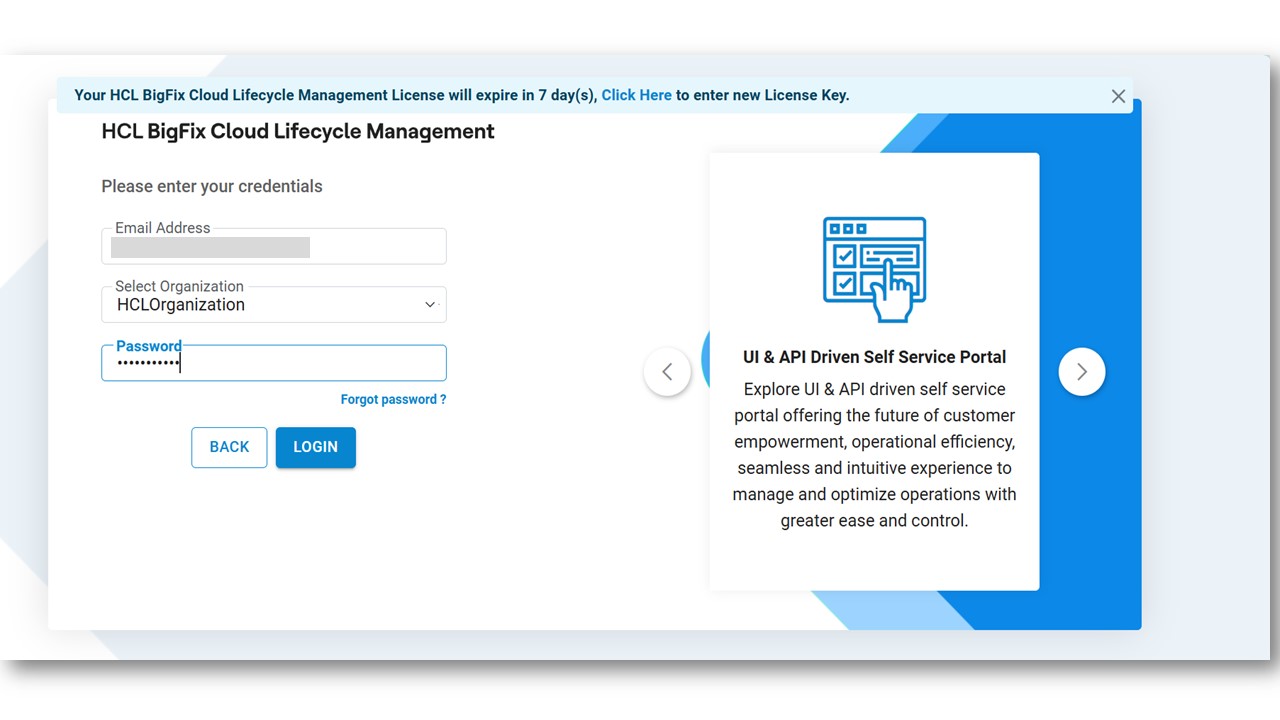
- Click Login.
- On a successful login, BigFix CLM homepage appears as shown below:
Figure 3. BigFix CLM Dashboard 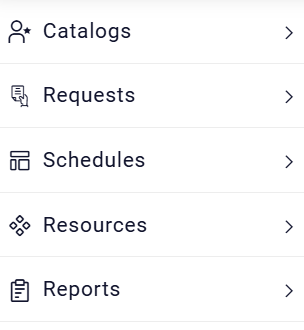 Note:Admin users can change the appearance of the BigFix CLM Web/Reports to meet Customer-specific branding by changing the logo.
 - The Requester Module has the following options:
- Catalogs
- Requests
- Schedules
- Resources
- My Reports