
Managing Tenants
This section describes how a provider can create and manage the tenant in an environment. A tenant is an instance of cognitive virtual assistance that is mapped to a customer in the environment.
To manage a tenant,
- In the left navigation bar, click Tenants.
- It redirects you to the Tenants screen.
Figure 1. Managing Tenants 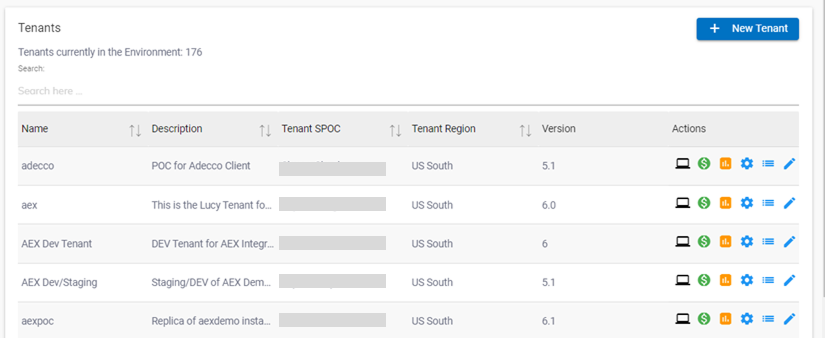
The screen includes the list of existing tenants in the provider environment and a
 button to create a new tenant.
A provider can add a new tenant, configure, edit, or delete the existing tenants’
properties, and view the tenant bills.
button to create a new tenant.
A provider can add a new tenant, configure, edit, or delete the existing tenants’
properties, and view the tenant bills.
Listed below are the details of the columns displayed in the Figure – Managing Tenants.
- Name: Name of the tenant instance.
- Description: Brief detail of the tenant instance.
- Tenant SPOC: Name of the contact person for the tenant.
- Tenant Region: Region where the tenant is deployed.
- Version: Release version in which tenant is currently running.
- Action: Option to edit tenant, manage tenant SSO, tenant billing and usage management, and navigate to Cognitive Console.
Adding Tenants
To add a tenant,
- On the Tenants screen, click
.png) .
. - It redirects you to the Create Tenant screen.
Figure 2. Adding Tenants 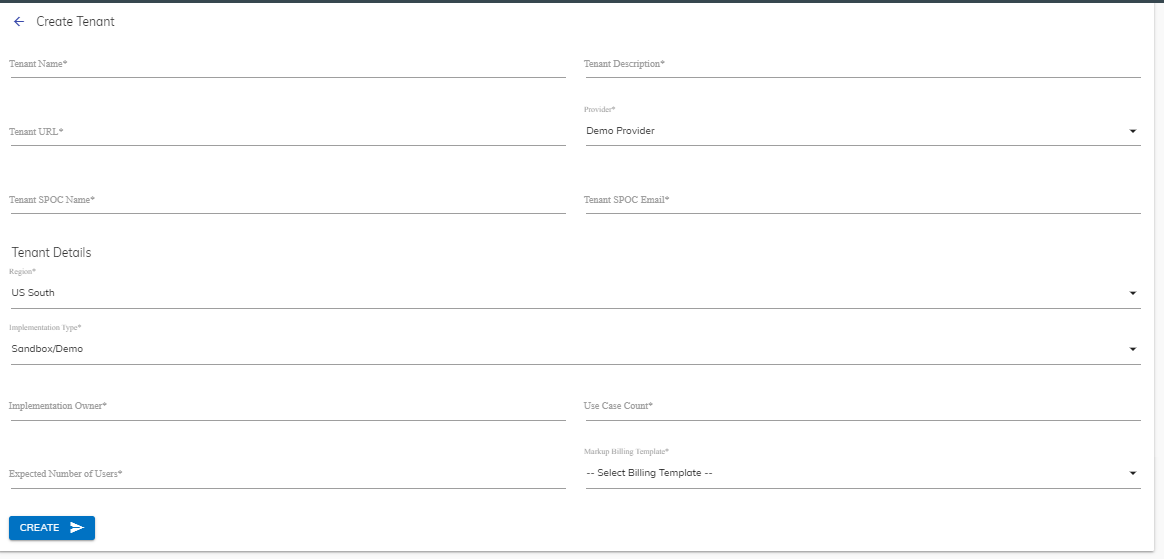
- In the Create Tenant form, specify the following information:
Table 1. Create Tenant Fields Fields Sub-Fields Description Create Tenants Tenant Name Name of the instance you want to create Tenant Description Brief detail of the instance you want to create Tenant URL URL to access the tenant instance Provider The name of the provider, creating the current tenant
This field is not available for the provider login.
Tenant SPOC Name Name of the contact person for the tenant Tenant SPOC Email Email ID of the contact person for the tenant Tenant Details Region Region where the instance will be deployed
US South is the primary region for the instance deployment.
Implementation Type Sandbox or Standard Implementation Owner Name of the user who manages the access of the end-users to the instance Use-case Count Number of use cases that can be added to the instance Expected Numbers of Users Number of users allowed to use the instance Mark up Billing Template The markup value to be added on top of the face value
The templates listed here are generated in the Creating Markup Billing for Tenants section.
- Click Submit and it provisions the following services for an instance:
- Environment
- Cognitive Engine
- Database
The new tenant is listed in the list of tenants shown in the figure –Managing Requests .
User based Billing Model
This section describes how to manage the bills and create billing templates for the provider. These templates are customized based on the services offered to a provider. To manage the billing template:
- Click on Billing Management in the left navigation bar.
- It opens the Billing Template screen on the right pane.
Figure 3. Billing Management 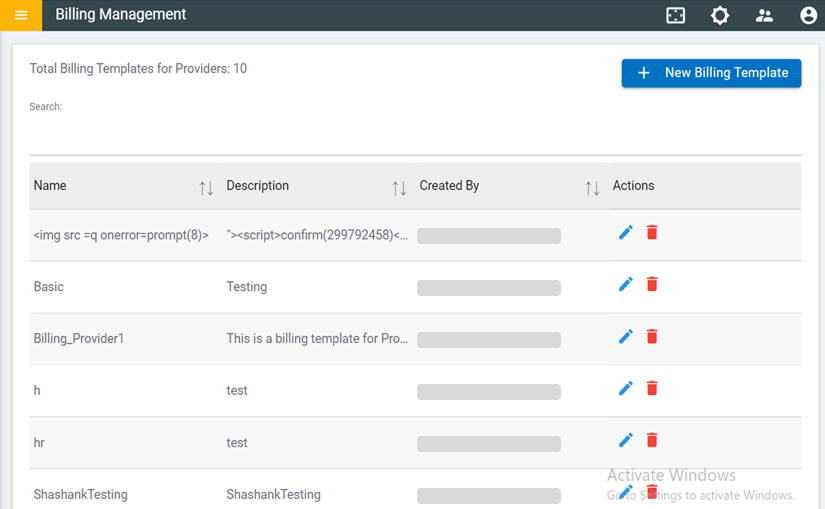
- The screen includes the list of existing billing templates and a
.png) button to create a new
template.
button to create a new
template. - Listed below are the details of the columns displayed in the figure - Manage Bills and Billing Template:
- Name - Name of the template
- Description - Brief explanation about the template
- Created By - Owner of the template
- Action - Option to edit or delete the template
The main objective of this user-based billing model is to implement the user feature in the billing model, which is based on how many users access the BigFix AEX bot. The Billing feature shows the number of messages, SOPs, and conversations displayed on the BigFix AEX bot.
- Click on on the Billing
Template screen.
- It navigates you to the screen which consist of the following billing template
sections:
- Create Billing - General information about the billing template.
- Billing Component - The component basis on which the provider is billed.
The BigFix AEX admin console provides you with various billing components such as
Conversation, Ticket Created Tenant/Monthly and so on.
Figure 4. Billing Management 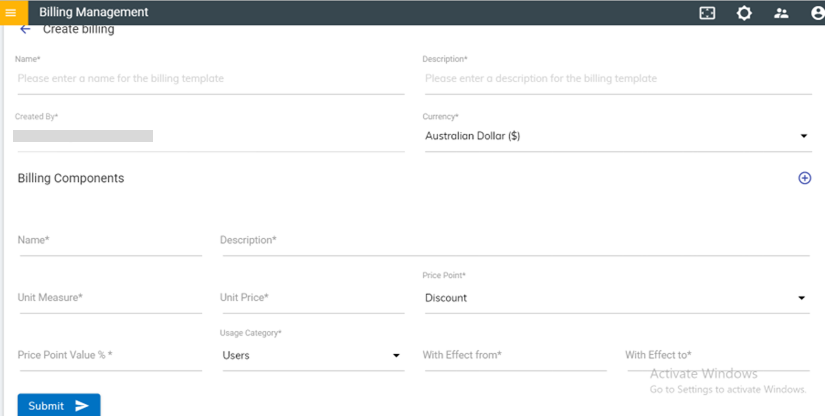
- In the Create Billing form, specify the following information:
- Name - Enter the name of the new template.
- Description - Enter the description of the new template.
- Created By - Email ID of the current user. This field is auto populated and non-editable.
- Currency - Select the currency in which it bills the provider.
- In the Billing Component form, specify the following information:
Table 2. Billing Components Fields Field Description Name Name to distinguish the templates created by selecting the different usage categories. For example, enter the conversation’s name to identify the billing component added by selecting “Conversation” as a usage category. Description A description of the billing component. Unit Measure Specific number of units that can be consumed. For example, 1000 conversations with BigFix AEX can be consumed. Unit Price Price of each unit measure. For example, $5 for each conversation. Price Point Discount or Mark-Up on the unit price. Price Point Value% Percentage of the discount or mark-up value to be applied on the unit price. Usage Category Billing components that are used to generate the bill. It includes the following categories:
- Users: Chat that concludes Based on the how many users are access the BigFix AEX bot
With Effect From Billing Start Date With Effect To Billing Close date Figure 5. Billing Components 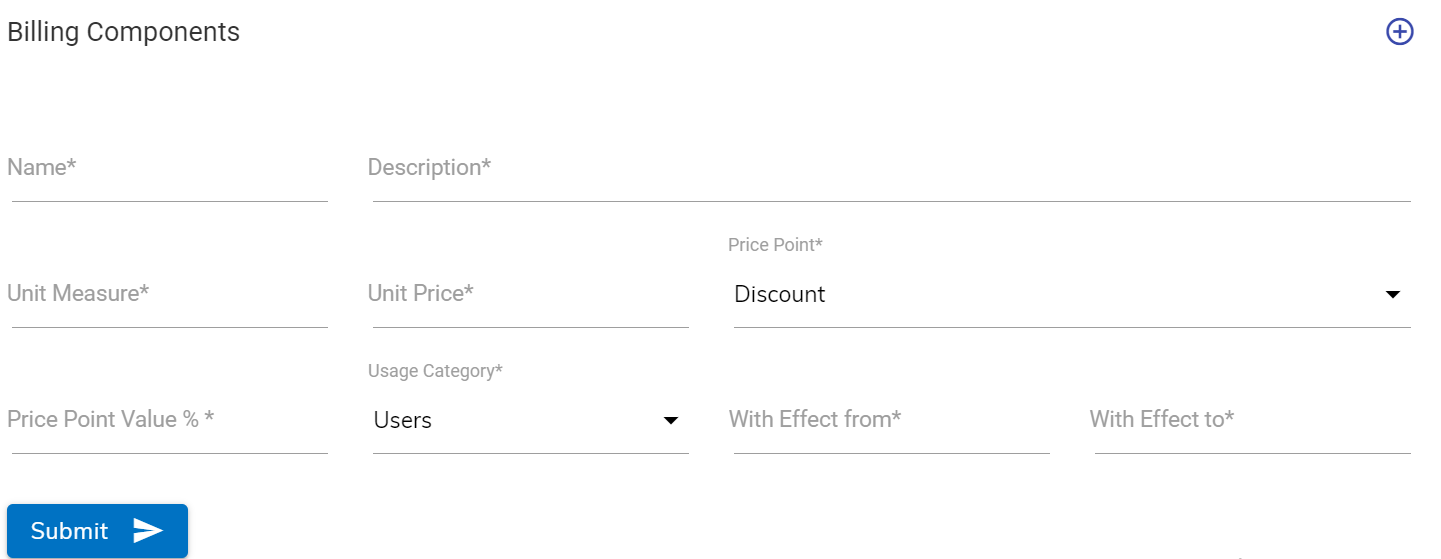
Figure 6. Users 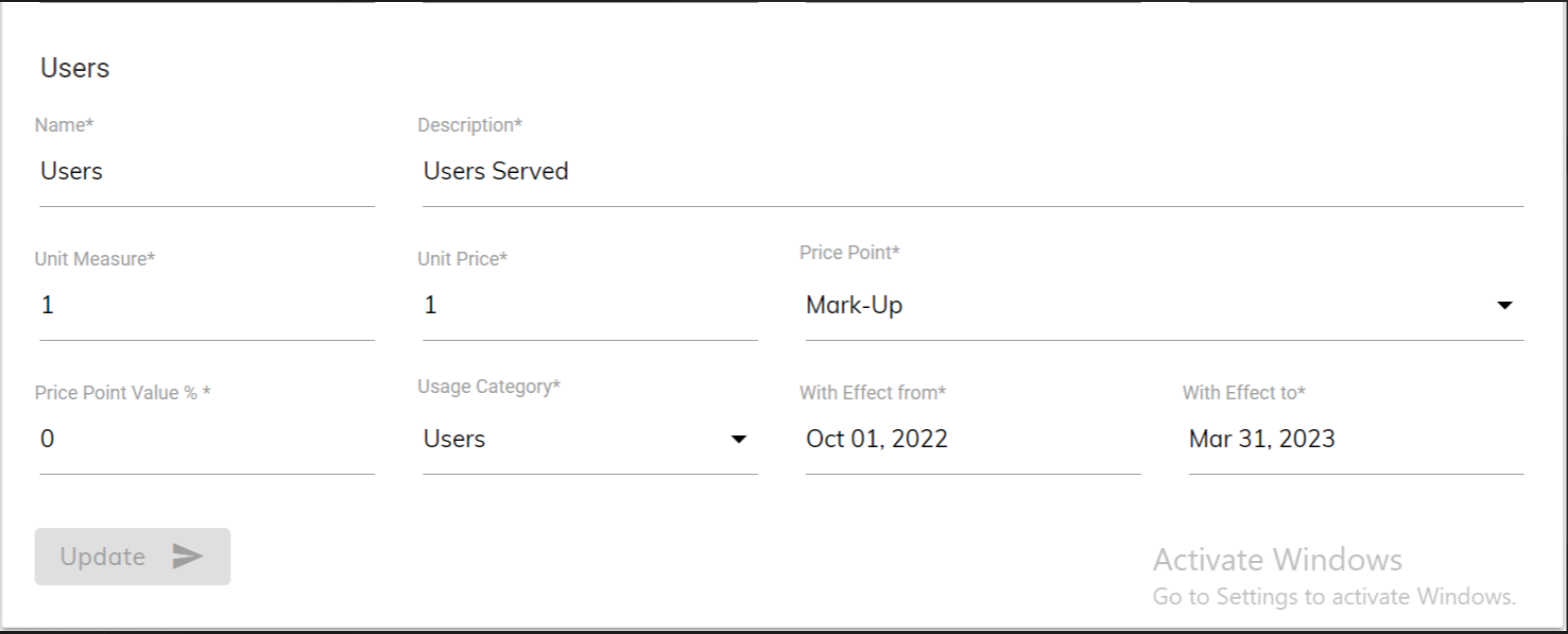
- To add more billing components to the same template, click on
.png) and it adds a new billing
component form below the current form.
and it adds a new billing
component form below the current form.Figure 7. Create Billing Dashboard 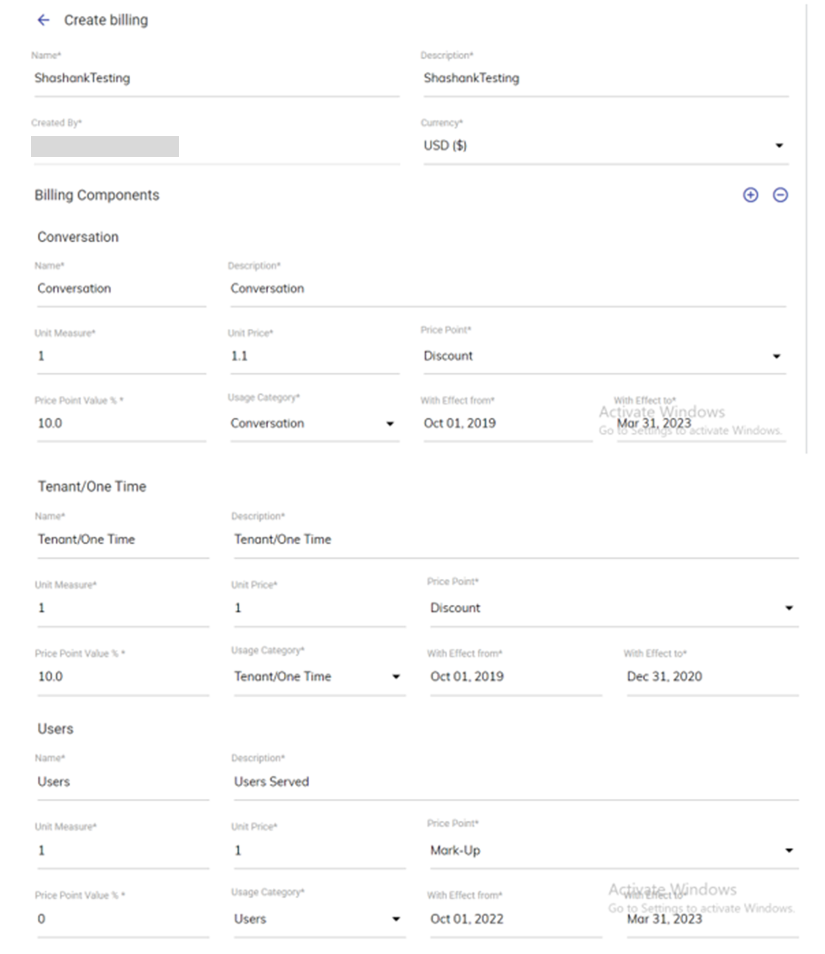
Configuring Tenants
To configure a tenant,
- On the Tenants page, click
 next
to the tenant you want to configure.
next
to the tenant you want to configure. Figure 8. Configuring Tenants .png) An additional configuration screen appears with a list of default services configured for a tenant. The services marked with a check
An additional configuration screen appears with a list of default services configured for a tenant. The services marked with a check under the Services box indicate their successful
provisioning.
under the Services box indicate their successful
provisioning.Figure 9. Configured Services for a tenant  Note:The failed provisioning of any service is indicated with
 under the
Service box. In such a situation, the user must either perform the above steps carefully
or raise a support ticket to troubleshoot the issue. You cannot deploy the failed
services.
under the
Service box. In such a situation, the user must either perform the above steps carefully
or raise a support ticket to troubleshoot the issue. You cannot deploy the failed
services.Figure 10. Configuring Instance 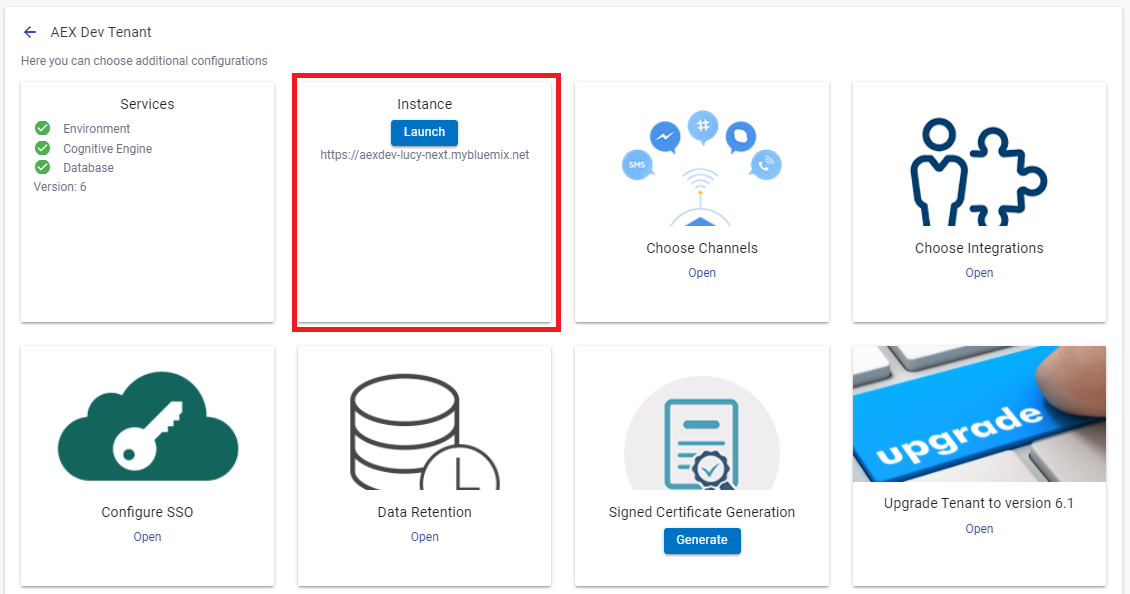
Once all the services indicate
 ,
,  button will be enabled in the Instance box as shown in the above-mentioned figure - Configuring Instance.
 - Click
.png) button to start the
deployment of the instance. The deployment is done automatically, and it takes a few
minutes to configure.
button to start the
deployment of the instance. The deployment is done automatically, and it takes a few
minutes to configure. - After the successful deployment, the
.png) button changes to
button changes to  button. A BigFix AEX chat instance URL is generated below the
.png) button as shown in the
figure - Configuring Instance.
button as shown in the
figure - Configuring Instance.Figure 11. Redirected to BigFix AEX Chat Instance 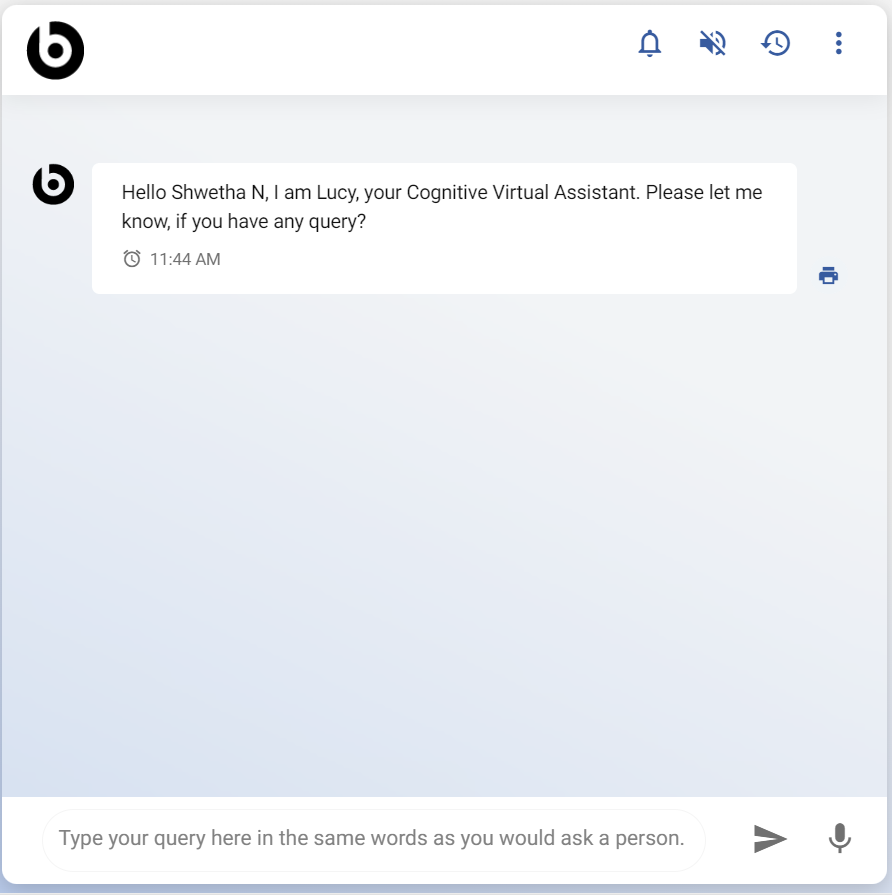 Note:For additional configuration, refer to the BigFix AEX Configuration Guide and the subsequent steps.
 - After successful deployment of the services and instance, it’s time to configure the channels.
- BigFix AEX is an omni-channel application that can work with several communication
channels.
For example, you might want to provide a Skype virtual assistant conversation facility for your application users. To provide the Skype facility, you must configure your chat instance to work with Skype so that your application users can interact with BigFix AEX by sending chat messages with their mobile devices.
You can also use more than one communication channel in an application, such as Microsoft Teams, Telegram, slack, and so on, to enhance the customers’ experience.
To enable multiple channels for an instance,
- Click Open in the Choose Channels box as shown in the Figure - Configuring Instance.
- It opens the list of channels available for the configuration based on billing
template customization.
Figure 12. Choose Channels 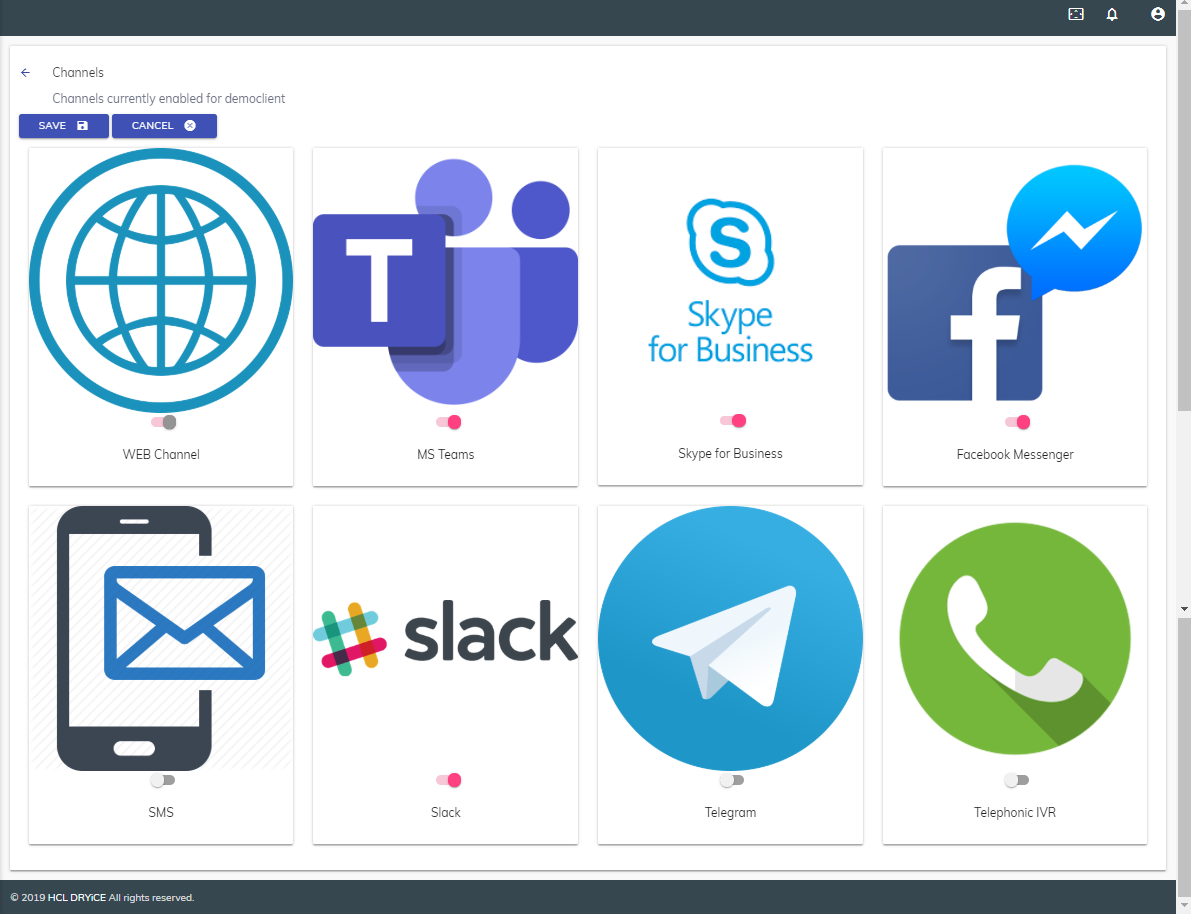 Note:The web channel is the primary channel for all the tenants and is always enabled with respect to BigFix AEX. The remaining channels are optional add-ons.
 - Use the toggle (
 ) button to
enable the channels that you need.
) button to
enable the channels that you need. - To initiate the channel configuration in the instance, click on the logo of a selected
channel. It activates the
 button with a support link.
 Figure 13. Channel Configuration 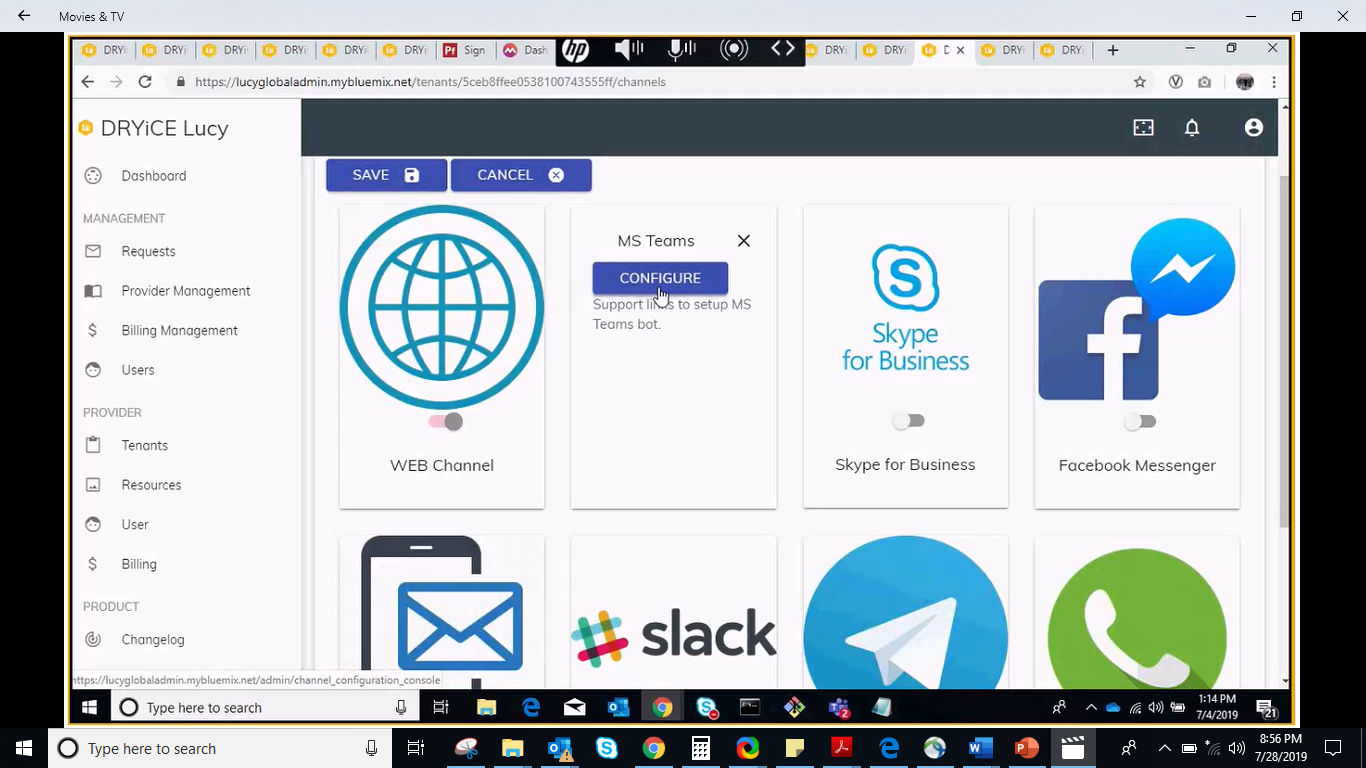
- Click
.png) button. It
re-directs you to BigFix AEX Cognitive Console of the respective tenant.
button. It
re-directs you to BigFix AEX Cognitive Console of the respective tenant. For further steps of channel configuration, refer to the BigFix AEX Configuration Guide. A user with access to configure channels will be able to configure the channel through the Cognitive Console.
- Click SAVE to add the channel as part of the instance configuration or click CANCEL to discard changes.
The next step is to configure the integrations.
- Click Open in the Choose Integrations box as shown in the figure - Configuring Instance.
It lists all the readily available, out-of-the-box connectors that can integrate with BigFix AEX chat instance, such as ITSM, HR, or Service Desk Queuing.
Figure 14. Setup Integrations 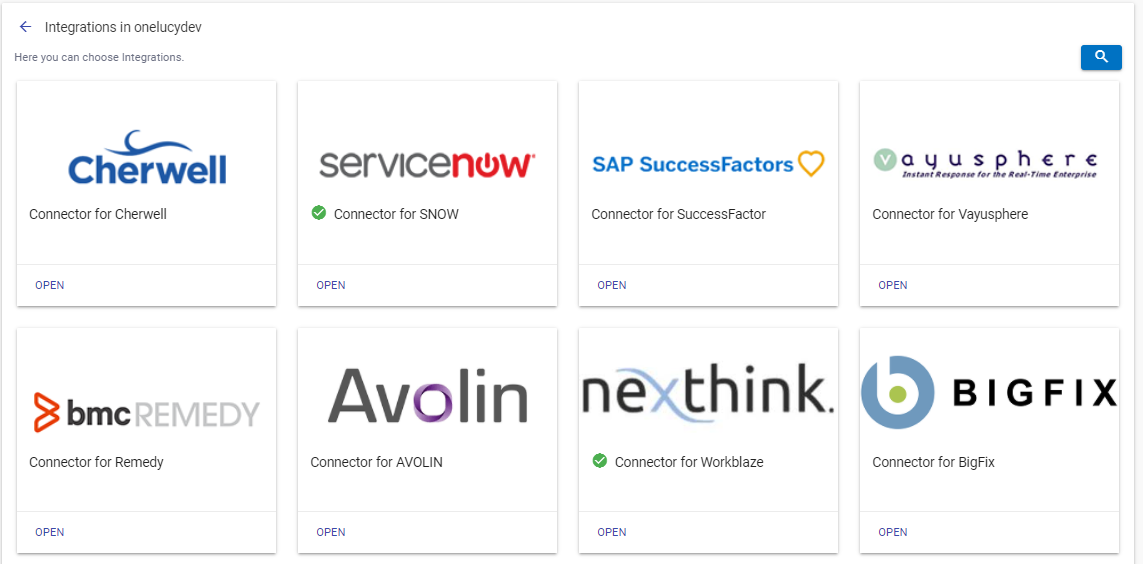
- To configure the integration connectors with the tenant instance, go to the integration that you want to configure and click Open.
- It opens a new page and asks you to enter the API credentials provided by the instance
integration to be used as a connector for the integration.
Figure 15. API credentials for integration instance 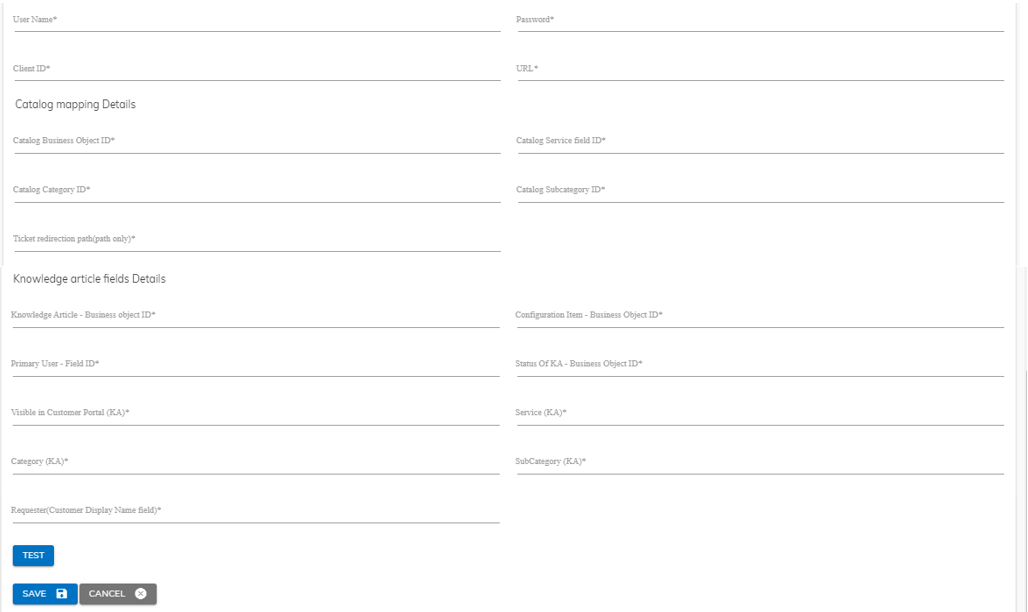
- Fill in the following details to communicate with the tenant instance.
- Username
- Password
- Client ID
- URL
- To verify the details, click the
 button.
 - On successful validation, the
.png) button changes to
button changes to  button.
 - Click Save to update details. It re-directs you to the Integrations screen.
Figure 16. Integrate Integration .png)
- On successful integration,
 icon appears on the integration box.
On successful creation of the tenant and their respective instance, the tenant can either use the HCL SSO or BigFix AEX’s User Management System mechanism to login into their instance. Initially, a tenant is not able to use their own SSO login credentials. In such a scenario, it is required to configure the customer specific SSO so that the other users of the organization can automatically login using their AD (Active Directory) instead of creating a new user.
To configure the tenant specific SSO,
- Click OPEN on the Configure SSO box as shown in the figure - Configuring Instance.
- The Register SSO page is displayed.
Figure 17. Configure Tenant SSO 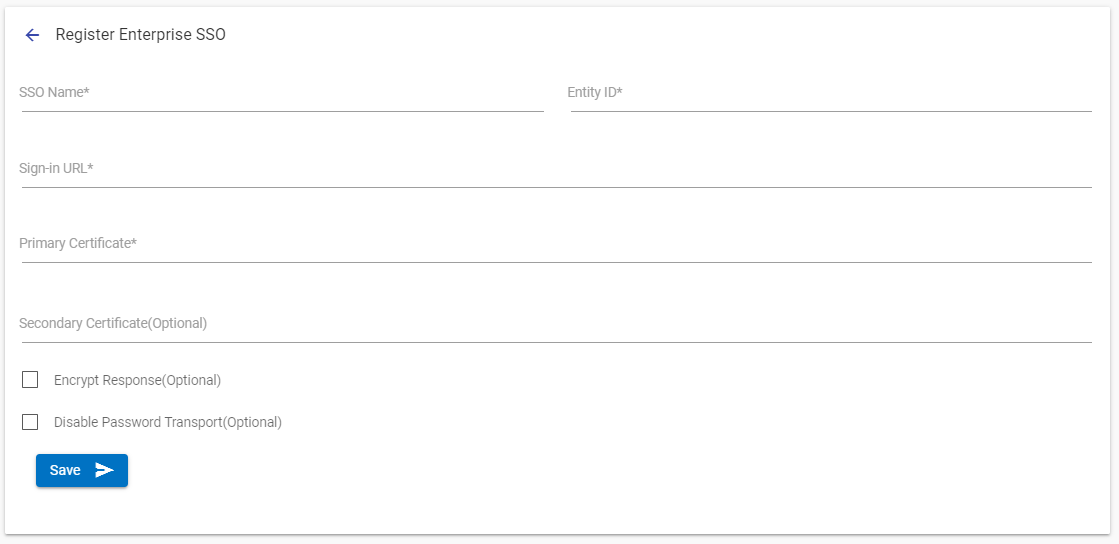 Note:Before you start the SSO configuration, contact the provider and get the SAML metadata file to fetch the required details for configuration. The SSO will use RSA-SHA256 as the algorithm to process the certificates. The AD of the provider environment assigns a unique email ID to each user. The AD must have the name ID format as "urn: oasis: names:tc:SAML:1.1:nameid-format:emailAddress” schema string.
 - In the Register SSO section, specify the following information:
Table 3. Manage Tenant SSO Field Description SSO Name The name you assign to your SAML configuration. Entity ID The globally unique name for an SAML identity provider. Sign-In URL The URL that the user is redirected to for authentication. It is hosted by your SAML identity provider. Primary Certificate It is used for signing and validating SAML assertions and is issued by your SAML identity provider. All providers are different, but you might be able to download the signing certificate from your identity provider. The certificate must be in .pem format. Secondary Certificate (Optional) The backup certificate that is issued by your SAML identity provider. It is used when the signature validation fails with the primary certificate.
If the signing key remains the same, App ID does not block authentication for expired certificates.
Encrypt Response (Optional) This option enables additional encryption on the SAML requests from the SP end. The certificate for this can be found on the downloaded metadata. Disable Password Transport (Optional) This feature disables the recognition authentication class on Password Transport. All the information mentioned in the table – Manage Tenant SSO is provided by the tenant to the provider to configure SSO.
- To configure SSO with an instance, click Submit. A Download button will appear from where the Service Provider (SP) metadata can be downloaded for performing application registration on the AD side.
- When prompted to confirm that you want to create the new SSO configuration for the tenant
and remove the default provider SSO configuration, click YES.
Figure 18. Tenant SSO Configuration Page 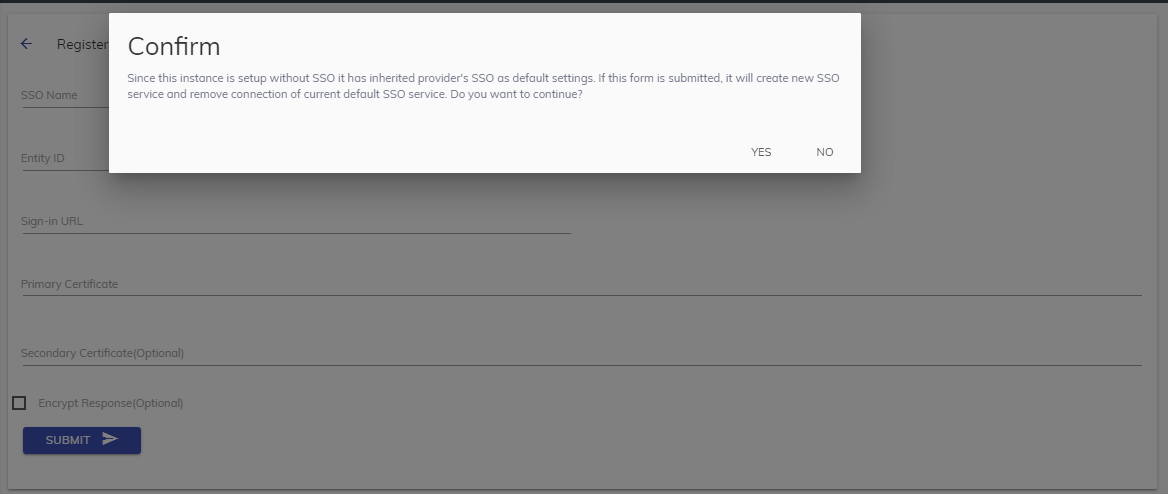
- It redirects you to figure – Configure Tenant SSO.
Click
 at the top left corner of the
screen to go back to the figure – Integrate
Integration.
at the top left corner of the
screen to go back to the figure – Integrate
Integration.
Editing Tenant
To edit a tenant,
- On the Tenant screen, click Edit (
.png) ) icon.
) icon. - The user is directed to the Create Tenant screen and shows the current tenant
details.Note:The Provider field is unavailable for providers as a logged-in user.
Figure 19. Editing Tenant 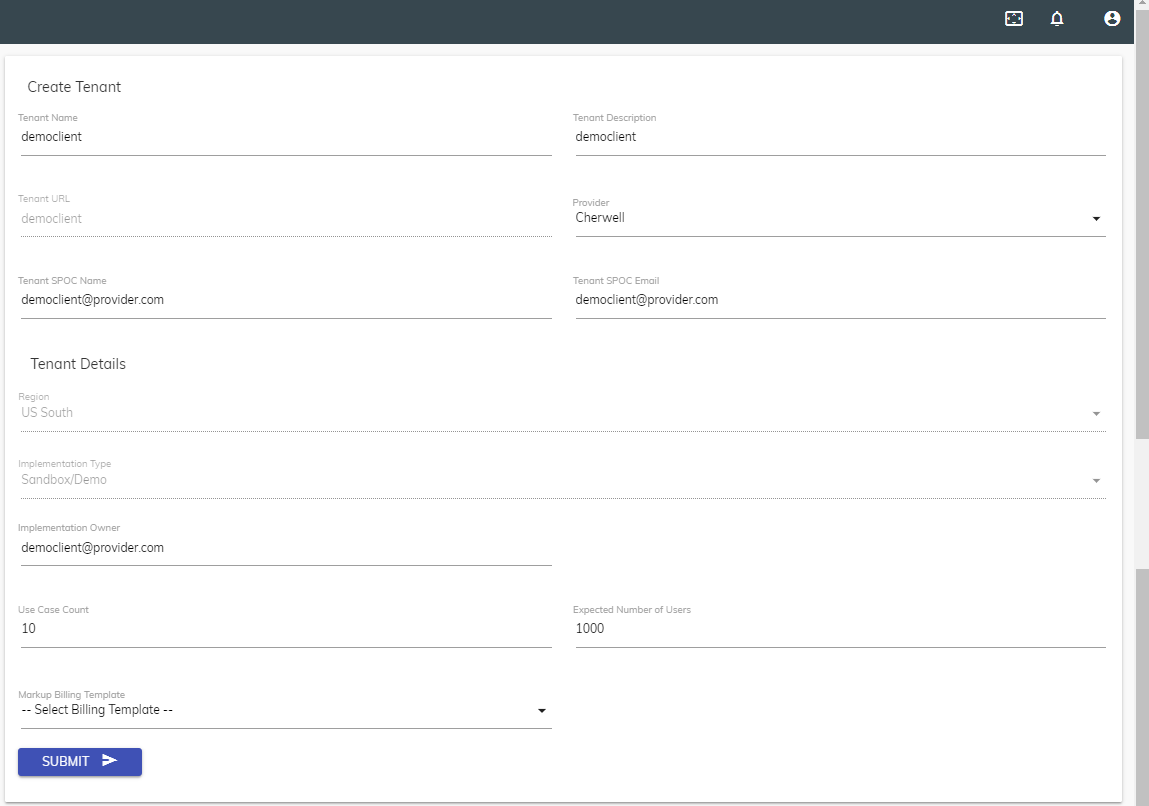 Note:All the fields except the Tenant URL, Region, and Implementation Type are editable to promote the ease of use for the user. If you prefer to change any of the above information, it is recommended that you create a new tenant with the required details.
 - Edit the selected tenant’s details and click Submit to commit changes.
Viewing Tenants’ Bill
In this section, the provider can see what they are charging the tenant and what is being charged by HCL to them.
- Go to Impersonate and click on the ‘Super Admin’ to proceed.
Figure 20. Impersonate 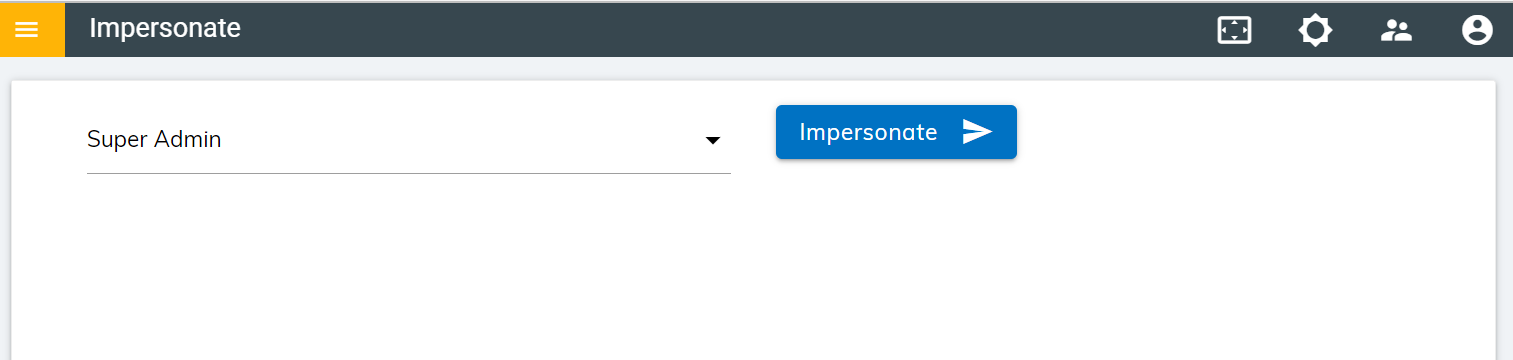
The Billing Charges are displayed in the figure below:
Figure 21. Billing Charges 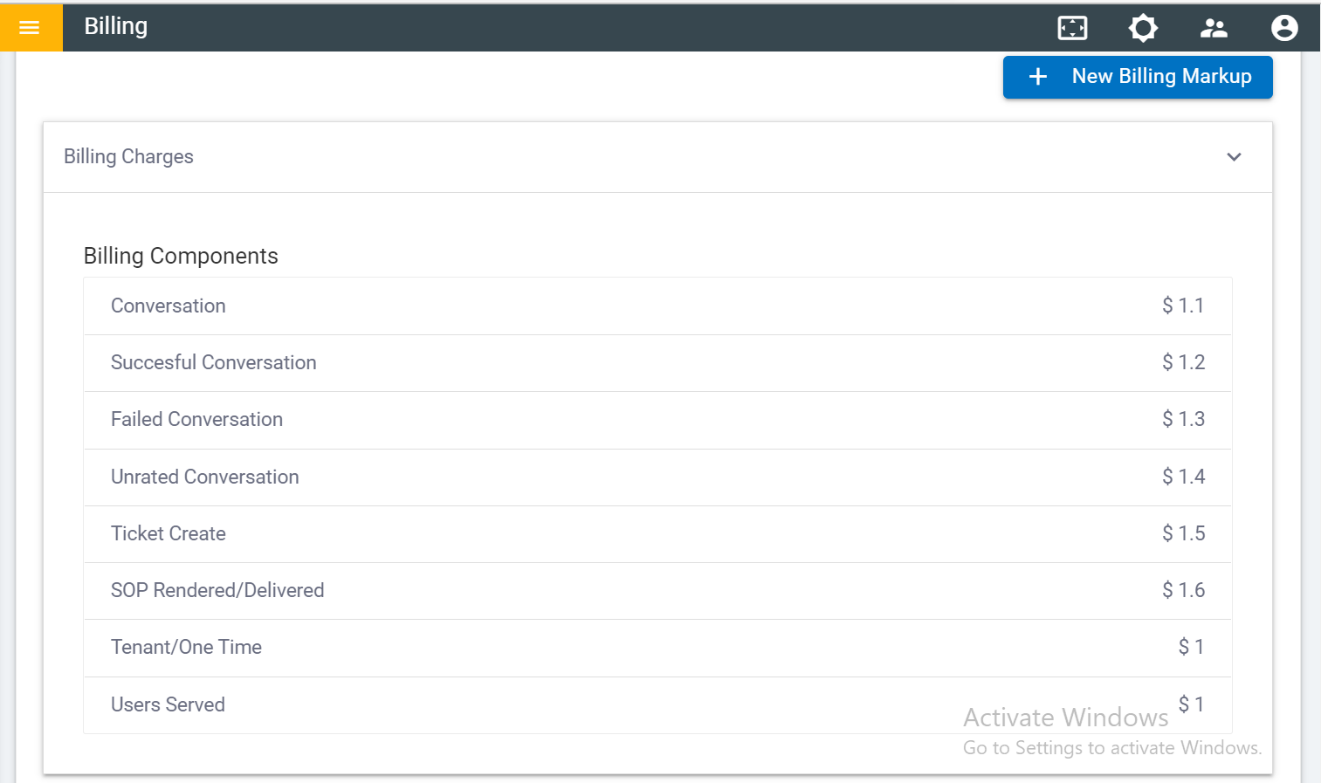
To view tenant billing,
- On the Tenants screen, click
 icon as shown in the figure – Configuring Tenants
 - It redirects you to the Tenant Billing dashboard.
Figure 22. Tenant Billing Dashboard 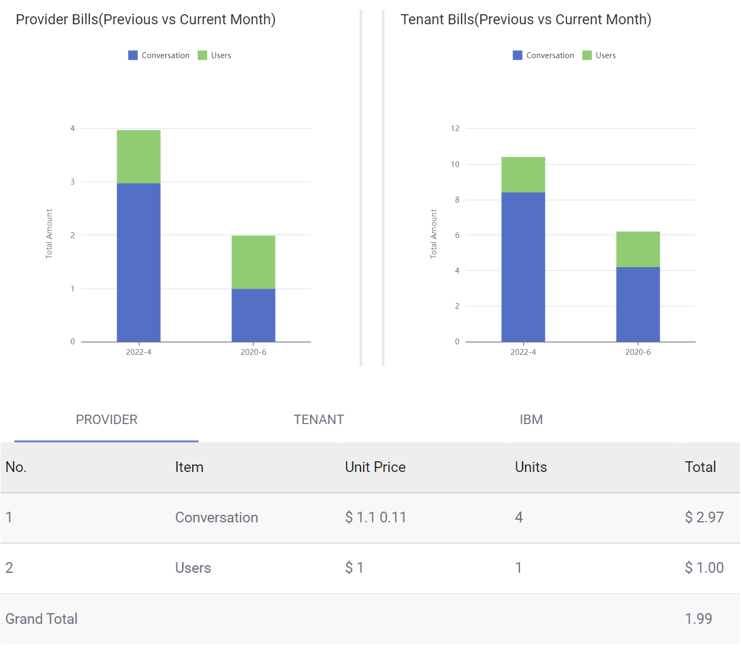
It shows the break-up of the charges applied to a provider by HCL or to a tenant by the provider post their bill generation. Users can use the month filter given at the top right corner of the dashboard to filter the data.
The dashboard comprises two panes:
- Provider: It shows the collective amount charged to a provider for each component
listed in the Item column by HCL.
Figure 23. Provider Billing View 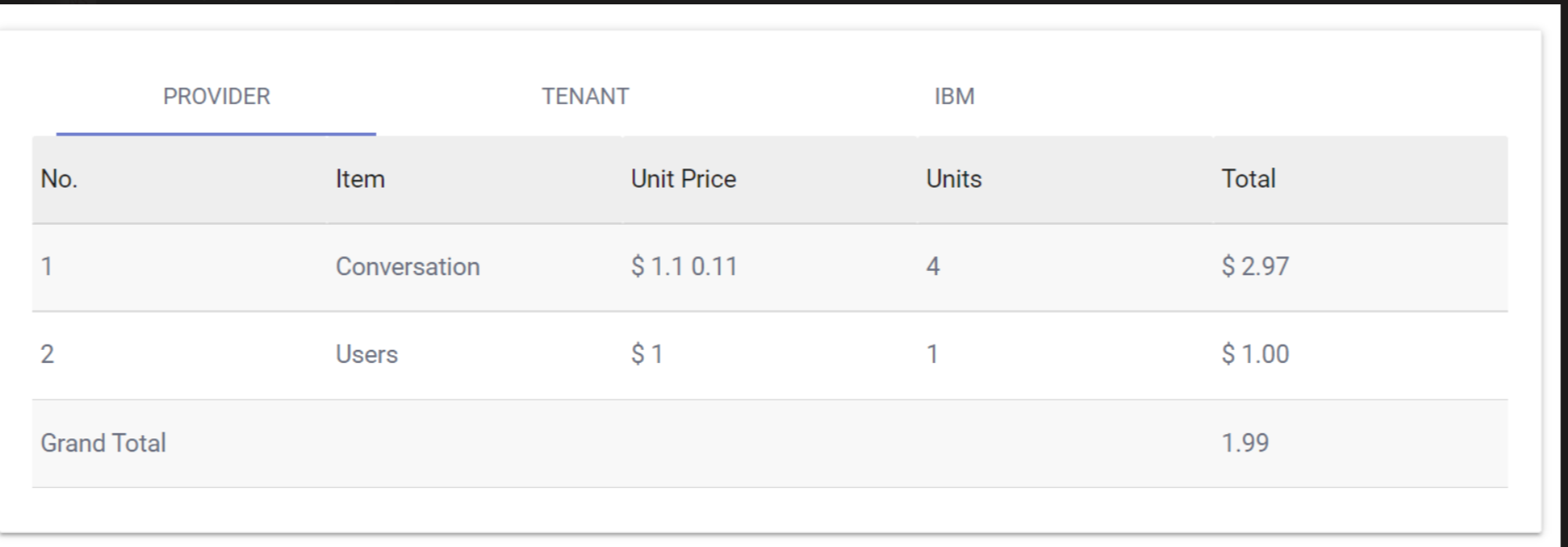
- Tenant: It shows the amount being charged to the tenant for each component listed
in the Item column by the provider.
Figure 24. Tenant Billing View 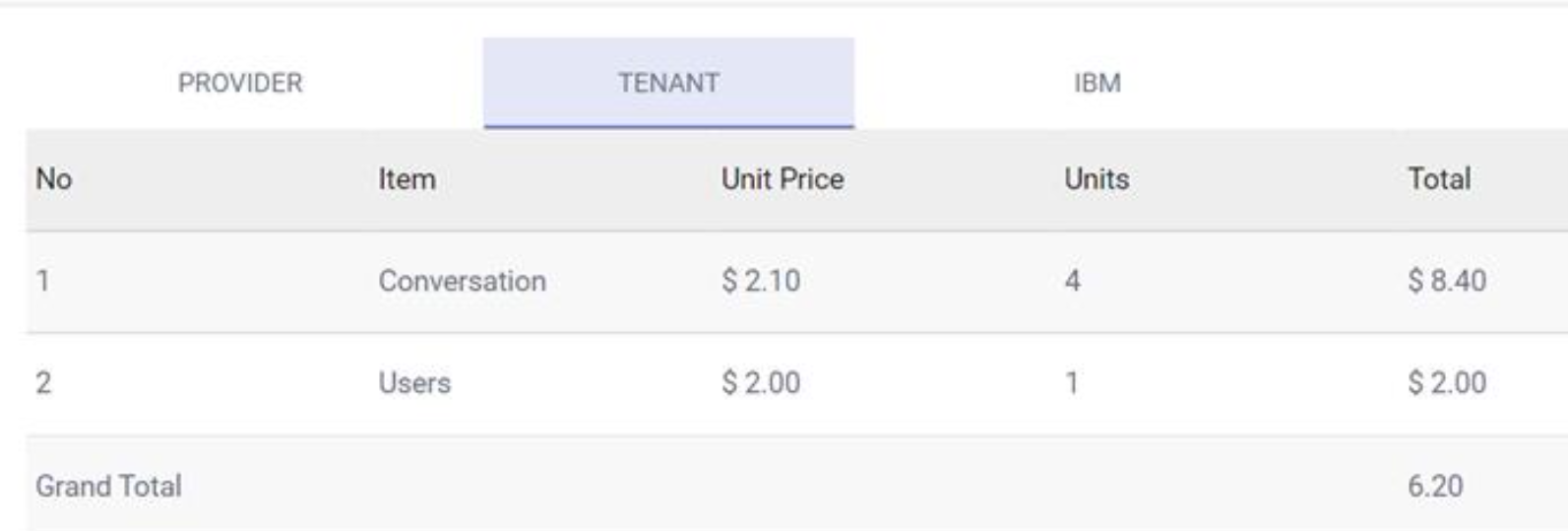
Listed below are the details of the columns displayed in the figure - Tenant Billing View:
- Item: Type of the billing components. Each billing component is charged separately.
- Unit Price: The unit price levied on the component.
- Units: The number of units consumed of the component.
- Total: The total amount charged for the units consumed in each component.
- Grand Total:The Grand Total gives the total of all the individual
components.The following figure comprises of two pie charts.
Figure 25. Pie Chart for Pricing and Markup 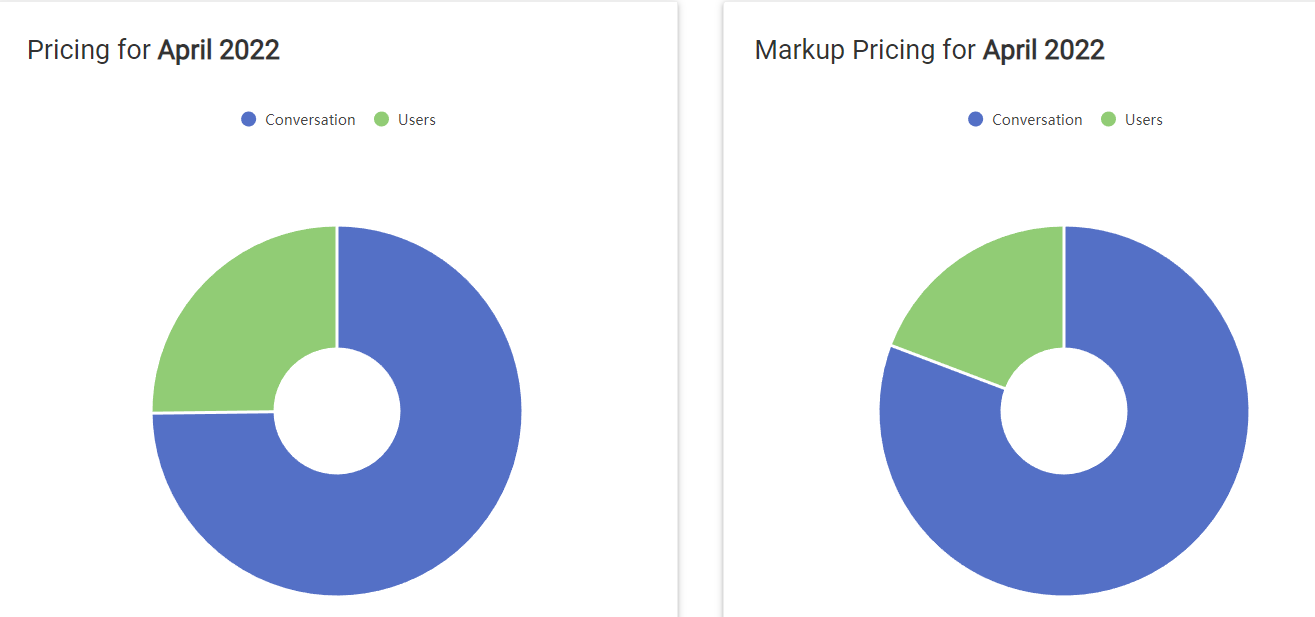
- Pricing: It represents the total amount charged to the logged in provider by HCL. Each wedge in the chart represents an individual component’s collective amount charged to the provider by HCL.
- Mark Up: It represents the markup amount levied on the tenant by the provider. Each wedge in the chart represents an individual component’s mark-up amount charged to the tenant by the provider.