Managing Users
This section describes how a provider creates new provider SPOCs who can manage the tenants and delete the existing provider SPOC from the environment.
To manage a provider SPOC,
- In the left navigation bar, click Users.
- The Users screen is displayed.
Figure 1. Users 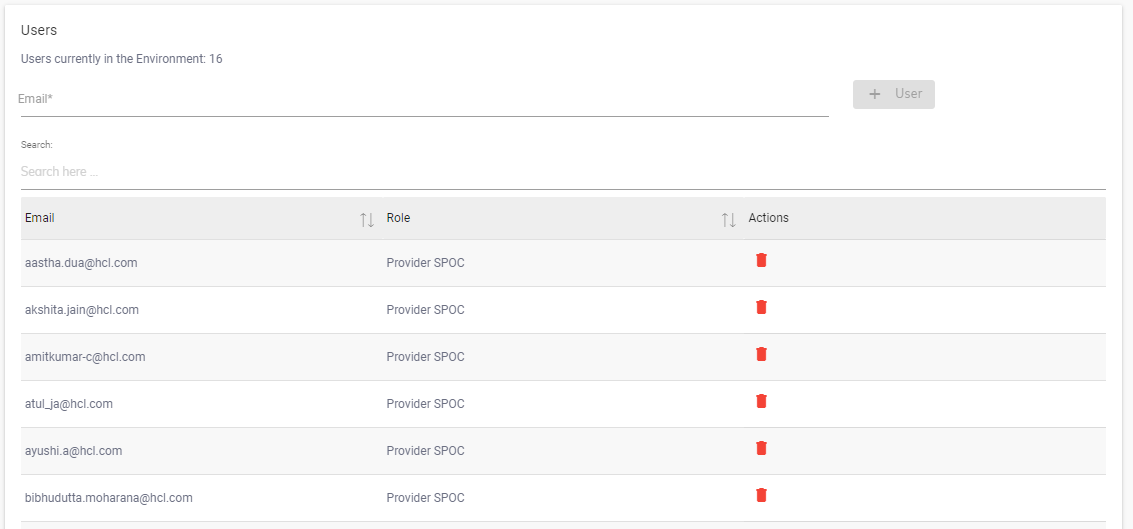
The screen includes the list of existing providers SPOCs in an
environment and  button to add a new
provider.
button to add a new
provider.
Note:
Only the current user with provider SPOC access can create another
provider.
Adding Provider SPOC
To add a provider SPOC,
- On the Users screen, enter the email address of the provider SPOC to be created in
the Email field.
Figure 2. Manage Users 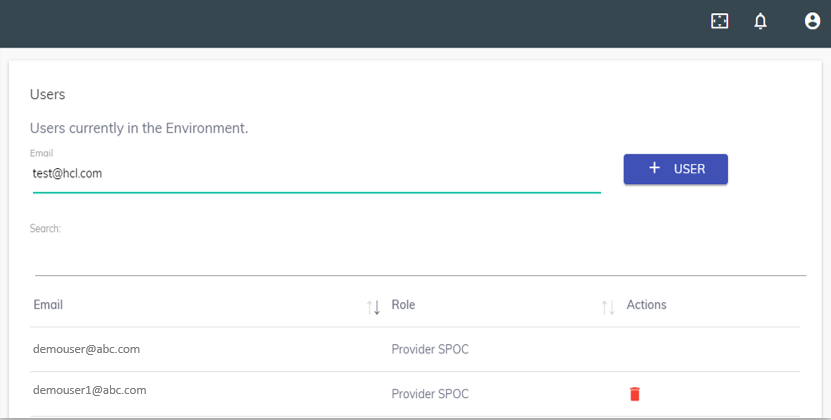
- Click
.png) .
.
A confirmation email is sent to the entered email ID and adds the new provider SPOC to the User list, shown in the figure – Users.
Search/Sort Super User/Provider SPOC
Use the Search field to scale down your search for a provider SPOC.
- Type the keyword for your search in the Search field on top of the users list as shown in the figure – Users.
- The user matching the search criteria are displayed.
- Click
.png) next to a column
heading to sort the user’s parameters under each column in alphabetical order.
next to a column
heading to sort the user’s parameters under each column in alphabetical order.
Delete Super User/Provider SPOC
To delete a user,
- On the User screen, click Delete (
.png) ) icon next
to the user you want to delete.
) icon next
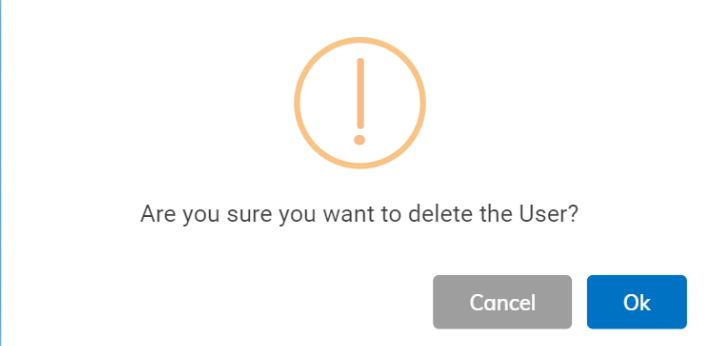
to the user you want to delete. - When prompted to confirm that you want to delete the selected provider, click
YES.
Figure 3. Delete Users