Installing MSK
AWS Managed Streaming for Kafka (MSK) is configured with IAM-based and SASL authentication. Secrets are managed in AWS Secrets Manager and linked to MSK.
AWS MSK provides a highly available Kafka cluster managed by AWS. This section details its configuration.
- In the AWS MSK page, click Create cluster. In the Create cluster page,
select Custom create, and enter the following details to create a provisioned cluster.
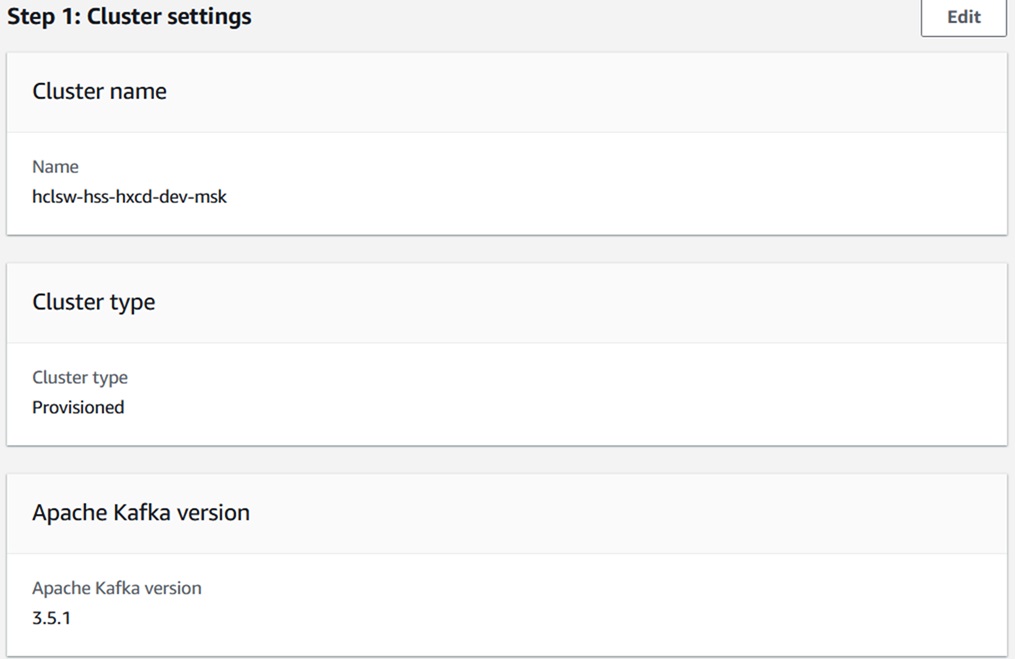
- Cluster Name: hclsw-hss-hxcd-dev-msk
- Cluster Type: Provisioned
- Kafka Version: 3.5.1
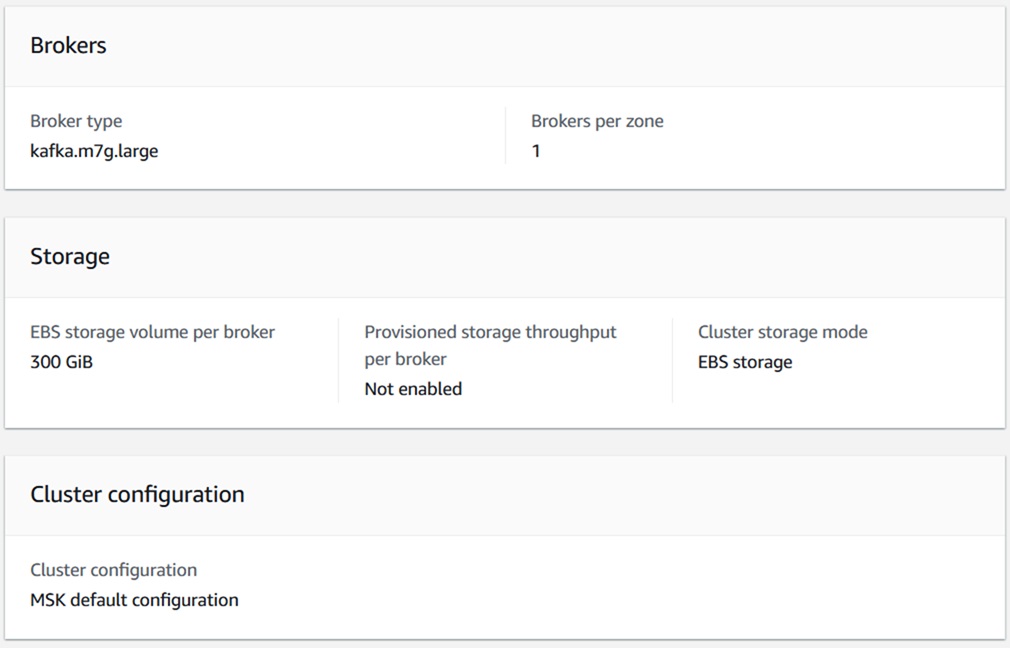
- Broker Type: kafka.m7g.large
- Number of broker per zone:1
- EBS storage volume per broker: 300 GiB
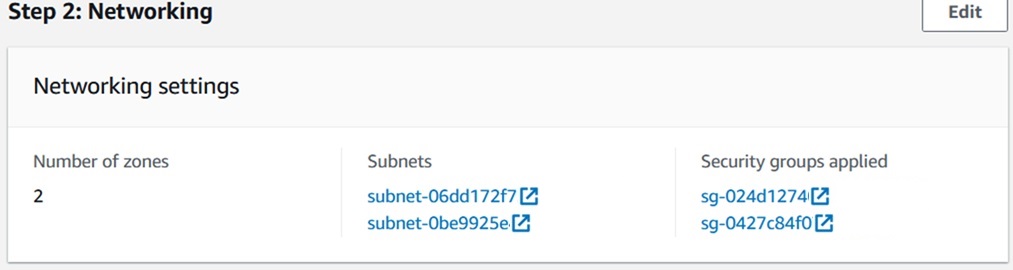
- Click Next, and in the Networking page, select number of zones as 2.
- Configure the subnets as subnet-06dd172f732b25926 and subnet-0be9925e46f6ef44a.
- Assign MSK security group (sg-024d127404d8fd9d5 and sg-0427c84f077122631) and appropriate
inbound rules.
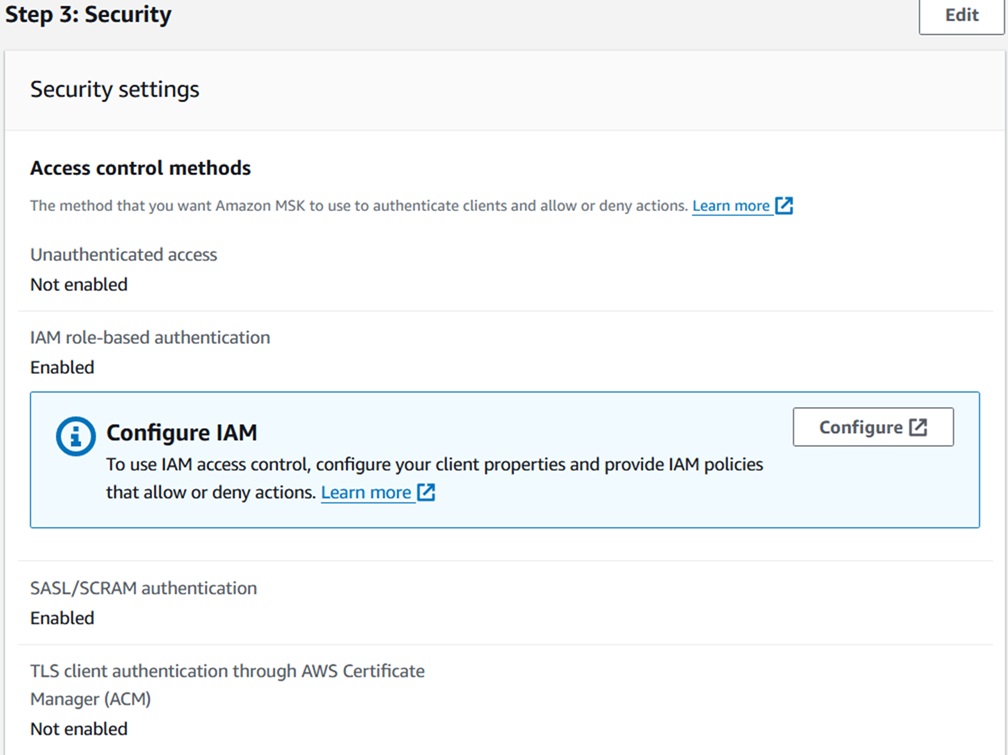
- After updating the network configuration, click Next. In the Security page,
configure the following:
- Enable IAM-based and SASL/SCRAM authentication.
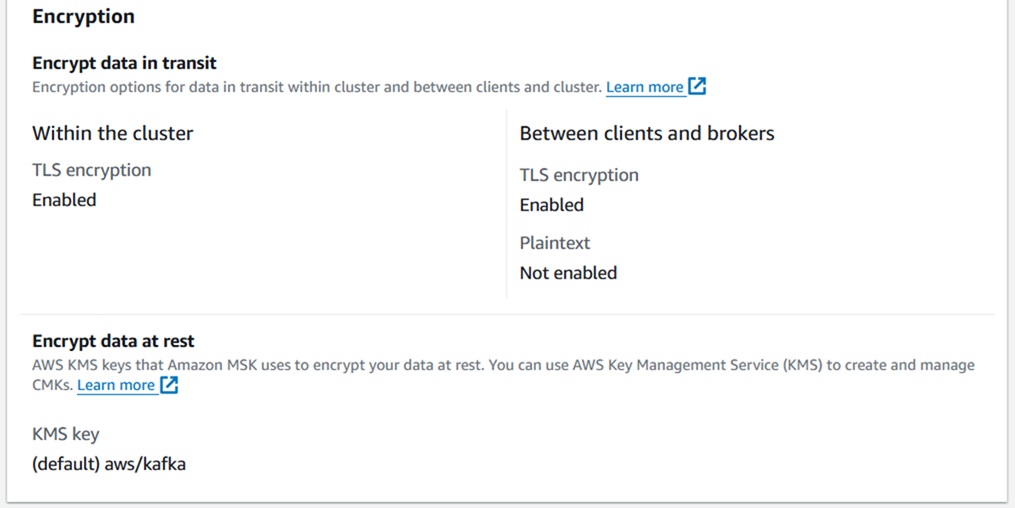
- Enable TLS encryption for data in transit and between clients and brokers.
- Use a custom or AWS-managed KMS key to encrypt data at rest.
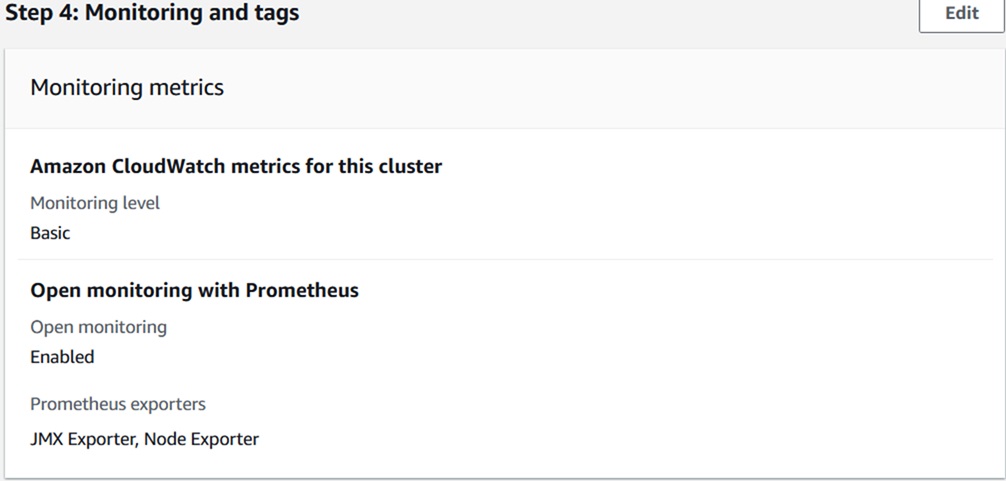
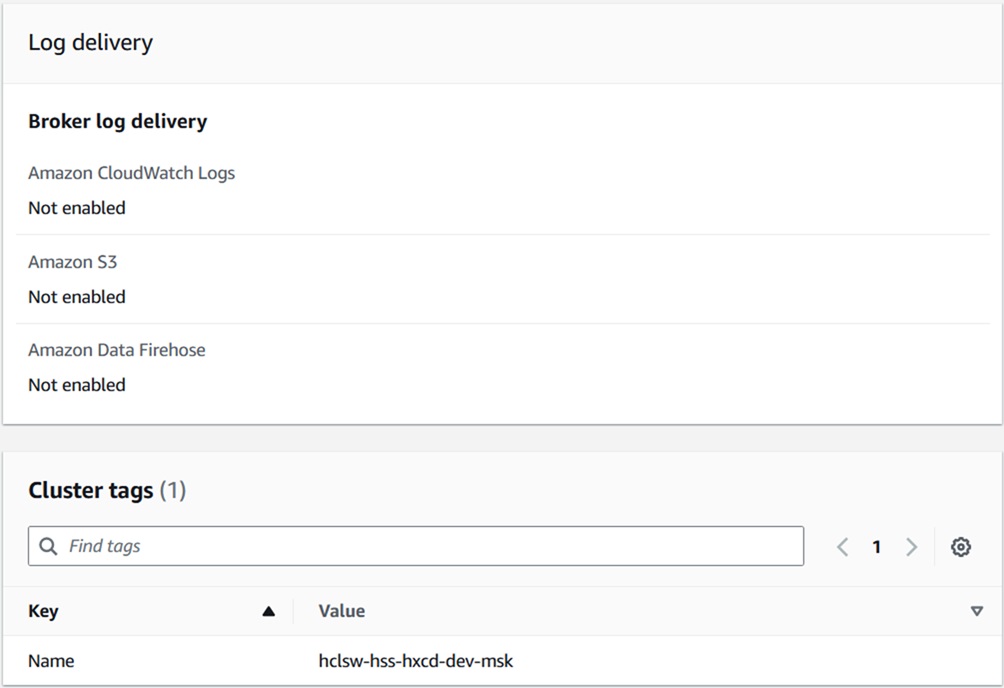
- Click Next, and in the Monitoring and tags section, make the changes as
shown below.
- In the Amazon CloudWatch metrics for this cluster section, select the Basic monitoring option.
- In the Open monitoring with Prometheus section, select the Enable open monitoring with Prometheus option. Where, Prometheus exporters are JMX Exporter and Node Exporter.
- In the Cluster tags section, enter the Key field as Name, and the Value field as hclsw-hss-hxcd-dev-msk.
- Click Next, and in the Review and create section, review and click Create cluster.
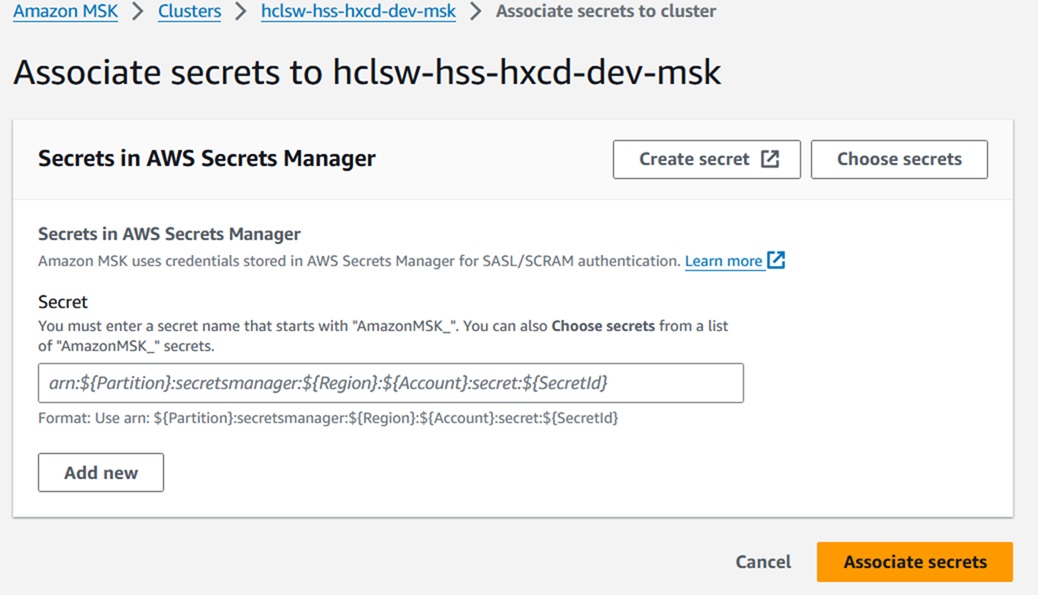
- After creating the clusters, navigate to Cluster > Properties > Security
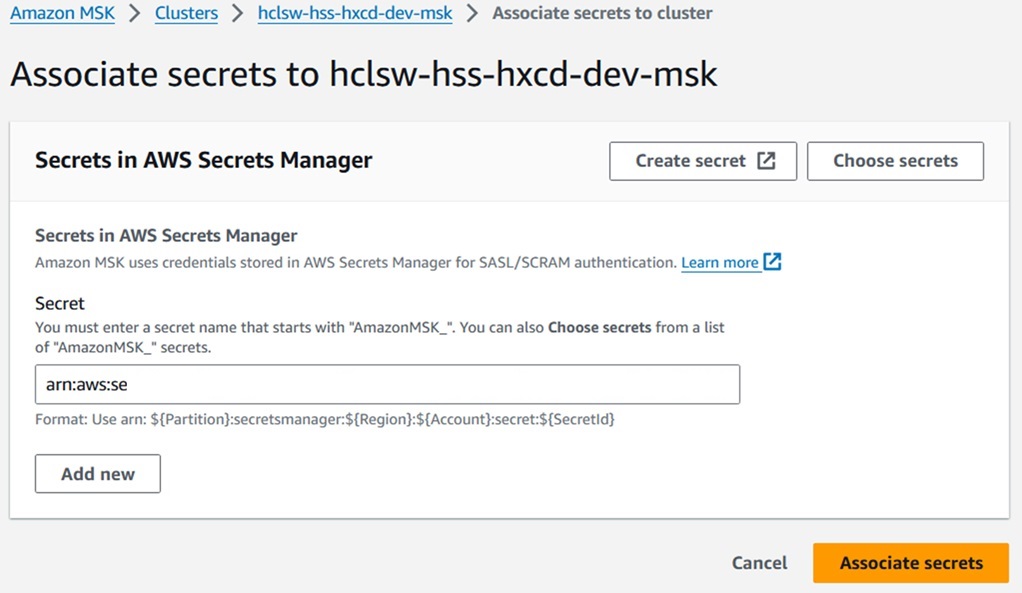
Settings > Associate Secrets, and choose secrets starting with 'AmazonMSK'
created in the Secrets Manager.
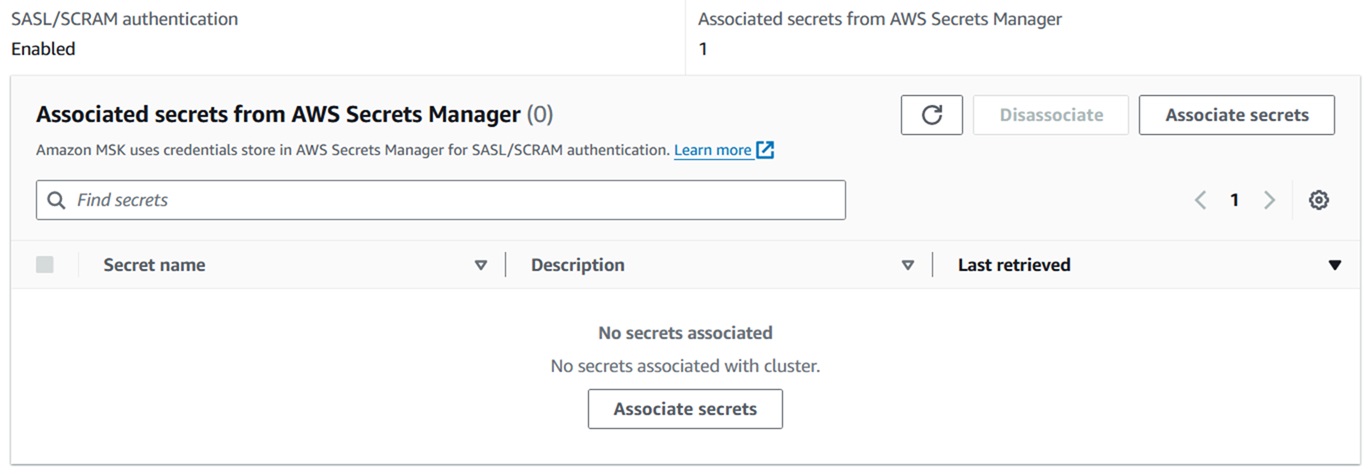
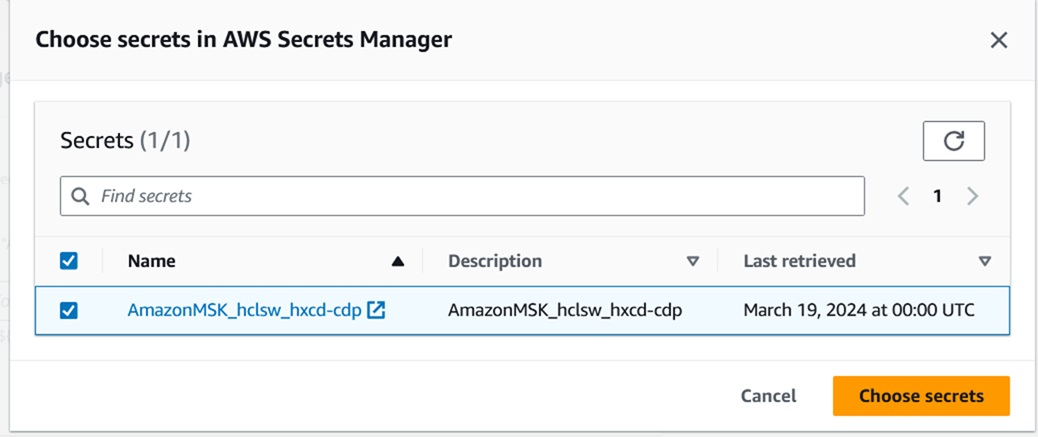
- Click Choose secrets and select the Secrete Name starts with
"AmazonMSK".