
Scenarios for using backup and restore to recover Domino databases
Domino supports the backup and restore of Domino database using the Backup database (dominobackup.nsf).
Configuration of backup and restore is done in dominobackup.nsf.
In case of a disaster, refer to the following recovery scenarios and use the one that applies to your Domino environment.
When a backup of dominobackup.nsf is available
In a case where dominobackup.nsf is already backed up with regular backup, you just need to copy the dominobackup.nsf to the Domino data folder from the backup folder.
Once the dominobackup.nsf is copied, the database inventory lists the databases. From there, the database can be restored.
If you don't see the configuration, import it using the steps shown in Importing the Backup database configuration.
If you don't see the Database Inventory list, perform the steps in link Importing the logs and database list.
When a backup of dominobackup.nsf is not available
In a case where dominobackup.nsf is not backed up, you need to recreate the dominobackup.nsf:
Use the inventory list to perform the database restore.
When a database must be restored with delta files from a VSS snapshot
VSS is built into Windows.
VSS backup performs a standard snapshot in which Domino writes delta files separately to be merged into the snapshot later.
With the Domino backup solution, delta files are stored in the same location as the backup configuration (the default path is
c:\backup\nsf).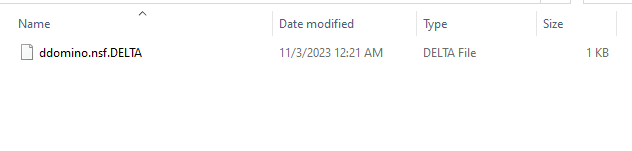
In case when delta files are stored separately, complete the follwoing steps to restore the database.
To perform the database restore select the database from Database Inventory and click Restore (the examples in this section use hdomino.nsf as the database name.
To see the delta files information, do the following steps:
In the restore job, select the options for Restore time select and Selected backup to choose the desired backup to restore.
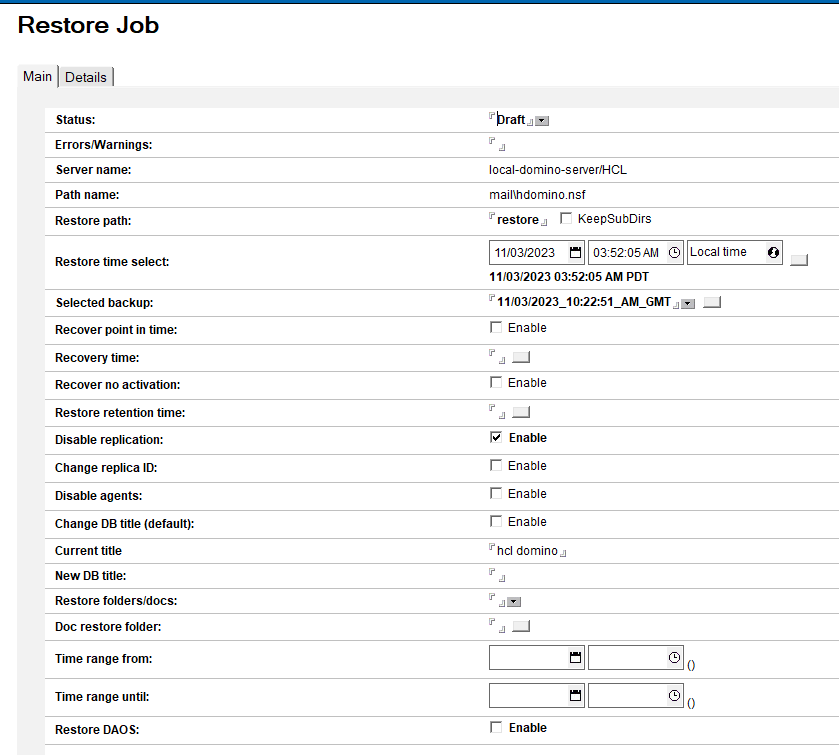
Once Selected backup is populated, you can to view the delta files size by clicking the Details tab, where the File size delta field shows the size of delta in bytes.
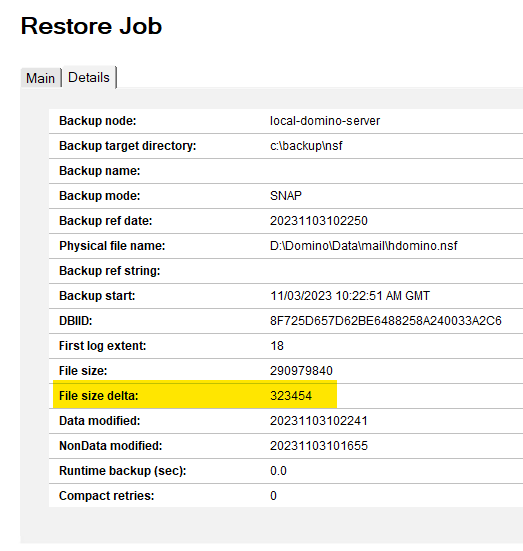
If delta files are not available, the size shows as 0.
Once the restore job is submitted, it can be seen in a pending status.

Then from the server console, run the following command to restore the database:
load restore -vIn the output, the database is restored with .DELTA files:
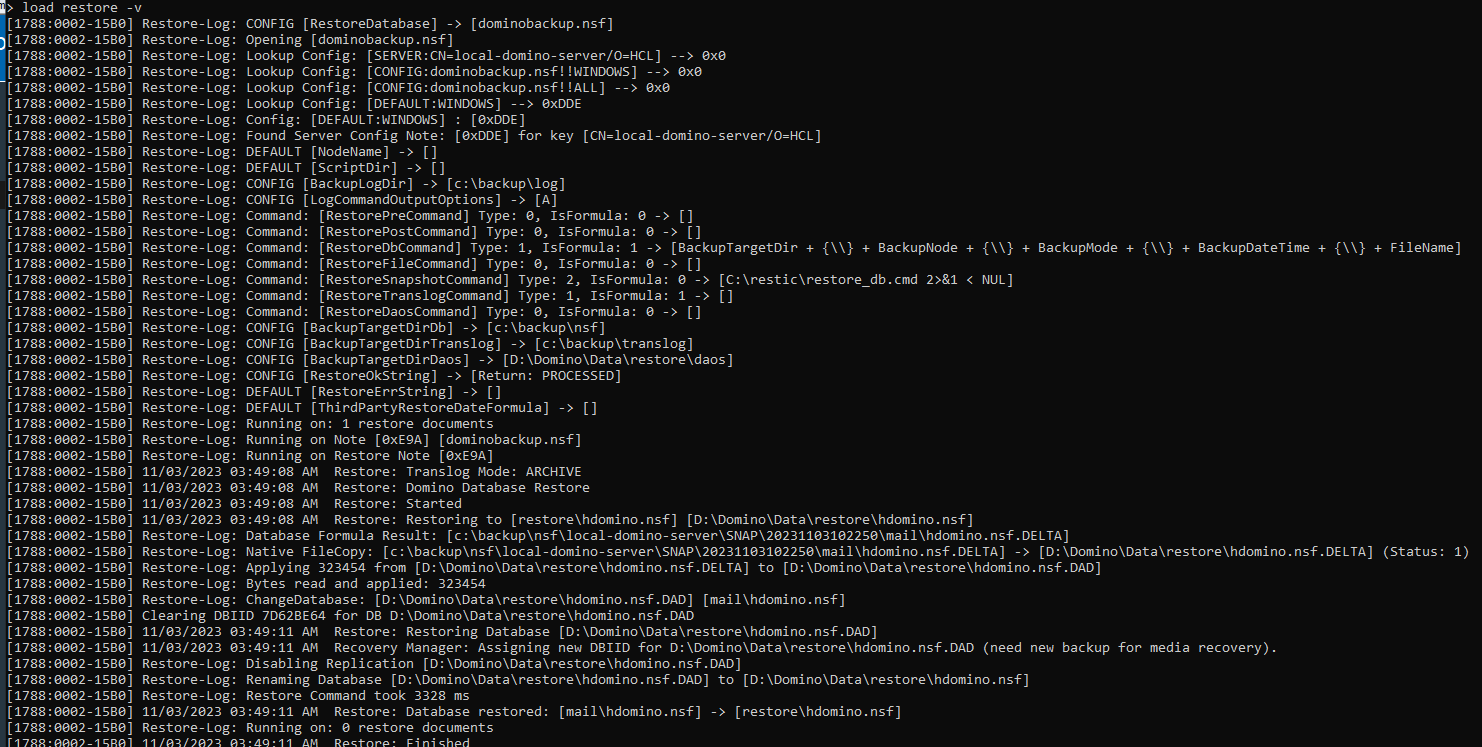
Recovery with delta files
This option is useful when you need to do the recovery of the database.
For more information on .delta files, see Handling .delta files during backup and restorein the Domino Backup Introduction in the HCL Domino opensource repository.
To perform recovery of database, use the command option
-Zwith the restore command on the Domino server as follows:To perform the operation, you need to copy the database with the delta file to the restore path and run the command on the server.
Here is the command with option
-Zand absolute file path:> load restore -Z "c:\restore\mail\hdomino.nsf"Here is the command with option
-Zto recover all databases in the specified path:> load restore -Z -all "c:\restore"This will perform the recovery of all the databases in the specified path, and also merge the delta file if available for the databases.
The following command can be used with a relative path that will take the Domino data directory to make the absolute path.
 > load restore -Z "mail\hdomino.nsf"
 > load restore -Z -all "restore"
Here
-Zperforms the recovery of hdomino.nsf from the default Domino data folder (for exampleC:\Domino\Data\mail\hdomino.nsf).In the case of
-Z -allit performs recovery of all databases in the restore folder (for exampleC:\Domino\Data\restore).
Example output with
-Z -allis as follows: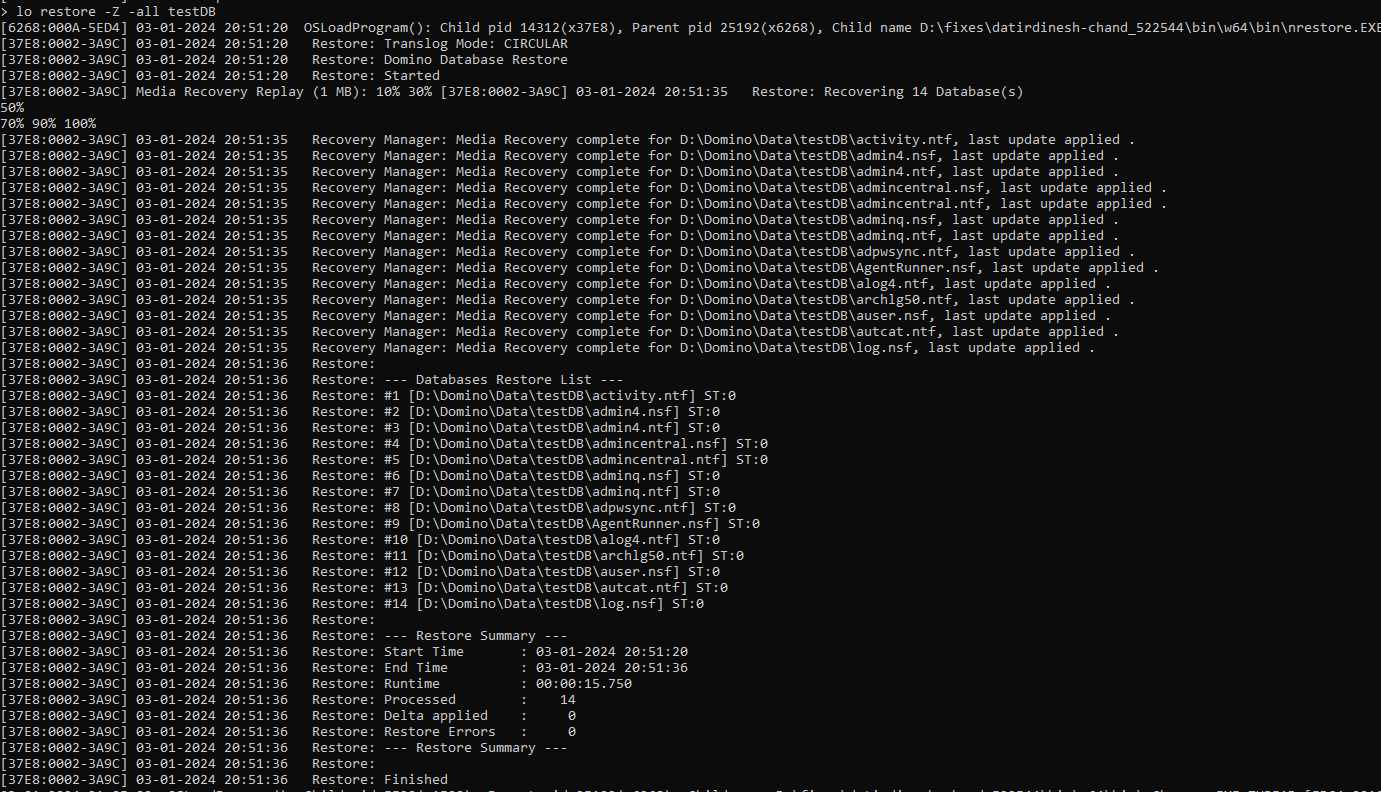
Note that once the recovery is complete, the delta files are deleted.