Lesson 9: View and analyze test results
In this lesson, you will learn how to view and analyze a Functional Report after running a Web UI test on the HR management application. You will also learn how to investigate a test failure using a real failure scenario.
Before you begin
Ensure that you have completed the previous lessons in this tutorial.
About this task
In this task, you will review a failed test run to understand why the failure occurred and identify the failed test steps. You analyze the Functional Report and Test Log generated by DevOps Test Hub after the test run.
The Functional Report provides a comprehensive view of the test, including overall test status, test environment details, performed test steps, validation results, and screenshots captured during the test run. The Test Log shows a detailed, step-by-step record of what happened while running the test.
The Functional Report and Test Log help you confirm whether HRM application workflows, such as employee creation and verification, worked as expected and quickly pinpoint the cause of failures. The example used in this task demonstrates a test failure caused by an Employee_Id value mismatch.
Procedure
-
Click the Try now icon to start the test for validating
the recorded test for the HR management application.
In the result summary, observe that the test is marked as 1 failed count.
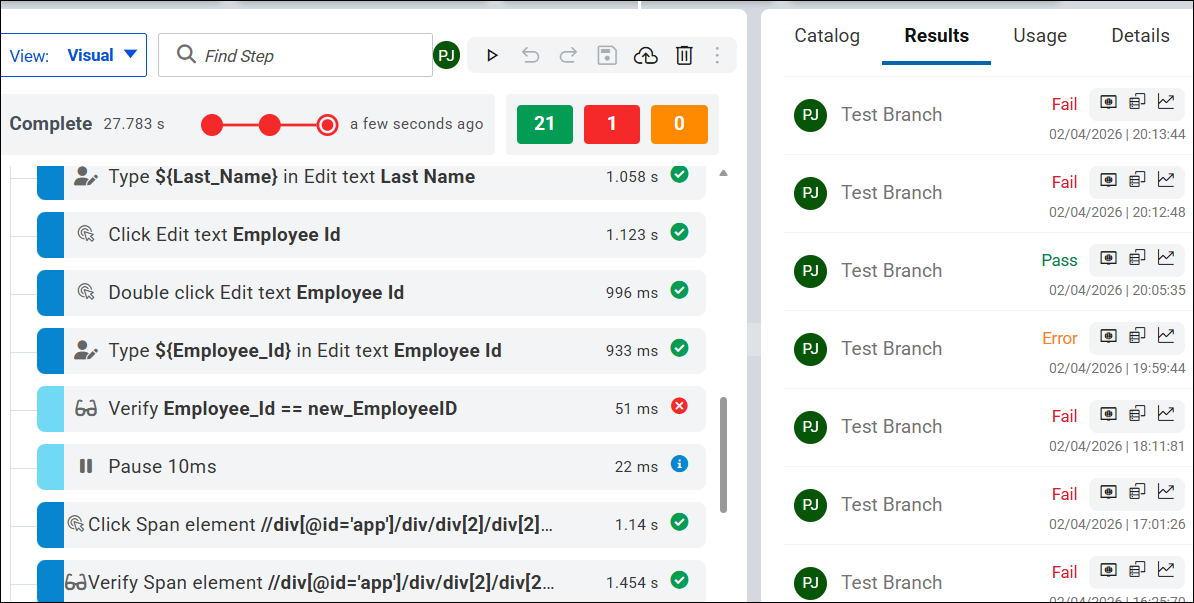
- Click the Functional Report icon to open the report in a separate window.
-
Click the Expand icon in the Functional
Report to view detailed results.
You can now see the failed step and identify the reason for failure.
-
Click the Open in new tab icon to access the specific
test in the Test Editor page, where you can review and
edit the test steps.
Review the failed step.
The Employee_ID step failed because the value of Employee_Id is defined as 01234 in the Verify step.
- In the Verification Points, enter the correct variable value (012345) or variable name ${Employee_Id}.
-
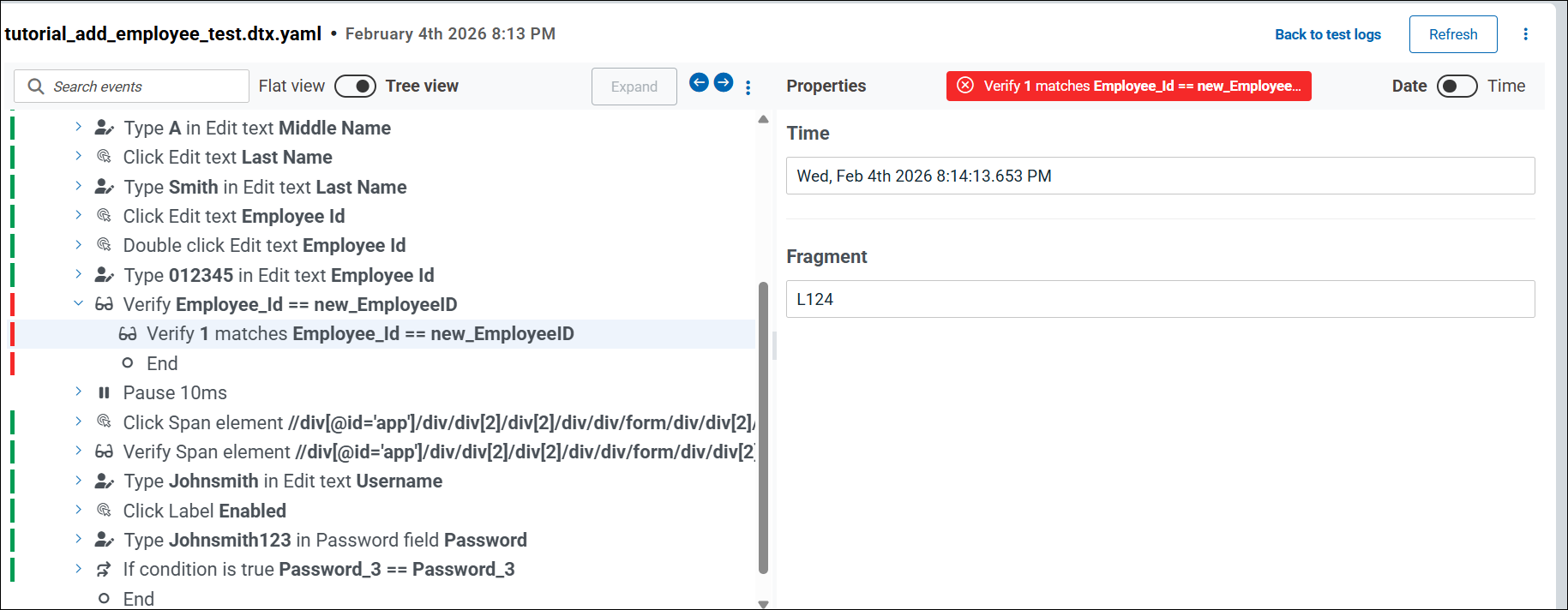
Click the Test Log icon to open the Test Log
Report to view the step-by-step details of each test step while
running the test.
- Click Save to update the test.
-
Click Try now to run the test again.
-
The test completes with 0 failed count
-
The test status shows Pass in the Results tab
-
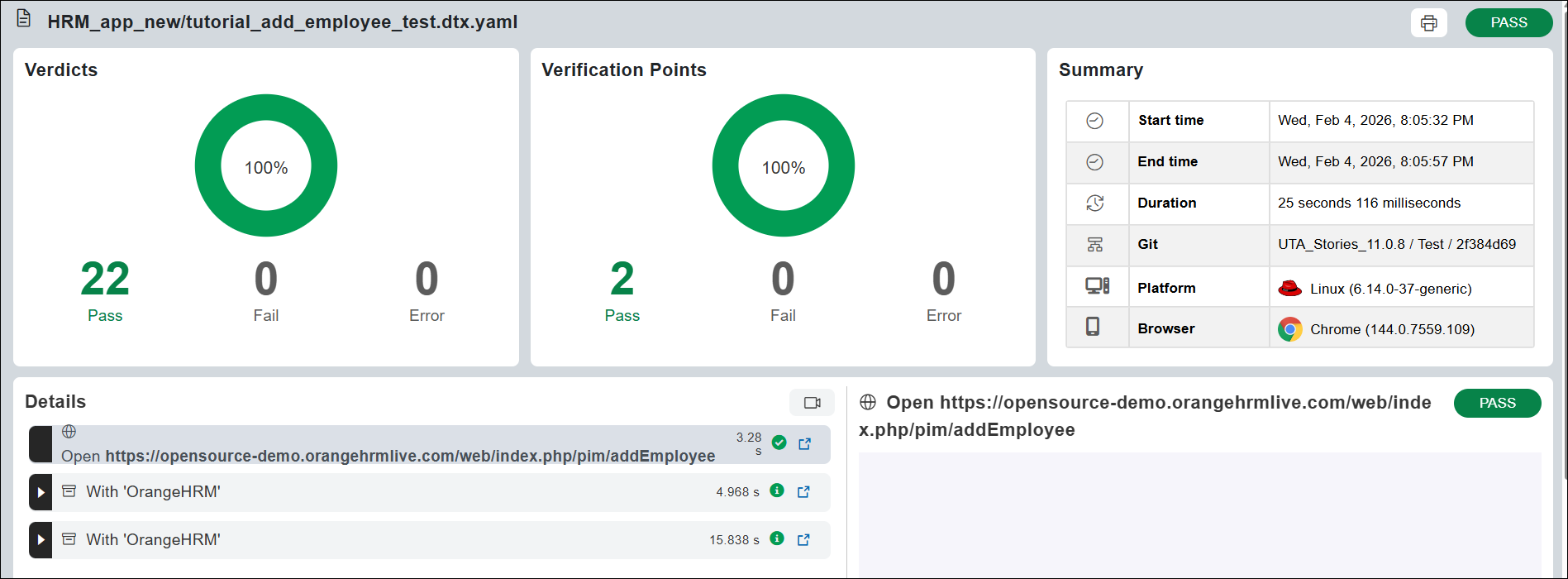
The Functional Report shows 100% Pass
-
-
Click the Publish icon
 in the
Test Editor page to publish the changes from the
HRM_branch edit branch to a master branch in the project
repository.
in the
Test Editor page to publish the changes from the
HRM_branch edit branch to a master branch in the project
repository.
After publishing, the changes are saved, the edit branch is automatically deleted, and is removed from the Branch drop-down list and the remote Git repository.
Results
You have successfully viewed and analyzed the functional report and test log, fixed the failure, and rerun the test with a Pass status.
You have successfully completed this tutorial.