Lesson 4: Modify test steps
In this lesson, you will learn how to modify an existing Web UI test from the Test Editor view.
Before you begin
Ensure that you have completed the previous lessons in this tutorial.
About this task
In this task, you will learn how to modify an existing recorded test step by changing the action from Click to Double click by using the Smartshot view, without re-recording the test.
User interface changes in an application can alter the behavior of recorded test steps. For example, after a UI update, the Employee Id field might require a double-click instead of a single click to enable editing. As a result, a previously recorded Click action might no longer work as expected.
You will also learn how to update the target UI element and refine object identification to ensure the test continues to work correctly after UI changes.
Smartshot editing is useful when the target element is modified due to UI updates. A target element is a UI element in the application that a test step interacts with during a test run. For example, in the step Click Edit text Employee Id, the Employee Id field is the target element.
Procedure
-
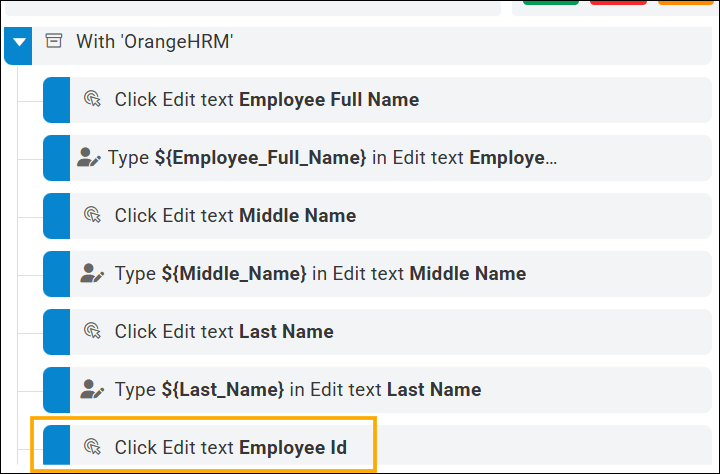
In the recorded test steps list, locate the Click Edit text Employee
Id step and click it. For example, Edit text – Employee
Id.
The Smartshot view opens for the selected step.
-
Click the Expand view icon
 to expand the Smartshot view for better visibility.
- Click the Employee Id field in the Smartshot. The field is highlighted now in the Smartshot.
-
Right-click the Employee Id field now and select Use this
element as step target:
-
Use this step when the Employee Id field is not captured correctly in Smartshot.
-
This updates the step target with the correct UI element and properties before you modify the action.
-
-
In the Details tab, review the following current
configuration:
-
UI Object: The type of UI element. For example, Edit text.
- Action: The action performed on the element. For example, Click.
-
- Select a Double Click from the Action list as required by your test scenario to modify the Action.
- In the Elements panel, you can browse and select the correct UI element.
- Verify the selected element details in the Properties panel to ensure attributes like enabled, exist, and tagName match the expected UI state.
-
Click the Close icon to close the
Smartshot view.
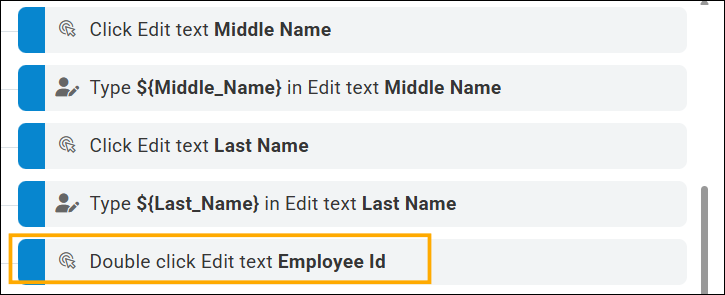
The Employee ID step is modified to use a Double click action, as shown in the image.
- Click Save.
Results
You have modified the behavior of the recorded tests using Smartshots.
You have completed Lesson 4.