Lesson 8: Run the Web UI test
In this lesson, you will learn how to run a recorded Web UI test in DevOps Test Hub and verify that the web application performs as expected.
Before you begin
Ensure that you have completed the previous lessons in this tutorial.
About this task
In this task, you run the recorded Web UI test to simulate creating a new employee in the HR management application. This test run validates that key workflows such as Employee Id generation, role assignment, and data saving work correctly.
Procedure
-
Click the Try now icon to start the test run for
validating the recorded test for the HR management application.
When the test run starts, the Catalog tab automatically switches to the Results tab so that you can monitor the execution status.
-
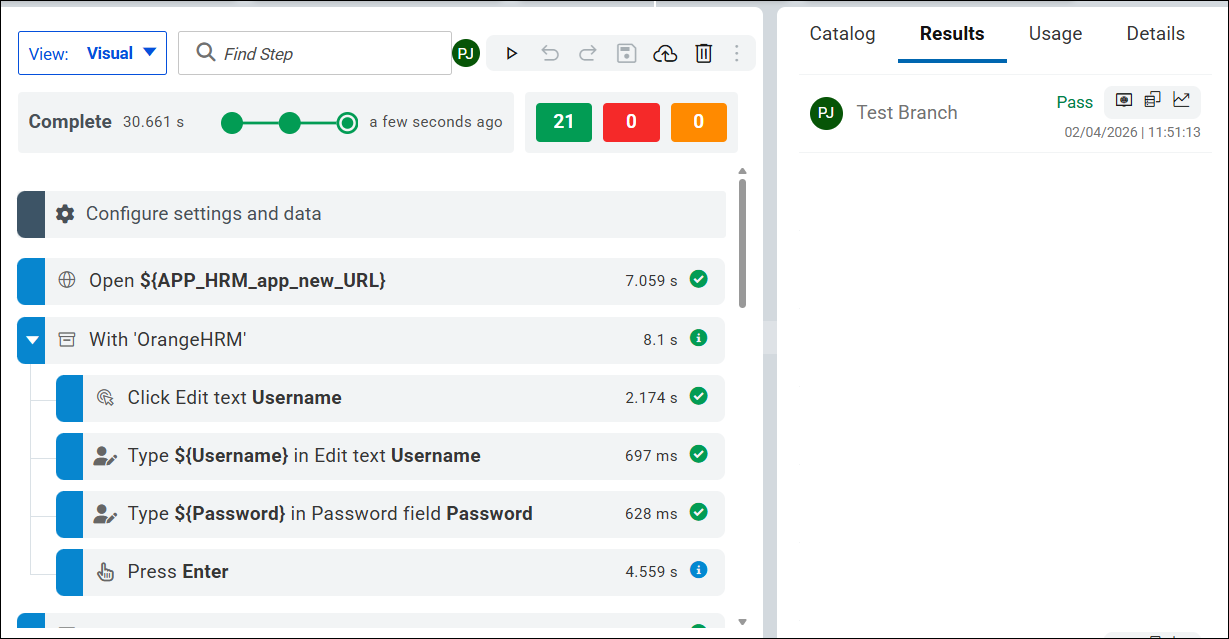
Observe the following stages during the test run on the Test
Editor page:
- In transition: The test setup is in progress.
- Running: The test run is active.
- Complete: The test run is completed. This section also displays the time taken for the test run.
- The passed count, failed count, and error count are displayed on the Test Editor page.
-
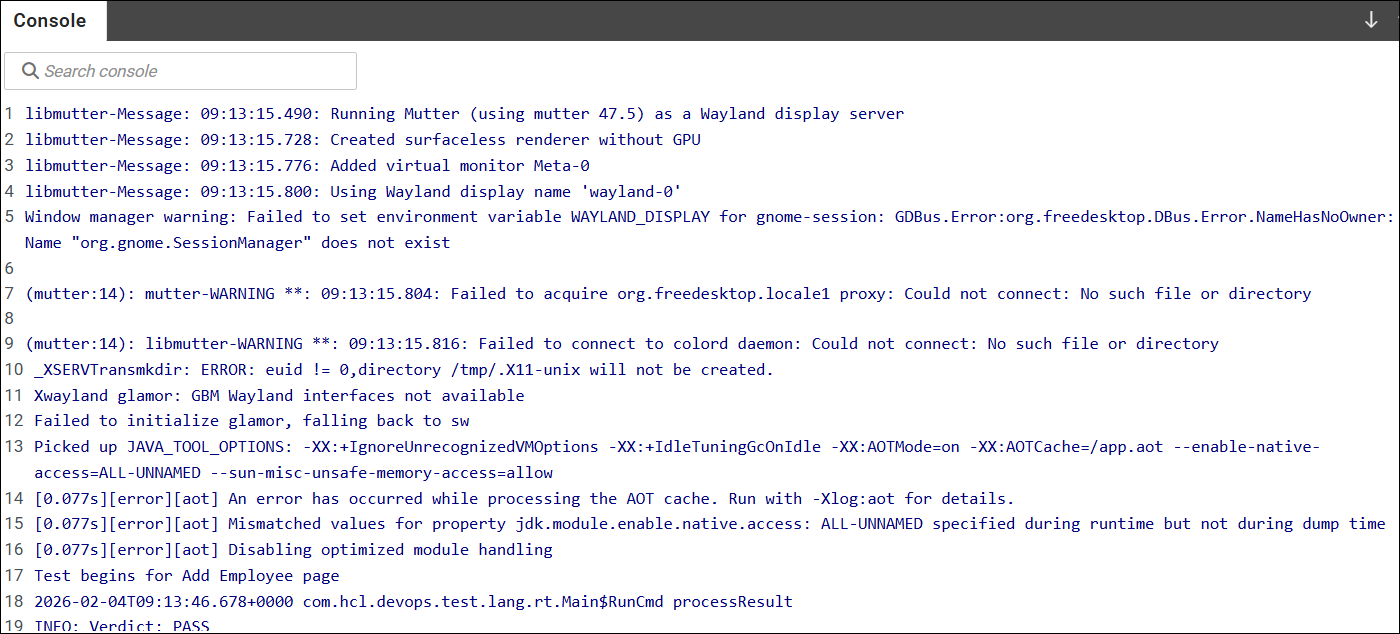
Click the Console tab to view information such as error
messages, logs, and the test verdict.
You can then use this output to troubleshoot issues by reviewing details, such as session IDs and error messages.
At any point, you can stop the test manually by clicking the Stop playback icon
 . When stopped, the test status is displayed as Stopped
by User on the progress bar and
Inconclusive on the
Results tab.
. When stopped, the test status is displayed as Stopped
by User on the progress bar and
Inconclusive on the
Results tab.
Results
You have successfully run the recorded Web UI test and viewed the test execution results.
You have completed Lesson 8.