Lesson 3: Create and add variables to a Web UI test
In this lesson, you will learn how to create and add test variables to store values and reuse them across test steps. By using variables, you can manage test data centrally and apply it dynamically during test execution.
Before you begin
Ensure that you have completed the previous lessons in this tutorial.
About this task
In the recorded test, the Employee Id value was manually entered as
012345. In this task, you will create a test variable to store
a new Employee Id 23456 and modify the recorded test step to use
this variable instead of the manually entered value. This method helps make the test
more flexible and reusable by separating test data from test logic.
Procedure
- In the test steps list, click Configure settings and data.
- In the Variables section, click Create Variable.
- Enter a variable name. For example, new_EmployeeId.
- Enter the required value in the Value field. For example, 23456.
-
Save the variable by clicking outside the Value
field.
The newly created variable is listed in the Variables section.
- Click the Close icon to close Configure settings and data.
-
Perform the following actions to replace the Employee Id value in the recorded
steps:
-
Close the Details tab.
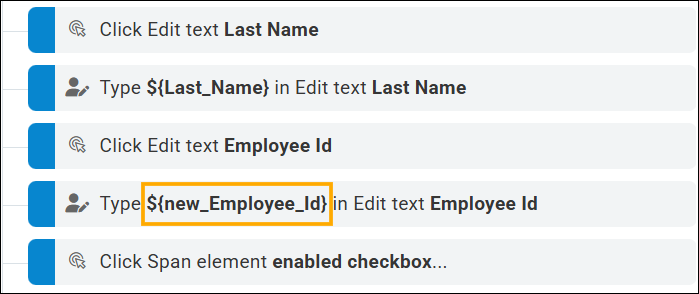
The Employee Id step is modified to use a ${new_EmployeeId} value, as shown in the image.
-
Close the Details tab.
- Click Save to save the modified step.
Results
You have now added the variable to the recorded step.
You have completed Lesson 3.