
Authenticating with DevOps Code UI (Recommended)
You can create a personal access token in Control, and then use that as your password when authenticating from Code. This type of authentication is based on SSH keys, which are automatically generated for your dev container and registered with Control.
About this task
You can use this procedure to clone a Control repository and push changes using Code.
Procedure
-
Navigate to the Control repository you wish to clone:
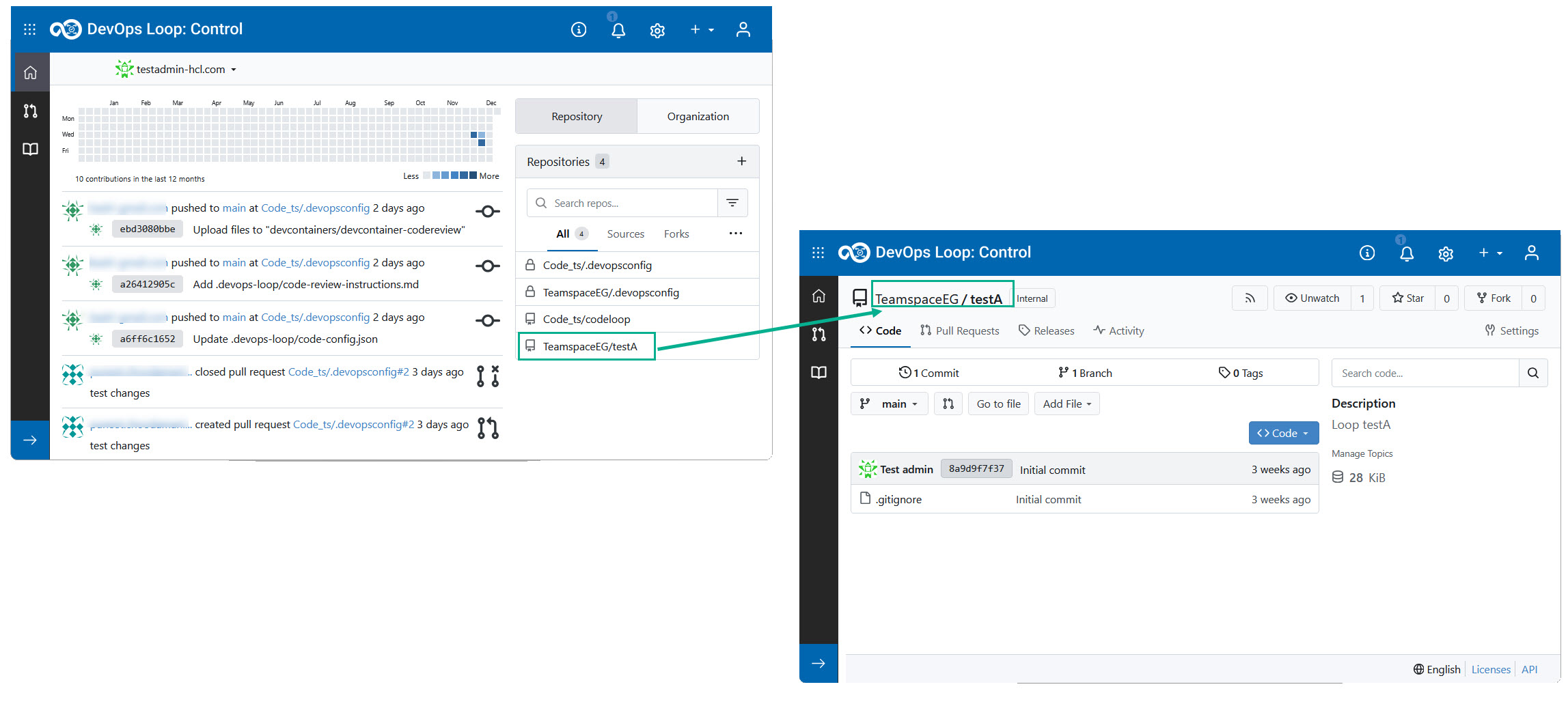
-
Click Open with DevOps Code.
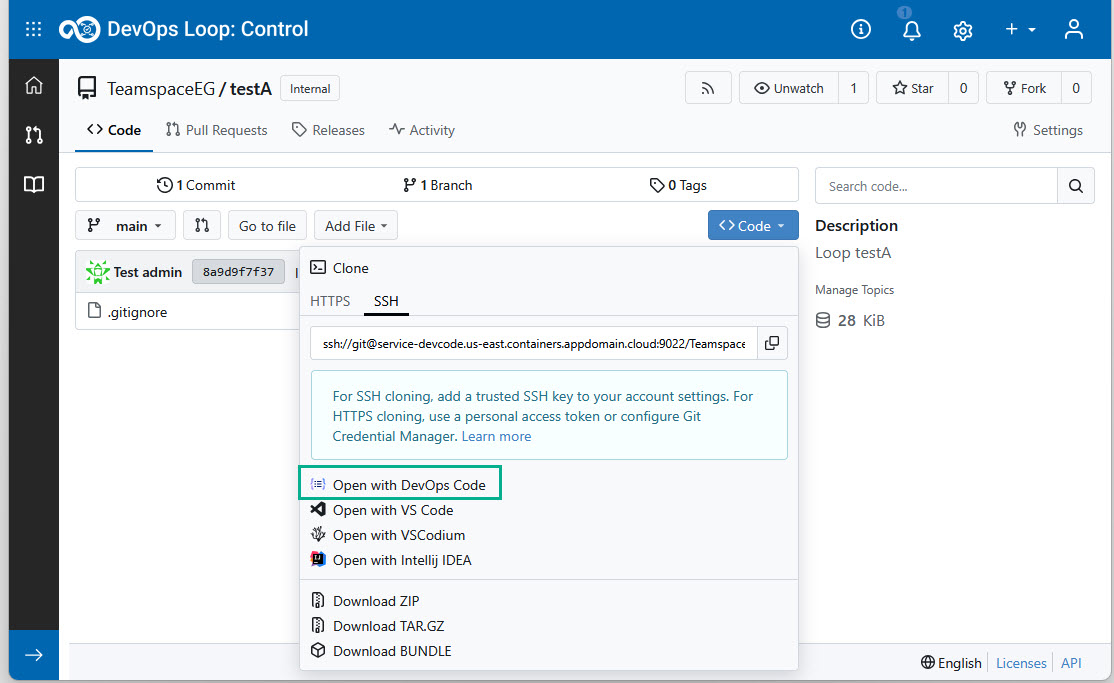
-
You will be redirected to the Clone Control Git repository page.
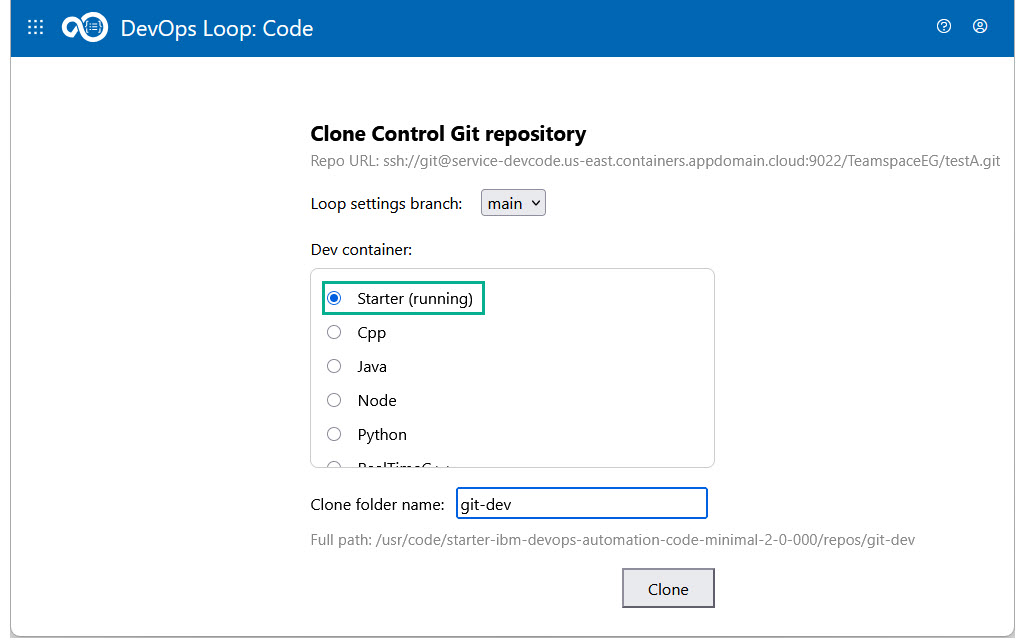 Configure the repository settings:
- Select the Loop settings branch. This is the branch from where you can fetch available dev containers that you choose to use.
- Select Dev container. The procedure will be faster if you select a dev container that is already running. Otherwise, the dev container will first be launched before beginning a cloning.
- Enter a valid folder name in the Clone folder name field.Note: The Full path field will automatically update to reflect the folder name you enter.
- Click Clone. The Code IDE instance will open, and the repository will be cloned.
-
Copy the clone location:
- Wait for the IDE page to load completely.
- Locate the Clone succeeded at location notification
popup.
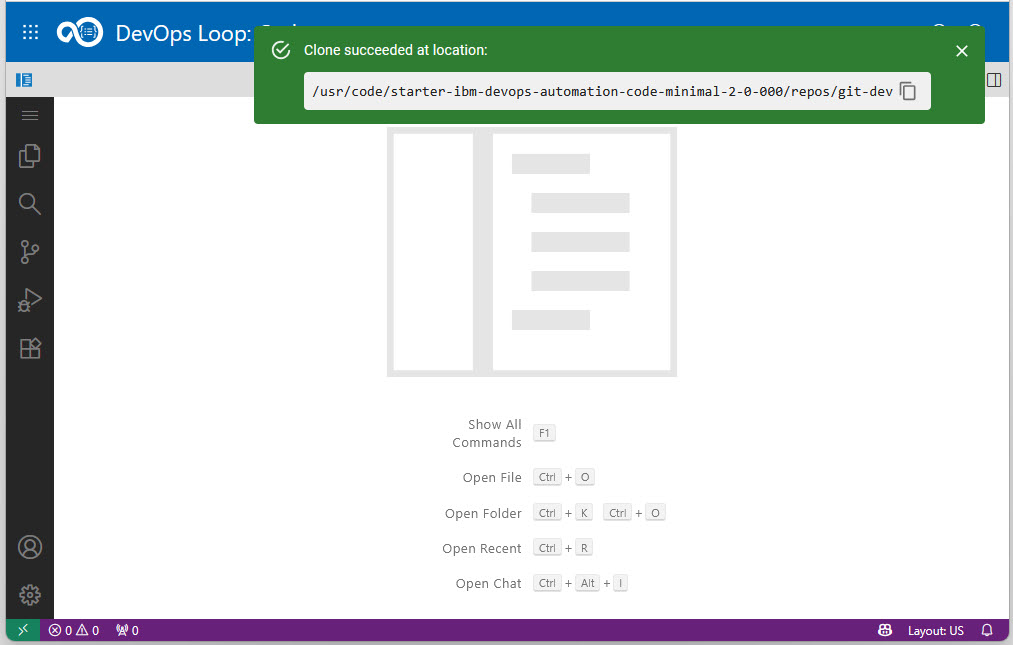
- Copy the file path displayed in the message.
- Open something from the cloned repository in the Code IDE. Choose one of
the following alternatives:
- Open the repository root folder (which you copied above), or one of its subfolders, as a workspace folder: File > Open Folder
- Add the repository root folder (which you copied above), or one of its subfolders, to a workspace that is already open: File > Add Folder to Workspace
- Open a .code-workspace file from the cloned repository: File > Open Workspace from File
-
Commit and push your changes:
Use the built-in Git source control tools within the IDE to commit your updates and push them to the desired branch.