Switching to your teamspace
You can switch to your teamspace to access team-specific development containers and their pre-configured settings.
About this task
Upon login, you can navigate using two tabs: Running Dev Containers and Other Dev Containers.
If you have an assigned teamspace, you can launch preconfigured dev containers - such as Starter, Java, Python, or C++ - directly from the Other Dev Containers tab. Once launched, you can manage these running dev containers in the Running Dev Containers tab. You can find full details in the Working with dev containers guide.
To access your team-specific dev containers:
Procedure
-
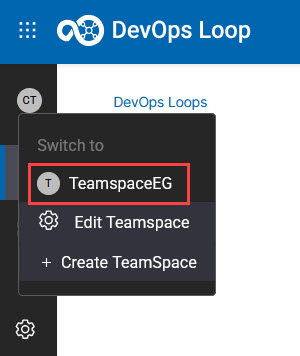
Click the switch teamspace button in the top-left corner.
-
Select the appropriate teamspace created by your team admin.
Note: If you do not see any teamspace listed, it means you have not been added yet. Contact your team admin to request access to a teamspace.
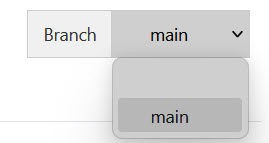
You can also switch to a different branch (other than main) using the Branch menu in the upper right corner of the IDE. The branch switch menu is visible only in Other Dev Containers tab. This allows for versioning dev containers, which lets a development environment evolve together with the application it creates.