
Configuring dev containers
As a teamspace admin in Code, you can configure the dev containers so that they are available to the team members.
Before you begin
- Installed Docker and ensured that it is running on your machine.
- Installed Node.js and npm (for Dev Container CLI).
- Created a DockerHub account and enabled it for pushing images.
- Gained access to Control with permission to create repositories.
About this task
You can set up and preconfigure dev containers for users in a teamspace while using Code. You can create and configure the container environment, build an image, publish it to a registry, and make it accessible within the teamspace's configuration repository. These configurations follow the Dev Containers specification and are versioned by pushing them to a Control Git repository.
Procedure
-
Install the Dev Container CLI tool:
- Clone the GitHub repository by running the following
command:
git clone https://github.com/devcontainers/cli.git - Navigate to the cloned directory and install the following Dev Container
CLI:
npm install -g @devcontainers/cli
- Clone the GitHub repository by running the following
command:
-
Create the devcontainer.json file:
You can create the devcontainer.json file by defining the metadata such as name, description, build or image source, and runtime Visual Studio Code extensions.Here’s a sample devcontainer.json:
{
  "name": "Go Dev Container",
  "description": "A preconfigured Go development environment with code-server support and Go tooling.",
  "build": {
    "dockerfile": "Dockerfile"
  },
  "customizations": {
    "vscode": {
      "extensions": [
        "secure-dev-ops.devops-code",
        "golang.go"
      ]
    }
  }
}
Note: In the example above, extensions are specified by their IDs, and will then be downloaded from the Open VSX registry (that is, <publisher.name> format. However, administrators may need to pre-bundle .vsix extension files directly within the dev container image. In such scenarios, especially within offline environments, you can specify the local .vsix files using a relative path. See Loading extensions from local .vsix files.You can also download a sample file here: devcontainer.jsonRefer to the Dev Container metadata reference guide to include JSON metadata related to general settings, Docker or Docker Compose-specific options, and tool-specific properties for configuring a devcontainer.js file. -
Create the Dockerfile for custom environment setup:
You can add a Dockerfile to define the environment and behavior of your development container by specifying the base image, installing tools, setting environment variables, and configuring the container runtime.Example Dockerfile:
FROM ubuntu:20.04
ENV DEBIAN_FRONTEND=noninteractive
RUN apt-get update && \
    apt-get install -y \
        sudo \
        curl \
        git \
        ca-certificates \
        build-essential && \
    apt-get clean

# Install Go
ENV GO_VERSION=1.22.3
RUN curl -fsSL https://go.dev/dl/go${GO_VERSION}.linux-amd64.tar.gz | tar -C /usr/local -xz
ENV PATH="/usr/local/go/bin:${PATH}"
ENV GOPATH="/home/1001/go"
ENV PATH="${GOPATH}/bin:${PATH}"

# Install code-server
RUN curl -fsSL https://code-server.dev/install.sh | sh -s -- --version=4.98.0

# Safe for Ubuntu + RHEL images
RUN chmod -R ug+w /etc/pki/ca-trust/source /etc/pki/ca-trust/extracted || true

RUN useradd -m -u 1001 devuser
USER 1001
WORKDIR /home/1001
CMD ["tail", "-f", "/dev/null"]
Key Commands required for the Dockerfile:
- FROM: Set the base image.
- ENV: Set the environment variables.
- RUN: Install dependencies and clean cache to keep the image lean.
- USER: Run the container as a non-root user (1001) for security.
- CMD: Keep the container running by tailing a null file.
To create or customize a Dockerfile for your development container, refer to the official Dockerfile reference. This guide provides detailed explanations and examples of all supported commands. You can also explore dev container documentation for guidance on integrating your Dockerfile into a .devcontainer setup.
Note: If DevOps Loop runs using self-signed certificates or private Certificate Authorities (CAs), the admin must add the line RUN chmod -R ug+w /etc/pki/ca-trust/source /etc/pki/ca-trust/extracted in the Dockerfile before the line USER 1001.
-
Build the dev container image:
Navigate to the root .devcontainer directory and run the following command to build the dev container image.
devcontainer build --workspace-folder . --image-name sarasonia/go-container:1.0This command reads the devcontainer.json file and executes the Dockerfile. The syntax should be in the following format:devcontainer build --workspace-folder . --image-name <username>/<container-name>:<tag>where,- <username>: Docker Hub username
- <container-name>: your container (repository) name
- <tag>: version (for example, 1.0)
-
Update the devcontainer.json file to use the image key:
{ "name": "Go Dev Container", "description": "A preconfigured Go development environment with code-server support and Go tooling.", "build": { "dockerfile": "Dockerfile" }, "image": "sarasonia/go-container:1.0", "customizations": { "vscode": { "extensions": [ "secure-dev-ops.devops-code", "golang.go" ] } } } -
Push the image to Docker Hub registry:
Login and push.
docker login
docker push sarasonia/go-container:1.0
After it is pushed, it will be available at: docker.io/devuser/java-container. -
Access Control:
- Sign in to HCL DevOps Loop. Navigate to your teamspace.
- Go to the Control page. You’ll see a repository named .devopsconfig under your teamspace (e.g., TeamspaceEG/.devopsconfig).
-
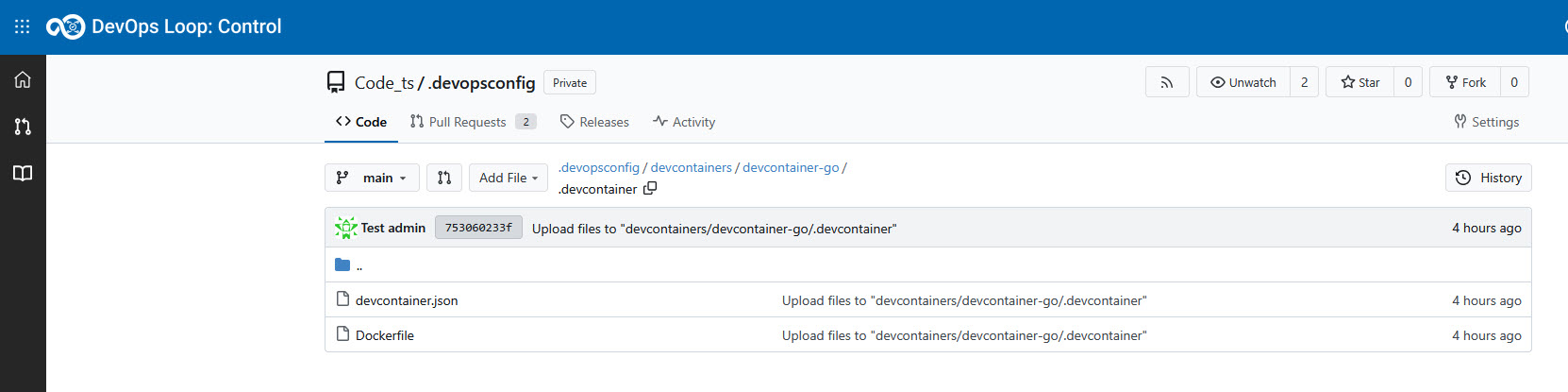
Upload devcontainer.json and Dockerfile using Control:
- Inside the .devcontainer folder of the repo, upload devcontainer.json and Dockerfile.
- Commit and push the changes to the main branch.Note: You can also commit the changes to a different branch other than the main branch. In such a case, you will see different branches on the Branch menu.
-
Start the sample Go container:
- Go to the Code landing page.
- Click the teamspace button and switch to your
teamspace. Under Other Dev Containers, you will see a
new dev container:
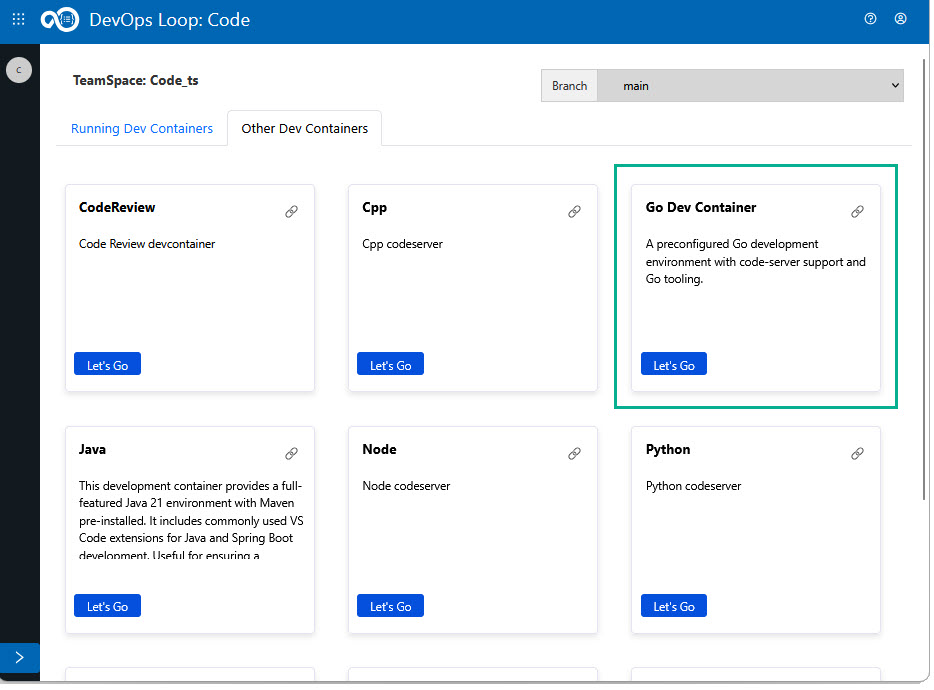
- Click Let’s Go to launch the container.
Note: The first-time launch may take a few minutes. -
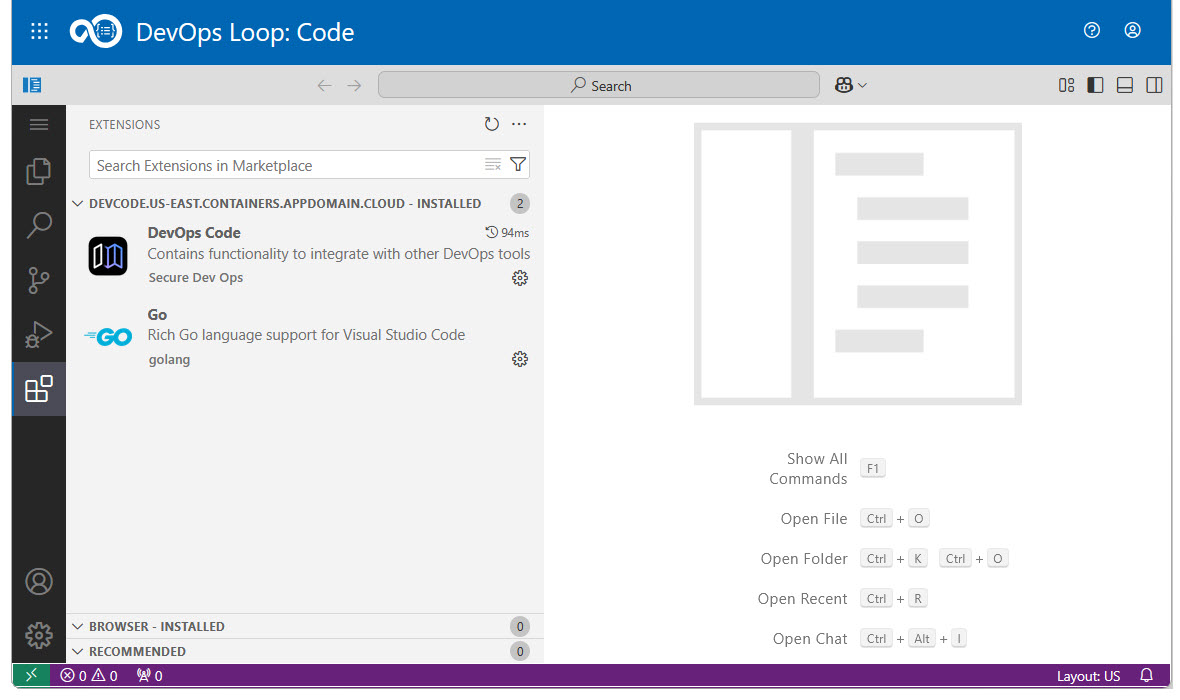
View Visual Studio Code Extensions:
In the Code IDE instance, click the Extensions button to see and verify the extensions you had configured in devcontainer.json file.
-
Cloning .devopsconfig repo using DevOps Code:
After navigating to the Control page and locating the .devopsconfig repository, you can update your configuration files using the recommended workflow
This method is recommended for making multiple changes, as it provides an easier user experience by leveraging the Git functionality within Code.
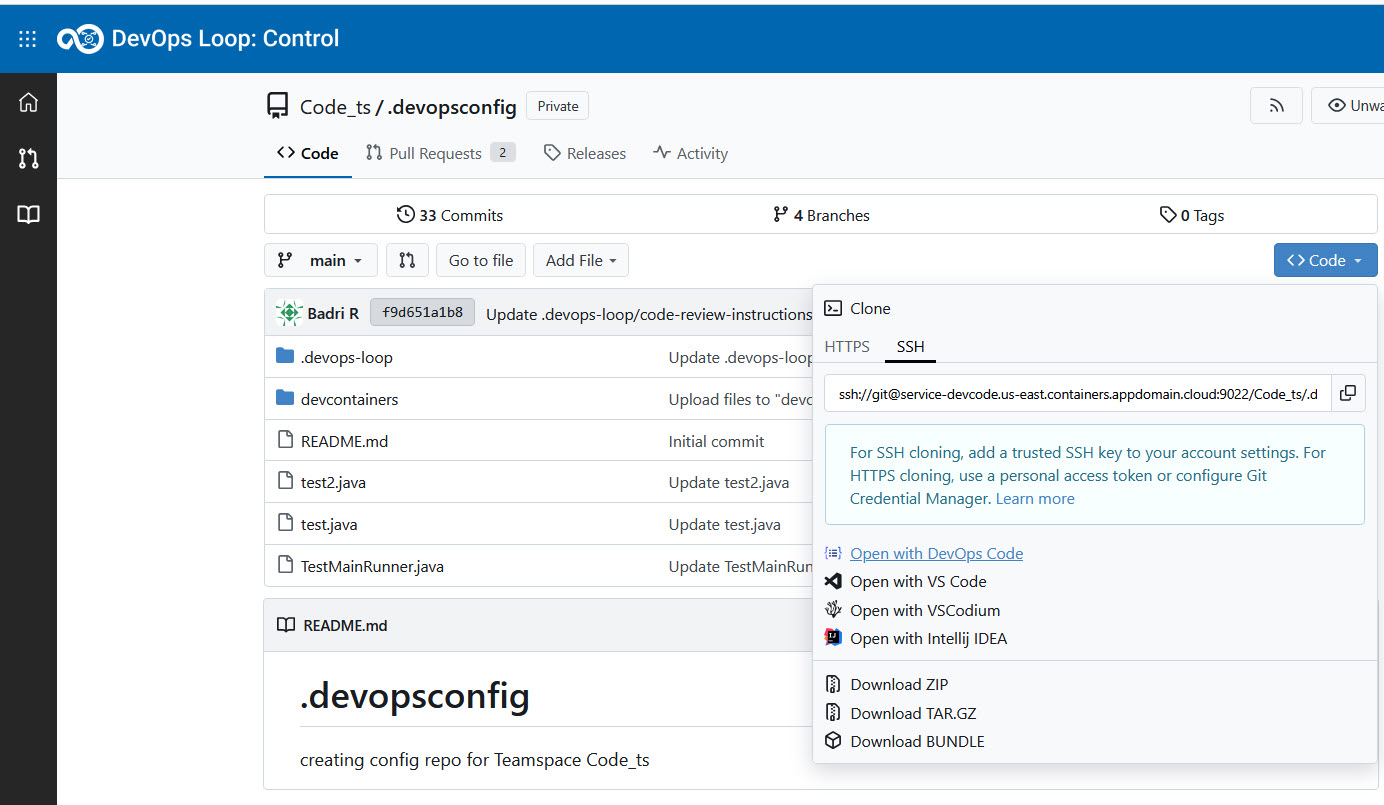
- Click the Code dropdown button next to the
repository name, and select Open with DevOps Code.
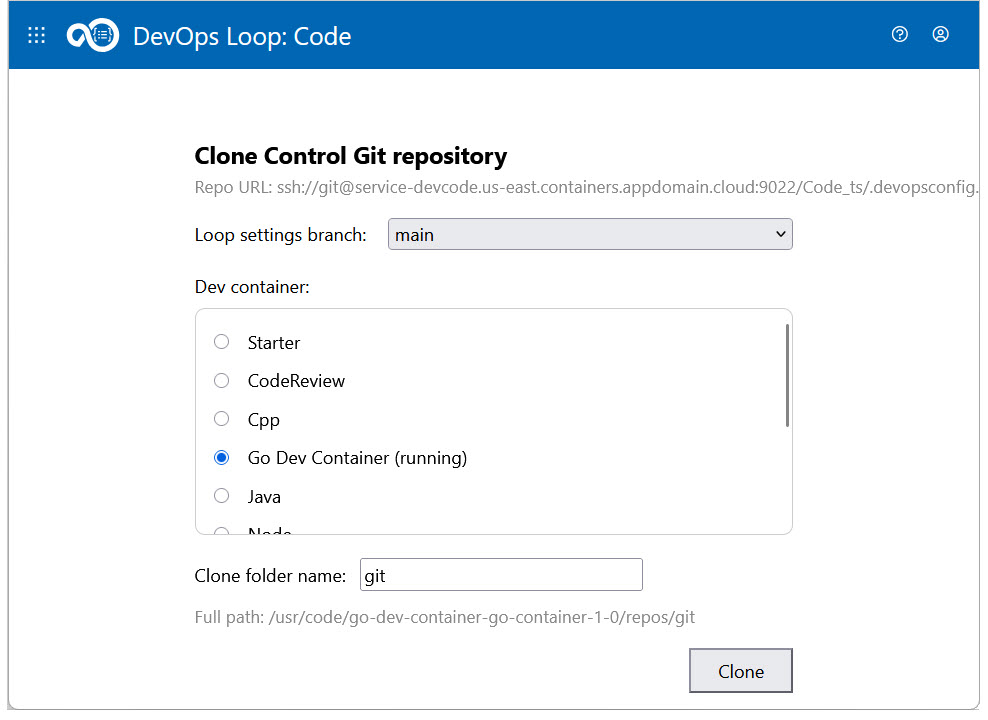
- This directs to the Clone Control git repository page. Here, add
the Loop settings branch, Dev container and a suitable
folder name for cloning. You can see how the full path
changes according to the name you updated in the Clone folder
name textbox.
- Click Clone to clone the repository. This directs to Code IDE
instance. After successful loading of the IDE page, you get a Clone
succeeded at location message popup. Copy the location.

- In the Code IDE instance, go to the hamburger menu, select File and click Open Folder, and paste the location path in the Go to file dropdown textbox, and click the OK button.
- Navigate to the devcontainer folder in the left Explorer pane, add/update your devcontainer.json and Dockerfile files, and use the built-in Git tools within Code to commit and push the changes to the desired branch of Control.
- Click the Code dropdown button next to the
repository name, and select Open with DevOps Code.