Creating an external price rule that references an ILOG JRules ruleset
If your site is integrated with IBM WebSphere ILOG JRules BRMS for pricing, you can create price rules in Commerce Lab that reference ILOG JRules rulesets. The price rule that you create, which is called an external price rule, acts as a "wrapper" for the ILOG JRules ruleset. This price rule allows you to use the ILOG JRules ruleset for pricing on Commerce+ Transaction Server stores.
Before you begin
- Your site must be integrated with WebSphere ILOG JRules.
- The ILOG JRules ruleset that you want to reference must:
- Use the predefined vocabulary that is compatible with Commerce+ Transaction Server.
- Be deployed to the WebSphere ILOG JRules Rule Execution Server so that you can retrieve it in Commerce Lab.
About this task
- Assign the external price rule directly to a contract, as you would with any other Commerce+ Transaction Server price rule. In this case, the pricing instructions are coming only from the ILOG JRules ruleset.
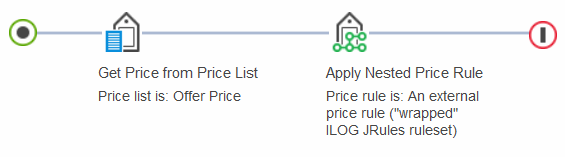
- Nest the external price rule in an Commerce+ Transaction Server price rule
by using the Apply Nested Price Rule action.
Do so only if you want to combine Commerce+ Transaction Server pricing elements,
such as actions and conditions, with the ILOG JRules ruleset in the
same price rule. Then, you can assign the Commerce+ Transaction Server price
rule to a contract. The following price rule is an example of this
usage. Here, the Commerce+ Transaction Server pricing element is the Get
Price from Price List action. This action passes a price
to the nested external price rule that references the ILOG JRules
ruleset:
The following procedure is applicable to both of these usages.
Procedure
- Open Commerce Lab Tools and from the left navigation menu, click .
- From
the toolbar, click the arrow on the right side of

 Create New;
then select External Price Rule.
Create New;
then select External Price Rule. - Set the price rule properties:
Property Description Name Type a name for this price rule. This name displays beneath the price rule in the Price Rules - List page. Description Enter text that explains what the price rule is intended to do. External price rule Specify the ILOG JRules ruleset that you want to reference in this price rule. Here are two ways you can do specify this ruleset: - Option 1:
- To get a list of all available ILOG JRules rulesets, type an asterisk (*) in the field above the External price rule table, and then click Find and Add.
- If you get more than one result, drag the correct ruleset from the utilities view into the External price rule table.
- Option 2:
- Type the ruleset path in the field
above the External
price rule table. The format of an ILOG JRules ruleset
path is:
/RuleApp name/version/ruleset name/versionWhere
RuleApp nameandruleset namecan be composed of digits, letters, and underscores. Both names are mandatory.-
versionis optional. If the version is not specified, it is the latest activated version of the RuleApp or ruleset.versionnumber.number
Examples of valid ruleset paths are:
- /rule8_8app/6_ruleset_6/1.0
- /rule8_8app/1.0/6_ruleset_6
- /rule8_8app/6_ruleset_6
- /rule8_8app/1.0/6_ruleset_6/1.0
- Click Find and Add.
- If you get more than one result, drag the correct ruleset from the utilities view into the External price rule table.
- Type the ruleset path in the field
above the External
price rule table. The format of an ILOG JRules ruleset
path is:
- Option 1:
- Save and close the price rule.
What to do next
- Assign the external price rule directly to a contract, as you would with any other Commerce+ Transaction Server price rule.
- Nest the external price rule in an Commerce+ Transaction Server price rule by using the Apply Nested Price Rule action, as illustrated in the example in the introduction to this procedure.