
Lost mode
Lost Mode is a security feature in BigFix Modern Client Management (MCM) that enables IT administrators to remotely secure company-owned mobile devices that have been lost or misplaced. When activated, Lost Mode locks the device, blocks access to all applications, displays custom recovery information on the lock screen, and can play an alert sound — helping organizations protect corporate data and facilitate device recovery.
This feature is available from the BigFix WebUI under
Key features
- Remote Security & Access Control: Activating Lost Mode immediately locks the device, bypassing standard passcodes, Face ID, or fingerprints. It blocks access to all applications and internal systems, effectively safeguarding sensitive corporate networks, emails, and data from unauthorized access.
- Custom Recovery Screen Layouts: Administrators can customize the information displayed on the lock screen to facilitate device recovery. This includes enforcing mandatory input fields like custom return instructions and a callback phone number, with optional organization names and footnotes tailored to platform specifications.
- Interactive Location Tracking: Location reporting initiates automatically when Lost Mode is deployed to aid in physical recovery. The WebUI displays latitude and longitude coordinates as clickable hyperlinks that redirect administrators directly to Google Maps to pinpoint the device's exact location.
- Platform-Specific Sound Alerts: To help locate a nearby device,
administrators can trigger an audible alert:
- Android: Automatically triggers a continuous sound alert immediately upon mode activation.
- iOS/iPadOS: Allows administrators to manually trigger or re-trigger a background alert sound as a standalone action.
- Advanced Device Lifecycle Management: From the Manage Lost Mode interface, administrators can seamlessly execute secondary recovery operations. Once the device is found, they can unlock it via Disable Lost Mode (on iOS, the finder must use the administrator-provided unlock code), or push an irreversible remote Wipe Data factory reset if the device is permanently compromised.
Supported Devices
Lost Mode is supported on corporate or organization-owned mobile devices under full management control. It is not supported on personally owned personal devices (BYOD), ChromeOS, Windows, or unmanaged computers.
| Platform | Management Type | Minimum OS Version |
|---|---|---|
| Android | Fully Managed or Dedicated Devices | Android 11 or higher |
| Android | Work Profile on Company-Owned Devices | Android 13 or higher |
| iOS / iPadOS | Supervised Devices (DEP enrolled) | Any supported Supervised iOS |
Prerequisites
- Android-Specific
-
- The device must be company-owned (not BYOD).
- The device OS version must meet the minimum requirement (Android 11+ for Fully Managed, Android 13+ for Work Profile on Company-Owned).
- The device must not already be in Lost Mode.
- The admin must not have reset the device password within the last 12 hours.
- The user must not have manually exited Lost Mode within the last 12 hours.
iOS/iPadOS-Specific
- The device must be supervised (enrolled via DEP / Automated Device Enrollment).
- The device must not already be in Lost Mode (for starting Lost Mode).
How Lost Mode Works: The User Experience
- Android: When Lost Mode is activated, the device automatically starts playing an alert sound and begins reporting its location. All applications are blocked and the device state changes to LOST. (status shows enabled. Location: displays the coordinates of latitude and longitude).
- iOS/iPadOS: Lost Mode, Fetch Location is triggered automatically. Play Sound needs to be selected by the administrator as separate standalone actions from the Actions page.
- The Alert Phase: When first activated, the device will ring loudly for up to
5 minutes to allow an employee to quickly find it if misplaced nearby. The
location is not yet shared during this timeframe. If accessed, the finder is
shown two choices:
- This is my device: If the employee found it, they can type in their password to immediately turn off Lost Mode.
- I found this device: Anyone else can select this to stop the loud ringing, which immediately moves the device into the next phase.
- The Lost Phase: If the 5 minutes pass or someone taps "I found this device,"
the phone goes completely silent and changes its status to "Lost". In this
phase:
- The device begins securely reporting its location back to the administration console every minute.
- The screen is securely locked and shows your custom messages.
- The person holding the device can only choose to Unlock (using the correct password), Call Owner (dials the configured contact number directly), or make an Emergency Call.
Lost Mode Actions
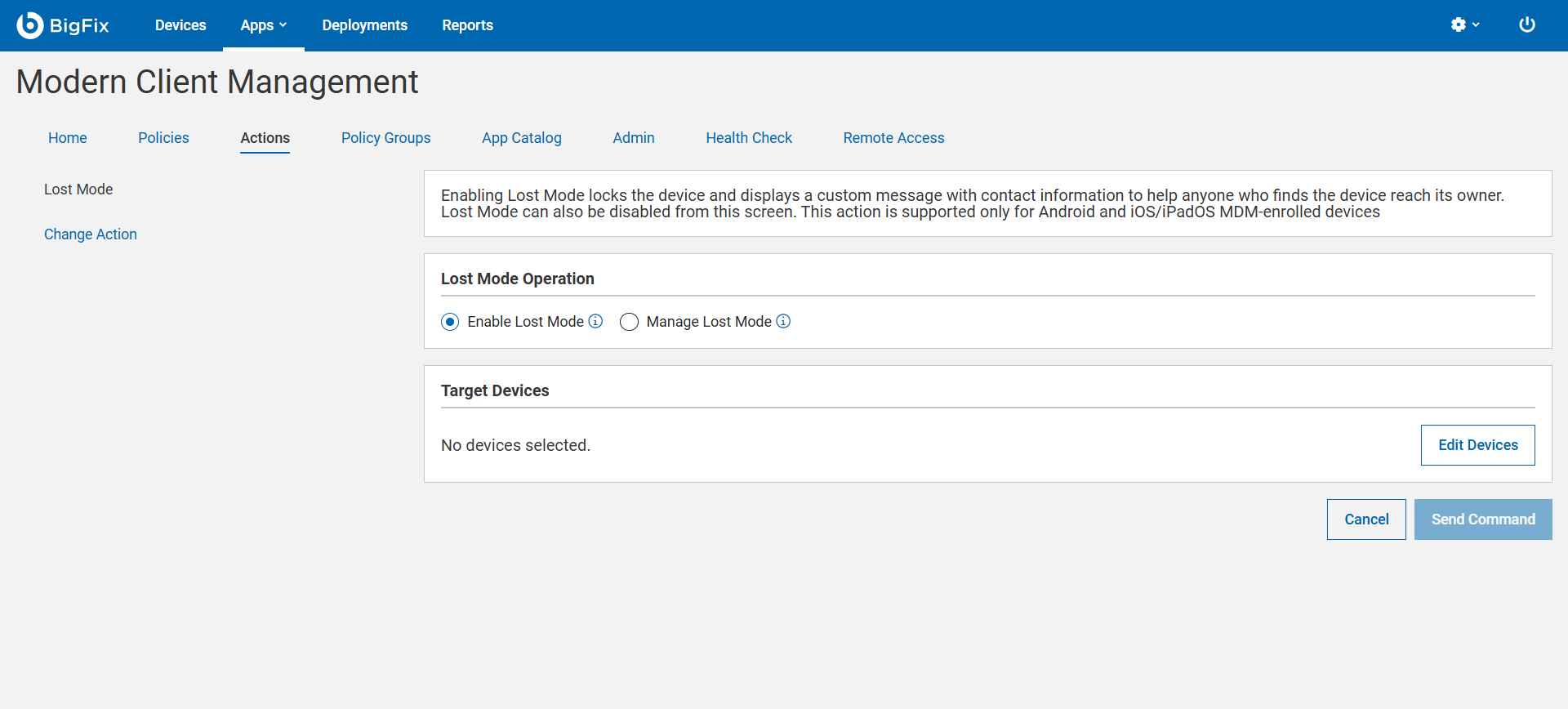
- Activating Lost Mode Activating Lost Mode
- Managing a Lost Device and Recovering Data
| Action | Description | Android | iOS/iPadOS |
| Enable Lost Mode | Locks the device, displays a recovery message, and blocks apps | Yes | Yes |
| Manage Lost Mode | |||
| Disable Lost Mode | Disables Lost Mode and restores normal device operation | Yes | Yes |
| Wipe Data | Wipes all data from the device, removes enrollment, and permanently stops device management. Use only if the device cannot be recovered. | Yes | Yes |
| Play Lost Mode Sound | Plays an alert sound on the device | No | Manual (standalone action) |
Frequently Asked Questions (FAQ)
Q: Why is my lock screen message being rejected when I click send?A: Your text may be exceeding the platform limits. Please check the character limits table above to ensure your text fits within the allowed thresholds.
Q: Why doesn't the phone number show up on my Android device screen?A: This is a standard design choice by Android. Even though the number is not physically written out on the activation screen, the underlying "Call Owner" button is fully active and will place a call to your configured number when tapped.
Q: Can a user turn off Lost Mode from the device?A: On Android devices, an employee can exit Lost Mode manually by typing in their valid device password. On Apple devices, the device must be unlocked remotely by the administrator through the console