
The checks workflow in Fixlet Explorer
Open Security Compliance, narrow its scoped list of checks to the ones you care about, and start a deployment.
About this task
Security Compliance checks are Fixlets. Security Compliance gives you a compliance-scoped view of those Fixlets; when you need full Check properties, relevant devices, or deployment history for a single Check, click the Check to open its Fixlet detail page. That page is part of , but you do not need to work in Fixlet Explorer directly to complete the steps below.
Procedure
- Log in to the HCL BigFix UI.
-
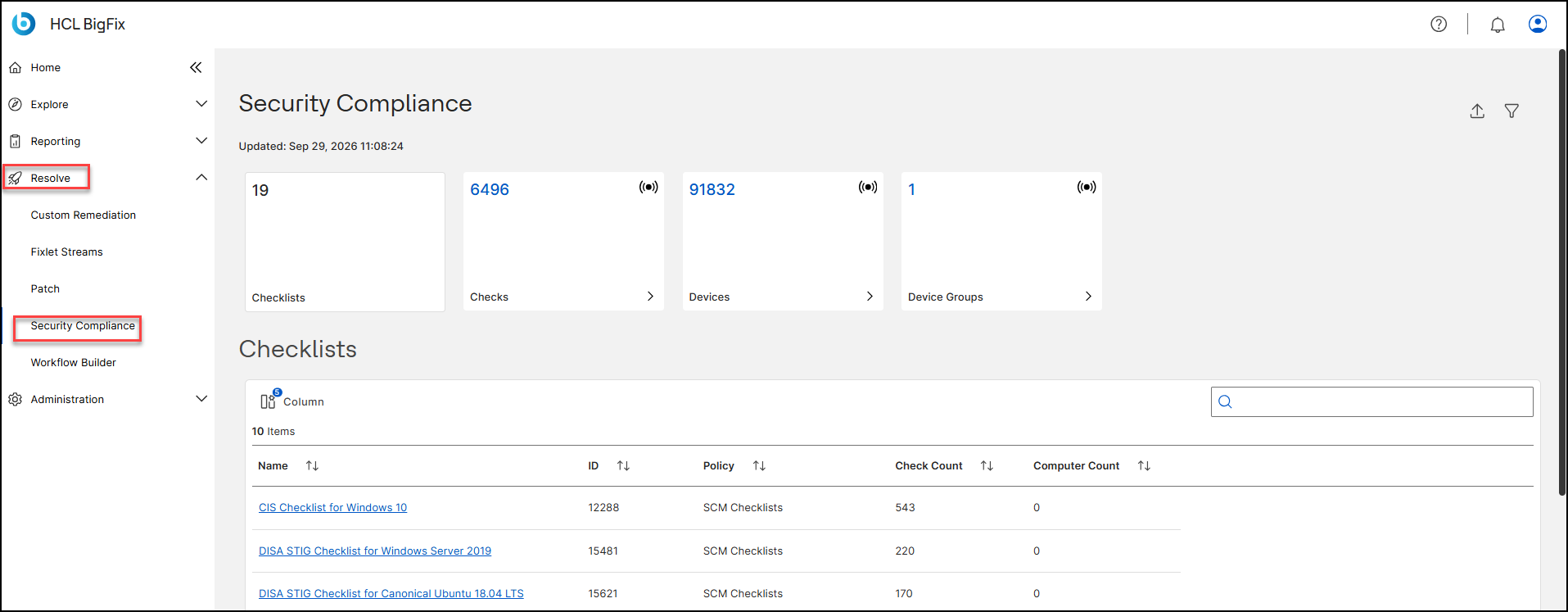
Go to in the left navigation.
The landing page opens, showing the KPI cards and the Checklists grid.
-
Click the Checks KPI card.
Fixlet Explorer opens in List View with a Custom filters chip applied above the grid, showing that the list is scoped to Security Compliance checks. To see all Fixlets, click the X on the chip to remove the Security Compliance scope.
Figure 1. List View scoped to Security Compliance checks 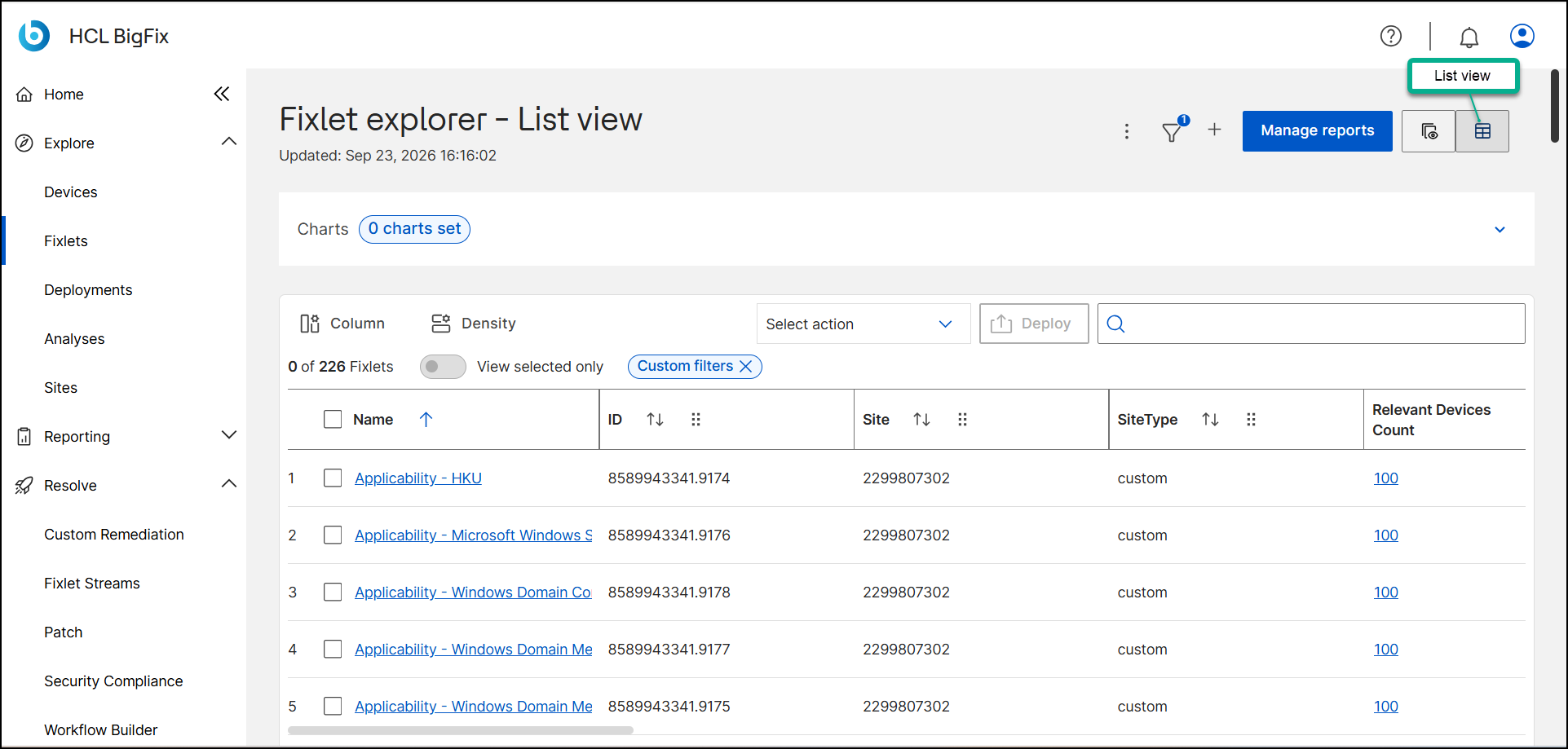
- Click Column and add the columns you want, such as Severity, Category, or Relevant Devices Count, then click a column header to sort.
-
Narrow the list further with the Filter icon. For example, to show
only Checks with a severity of High:
The conditions you add are combined with the scope that Security Compliance already applied.
- Click the Filter icon to open the filter panel.
- Set Property to Severity, Operator to Is, and Value to High.
- Click Apply Filter.
-
Click Manage reports, open the Save Report
tab, enter a name, and save.
Figure 2. Manage reports drawer 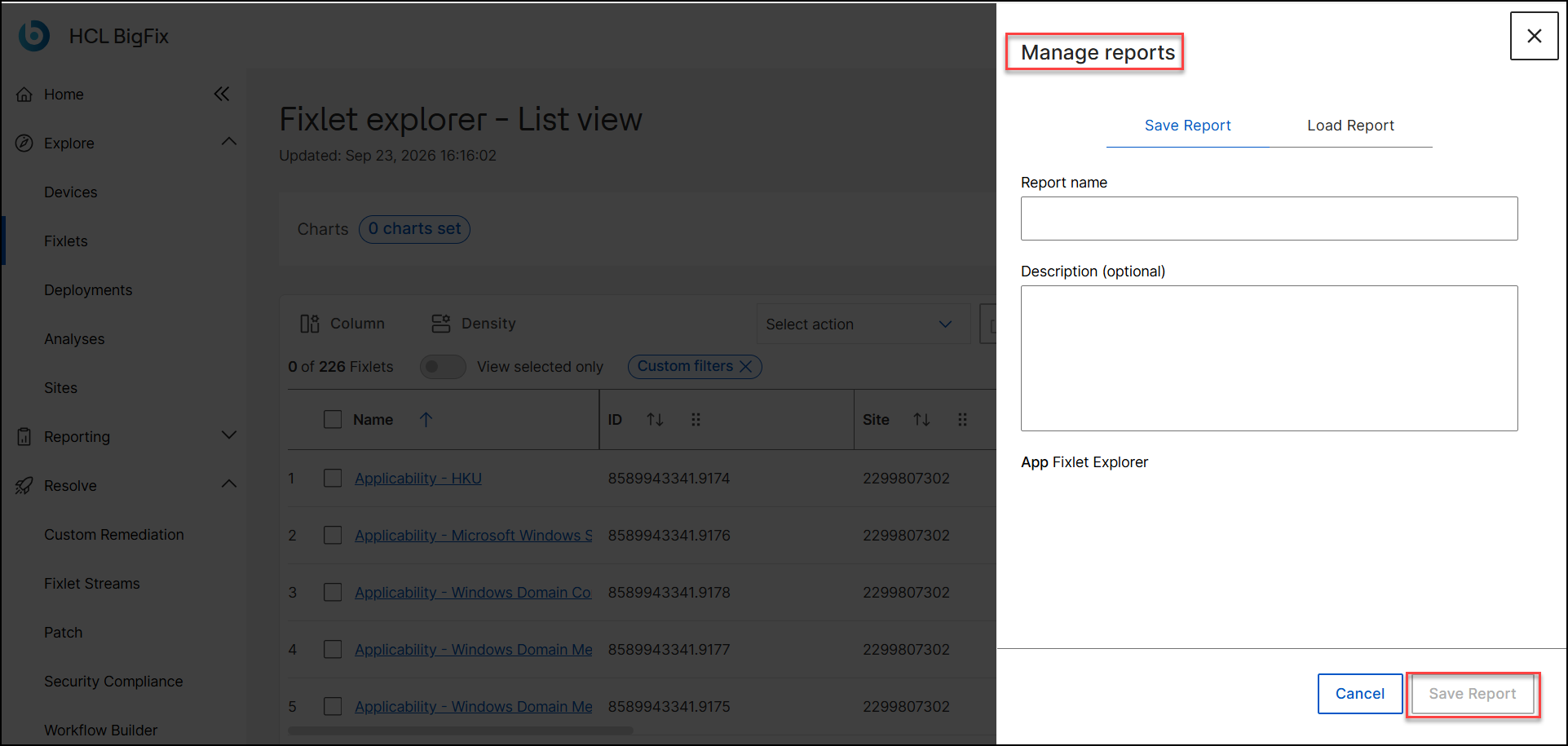
The filter, columns, and charts are stored. Open Manage reports and use Load Report to return to the same view later, without going through Security Compliance. -
Click a Check name to review its Overview (properties, relevance,
actions), Relevant Devices, and Deployments
tabs.
Figure 3. Fixlet detail page with Overview, Relevant Devices, and Deployments tabs 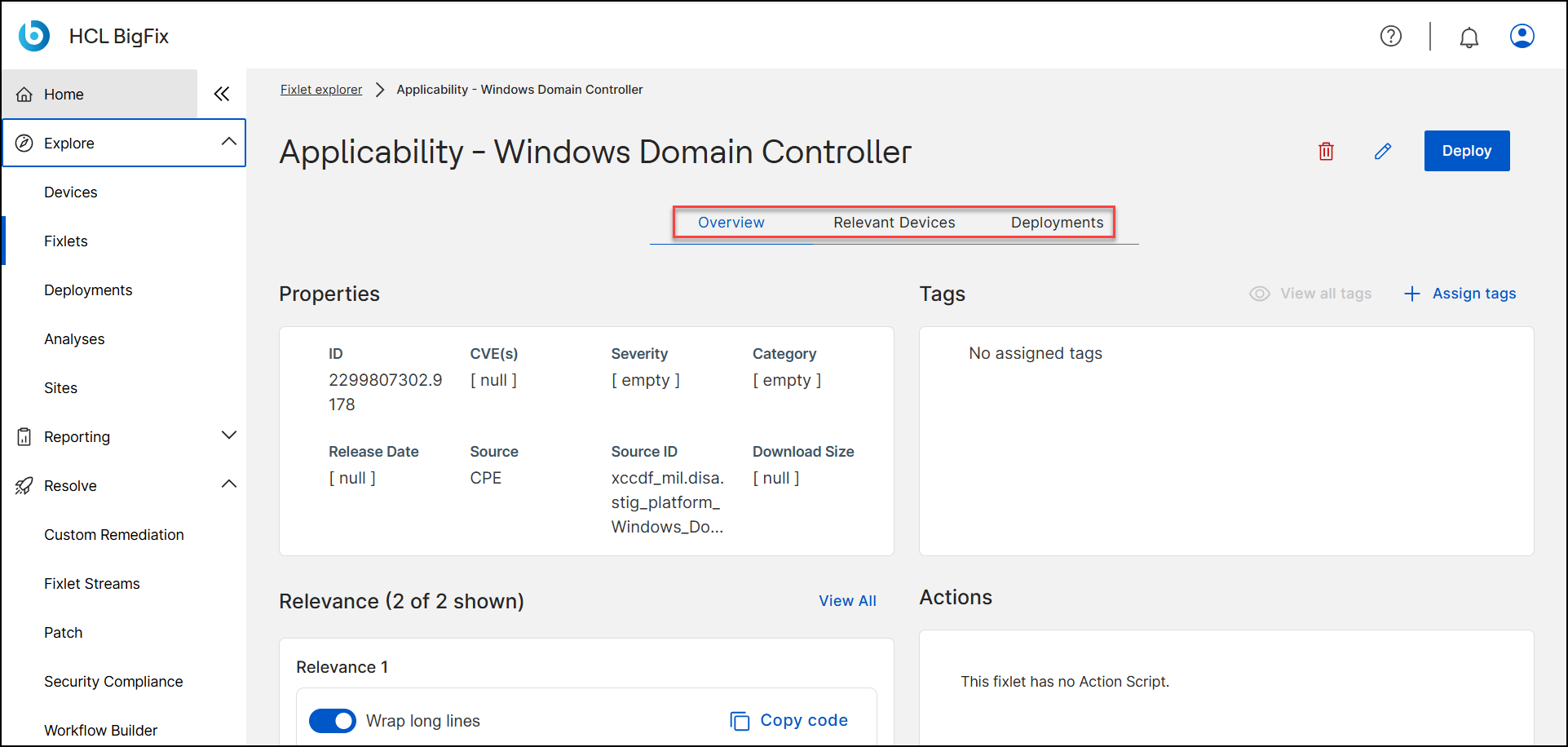
- Select one or more Checks in the grid and click Deploy, or click Deploy on the detail page, then follow the Fixlets, Actions, Devices, Behavior, Schedule, and Summary steps.
What to do next
Deploying from Fixlet Explorer and from the Security Compliance Checks grid uses the same Deploy drawer. The difference is scope: Security Compliance groups Checks by Checklist and adds compliance columns such as Compliant Devices, Non-Compliant Devices, and Compliance %; Fixlet Explorer shows all Fixlets with standard Fixlet columns. See The checks grid for details on those compliance columns.
- The landing page for the global filter, charts, and exports.
- The checks grid for compliance counts per check.
- See Deployments for action behavior and scheduling options.