
Pruning patch and vulnerability trend history (rollups)
BigFix Compliance stores summarized results, called rollups, for every computer group on every import. Patch and vulnerability rollups grow quickly in large deployments. You can set a separate, shorter retention period for them and tune how many rows the import deletes in each batch.
What rollups are
During each import, after the raw check results are loaded, BigFix Compliance computes rollup tables that summarize the results per computer group and per import time. Reports that show history and trends, for example the Overview graphs and the Patches and Vulnerabilities domain trend charts, read from these tables instead of scanning raw results.
Two rollup tables hold the patch and vulnerability (P&V) trend history:
computer_group_patch_rollupscomputer_group_vulnerability_rollups
A row is written to each table for every computer group, on every import, for every patch or vulnerability. As a result, these two tables are usually the fastest-growing tables in the database. The number of rows per import increases with the number of computer groups and the number of imports per day.
Separate retention for patch and vulnerability trend history
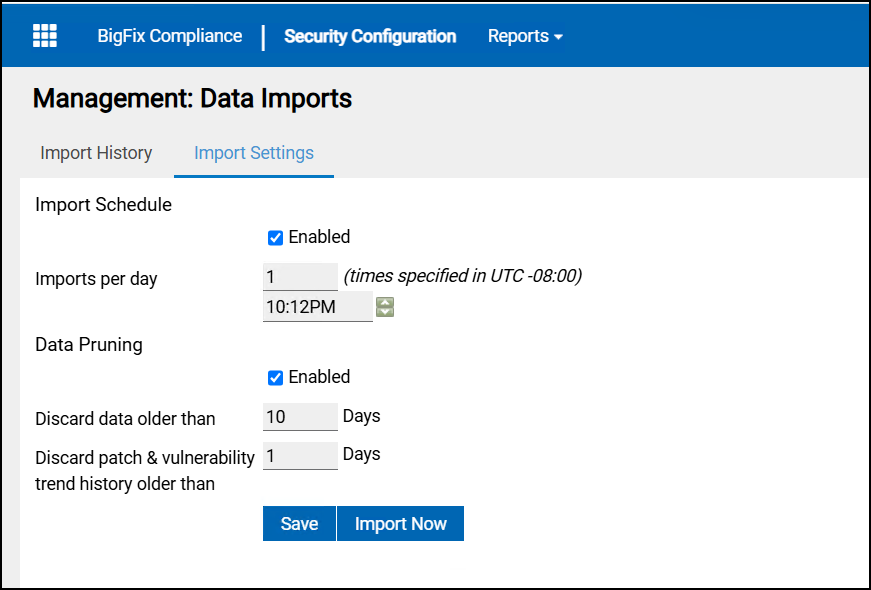
Data Pruning on the Import Settings tab has two retention settings:
| Setting | What it prunes | Default |
|---|---|---|
| Discard data older than | All rollup and slowly-changing history, including Security Configuration domain results, that is older than the given number of days. | 365 days |
| Discard patch & vulnerability trend history older than | Only the rows in computer_group_patch_rollups
and computer_group_vulnerability_rollups that are
older than the given number of days. Patches and Vulnerabilities
reports show trend history for this period only. |
Same as Discard data older than |
Use a shorter P&V retention when the database grows after each import and you do not need a long patch or vulnerability trend, but want to keep Security Configuration history longer.
- Click Management Gear Icon > Import Settings.
- Under Data Pruning, check Enabled.
- In Discard data older than, enter the general retention in days.
- In Discard patch & vulnerability trend history older than, enter a smaller number of days for the P&V rollups.
- Click Save. Pruning runs at the end of the next import.
- If the P&V field is empty or set to
0, the general retention is used for the P&V rollups as well. After an upgrade, existing behavior is therefore unchanged until you set the new field. - A P&V retention longer than the general retention has no effect, because the general setting already removes the older rows.
How rollup rows are deleted
Pruning runs as the final phase of the import, after the new results are finalized, so a long prune does not delay the availability of the new data. Rows in the two P&V rollup tables are deleted in batches rather than in a single statement, which prevents long lock waits and transaction-log growth on SQL Server. Pruning repeats the batch delete until no rows older than the cutoff remain.
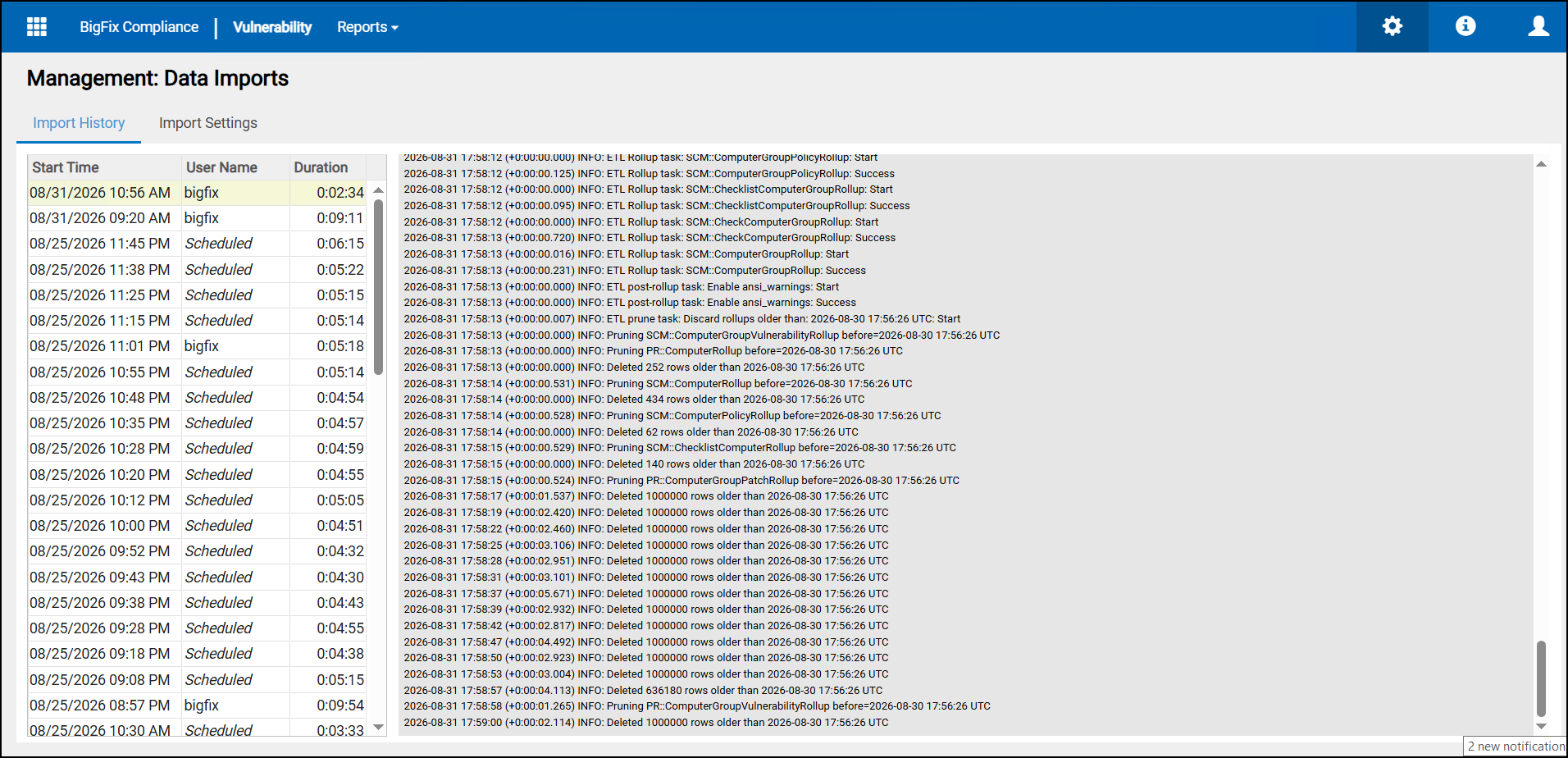
The import log shows the cutoffs and each batch, for example:
ETL prune task: Discard rollups older than: 2026-03-20 15:15:16 UTC (Apply aggressive discard to
  PR::ComputerGroupPatchRollup and PR::ComputerGroupVulnerabilityRollup: 2026-05-18 15:15:16 UTC): Start
Pruning PR::ComputerGroupPatchRollup before=2026-05-18 15:15:16 UTC
Deleted 5000000 rows older than 2026-05-18 15:15:16 UTC
Deleted 165986 rows older than 2026-05-18 15:15:16 UTC
Pruning PR::ComputerGroupVulnerabilityRollup before=2026-05-18 15:15:16 UTC
Deleted 823802 rows older than 2026-05-18 15:15:16 UTCApply aggressive discardis the P&V cutoff. It appears only when the P&V retention is shorter than the general retention.
Changing the pruning batch size
The batch size is controlled by the import.pruning_batch_size
option:
| Default | 5,000,000 rows per batch, used when the option is not set anywhere. |
| Minimum | 1,000,000 rows. A smaller configured value is raised to 1,000,000. |
| Where to set it | Under the system: section of
options.cfg. A value in
options.cfg takes precedence over the
built-in default. |
Lower the batch size if pruning causes lock waits or fills the transaction log on a database with limited resources. Raise it to shorten the pruning phase when clearing a large backlog on a well-provisioned SQL Server.
- On the BigFix Compliance server, open <install_dir>\wlp\usr\servers\server1\apps\tema.war\WEB-INF\config\options.cfg. If the file does not exist, copy options.cfg.sample to options.cfg.
- Under the
system:section, add the following line, where rows is the number of rows to delete per batch:system: import.pruning_batch_size=rows - Save the file and restart the BigFix Compliance service.
- Run an import and check the import log for
Deleted
                                rows rows older than
entries.
For example, with import.pruning_batch_size=1000001, the log shows
Deleted 1000001 rows older than ... for each iteration. With
import.pruning_batch_size=100000, the log shows batches of
1,000,000 rows because the minimum is enforced.
Verifying the effect
To check how much trend history is stored, count the rows in the two rollup tables before and after an import, for example:
SELECT COUNT(*) FROM [tem_analytics].[pr].[computer_group_patch_rollups];
SELECT COUNT(*) FROM [tem_analytics].[pr].[computer_group_vulnerability_rollups];
Replace tem_analytics with the name of your BigFix Compliance
database. Run the queries with a read-only account outside the import window.