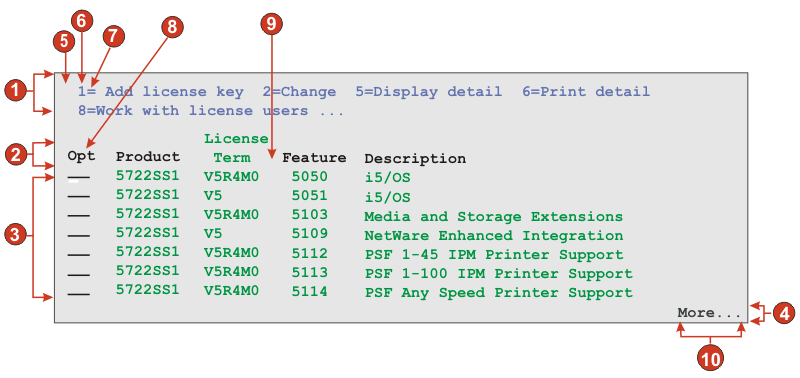
The following figure shows how a subfile component might appear
on your host screen:
Figure 1. Subfile component example
Action region
Header region
Data region
Marker region
String before the leading token (a space)
Leading token type (digit)
Delimiter (an equal sign (=))
Beginning text for header (Opt)
Column delimiter (a space)
Marker text (More...)
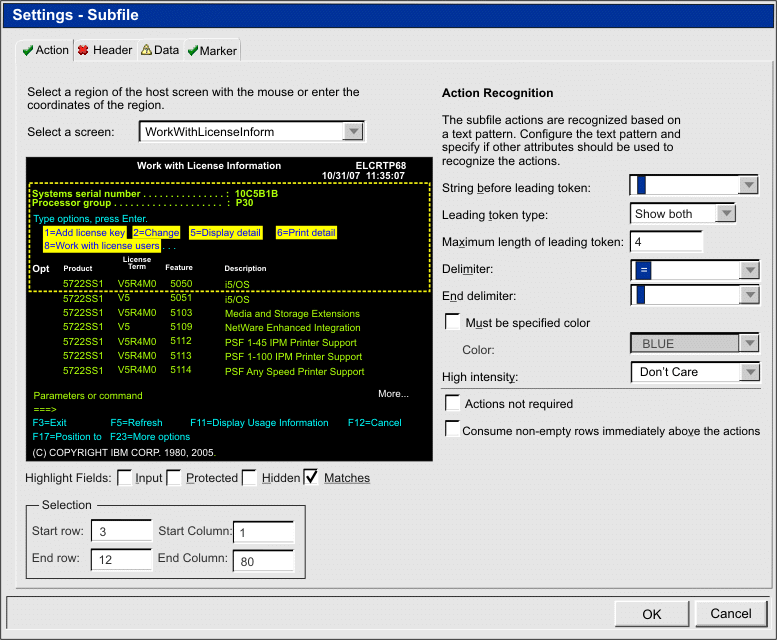
To launch Subfile Settings, follow these steps:
Go to the ZIETrans Projects view and
click on your Project Settings.
Select the Rendering tab.
In the Rendering tab, expand the Components tree and select the Subfile component.
Click on the Settings button to
the right to display the Subfile Settings window.
Figure 2. Subfile
settings example
The Subfile component settings consist of four tabs,
Action, Header, Data, and Marker. Each tab is used to define the criteria
for recognizing a particular element of the subfile. Icons on each
tab indicate the following states:
Recognized: This state means the element of the subfile is recognized
on the selected screen. If the Matches option
is selected, the recognized element is highlighted. To change the
highlighting color, use the Pattern matches setting
in the Screen capture highlighting colors section
of the ZIETrans preferences. For more information, see Using ZIETrans preferences.
Unrecognized: This state means the element of the subfile is not
recognized. You must adjust the screen region or recognition criteria
to tune the settings until recognized.
Unknown: This state indicates that the recognition of this element
depends on another element that is not yet recognized. Tune the unrecognized
settings on the other tabs first, then come back to this tab.
When all four tabs display recognized indicators, click OK. You can see the recognized result in
the widget preview.
Each recognition tab is described below.
Have feedback?
Google Analytics is used to store comments and ratings. To provide a comment or rating for a topic, click Accept All Cookies or Allow All in Cookie Preferences in the footer of this page.