The Table (field) component is responsible for recognizing
logical columns of vertically aligned fields. For a region to be recognized
as a table (field), the left and right boundaries
of each field contained within the selected region (including partial
fields) must be the same as the left and right boundaries of the field
directly above (if the field in question is not on the first row)
and directly below (unless the field in question is not on the last
row).
A recognized table (field) can be rendered
by the following widgets:
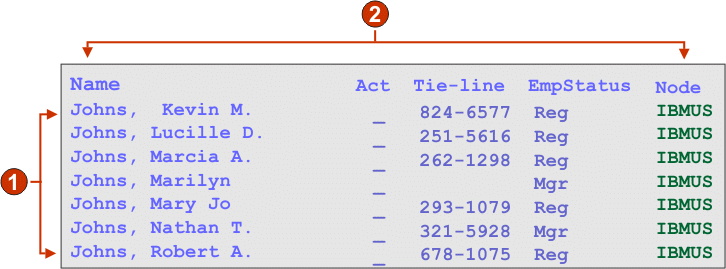
The following figure shows how a table (field) component
might appear on your host screen:
Figure 1. Table
(field) component example
Rows
Columns
The following settings can be configured for this component:
Include empty rows
If selected, empty rows (rows without any visible text or input
fields) will be included in the rendered table or graph.
Rows to exclude
The comma-separated or ranged set of rows to exclude from the
recognized table. This setting is useful for hiding specific rows
of data on a table or graph. The rows represented by this value are
based on the recognized table, not on the actual host screen. Example
values: 1,2,3..., 1,2-4, 3-5.
Columns to exclude
The comma-separated or ranged set of logical columns to exclude
from the recognized table. The columns represented by this value are
based on the recognized table, not on the actual host screen. Example
values: 1,2,3..., 1,2-4, 3-5.
Minimum row count
The minimum number of rows the specified region must contain
for the region to be recognized as a table.
Note: The number of recognized rows is evaluated before the specified
rows are excluded (see Rows to exclude).
Minimum column count
The minimum number of logical columns (not host screen columns)
the specified region must contain for the region to be recognized
as a table.
Note: The number of recognized
columns is evaluated before the specified columns are excluded (see Columns to exclude).
Extract column header text from row above
table
Select this box if you want the text from the line above the
table to be used as the column headers of the table. The column headers
must be in protected fields.
Note: Unless you have access to the host screen map
which created the table, use the Table
(visual) component to recognize a tabular region. If this is not possible,
turn on the Input, Protected, and Hidden options
on the first page of the Insert Host Component wizard to help determine
where fields break within the selected host screen region.
Have feedback?
Google Analytics is used to store comments and ratings. To provide a comment or rating for a topic, click Accept All Cookies or Allow All in Cookie Preferences in the footer of this page.