
MaxAI Assistant
MaxAI Assistant helps in real-time decisions and optimizations.
Overview
Ask the MaxAI Assistant any query related to Unica product suite and it provides quick and accurate answers. The supported queries are:
- Analytical queries
- Segment creation queries
- Plan approval queries
- Unica product documentation-related queries
HCL MaxAI uses CDM for Campaign and Customer analytical queries, and CDP Segmentation features.
The Canonical Data Model (CDM) is a unified, subject-area-agnostic data structure that serves as the authoritative reference framework for all data flowing through the Customer Data Platform. It provides standardized definitions, structures, and naming conventions for core business entities that evolve across different subject areas such as Party, Account, Product, Contact, Device, Campaign, Segment, and Transaction.
For more information on CDM , see HCL CDM User Guide and HCL CDM Redbook.
| Analytical Queries | |
|---|---|
Products Supported
|
Example Queries /
Procedures How many Journeys were created in the last month? Which of these customers have not been contacted by any campaign in the last 30 days? Which campaigns achieved the highest engagement among this segment? Filter to customers who were contacted but didn’t respond in the last two active campaigns. For more examples related to queries and best practices, see Analytical Queries and Best Practices for Analytics Queries. |
| Segment Creation | |
|---|---|
Products Supported
|
Example Queries /
Procedures Create a segment containing users of age group between 25 and 30 with annual income more than INR 200,000 living in New York city at Manhattan area. Create segment of customers who are male and have income more than 20,000. I want a group of customers whose age is between 20 and 40 For more examples related to queries and best practices, see Best Practices for Segmentation Queries. |
| Plan Approvals | |
|---|---|
Products Supported
|
You can use MaxAI Assistant to execute the
following approval actions in Plan:
For more examples related to queries and best practices, see Best Practices for Plan Execution-related Queries or Queries for Unica Plan |
| Documentation Search | |
|---|---|
| Products Supported: All products | Searching content from Unica documentation.
Currently MaxAI searches content from the PDF documentation
website of Unica. MaxAI provides references to https://doc.unica.com or ask you to access https://doc.unica.com for additional
information. For more examples related to queries and best practices, see Best Practices for Document Search Queries. |
Accessing MaxAI Assistant
Before you access the MaxAI component, ensure that it is deployed and configured. If you cannot locate or access MaxAI, contact your Administrator to configure it. MaxAI is compatible with HCL Unica+ 25.1.0 version.
- In the Unica dashboard, click the following button:

- The MaxAI Assistant panel opens:
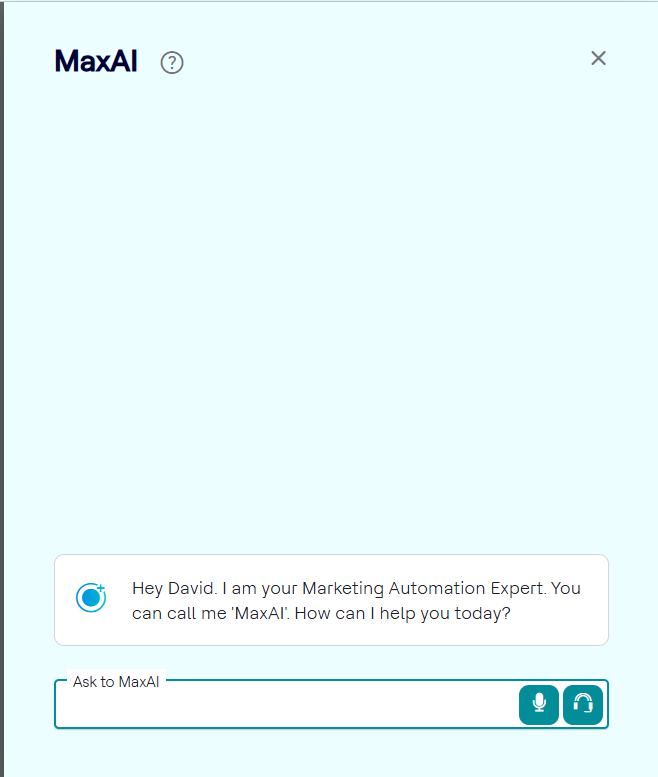
- Microphone icon - Click the
Microphone icon to recite your query. You will
need a microphone to input your query via voice. The result appears in the
window.Note:
- Confirm the compatibility and limitations of your browser with your microphone.
- Ensure that you have activated microphone access on your browser.
- Refresh the page after enabling microphone access.
- Headphone icon - Click the
Headphone icon to start a conversation with the
MaxAI Assistant. You will need a headphone or earphone, and a microphone to
input your query via voice and to listen to the response from the MaxAI
Assistant.Note:
- Confirm the compatibility and limitations of your browser with your headphone.
- Ensure that you have activated headphone access on your browser.
- Refresh the page after enabling headphone access.
- For the responses received from MaxAI Assistant, you can select the
Thumbs Up icon or the Thumbs
Down icon.
- Thumbs Up icon - If you select the
Thumbs Up icon, a Help us
improve panel opens. You will see the following
options:
- Factually correct
- Easy to understand
- Informative
- Creative/Interesting
- Well formatted
Based on your experience, select one or more of the earlier provided options. Additionally, you can provide a detailed feedback in the Please feel free to add additional details textbox. Click the Submit button after providing the feedback.
The positive feedback helps MaxAI to remember the correct responses.
- Thumbs Down icon - If you select the
Thumbs Down icon, a Help us
improve panel opens. You will see the following
options:
- Not factually correct
- Didn't follow instructions
- Wrong language
- Poorly formatted
- Generic/Bland
Based on your experience, select one or more of the earlier provided options. Additionally, you can provide a detailed feedback in the Please feel free to add additional details textbox. Click the Submit button after providing the feedback.
The negative feedback helps MaxAI to remember the incorrect responses and ensure such responses do not appear for similar queries posted later by other users.
- Thumbs Up icon - If you select the
Thumbs Up icon, a Help us
improve panel opens. You will see the following
options: