
Editing an Event
This page explains how users can edit a running event by creating a draft version. The original event continues to run until the updated draft is deployed.
Editing a running event does not directly modify the live version. Instead, a new draft is created for editing. Once finalized and deployed, the draft replaces the existing running event.
Edit a Running Event
-
Click on the Events tab in the top navigation bar.
-
Select All Events.
-
From the list of events, choose one in Running status.
-
Click on the event name to open the event detail view.
-
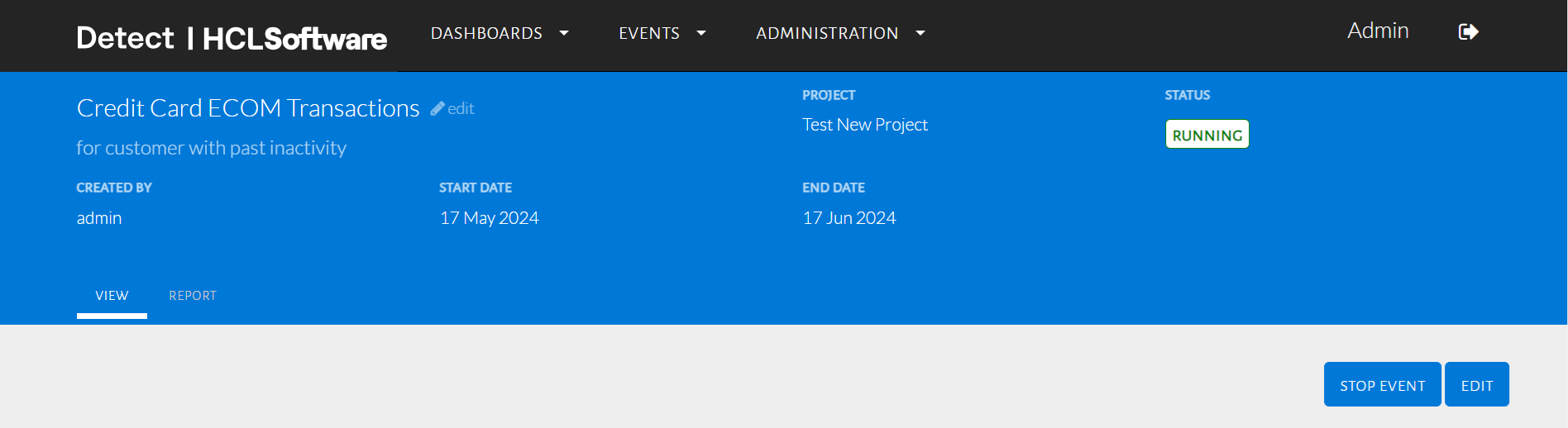
On the top-right of the event detail page, click the Edit button.
-
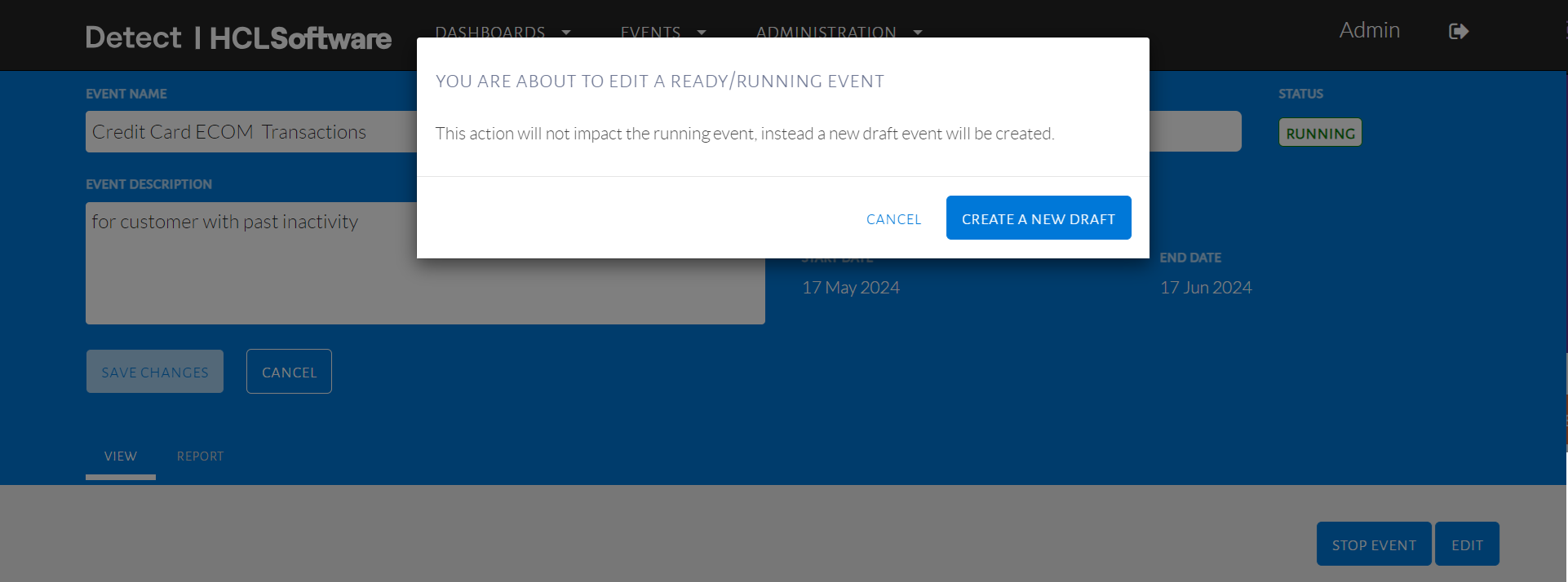
A pop-up appears notifying you that a new draft will be created.
-
Click Create New Draft to proceed.
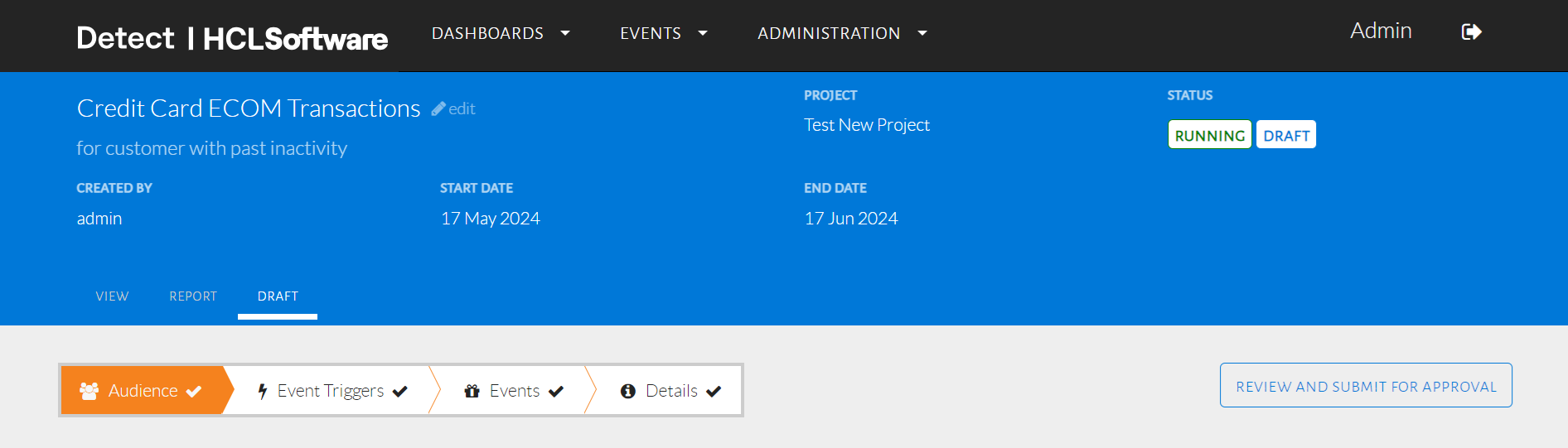
A new Draft tab appears under the event, where edits can be made.
-
The status of this version will be shown as Draft.
���� Example: Edit a running event for ���Cart abandonment retargeting��� to change the audience from 7-day inactivity to 3-day inactivity.
- Original running event remains unaffected until the new draft is deployed.
- Only one draft can be active per event at a time.
- Deployment will overwrite the existing running version.