The Run Manual Execution feature allows users to manually perform resolution steps
for a ticket when automated runbooks are not applicable or require human
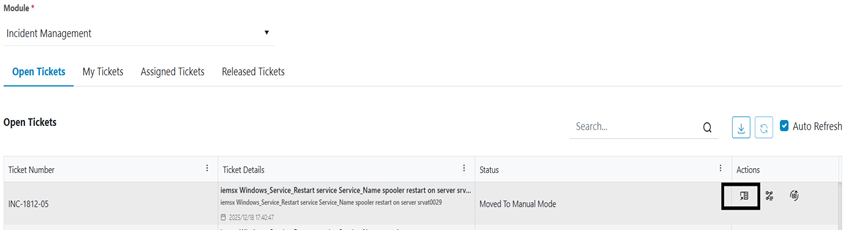
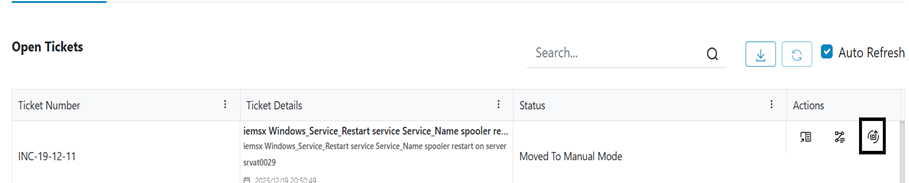
intervention, those ticket ‘s status marked as Moved to Manual Mode can be executed
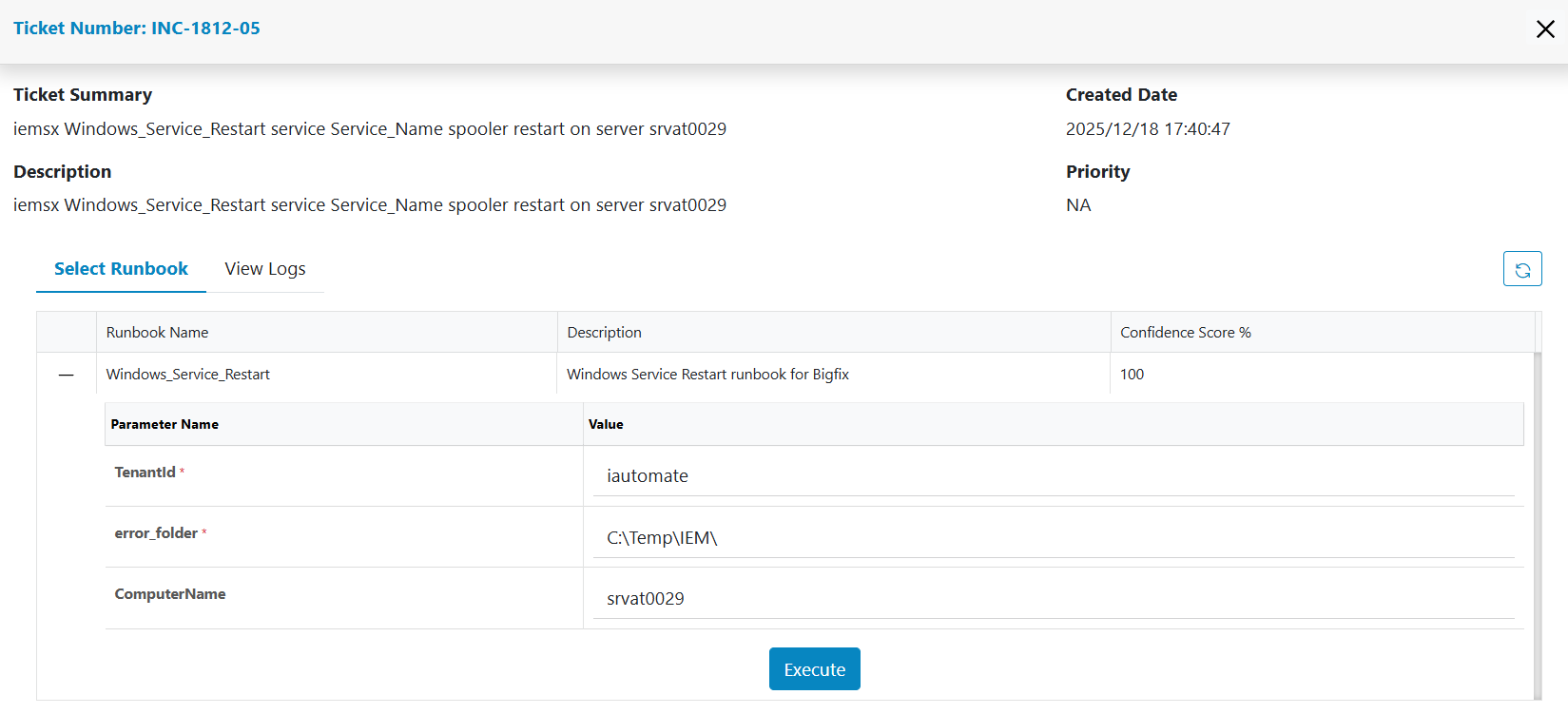
manually by clicking on the highlighted icon in Action it will open window like
below screen shot.Figure 1. Select Runbook
Select Runbook shows all list of runbooks for manual execution Click on + it will
expand list of parameters update parameters in textbox if required and then Click on
execute button it will show confirmation message and will move to My Tickets
page.Figure 2. Select Runbook
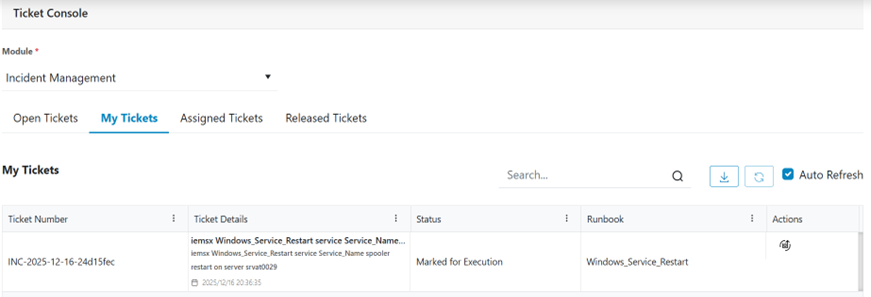
Once executed ticket status will move to Marked For Execution status under My Tickets
tab. All tickets are executed by current Logged in user; those tickets will be
listed out in My Tickets tabs.Figure 3. My Tickets
Release
The Release button In Action allows users to release a ticket that is currently in
progress.Figure 4. Select Runbook
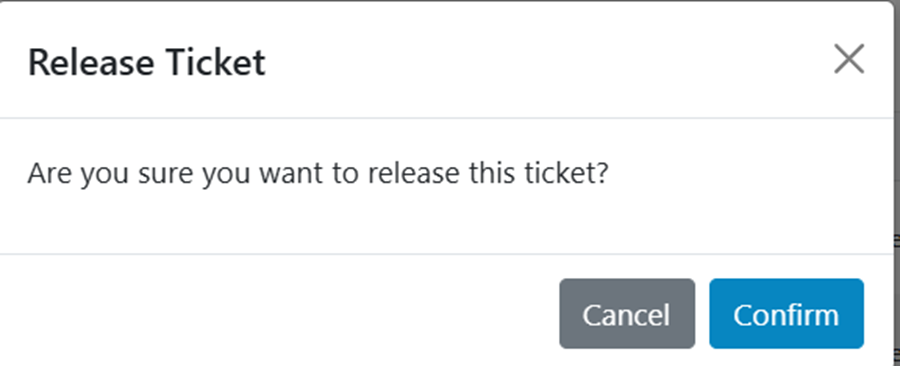
Confirmation pop will be opened once you click on confirm button ticket will be
released and confirmation message will be shown and will be directed to the Open
tickets tab.Figure 5. Release Ticket
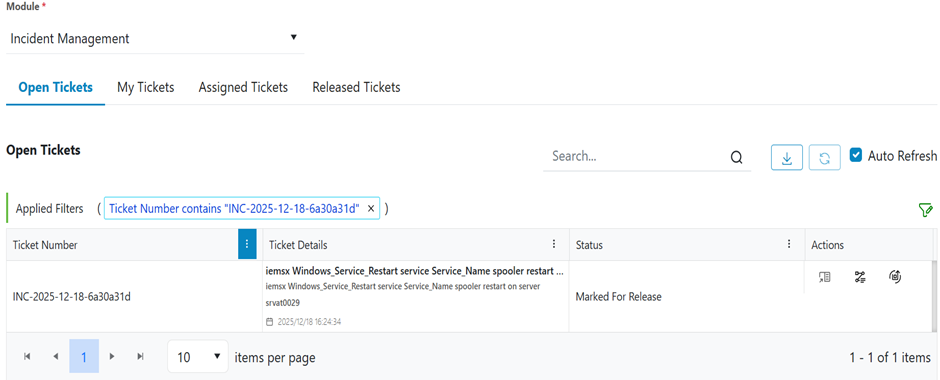
Released tickets will be shown with Marked For Release status in the Open Tickets
tab.Figure 6. Open Tickets
Logs
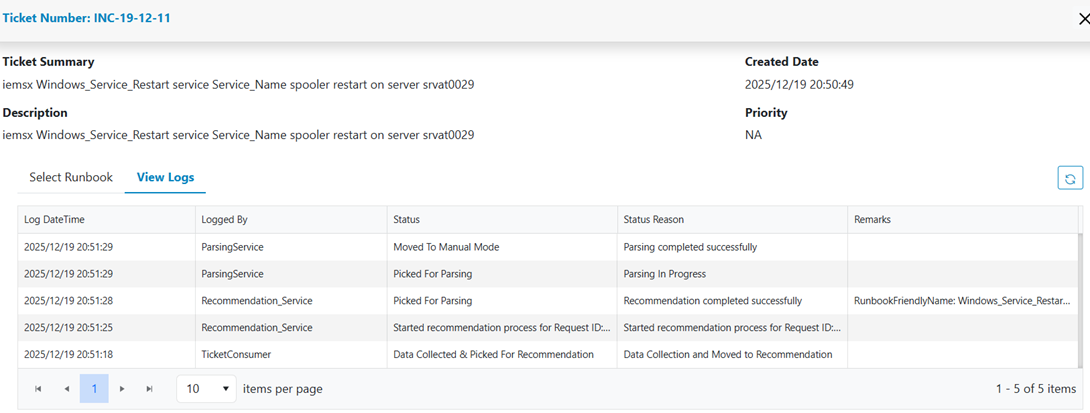
The Logs provide a complete record of all actions performed on a ticket. This
includes status changes, updates, status reasons, remarks, and logged by service.
Logs are generated by services to ensure transparency, traceability, and
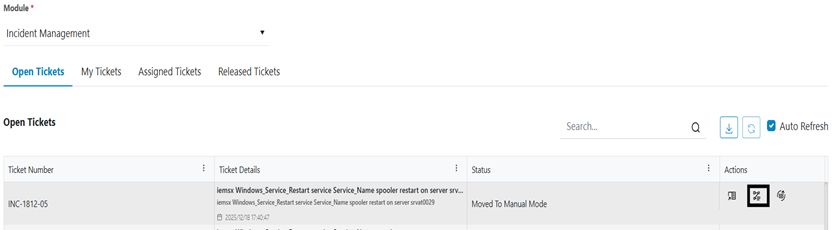
accountability throughout the ticket lifecycle. To View logs, click on highlighted
button like below screenshotFigure 7. Open Tickets
Logs display all activity related to a ticket, including updates, status changes, log
Datetime, remarks and service name which has taken action, in chronological
order.