Solution
- Open iAutomate Web URL and login with Super Admin credentials.
- Go to Advance Configuration -> Knowledge and click Knowledge Analysis.
Figure 1. Knowledge Analysis 
- Select the Organization for which you want to visualize the data (for e.g. MyCompany). Select the Collection from where you want to fetch the data.
- Select the Repository from the dropdown list and click Search.
- The Search provides a clustered view of the documents present in the selected repository.
The left pane displays the cluster, and the cluster topics are displayed on the right pane
as legends. The counts appearing on each cluster represent the number of documents in each
cluster.
Figure 2. Knowledge Search Repository 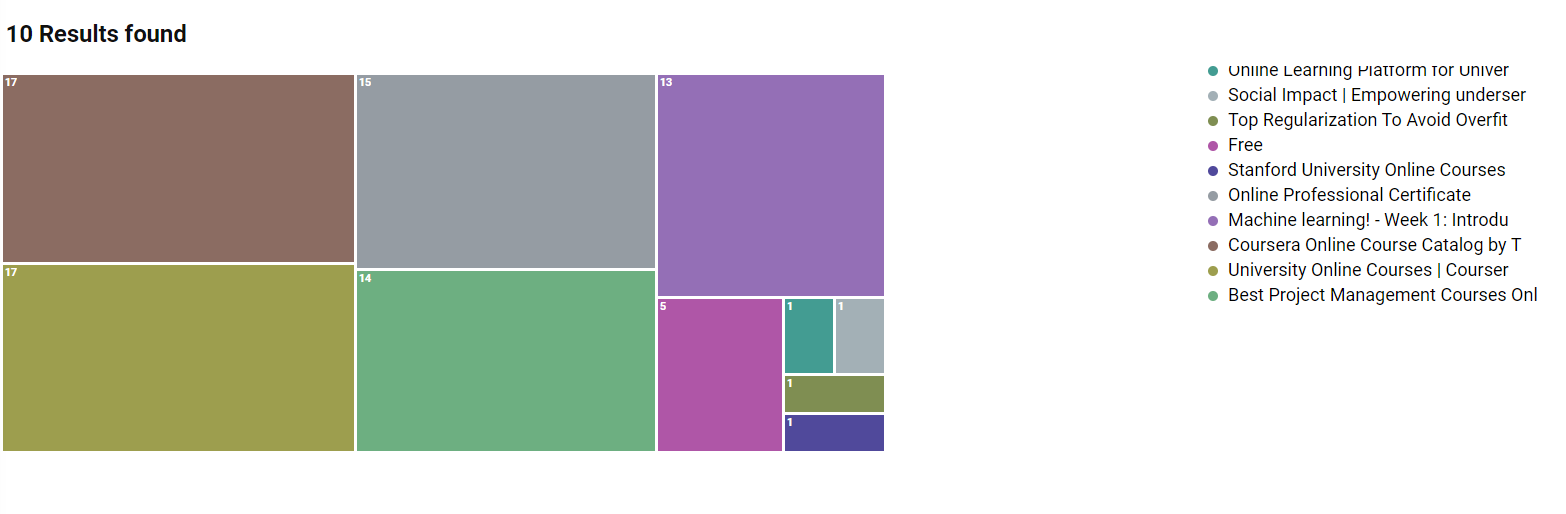
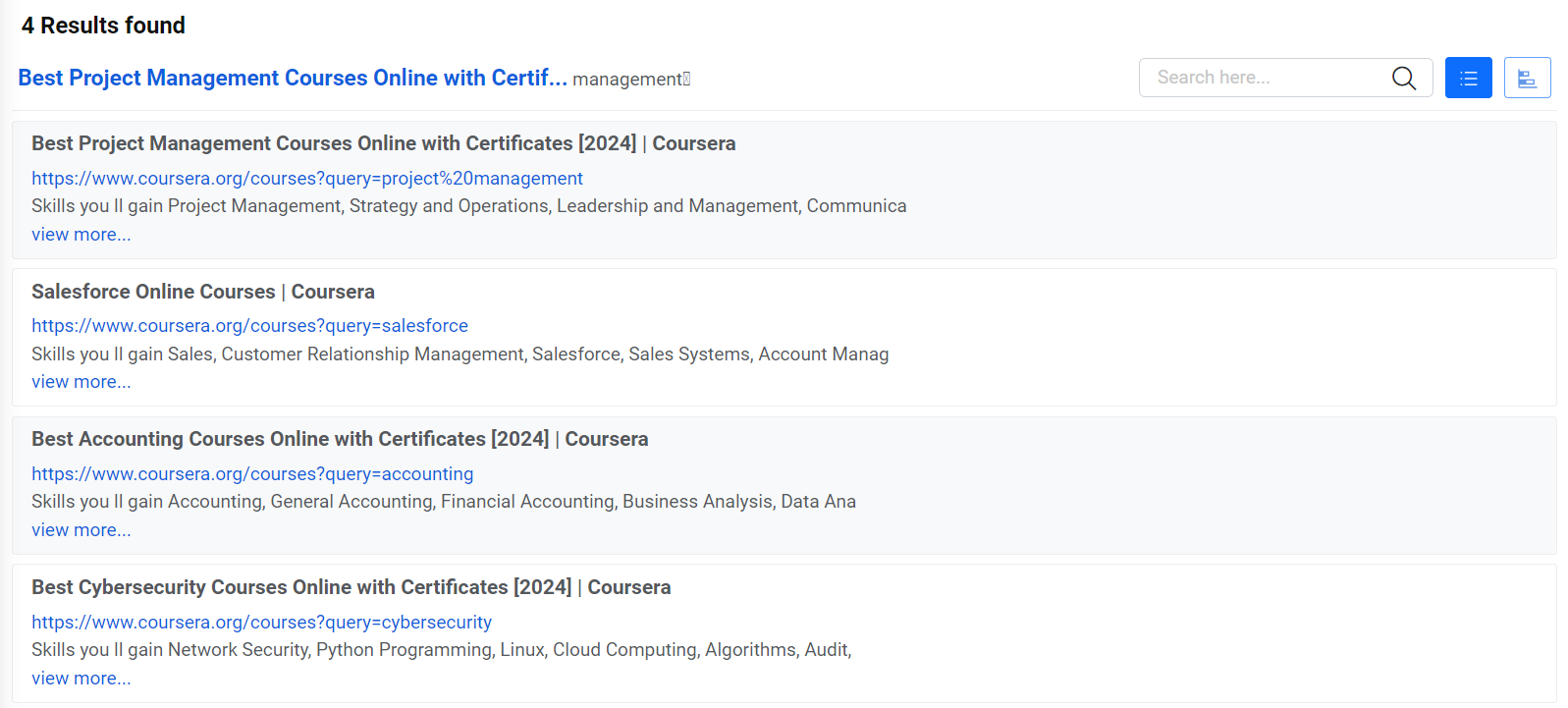
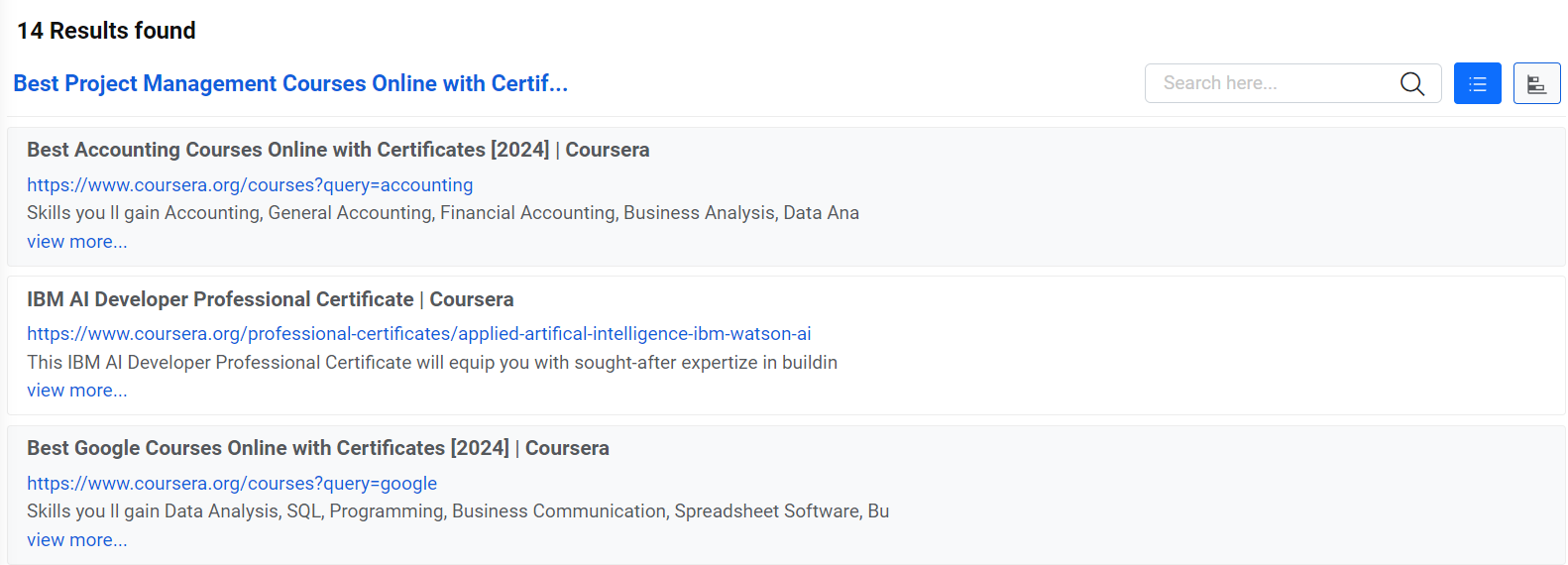
Selecting a cluster lists the documents associated with the selected cluster. These document details include Document Title, Source URL of the documents, and the Document Summary.
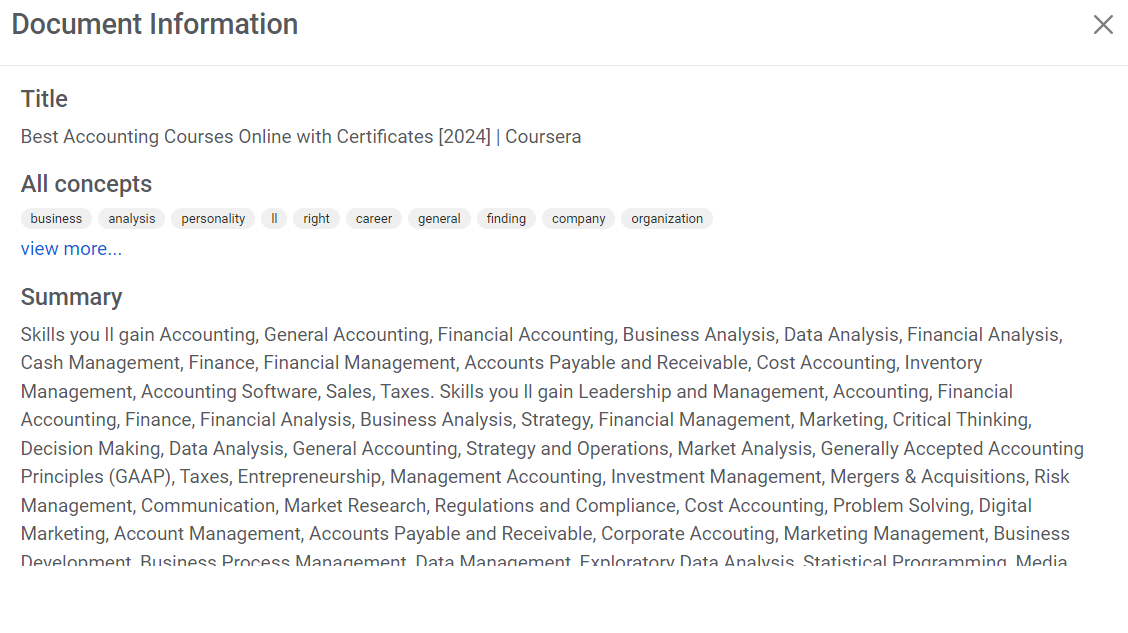
Selecting a Document Title presents Similar Documents view, where it shows document information including relevant Topics and Tags, Summary, and the List of all similar documents along with their similarity percentage.
You can also get the topic view
for all documents for the selected cluster by clicking  on the search result bar. This
view represents list of relevant Topics arranged by order of their
relevance in selected cluster. This also allows you to find/select
documents for a particular topic.
on the search result bar. This
view represents list of relevant Topics arranged by order of their
relevance in selected cluster. This also allows you to find/select
documents for a particular topic.
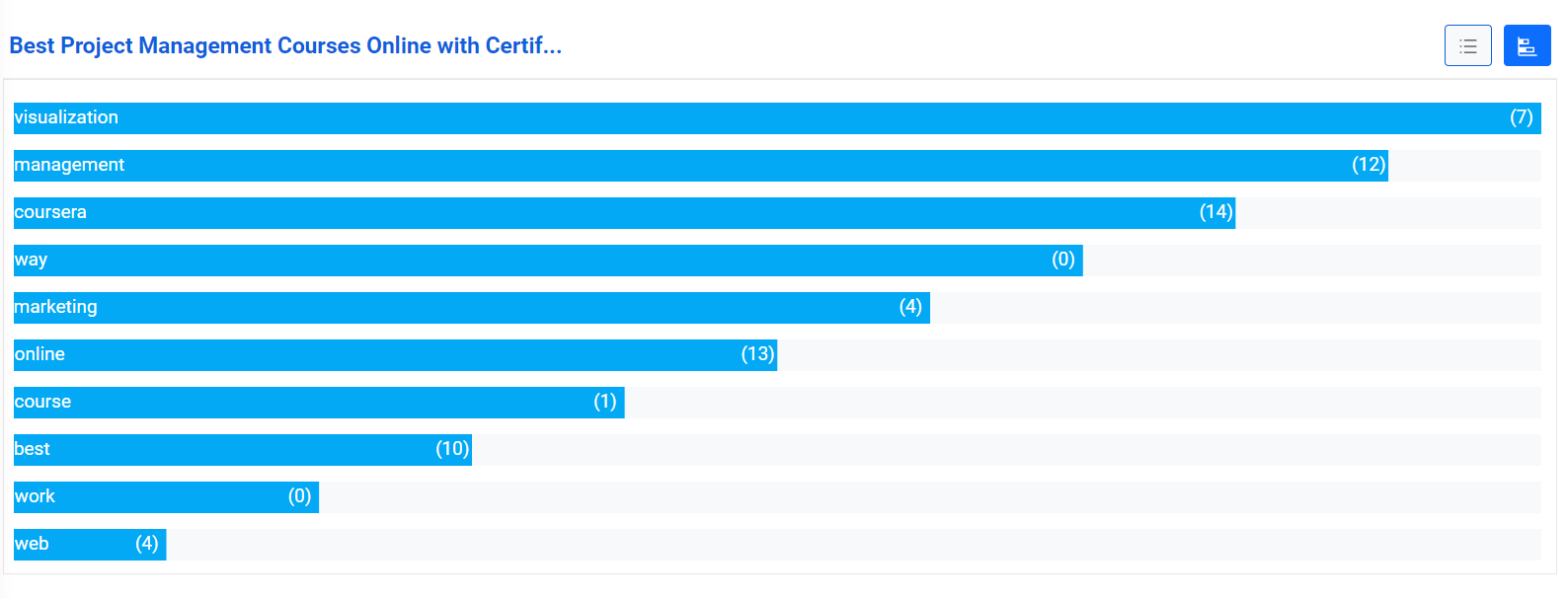
The numerical value against each term represents the frequency of occurrence of a particular term or topic in a cluster.
Selecting a term list all the available documents containing the selected term.