Manage Parameter Master
This section describes how to configure a regular expression for use in the parameter type. A regular expression is a special text string to describe a search pattern during ticket parsing.
To manage parameter master, perform the following steps:
Note:
The user must be logged in as administrator to access the Manage
Parameter Master, Add Hyperparameters and Hyperparameter Configuration.
- On the menu bar, click Advance Configuration Parameter and then click Manage Parameter Master.
- The Manage Parameter Master page appears.
Figure 1. Manage Parameter Master 
- Select a code by clicking the drop-down next to the Select Code field.
- If there are any available parameter values under the selected code, they are listed in a
tabular view that allows the user to add a new parameter, edit or delete existing
parameters, and manage the order of existing parameters.
Figure 2. Manage Parameter Master (Cont.)  Note:The user can change the list of values shown as a result of selected code by selecting a number under the Show tab. The user can refine the search by typing the Parameter Value keywords in the Search field.
Add Parameter
User can add a new parameter type by performing the following steps:
- On the menu bar, click Advance Configuration Parameter Manage Parameter Master.
- On the Manage Parameter Master page, select a code by clicking the drop-down next
to the Select Code field. This enables the Create New Parameter button.
Figure 3. Add Parameter 
- To create a new parameter, click Create New Parameter.
- The Manage Parameter page appears and prompts the user to specify the following
attributes.
- Parameter Text: This is used to identify a new parameter.
- Parameter Value : This describes the regular expression for a parameter under the selected code.
Figure 4. Create Parameter (Cont.) 
- Click Save.
This adds the new parameter and lists it in the parameters.
Edit Parameter Value
Users can open a parameter value, review the available information, and change the parameter’s details by performing the following steps:
- On the Manage Parameter Master page, click
 next to the parameter value you want to edit.
Figure 5. Edit Parameter Value 
- The Manage Parameter popup appears.
Figure 6. Edit Parameter Value (cont.) 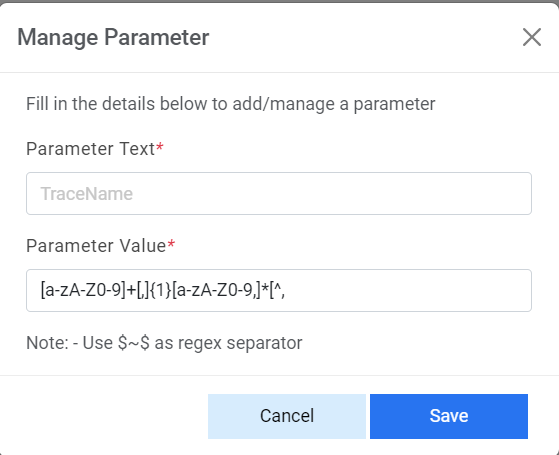
- Edit the required details of the parameter.
- Click Save to save changes or click Close to discard all changes.
- A confirmation dialog box appears.
Figure 7. Edit Parameter Value (cont.) 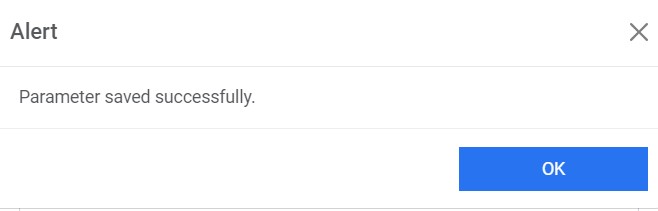
Delete Parameter Value
iAutomate allows users to view parameter values and delete them, if not required.
To delete the parameter value, perform the following steps:
- On the Manage Parameter Master page, click
 next to the parameter value user wants to delete.
Figure 8. Delete Parameter Value .jpeg)
- Click OK to confirm.
Figure 9. Delete Parameter Value (Cont.) 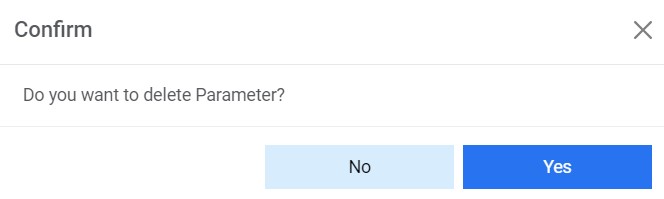
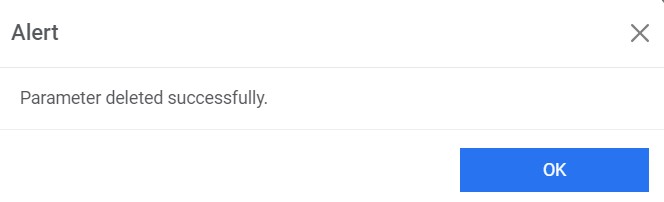
- A confirmation dialog box appears.
Figure 10. Delete Parameter Value (Cont.)