Component Key Value Configuration
Users can use iAutomate components to manage application features. Each configuration component contains one or more component keys, each of which identifies a configurable property of the component. This section describes how to manage these key values for the components.
To configure the key component values, perform the following steps:
- On the main menu bar, click Advance Configuration->Connectivity and then
click Component Key Value Configuration. The Component Key Value Configuration page
appears.
Figure 1. Component Key Value Configuration 
- Select Component and the component code for which the user wants to see the configuration.
- The configurations saved without Organization Specific checkbox being checked will
be used at admin level. And the configurations saved corresponding to any Organization will
be used for that organization only.
Figure 2. Component Key Value Configuration (For Super Admin) 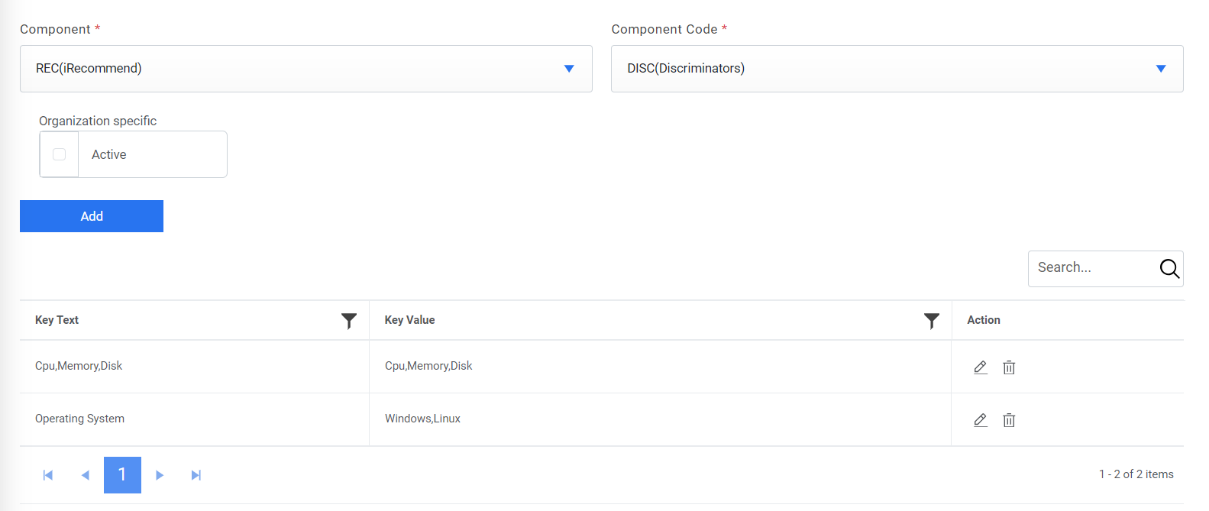
Figure 3. Component Key Value Configuration (For Organization Admin) 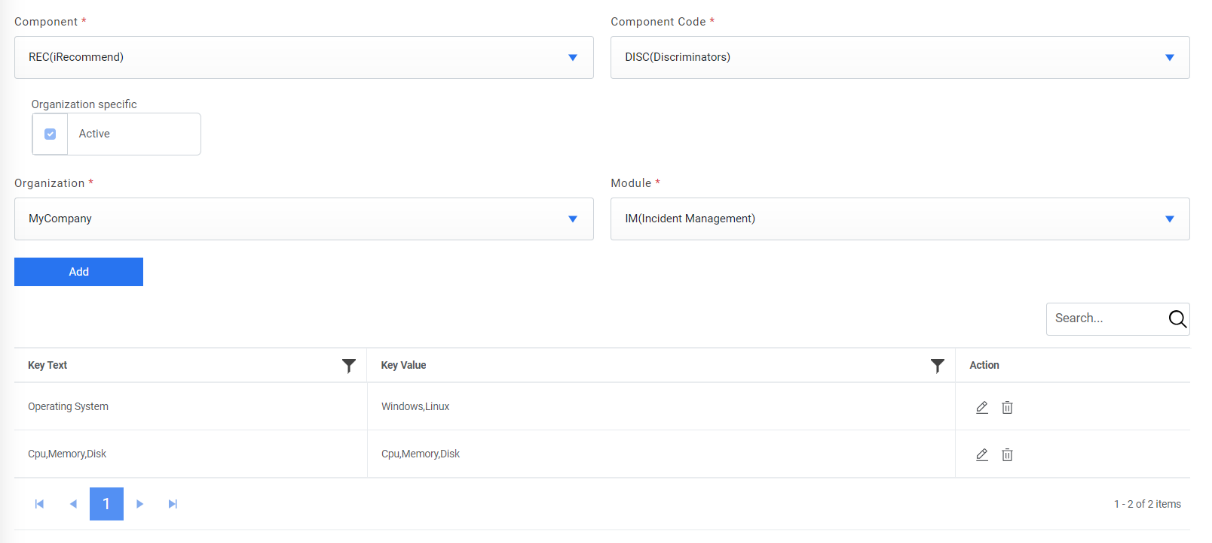
- To add any configuration, click on Add button and below popup opens.
Figure 4. Component Key Value Configuration (Cont.) 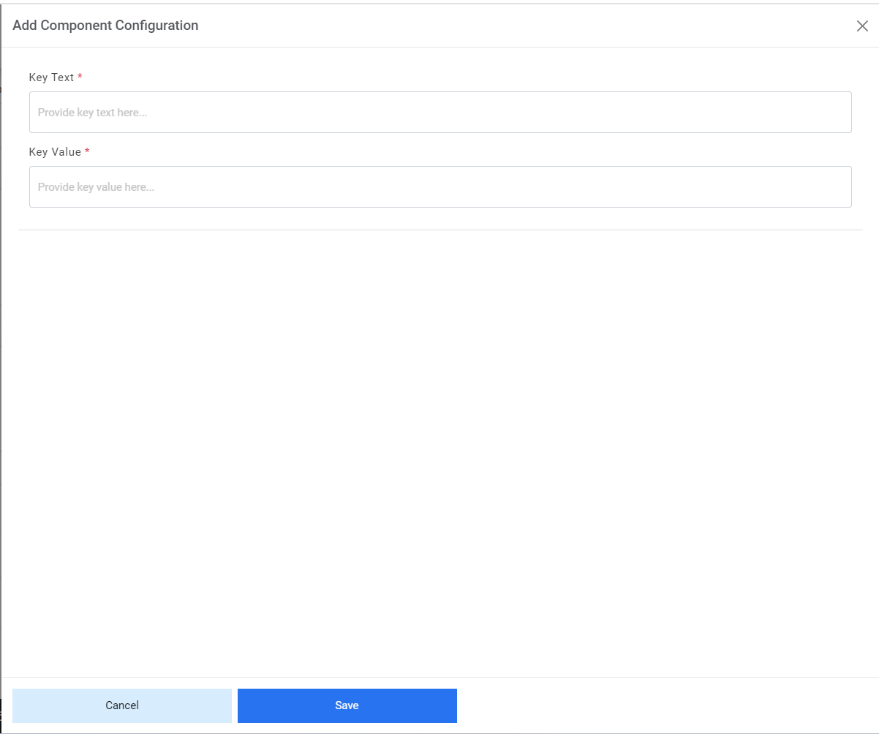
- Provide the Key Text and Key Value.
Figure 5. Component Key Value Configuration (Cont.) 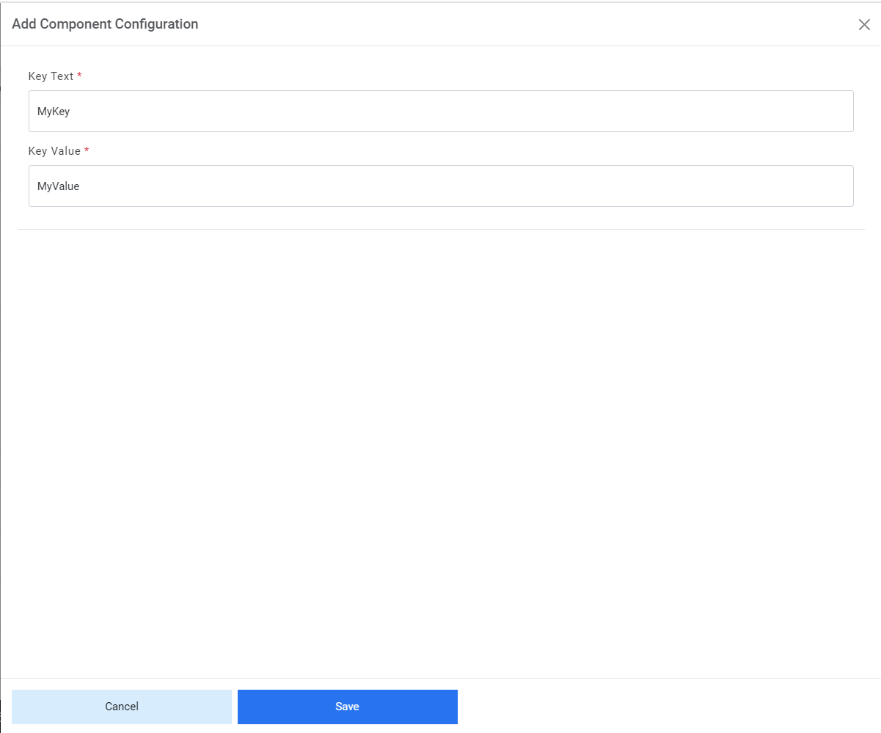
- Click on Save and the confirmation box appears.
Figure 6. Component Key Value Configuration (Cont.) 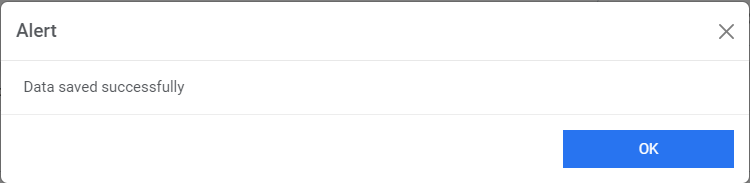
- To edit existing values, click
 next to the value user wants to edit. It displays a popup with auto-filled details.
Figure 7. Component Key Value Configuration (Cont.) 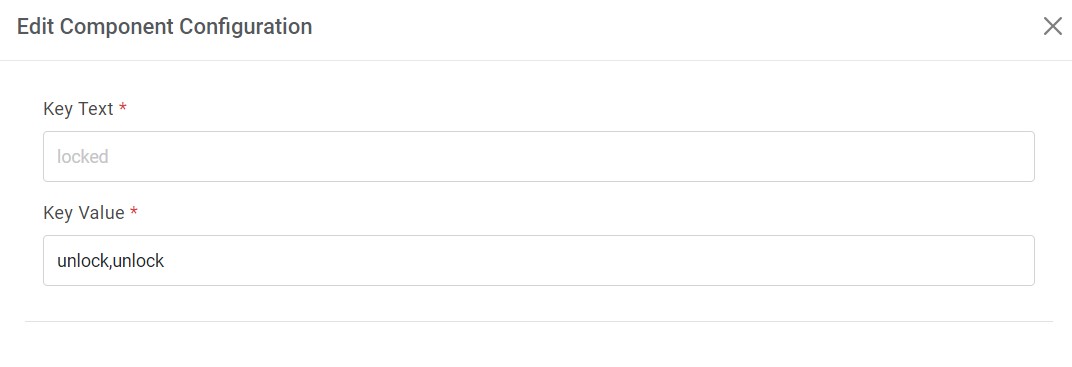
- Edit the required details and click Update.Note:Incorrect changes to key values can severely degrade system performance.
- Click Cancel to cancel any modifications.
- To delete any configurations created by user, click on
 icon and below alert appears.
Figure 8. Component Key Value Configuration (Cont.) 
- Click on Yes to delete the configuration. Below confirmation box opens.
Figure 9. Component Key Value Configuration (Cont.)