TRY IT Functionality
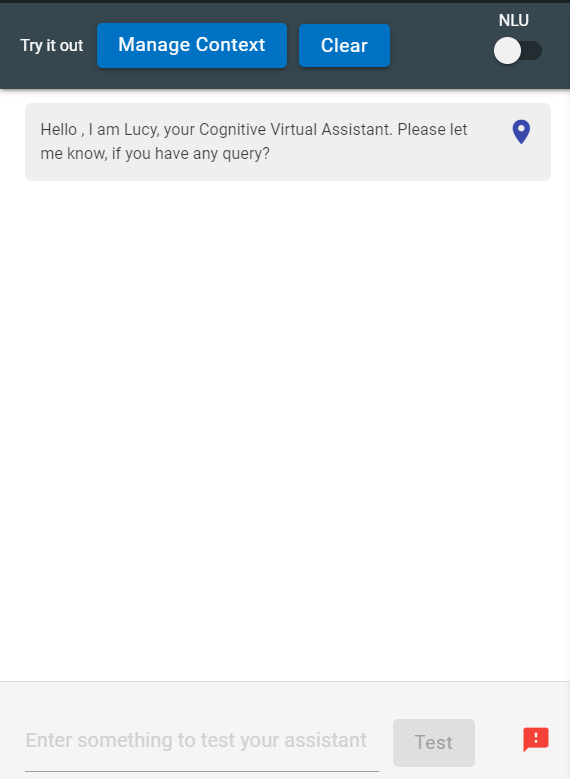
In the TRY IT window NLU functionality can also be tested by the use case designer. A toggle button is used to enable or disable the NLU functionality.
Same TRY IT window can be tested to check features enables in configurable feature sets from the global admin console.
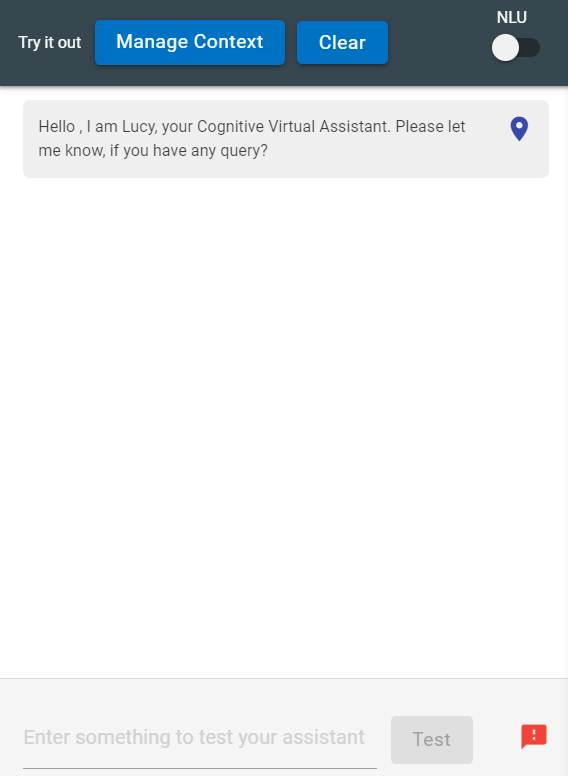
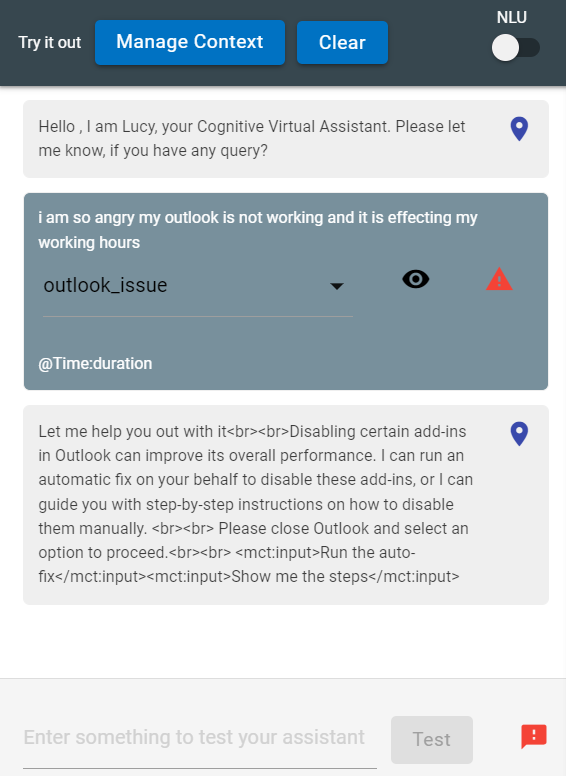
If the toggle is switched off, then the conversation will continue without the NLU functionality. As shown in the following image:
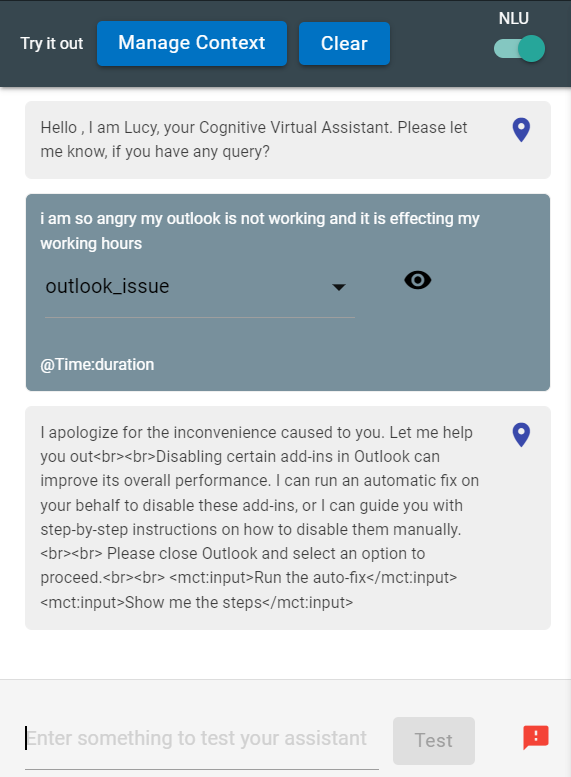
On the contrary, if the NLU toggle is switched on to enable the NLU functionality, then the conversation will be as following:
If the tenant does not have NLU functionality subscribed, in that case, though the toggle button will appear on the TRY IT window, the button is disabled. To enable the button, the user has to subscribe to the NLU functionality.
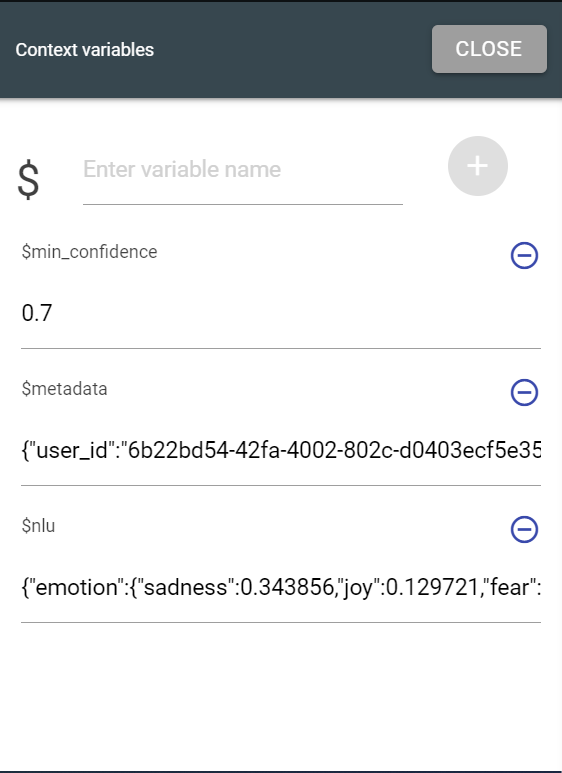
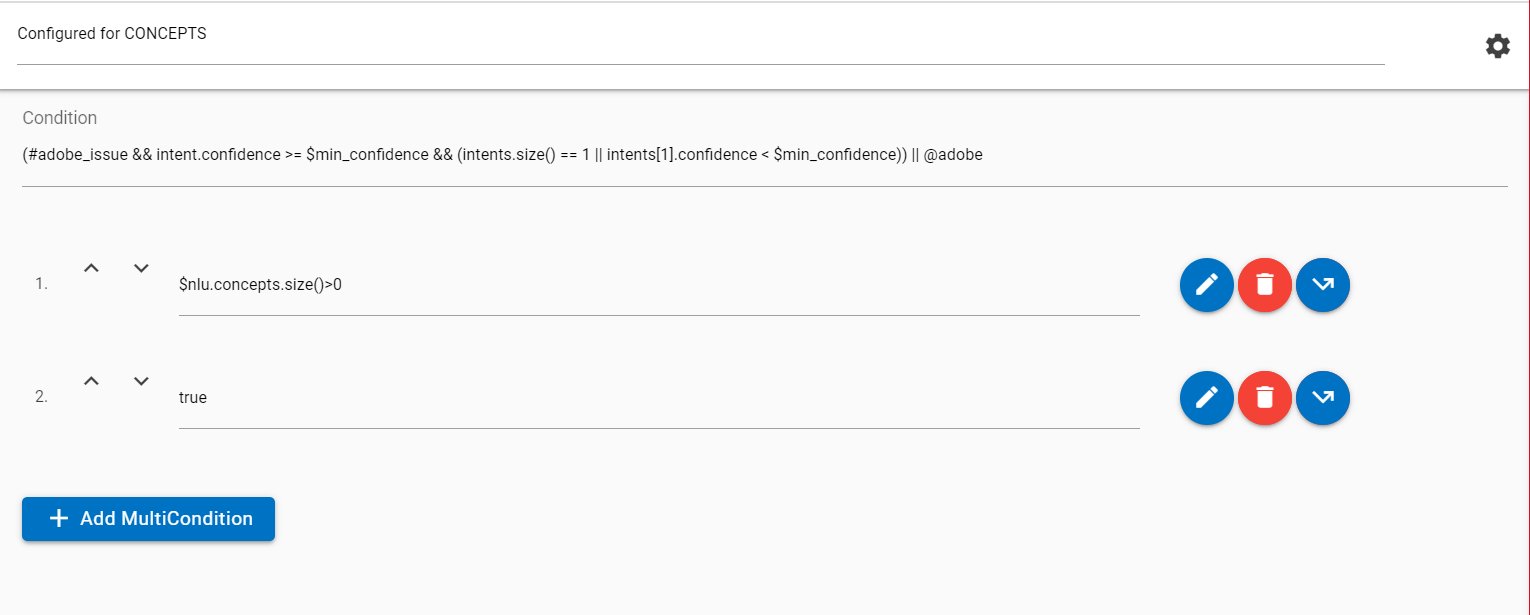
The user can also configure the use case for the detection of NLU features. To configure the same, the user can use conditions, an example is given in the following picture: