Deployment
The deployment section is used to publish and unpublish different types of solutions. Once a solution is published, admins will not be able to edit or modify it. After publishing the solution, if an admin wants to make any changes to a particular solution, he needs to unpublish that solution.
Following solutions are available:
- Healing
- System Optimization
Healing
Healing is a solution where the user can click and run the solution on their own.
- After creating automation module with healing type like (soft scan, self-heal, one
click) it comes under ready to publish, as shown in the following figure:
Figure 1. Ready to Publish 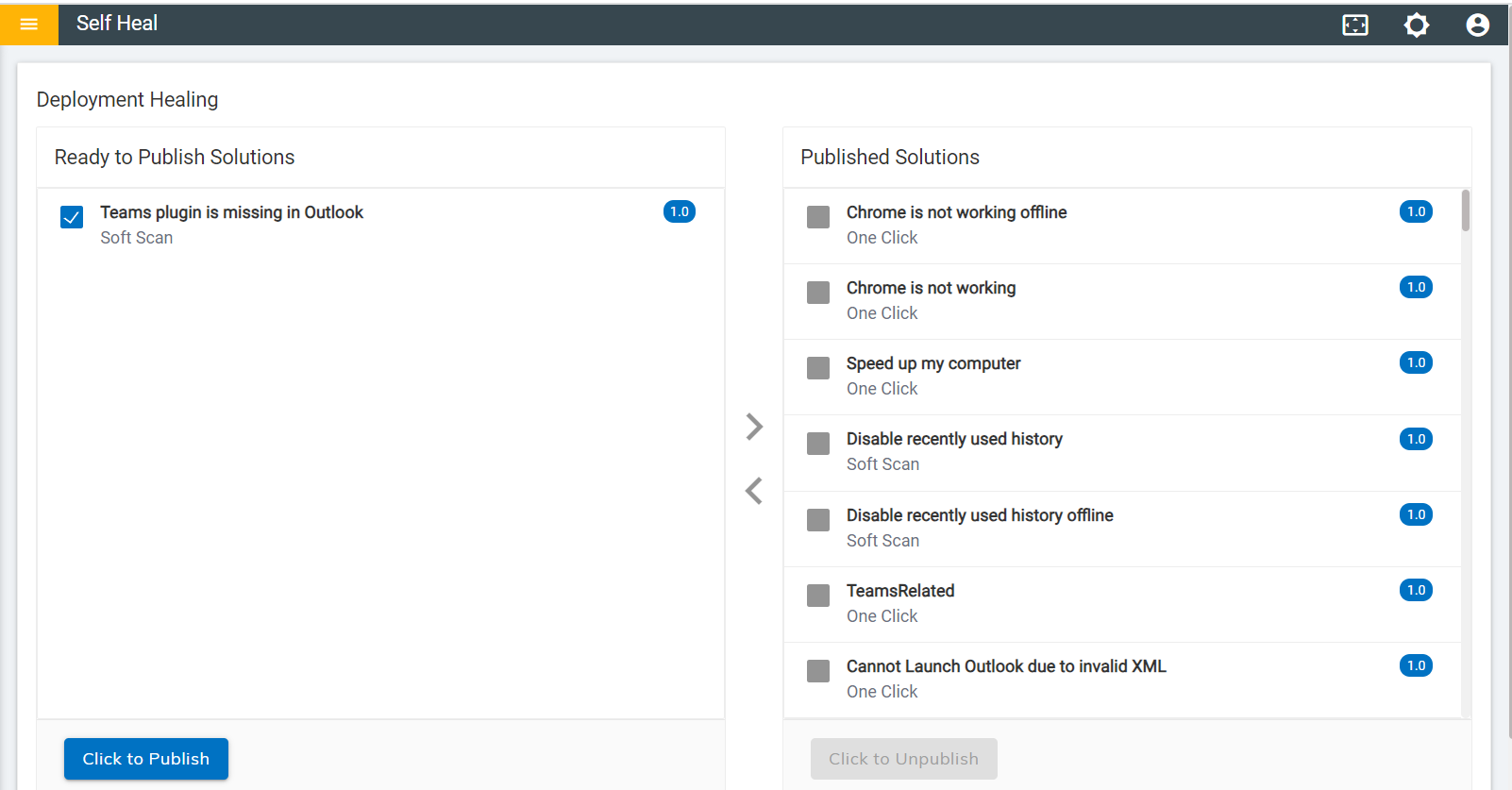
- On clicking Click to Publish, a success message appears on the screen.
- When the solution gets published successfully, it moves to the Published
Solutions section.
Figure 2. Published Solutions 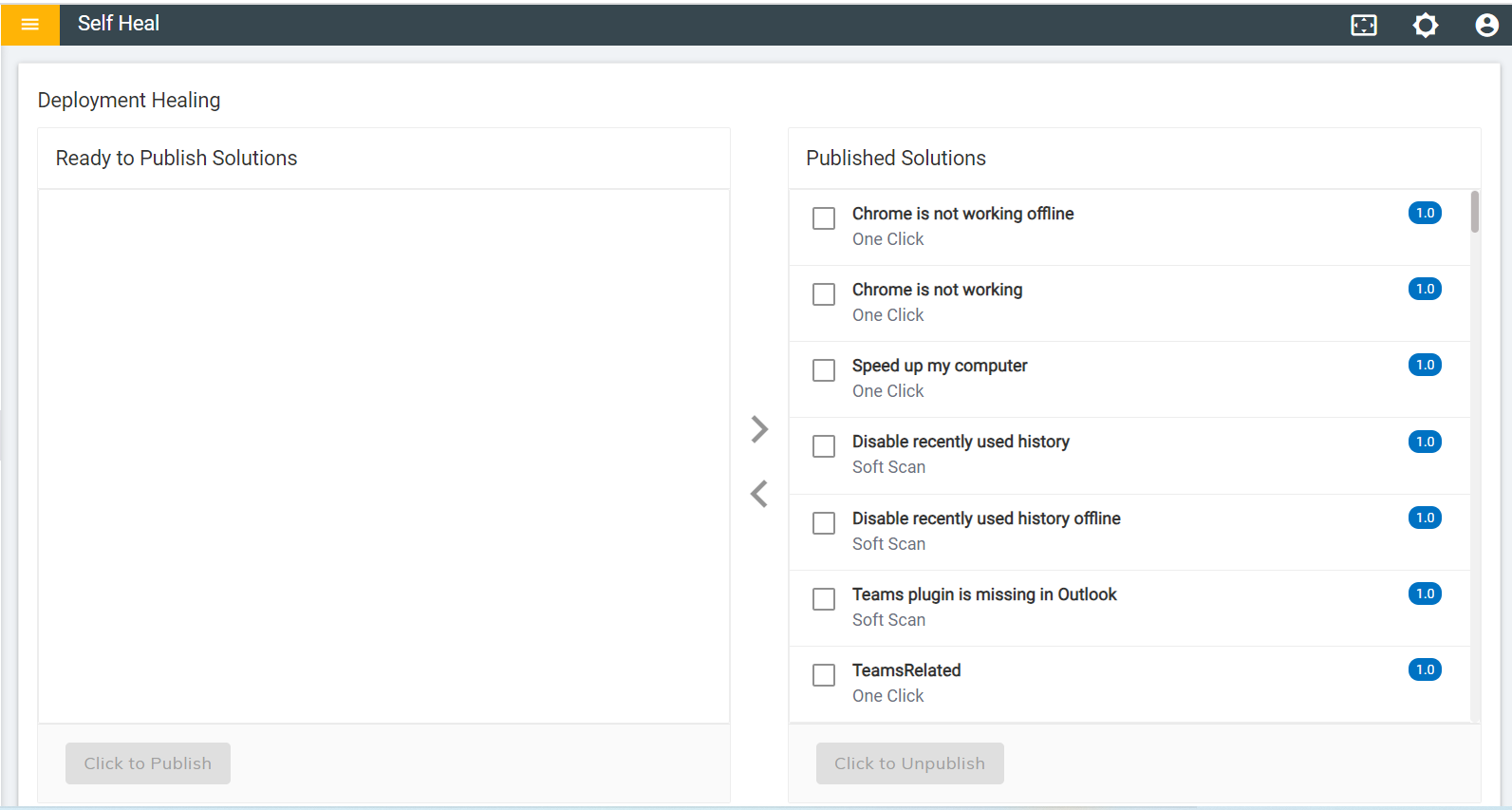
- The Status of a published solution becomes “Published” and it is reflected
in the automation module under the solution page.
Figure 3. Published Status 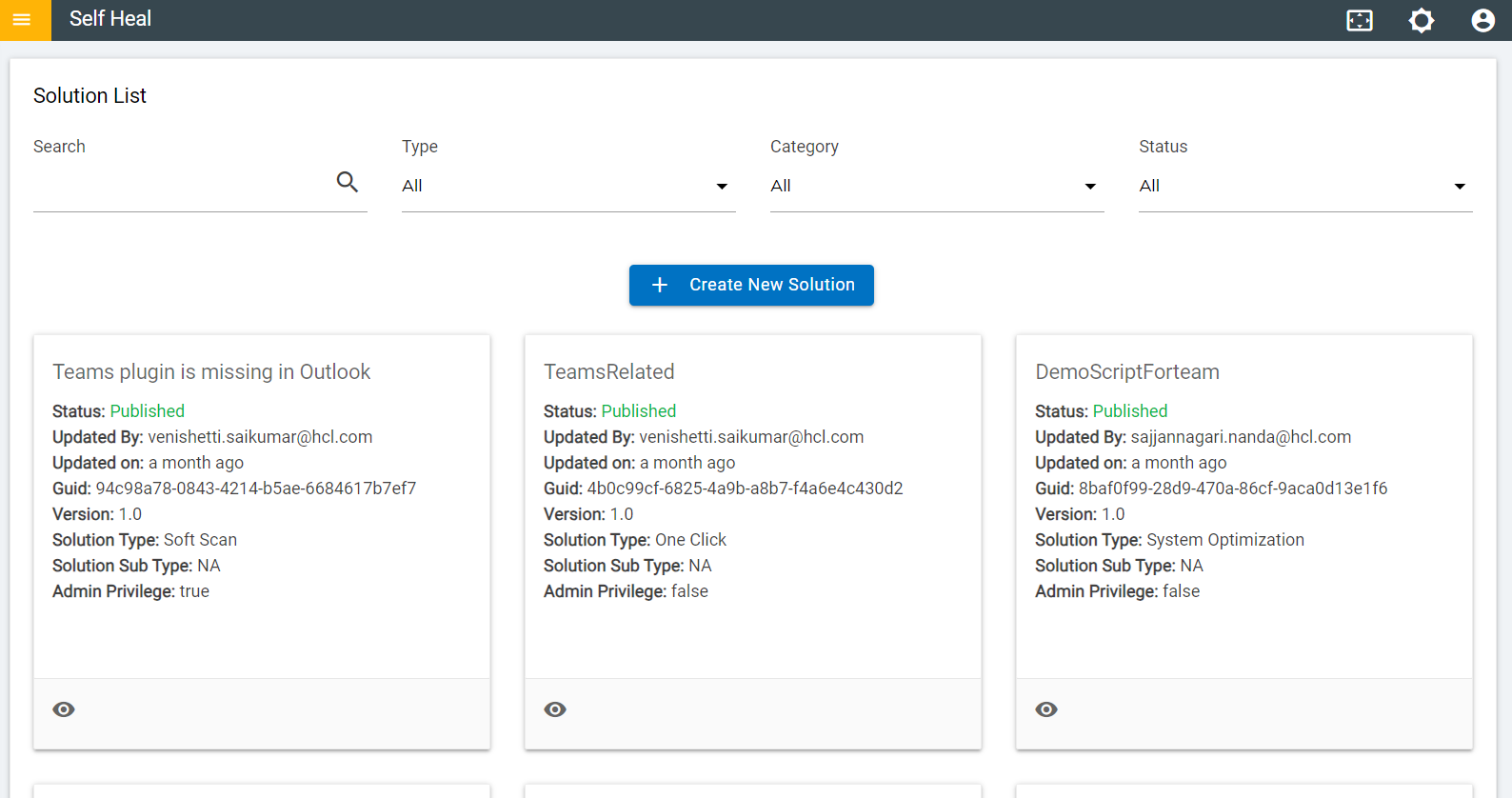
- To modify a published solution, the admin must unpublished that solution by
clicking on Click to Unpublished.
Figure 4. Unpublished a Published Solution 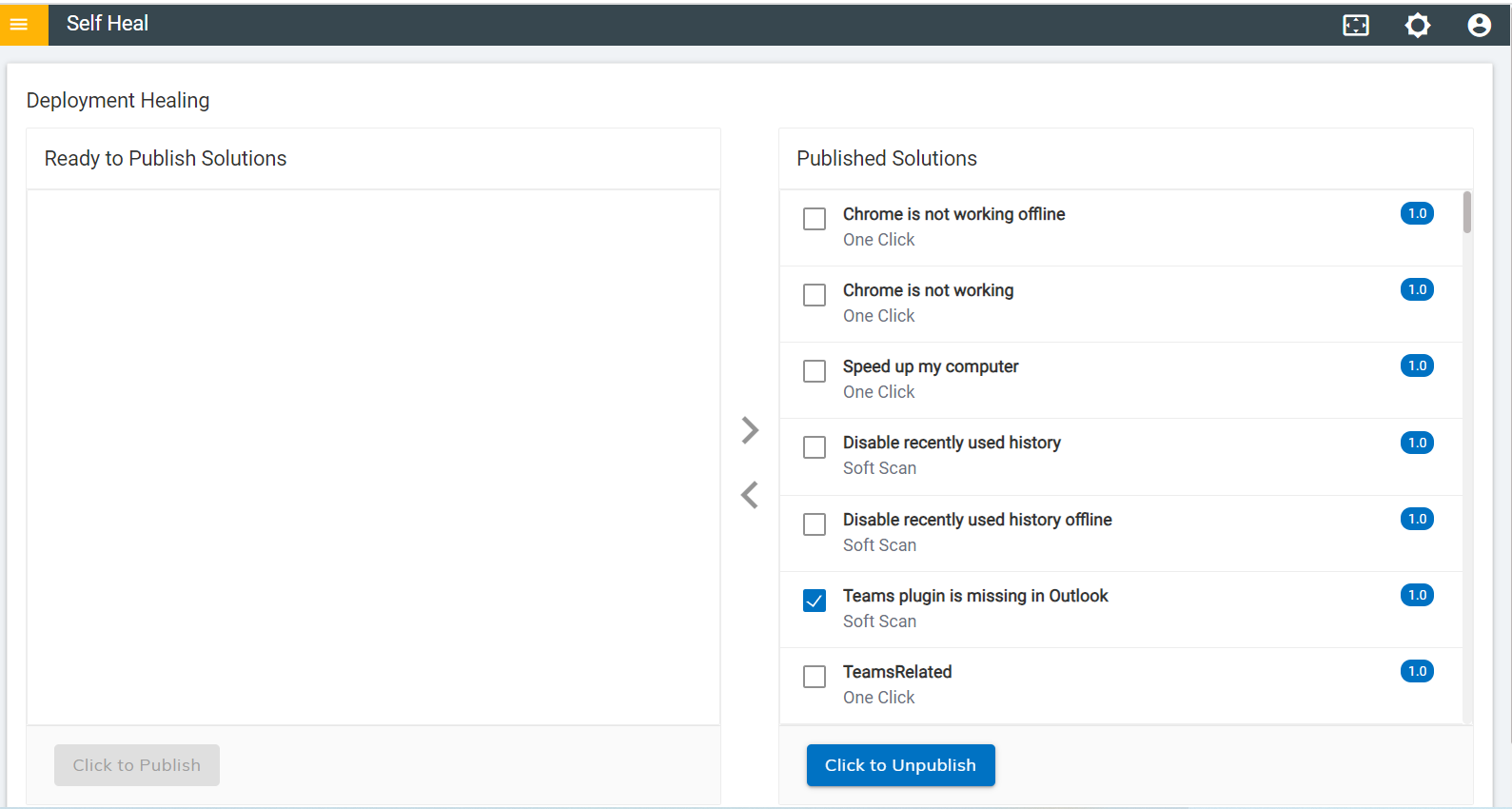
- The following success message appears on the screen.
- The solution starts reflecting under the Ready to Publish section again.
Figure 5. Ready to Publish for One Click 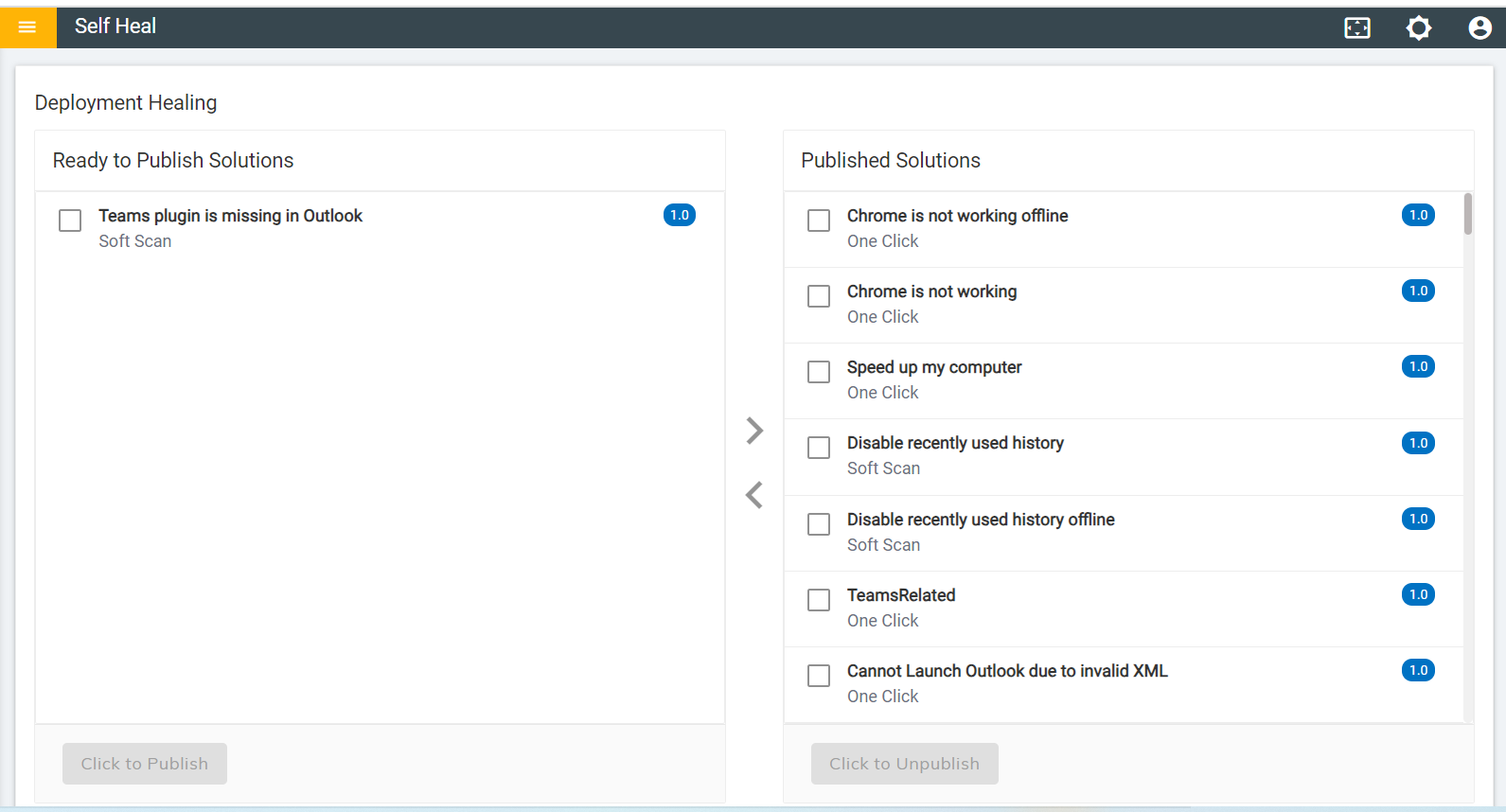
- In the Automation module, the status of the solution is displayed as Submitted.
- The status of the solution changes to Submitted as the solution is added
but not published yet.
Figure 6. Submitted Status for One Click 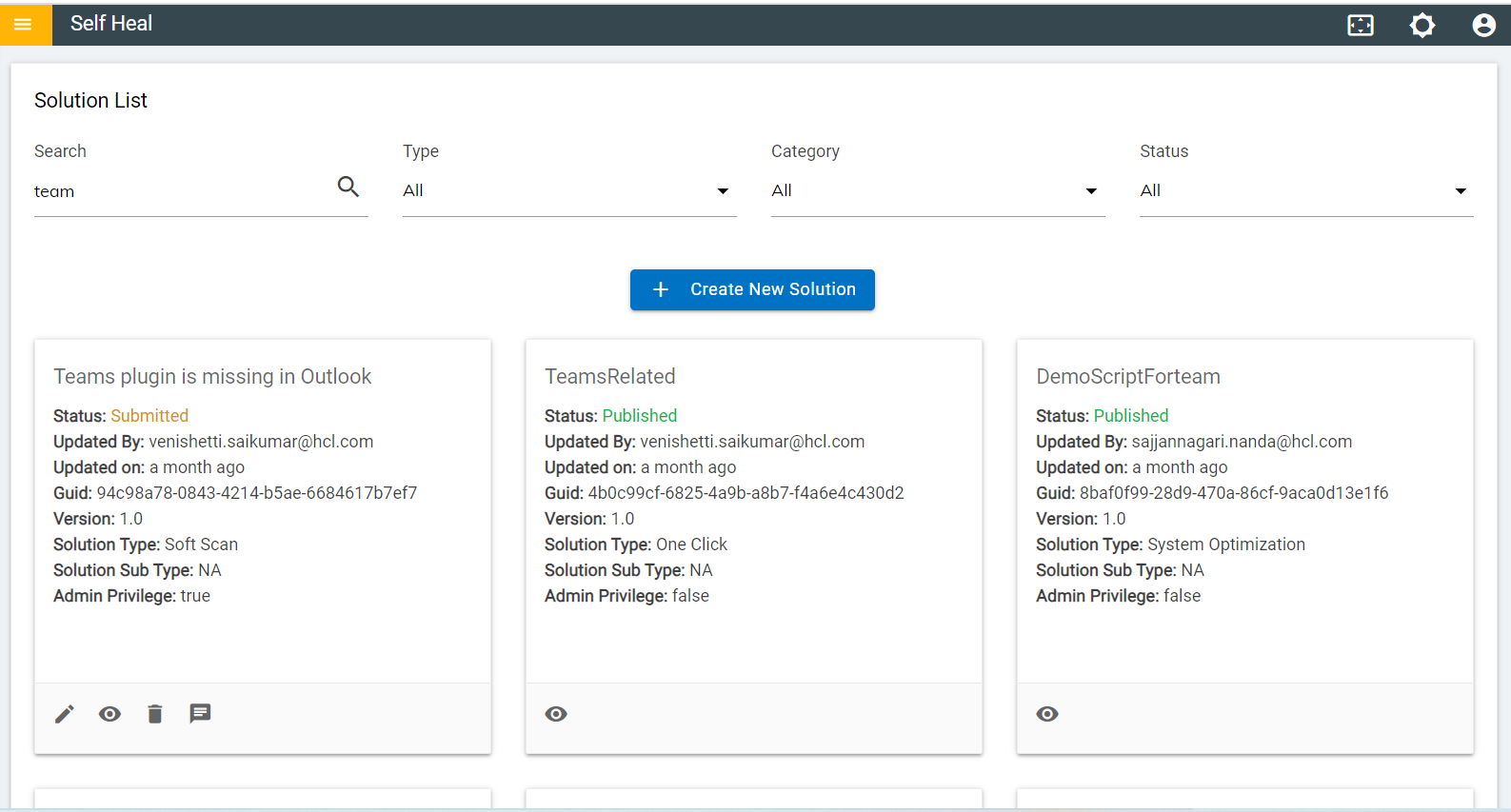
System Optimization
Solutions involving system optimization of that type can be demonstrated here.
- When the automation module is created with “Optimization” as Solution Type, ‘it comes under the Ready to publish section.
- On clicking the Click to Publish button, the solution moves to the
Published Solution section.
Figure 7. Ready to Publish Solution Section 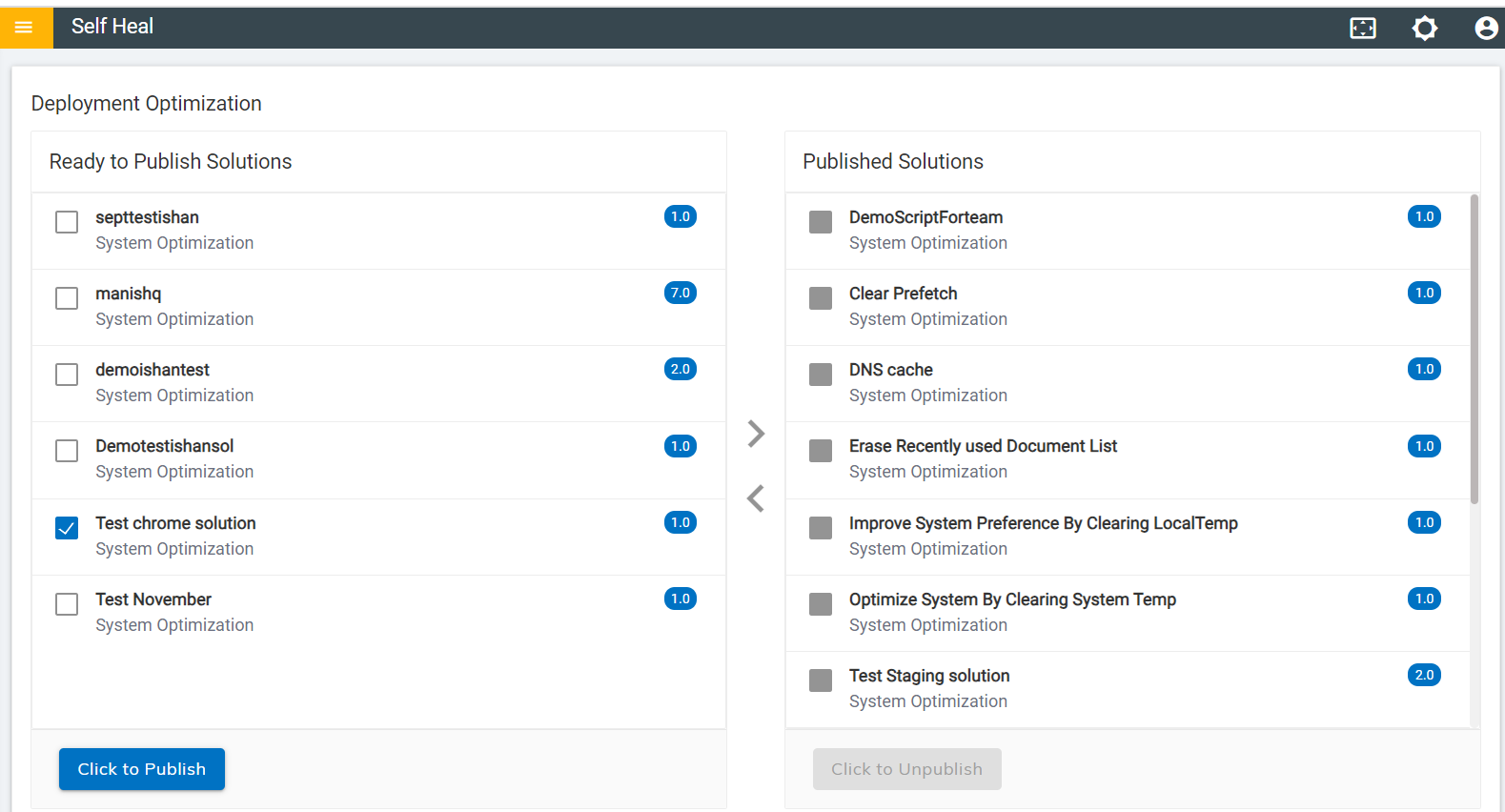
- The following success message appears on the screen.
- When a solution is published successfully, it moves to the Published
Solution section.
Figure 8. Published Solutions Section for Optimization 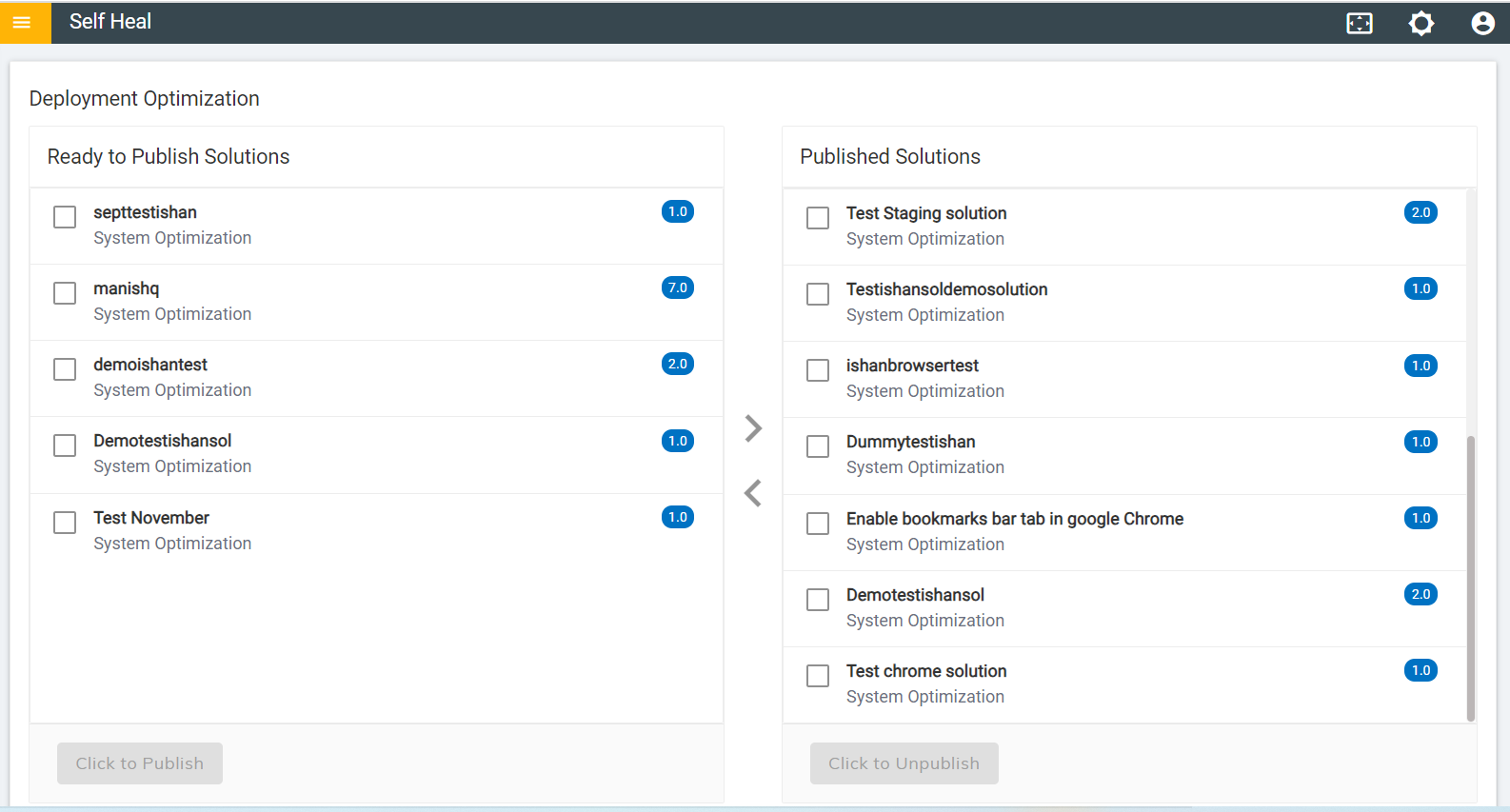
- A successfully published solution starts reflecting in the automation module with
Status as “Published”.
Figure 9. Published Status in the Automation Module 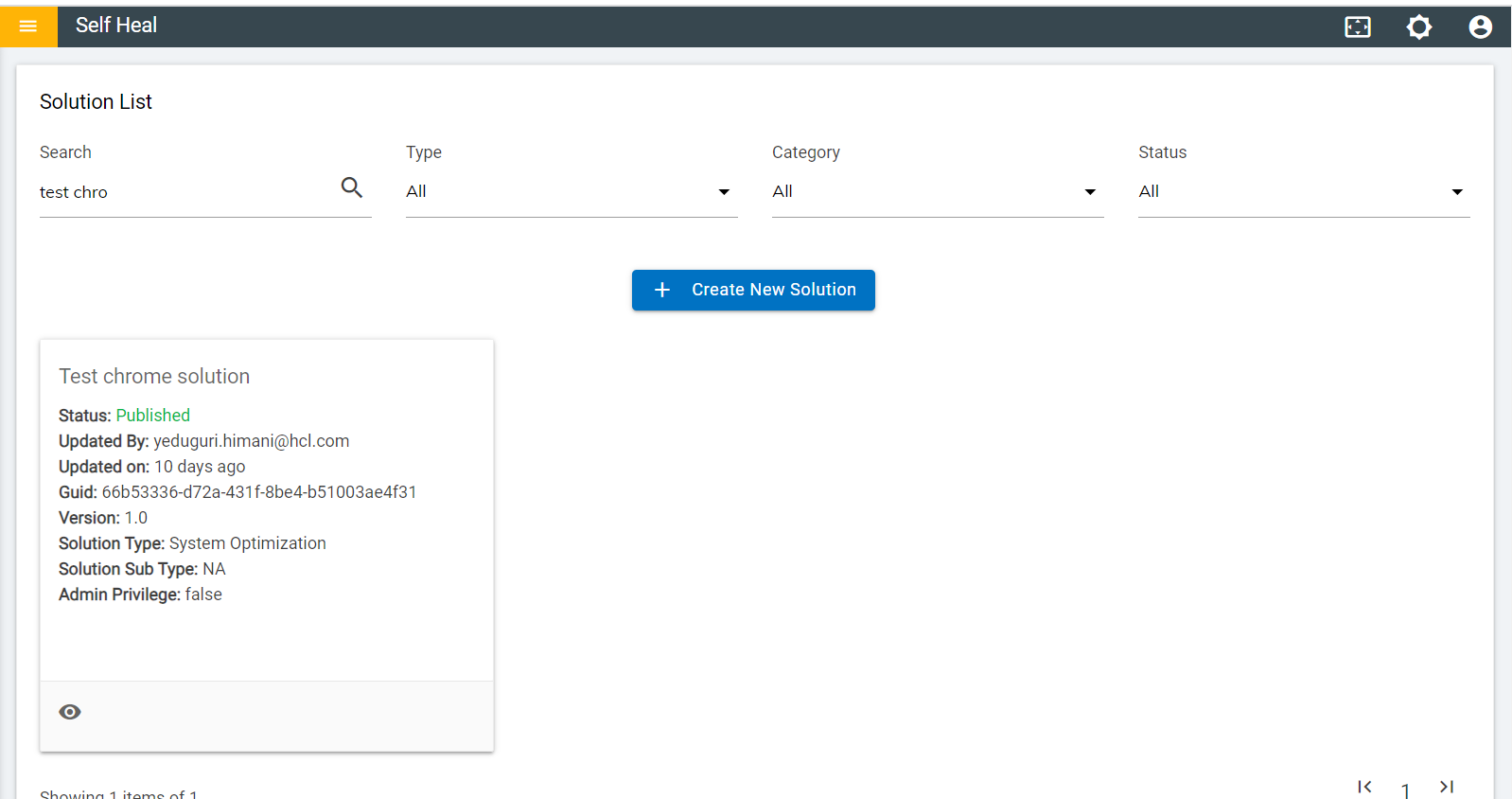
- To edit the solution, the admin must unpublished the solution, by clicking on the
Click to Unpublished button.
Figure 10. Click to Unpublished to Edit a Solution 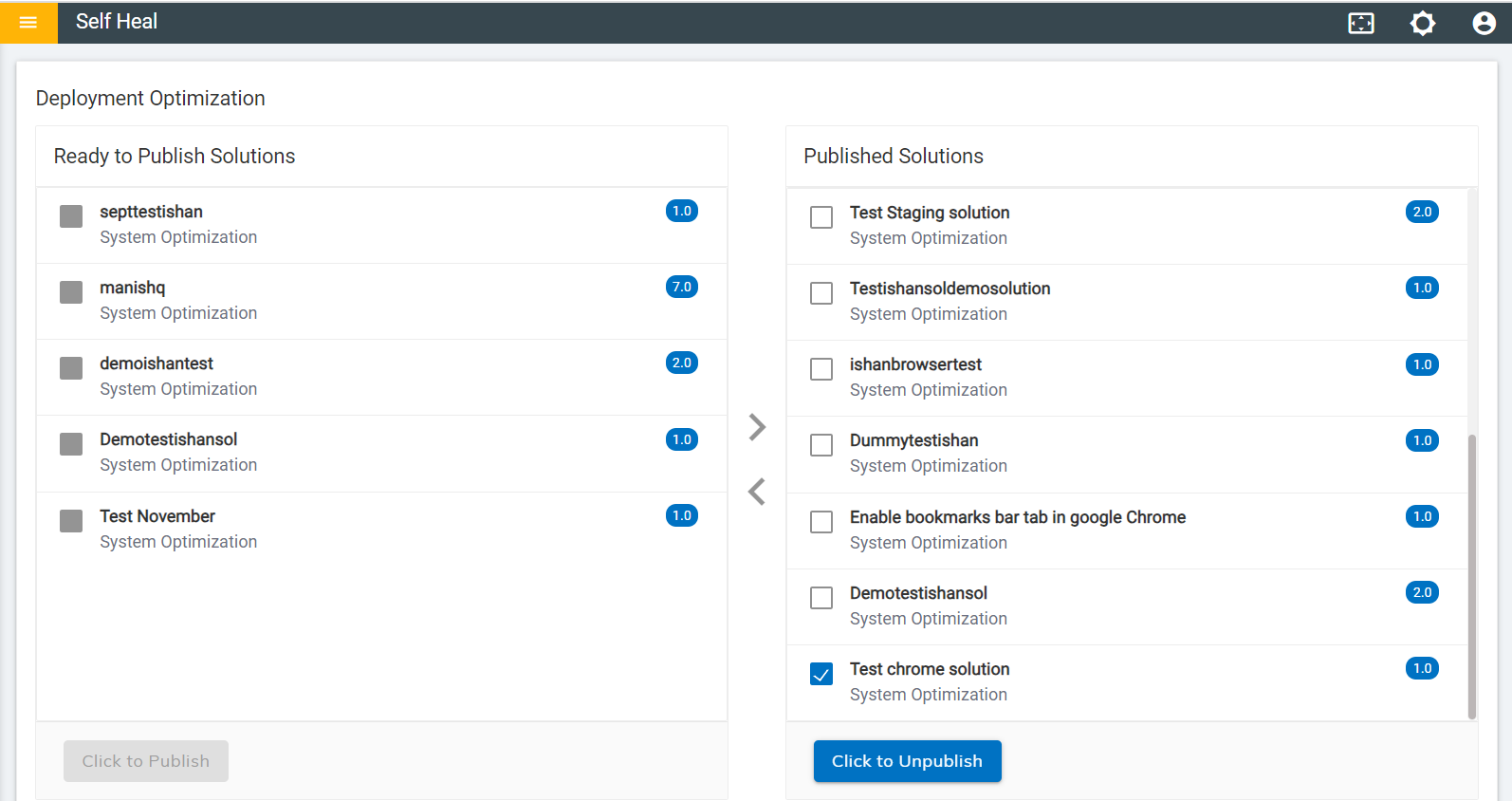
- The following success message appears on unpublished solution.
- The solution moves to the Ready to Publish Solution section.
Figure 11. Ready to Publish Solution Section for Optimization 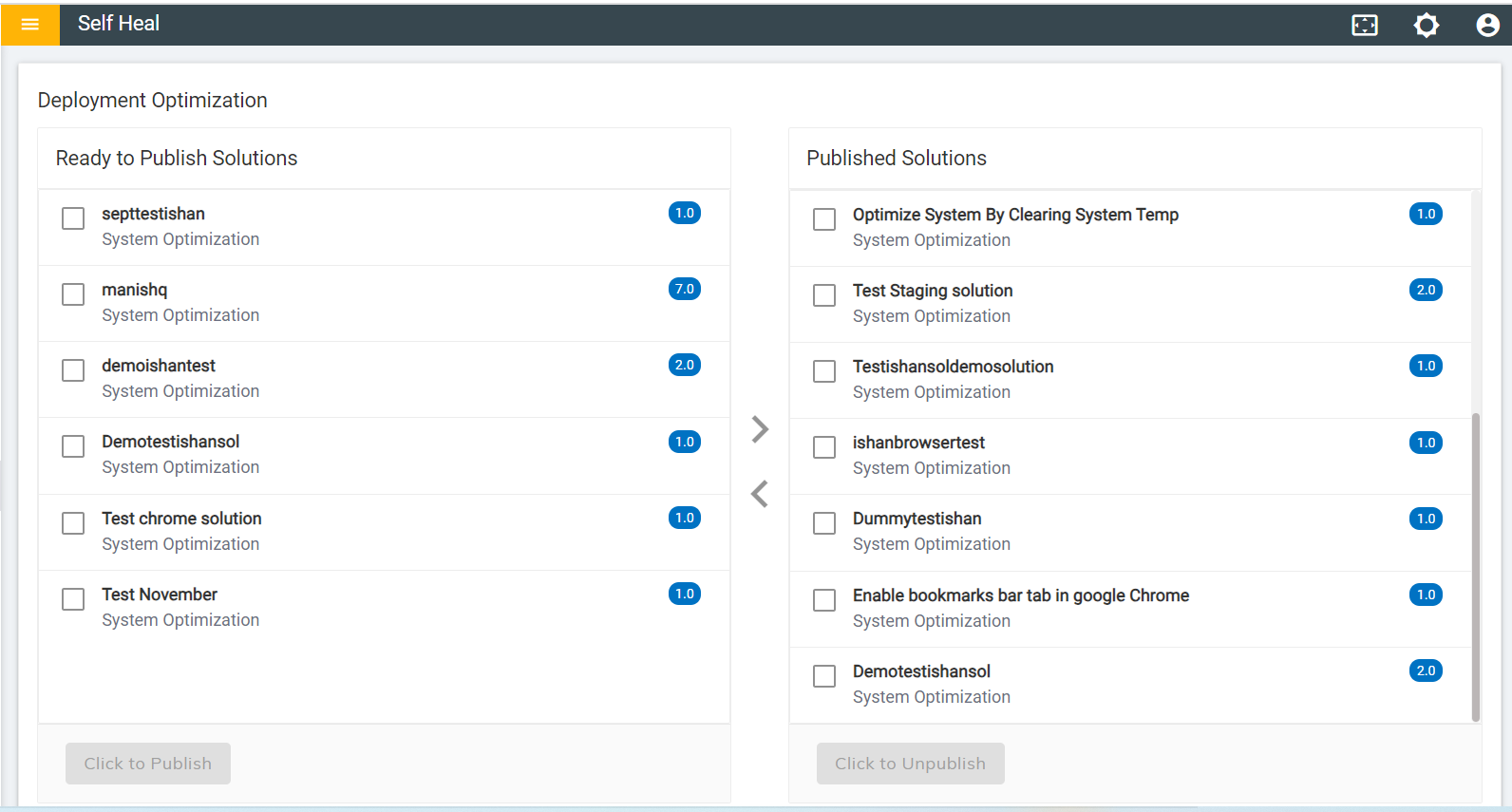
- Once the solution is unpublished successfully, it comes with the Submitted
status in the Automation Module.
Figure 12. Submitted status in the Automation Module