Adding custom profile properties
Create an Individual Profile Property, Such as a Custom Customer Attribute, from the Profile Property Details Dialog Box.
About this task
Note:
Each
profile property maps a field in the incoming source payload to a column in the profile
view. To add a custom property, bind it to a custom source column.This page is available for CDM-enabled tenants.
Procedure
-
Go to , and then click + Properties.
Figure 1. Profile Property Details dialog box 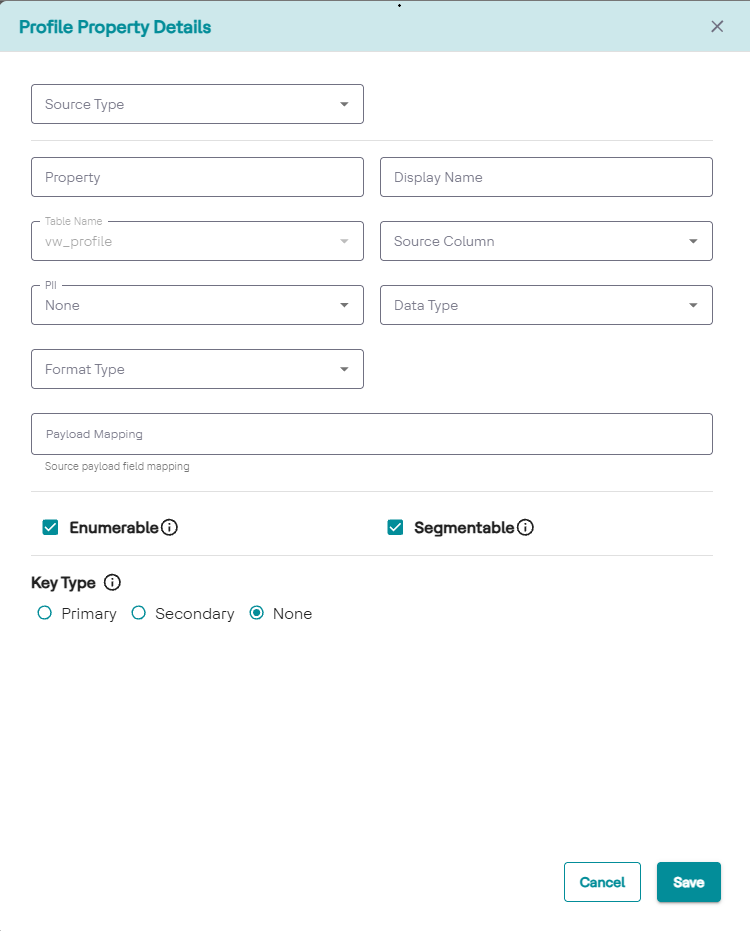
-
In the Source Type list, select the ingestion service or data
provider that feeds the property:
dataingestionapi,analyze_post, ordefault.Note:This field is mandatory. -
In the Property box, type the technical system name of the
property, for example
CustomerAge.Use alphanumeric characters only. Do not include spaces.
-
In the Display Name box, type the label to display in the
segment builder and in Customer One View, for example
Customer
          Age
. -
Verify that Table Name is set to
vw_profile. -
In the Source Column list, select the physical column to which
the property binds.
Note:For a custom property, the source column must be
custom. This field is mandatory. -
In the PII list, select the data privacy classification:
None(default),Masked, orEncrypted. -
In the Data Type list, select one of the following
options:
-
String NumberDate TimeDateArray of StringsArray of numbersArray of dates
Note:This field is mandatory. -
-
In the Format Type list, select the format to apply during
display and evaluation:
Number,Date,Currency, orNone. -
In the Payload Mapping box, type the JSON key in the source API
payload that maps to this property, for example
age. -
Select the following check boxes as needed:
- Select Enumerable to treat unique values as distinct drop-down options in segmentation filters.
- Select Segmentable to make the property available as a filter criterion in the segment builder.
- Under Key Type, select Primary, Secondary, or None to specify whether the property acts as an identifier in identity resolution.
- Click Save.
Results
The property is added to the Profile Properties list.