
Deploying CDP RTS MS
This section provides detailed instructions on how to deploy HCL CDP RTS MS using the Devtron in the AWS.
Prerequisites:
Make sure to create rts-ms secret with required data in the AWS secret manager before deploying CDP RTS MS.
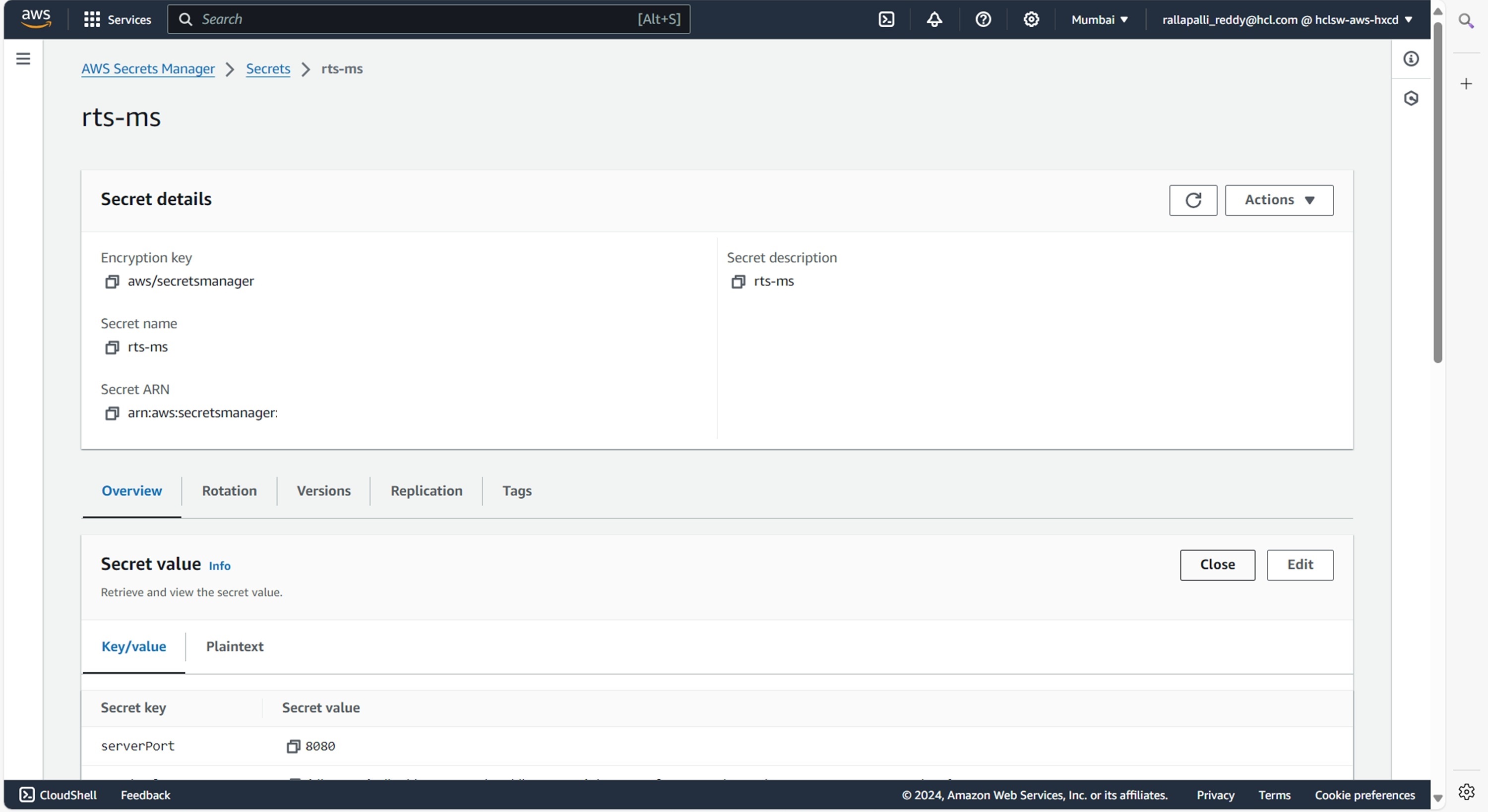
To create the rts-ms secret in the AWS secret manager, follow the steps below:
- Create a rts-ms secret sample key and value in the rts-ms secret, and update
ConfigMaps data with actual values.
{
  "MongoDbDatabase": "<MongoDbDatabase>",
  "MongoDbUri": "mongodb://<user>:<password>@<ip>:<port>/?directConnection=true",
  "TsdbHost": "<TsdbHost>",
  "VrmDbPassword": "<TsdbHost>",
  "VrmDbUrl": "jdbc:mariadb://<ip>:<port>/<dbName>?autoReconnect=true",
  "VrmDbUsername": "<VrmDbUsername>",
  "serverPort": "<serverPort>"
}
Deploying CDP RTS MS
To deploy the CDP RTS MS, follow the steps below:
- Navigate to the Devtron Chart Store, and select the cdp-rts-ms chart to
deploy.
.png)
- Now, configure and deploy the CDP RTS MS charts.
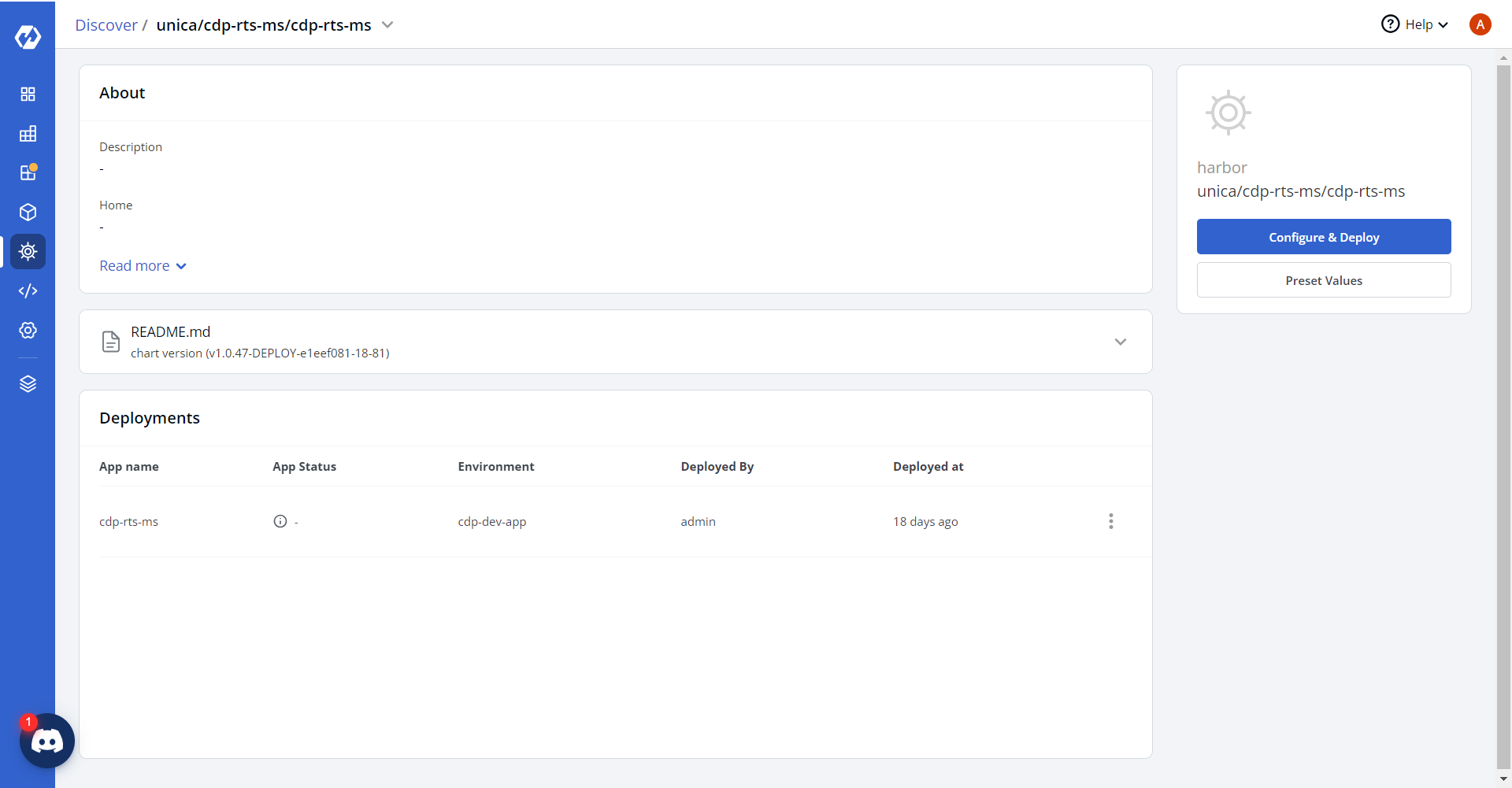
- In the YAML section, update the ConfigMap using below details, and deploy
the
charts.
countCollectionSuffix: <COUNT_COLLECTION_SUFFIX> countQueryIdKey: <COUNT_QUERY_ID_KEY> countUpdateThreshold: "<COUNT_UPDATE_THRESHOLD>" countUpdateWaitTimeout: "<COUNT_UPDATE_WAIT_TIMEOUT>" suggestionCollectionSuffix: <SUGGESTION_COLLECTION_SUFFIX> suggestionQueryIdKey: <SUGGESTION_QUERY_ID_KEY> suggestionUpdateThreshold: "<SUGGESTION_UPDATE_THRESHOLD>" suggestionUpdateWaitTimeout: "<SUGGESTION_UPDATE_WAIT_TIMEOUT>" statsCollectionSuffix: <STATS_COLLECTION_SUFFIX> statsQueryIdKey: <STATS_QUERY_ID_KEY> statsUpdateThreshold: "<STATS_UPDATE_THRESHOLD>" statsUpdateWaitTimeout: "<STATS_UPDATE_WAIT_TIMEOUT>" maxPoolSize: "<MAX_POOL_SIZE>" minIdle: "<MIN_IDLE>" idleTimeout: "<IDLE_TIMEOUT>" fromEmailId: "<FROM_EMAIL_ID>" toEmailId: "<TO_EMAIL_ID>" VrmDbDriver: <DB_DRIVER_CLASS> physicalStrategy: <HIBERNATE_PHYSICAL_STRATEGY> dialect: <HIBERNATE_DIALECT> dbRefreshInterval: "<DB_REFRESH_INTERVAL>" serverPort: "<SERVER_PORT>" TsdbPort: "<TSDB_PORT>" jobStore: <JOB_STORE> quartzSchema: <QUARTZ_SCHEMA> quartzDataSource: "<QUARTZ_DATASOURCE>" quartzTablePrefix: <QUARTZ_TABLE_PREFIX> instanceName: <INSTANCE_NAME> instanceId: <INSTANCE_ID> isClustered: "<IS_CLUSTERED>" clusterCheckinInterval: "<CLUSTER_CHECKIN_INTERVAL>" AWS_REGION: <AWS_REGION> AWS_BUCKET_NAME: <AWS_BUCKET_NAME> BucketType: <BUCKET_TYPE> LOG_LEVEL_APP: <LOG_LEVEL_APP> LOG_LEVEL_ROOT: <LOG_LEVEL_ROOT> threadPoolSize: "<THREAD_POOL_SIZE>" batchSize: "<BATCH_SIZE>" maxBatchRecords: "<MAX_BATCH_RECORDS>" athenaBuckets: <ATHENA_BUCKET_MAPPINGS> athenaDatabase: <ATHENA_DATABASE_MAPPINGS> athenaQueryOutputBucket: <ATHENA_QUERY_OUTPUT_BUCKET> glueJobName: <GLUE_JOB_NAME> glueJobFunnelName: <GLUE_JOB_FUNNEL_NAME> trendsGluejob: <TRENDS_GLUE_JOB_NAME> baseUrl_coreApi: "<CORE_API_BASE_URL>" queryEngine: <QUERY_ENGINE> trinoUrl: <TRINO_JDBC_URL> trinoUsername: <TRINO_USERNAME> trinoDriveName: <TRINO_DRIVER_CLASS> airflowUrl: <AIRFLOW_API_URL> airflowUsername: <AIRFLOW_USERNAME> airflowPassword: <AIRFLOW_PASSWORD> ACCESS_KEY: "<ACCESS_KEY>" ACCESS_SECRET: "<ACCESS_SECRET>" MINIO_ENDPOINT_URL: "<MINIO_ENDPOINT_URL>" airflowSegmentExportDAGName: <AIRFLOW_SEGMENT_EXPORT_DAG> nightlyRefreshJobName: <NIGHTLY_REFRESH_JOB_NAME> dashbackend_auth: <DASHBACKEND_AUTH> dashbackend_baseurl: "<DASHBACKEND_BASEURL>" exportType: Table.png)
- On successful deployment, validate the deployment as shown below.
.png)