Google Analytics 4 (GA4)
This page explains the features, connection methods, and use cases of Google Analytics 4 (GA4), along with guidance on getting started, recommended events, and custom event mapping.
Google Analytics 4 (GA4) is a leading analytics tool used for tracking and reporting website and application traffic. It offers advanced capabilities to uncover insights and understand customer behavior across devices and platforms with the help of machine learning.
Connection Modes
| Connection | Web | Mobile |
|---|---|---|
| 📱Device Mode | ✅ | ✅ |
| ☁️Cloud Mode | 🚫 | 🚫 |
Use Cases of GA4
- Data mapping is configured during setup for action-based destinations.
- Allows precise mapping between source data segments and GA4 data segments.
- Pre-built mappings for recommended GA4 events are available.
- These mappings can be customized as needed.
- Analyze nested products in arrays, such as items in an order completion event.
- GA4 provides clear insights into user navigation across sites and sub-domains.
Getting started with GA4
To start using GA4 with HCL CDP:
- Configure a Google Analytics 4 property in your Analytics account. For more information about Google’s Set up Analytics for a website and/or app for guidance, refer Set up Analytics for a website and/or app.
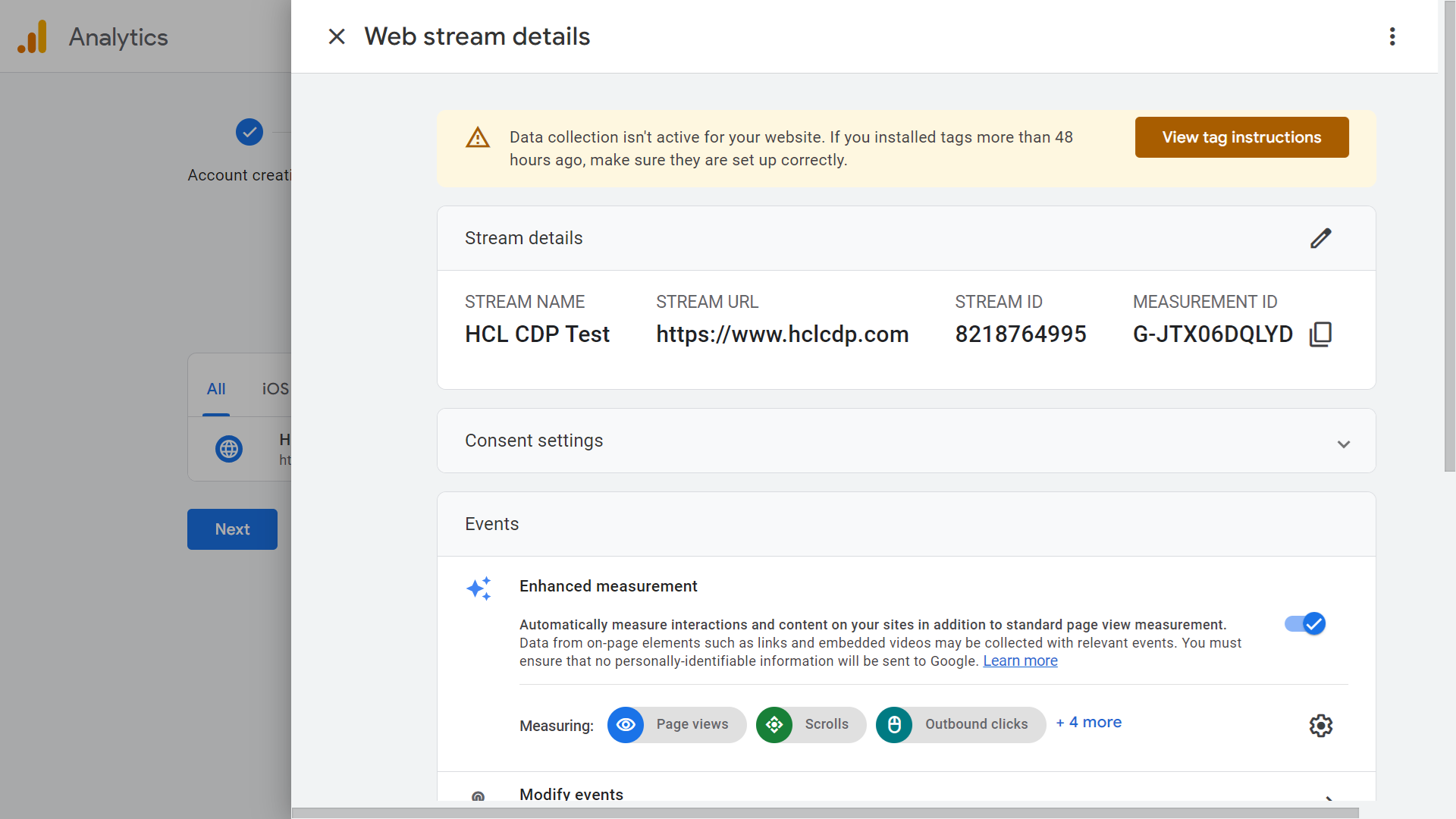
- Share your Measurement ID and API Secret from the GA4 property with the HCL CDP customer success or delivery team.
| Parameter | Description |
|---|---|
Measurement ID |
Unique identifier from GA4: Admin > Data Streams > Select Stream > Measurement ID. |
projectName |
Name of your project. |
appId |
Application ID. |
apiKey |
API Key associated with your app. |
projectId |
Project ID. |
messagingSenderId |
Unique sender ID for your project. |
enable |
Toggle to enable or disable event sending (default:
false). |
Recommended Events
GA4 provides a set of recommended events that can be mapped using the HCL CDP SDK:
| Event | Description |
|---|---|
| Page View | Triggered when a user views a page. |
| View Item List | Triggered when a user views a list of items. |
| Add to Cart | Triggered when a user adds items to their cart. |
| Purchase | Triggered when a user completes a purchase. |
| Login | Triggered when a user logs into the application. |
For a complete list, refer to Google’s Recommended events.
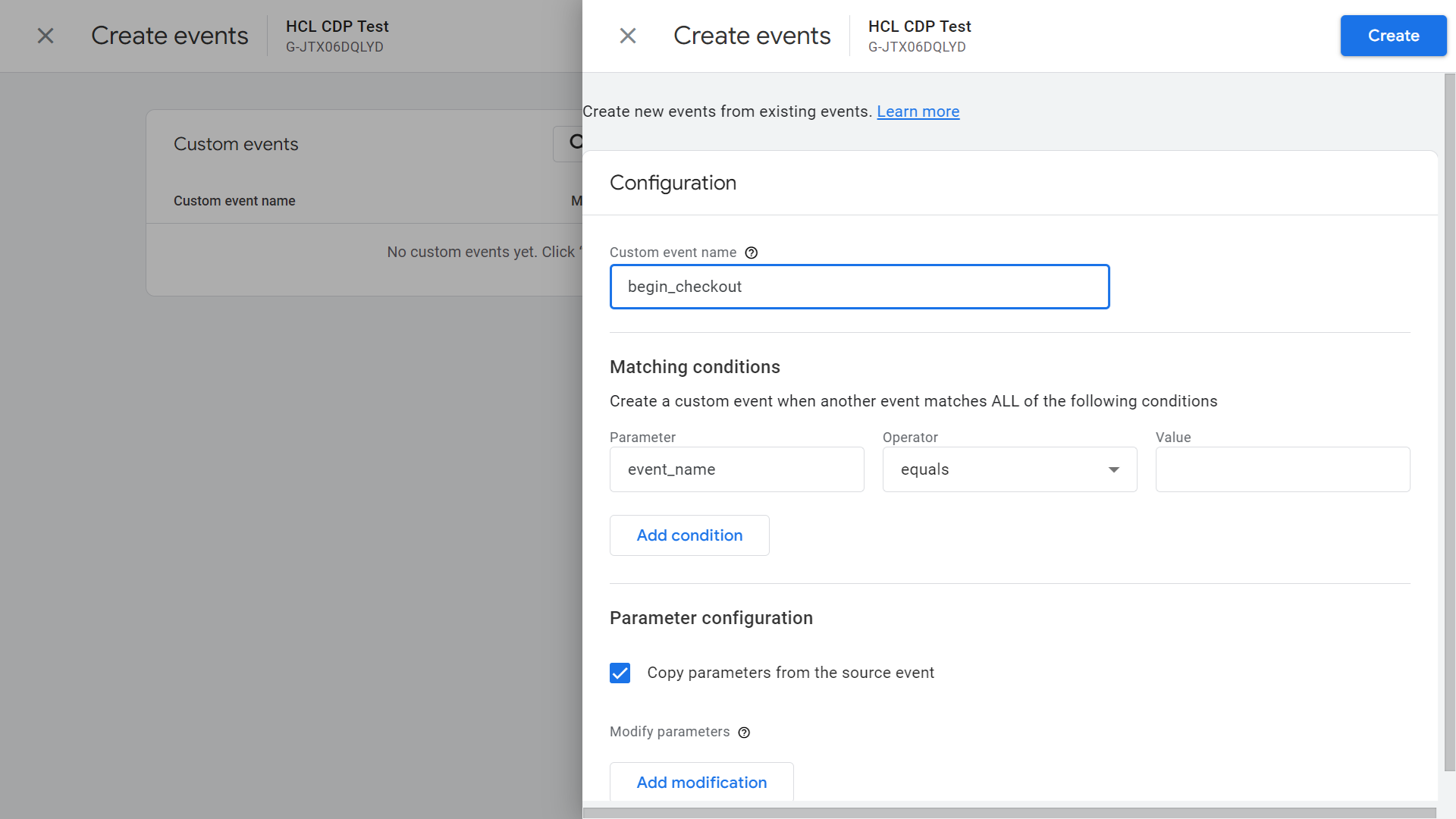
Custom Events
To create and use custom events in GA4, follow the steps below:
- Create custom dimensions and metrics in your GA4 account.
- Link event parameters to corresponding dimensions or metrics.
- Select a parameter from already collected fields or define new parameters for future collection. For more information about Google's Custom Dimensions documentation, refer Custom dimensions.