
Create User Profile
The User Access page in the admin portal provides administrators with essential tools to manage user accounts within a tenant. This functionality helps ensure proper access control and account lifecycle management.
From the User Access page, administrators can perform key actions such as:
- Create new user profiles to grant access to the platform.
- Activate or deactivate users based on operational needs or security requirements.
- Reset user passwords to maintain account security.
- Send email invitations to onboard new users quickly and efficiently.
To create a user profile, follow the steps below:
- In the Admin portal, on the left pane, click User Access, and select a campaign ID.
- Click Submit. As a result the list of available user profile will be
displayed as shown below.
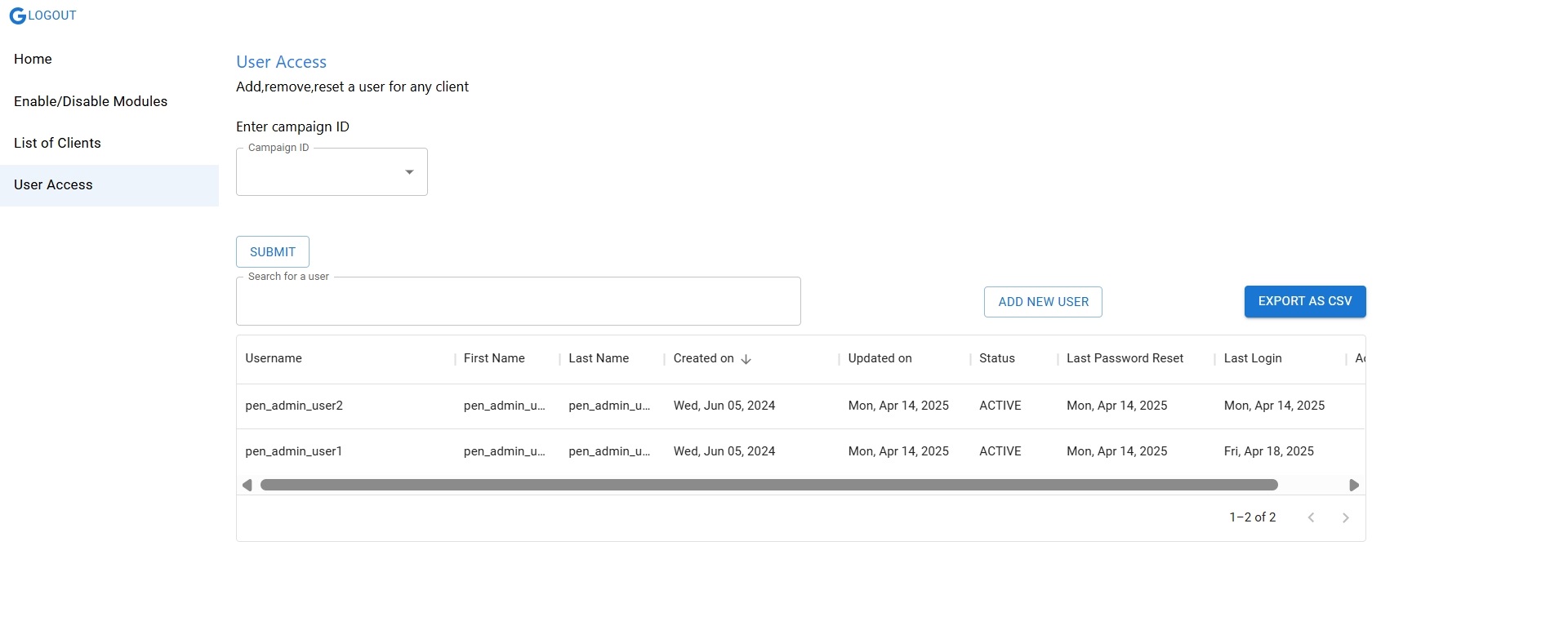
- Click ADD NEW USER to add a new user profile.
- In the Add new user page, enter user name and email address to send the user credentials to the user.
- Click SEND INVITE to create the user profile to access the application. As a result, the user credentials will be emailed to the user email address. Also, the user profile will be listed in the user profile list.
- Also, you can view the user login activities like last login, last password reset, and user details updated on.
- At the end of the user profile, click the three horizontal icon, and you can perform password reset, edit profile or active/de-active the user profile.
- Click EXPORT AS CSV to download all the user details in .csv file.