
Adding model documents
Use configuration in dominoiq.nsf on the Domino IQ administration server to download pre-trained data models to the llm_models folder in the Domino data directory. Only models in GGUF format can be used on the Domino IQ server.
Before you begin
Alternatively, you can choose to manually download an LLM model in GGUF format to the llm_models folder in the Domino data directory. For more information see Downloading an LLM model manually
Tip: If you want to use an LLM guard (a special type
of LLM), you must manually download the guard model to the same folder that contains
your LLM. For more information on guard models, see Understanding LLM guard models.
About this task
Before the Domino IQ server downloads a model that is configured for download in an
LLM Model document, the IQ server checks for model availability in the llm_models
folder periodically (every 5 minutes). If the model doesn't exist, the Domino IQ
task starts downloading the model from the specified download URL.
Note: Domino IQ
also has the ability to copy a model. The download ability is limited to the
administration server of the DominoIQ database, and that server can download
models that it itself does not run. If a model is configured to run on a
non-administation server, that server will check to see if the model exists
locally. If it does not exist and the model status indicates that it has been
downloaded to the administration server, the server will pull a copy of the
model from the administration server to the current server. As a security
restriction, any server that will be pulling models from the administration
server must be listed in the administration servers Server document as a Trusted
server under the Security tab. Models must be located under the llm_models
subdirectory on the administration server.
Procedure
- From the Domino Administrator client, open the Domino IQ database, dominoiq.nsf, on the Domino IQ Administration server.
- From the Models view, click Add Model.
- Add the name and description for the model that you want downloaded.
- Select the type of model - LLM model, Guard model, or Embedding model.
- In the Model Download field, select Enabled.
- In the Download URL field, specify the URL to download the model from.
-
(Optional) In the SHA2 Hash field, you can specify the SHA2 hash to verify the
hash of the download model file.
Note: If the SHA2 hash doesn't match, the model file is not saved to the llm_models folder and status field in the Model document is marked as failed. You can edit a failed download in the Model document and download status is reset if the hash value is corrected.
- Save the Model document.
-
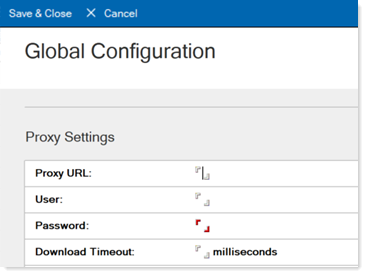
LLM Model download over HTTPS can also be optionally configured using a
authenticated HTTPS proxy like squid or NGINX proxy. Use the Global
Settings button in the DominoIQ database.
What to do next
Do one of the following tasks: