
Adding a Domino IQ Configuration for Remote mode
In Remote mode, every Domino IQ server needs its own Configuration document that associates the Domino server name with an LLM (model) used by the AI inferencing engine running on a the remote server, outside of the HCL Domino IQ server instance.
Procedure
- Using the Domino Administrator client, open the Domino IQ database , dominoiq.nsf, on the Domino IQ Administration server.
- Select the Configurations view and click the Add Configuration button.
- On the Basics tab, complete the following steps:
- In the AI endpoint field, select Remote.
- Select the name of a Domino IQ server from the list.
- Specify the name of the download model from the LLM Model document. Use the model naming convention that the remote AI server typically specifies for launching its inferencing engine. The model name is sent as part of the /v1/chat/completions request payload.
- Set the Status field to
Enabled, so that the Domino IQ task gets loaded
on the server.

- Provide the AI endpoint URL. The endpoint supported is HTTPS only. For example: https://endpoint-serv.example.com/v1/chat/completions
- Provide an API Key to use for the remote AI endpoint. This is the only form of authentication supported by HCL to the remote AI endpoint/server, as it secures the requests sent over TLS to the remote AI endpoint/server.
-
Add the Trusted roots for the remote AI server to Domino's Certstore database. See Adding trusted root certificates for more information.
- If you're using a guard model, complete the following steps to enable it. Otherwise,
skip to step 8.
- Click the Guard Model tab.
- Enter the name of the LLM guard model. Use the model naming convention that the remote AI server typically specifies for launching its inferencing engine. The model name is sent as part of the /v1/chat/completions request payload.
- Set the Guard model status field to
Enabled.

- Select Check LLM responses if you want the Guard Model to validate both the user content sent to the LLM and the response content received from the LLM. If you only want to validate the user content, leave this option unchecked.
- Provide the AI endpoint URL. The endpoint supported is HTTPS only. For example: https://endpoint-serv.example.com/v1/chat/completions
- If the remote AI server is required to use an API key when sending a request, provide the API key.
- In the Safe token value field, enter the your guard model's predefined keyword for when the content passes safety check. As examples, with LLAMA Guard 3, "safe" indicates that the request content does not fall into any risk categories defined by the model. For ShieldGemma, "No" indicates that the requested content does not violate the policy that the model was trained to protect.
- In the Unsafe token value field, enter your guard
model's keyword for when the content doesn't pass the safety check. With
LLAMA Guard 3, you would enter "unsafe" or, for ShieldGemma, "Yes".Note: For remote AI endpoints, the Advanced tab in the Configuration document doesn't contain any settings that apply to this configuration.
- If you're using an embedding model, complete the following steps to enable it.
Otherwise, skip to step 9.
- Click the Embedding Model tab.
- Embedding model: Enter the model name using the naming convention required by your remote AI server (this is sent in the /v1/embeddings payload).
- Embedding model status: Set this field to Enabled.
- .
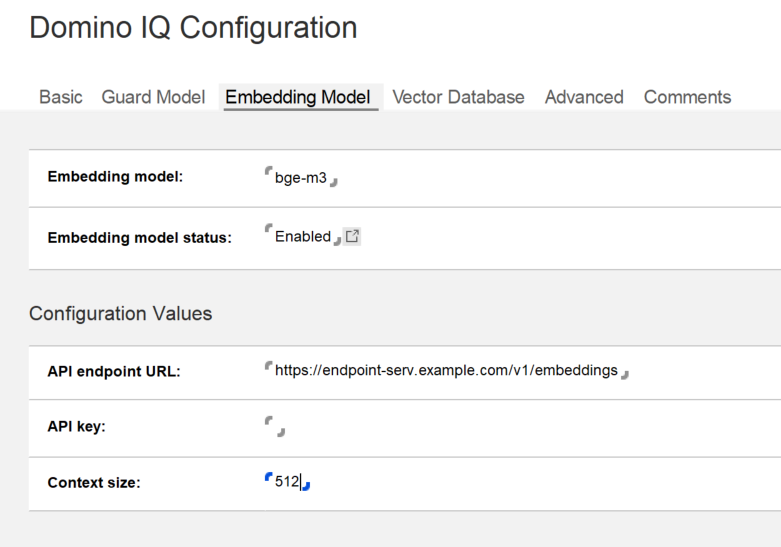
- API endpoint URL: Enter the HTTPS URL for your AI
endpoint (e.g., https://endpoint-serv.example.com/v1/embeddings).Note: Only HTTPS endpoints are supported.
- API key: If required by your remote AI server, provide the API key for authentication.
- Context size: Specify the maximum number of tokens
(text fragments) per sequence.
- This setting determines how Domino IQ chunks text before sending it to the model.
- While you should refer to the maximum "sequence length" of your model. Smaller chunks often yield more precise results depending on your dataset.
- Save the document.
What to do next: