Preview Store Pages
Upon completing page creation from the Page Composer tool of the Commerce Lab, you can click the Preview button to preview the Store page. This document describes all the information that can be viewed on the Store Preview page.
If you have selected to work on a task in the Workspace Management
tool, the workspace context associated with the task will be used to preview pages.
Changes to the page made in the workspace context will be visible on the previewed
page.
Note: Unless you have selected a task, you cannot preview any page.
Important: You can preview the Storefront Asset Store
pages by clicking on the Preview button while viewing the
page. Before launching the preview, select an e-site. A new e-site selection dialog
will appear. Select the e-site from the drop-down menu.
Note: Commerce+ Transaction Server
Commerce Lab allows the user to view the store information related to
pages, layouts, and widgets assigned to the store.
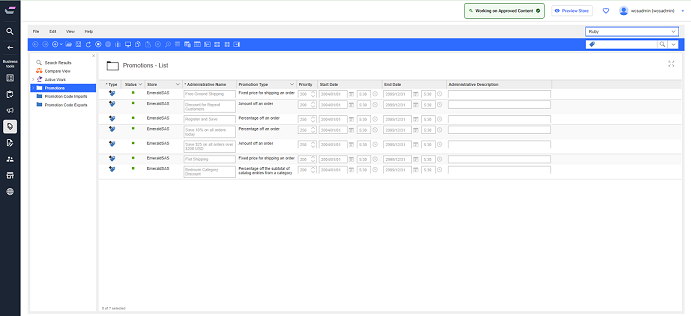
Preview settings
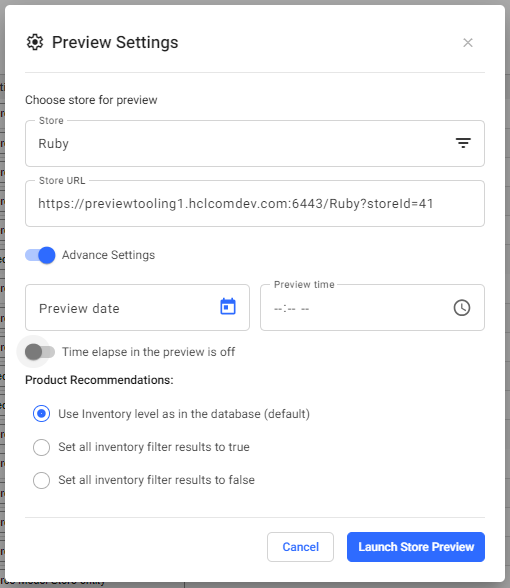
- Preview Settings window pops up on the screen.
- Choose Store for preview, and the Store URL is auto-filled for the selected store.
- Enable the toggle button for Advance
Settings.
- Provide the Preview date.
- Provide the Preview time.
- You can enable the button to view the Time elapse when the preview mode is on.
- Select the product recommendation as required.
- After providing the advanced settings, click the Launch Store Preview button to preview the store.
Note: The Preview Store button is available only for theAuthenvironment.
The store preview page opens in a new window.
- In the Preview time column, you will be shown the date and time when the store was previewed last.
- You can select any view from the available list in the Select viewport.
- By selecting any of these icons,
 you can view the screen vertically or
horizontally.
you can view the screen vertically or
horizontally. - Click on Share URL, and the URL gets copied, and that can be shared just by pasting it.
- Click on Preview Settings, and a preview settings
dialog box pop-up, as shown below:
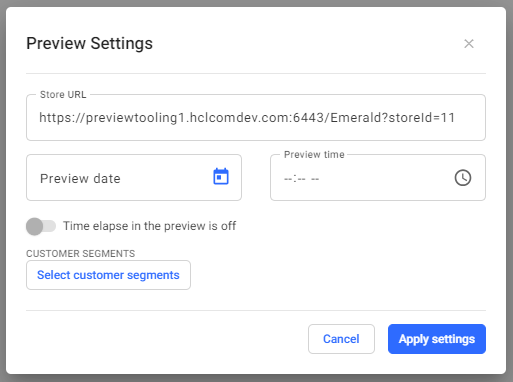
- Select customer segments to change the customer segments and click Apply Settings. The updated setting is applied for store preview.
Show Page Information
See Pages and Layout information to view the information related to the pages and layouts assigned to the selected store.
See Widget information to view the information related to the widgets assigned to the selected store.