Featured Products
The Featured Products widget is used to display a catalog entry.
You can use this widget in a layout for any page type.
Example of widget content
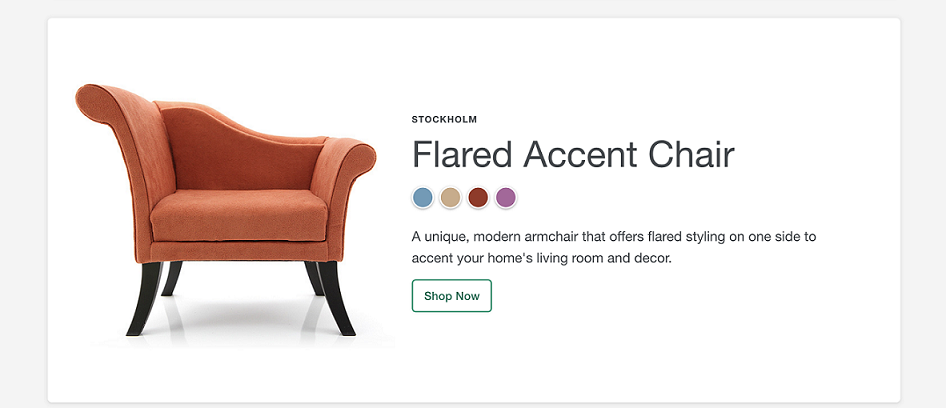
Widget properties and content
You can drag and drop the widget in the layout template you have selected.
Double click on the widget you have dropped inside the template and you will be able
to modify the widget properties. A window on the right side of the screen allows you
to edit the widget properties.
- You can update the Widget Name.
- From the Products section, you can select any one of
the three methods for populating this widget:
- Specify a list of products
- Click on the radio button labeled Specify a list of products to select and specify the content.
- Click on Select Product. Select all the products you would like to be shown on the storefront. All the selected products will be listed below the Selected Products column on the right side.
- To remove the selected products, click on the Delete icon given in front of the selected content.
- Use web activities to recommend product
- Click on the radio button labeled Use web activities to recommend product to select the web activities.
- Click on Select Web Activities. Select all the activities you would like to be shown on the storefront. All the selected activities will be listed below the Selected Activities column on the right side.
- To remove the selected activity, click on the Delete icon given in front of the selected activity.
- Use HCL Commerce AI models to recommend
productsNote: This option is available only after configuring the store to use the HCL Commerce AI models to recommend products. See the HCL Commerce AI documentation to know more.Important: Run the
curlcommands as the primary choice over running theINSERT SQLstatements.- Click on the radio button labeled Use HCL Commerce AI models to recommend products.
- Click on Select HCL Commerce AI Model. Select the model from the list of available models. A list of cards with model names and comments is visible. Only one model can be selected for one widget.
- The selection automatically gets saved to the widget. The selected model card is highlighted with a filled background color and a tick mark to indicate the selection.
- This page supports searching the models, pagination, and the number of items to be displayed for each page. On the right-hand side is a section showing the selected HCL Commerce AI model with card details.
- Unselecting the model card from the list removes the
associated model from the widget, and the selected HCL Commerce AI model will be empty.Note: You are required to provide the
Key-Value
                                                pairs
in the STORECONF table for the E-site stores. If you are providing aKey-Value pairsin the STORECONF table of the Storefront Asset Store (SAS), the sameKey-Value pairsshould be provided at the E-Site level to preview the model assigned at the SAS level. - Due to one of the following issue with models,
ERROR 404 may occur:
- The model has not completed initial training and has no results.
- The model has completed training but generated no results at all due to insufficient or bad data.
- For MLT and FBT, the model may have generated results for some products but not for the specific product for which results are being requested.
- The model has been deleted.
- A system failure/bug (500 or other error).
Note: See the HCL Commerce AI documentation for more information.Note: After configuring the store to use HCL Commerce AI models to recommend products, you see a checkbox labeled Use current category for recommendations if applicable. Select the checkbox to see the assigned category recommendations on the store. The checkbox allows users to get the recommendations specific to the selected category. If you have not selected the checkbox, you get recommendations for all the categories available.
- Specify a list of products
- Click Save. The widget properties are saved successfully.