Data Load utility
This utility loads data from a source file into a target database. Loading the file populates and updates the Commerce+ Transaction Server database. You can also use the Data Load utility to delete data from a database.
<_config:property name="elasticSearchIndexUpdateEnabled" value="true" /> Command syntax
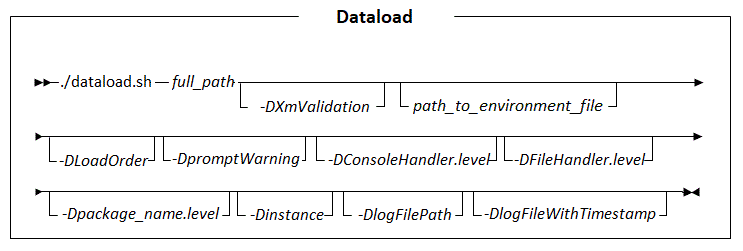
Parameter values
- full_path
- Is the full path location of the load order configuration file.
- path_to_environment_file
- Is the full path location to an environment configuration file to process. If an environment configuration file is specified in the command line, it takes precedence over the element that exists in the data load environment configuration file.
- -DXmlValidation
- (Boolean) Used to turn on or off XML validation. For accuracy, the defined configurations inside the XML files are validated against the Data Load utility XSDs. By default, XML validation is turned on (true). If you want to turn off validation, enter -DXmlValidation=false.
- -DLoadOrder
- Specifies the order that data is loaded to the database. This parameter
overrides the LoadOrder element in the wc-dataload.xml
configuration file. You can specify any number of load items you want, with
each item separated by a comma. Ensure that parameter values do not contain
white space. If there is white space, enclose the parameters in double
quotation marks. For example,
"-DLoadOrder=loadItemName1, loadItemName2" - -DpromptWarning
- Specifies whether to proceed when a warning is encountered, or to prompt the user for input. By default, this parameter is set to true. If the data load is not running in an interactive mode, set the value to false.
- -DConsoleHandler.level
- Used to override the console logging level that is defined in the utilities_root\dataload\logging.properties file. For example, enter -DConsoleHandler.level=SEVERE to change the console logging level to SEVERE.
- -DFileHandler.level
- Used to override the file logging level that is defined in the utilities_root\dataload\logging.properties file. For example, enter -DFileHandler.level=WARNING to change the file logging level to WARNING.
- -Dpackage_name.level
- Where
package_nameis the name of any package. This parameter is used to override the log level for the specified package. If the package_name is blank (-D.level=level name) then the log level is changed for all packages. The level name can be: OFF, SEVERE, WARNING, INFO, CONFIG, FINE, FINER, FINEST, ALL.For example:-Dcom.ibm.commerce.catalog.dataload.level=FINERTo help troubleshoot errors that can occur when you run the Data Load utility, override the logging levels for the following Data Load utility packages that have logging available:-Dcom.ibm.commerce.foundation.dataload.businessobjectbuilder.level -Dcom.ibm.commerce.foundation.dataload.businessobjectmediator.level -Dcom.ibm.commerce.foundation.dataload.config.level -Dcom.ibm.commerce.foundation.dataload.datareader.level -Dcom.ibm.commerce.foundation.dataload.datawriter.level -Dcom.ibm.commerce.foundation.dataload.idresolve.level -Dcom.ibm.commerce.foundation.dataload.database.level -Dcom.ibm.commerce.foundation.dataload.levelFor more information about changing the logging level for a package, see Configuring logging for runtime environments. For more information about logging, see Logging services.
- -Dinstance
- The name of the Commerce+ Transaction Server instance with which you are working
(for example, demo). Depending on the business object mediator and data that
you are using, this parameter is mandatory. For example, when you load
custom userData for business objects and the Data Service Layer (DSL)
configuration mapping for the objects is defined in an extension directory.
By default, the Data Load utility does not search extension directories for DSL configuration mappings. For the utility to locate the DSL configuration mapping for your userData, you must configure the utility to search the extension directories for the configuration mappings. To configure the utility to search these directories, include the -Dinstance parameter when you run the utility. By including this parameter, the utility includes the Commerce+ Transaction Server EAR XML directory in the class path and is able to locate all DSL configuration files. When you specify the -Dinstance parameter, ensure that you have the files for the instance that you specify in the utilities_root/instances/instance_name directory or its subdirectories. You must also have access to the files. The utility can then locate the DSL configuration mapping for your custom data. If you do not configure the utility to find this file by including this parameter, an error that the custom field is not defined in the user data occurs.
You must specify this parameter when you load custom data for business objects that have a Data Service Layer configuration that is in an extension directory. For example, specify the parameter when you are loading the following types of data:- Custom JAR files or Data Service Layer configuration files from the development environment to the server.
- Any type of data into a workspace environment.
- Catalog data when base change history recording is enabled. When this history recording is enabled, change history is recorded whenever an object that is approved content is created, updated, or deleted with Commerce Lab or the Data Load utility. For more information about this change history recording, see Enabling the change history for approved and canceled task groups.
- Catalog entry description override data with the com.ibm.commerce.catalog.dataload.mediator.CatalogEntryDescriptionOverrideMediator mediator.
- SEO information for catalog entry or category data. To load SEO
data with catalog entry or category data, include the loadSEO
parameter with a value set to be "true". You can load SEO data
with the following mediators:
- com.ibm.commerce.catalog.dataload.mediator.CatalogEntryMediator
- com.ibm.commerce.catalog.dataload.mediator.CatalogEntrySEOMediator
- com.ibm.commerce.catalog.dataload.mediator.CatalogGroupMediator
- com.ibm.commerce.catalog.dataload.mediator.CatalogGroupSEOMediator
- Commerce+ Transaction Server search index requests. You can request
search indexing to occur with the following mediators:
- com.ibm.commerce.catalog.dataload.mediator.AttributeDictionaryAttributeSearchIndexMediator
- com.ibm.commerce.catalog.dataload.mediator.CatalogEntrySearchIndexMediator
- com.ibm.commerce.catalog.dataload.mediator.CatalogGroupRelationshipSearchIndexMediator
- com.ibm.commerce.catalog.dataload.mediator.CatalogGroupSearchIndexMediator
- Custom mediators that support indexing custom data types and extend com.ibm.commerce.foundation.dataimport.dataload.mediator.AbstractSolrInputDocumentMediator.
- Marketing image map content that includes data for custom
fields. You can load marketing image map content with the
following mediator:
- com.ibm.commerce.marketing.dataload.mediator.MarketingContentImageMapMediator
- -DlogFilePath
-
The full path location for where you want the Data Load utility log file to be created. By default, the wc-dataload.log log file is created in the following directory:
 utilities_root/logs
- -DlogFileWithTimestamp
- Used to enable the Data Load utility to append a time stamp to the Data Load utility log file. By default, this parameter is turned off (false). If you want to turn on the appending of a time stamp, enter -DlogFileWithTimestamp=true.
Running the Data Load utility
-
- On a command line, go to the /opt/CommerceUtilities/samples/bin directory.
 Open a command line in the .
Change the directory to
utilities_root/bin directory.
For information about entering and leaving containers, see
Running utilities from the Utility server Docker container.
Open a command line in the .
Change the directory to
utilities_root/bin directory.
For information about entering and leaving containers, see
Running utilities from the Utility server Docker container.- Run the following command to use Data Load utility to run the specified data
load order configuration file. The file identifies the input files that include
the data to load and identifies the business object configuration files that
define how to load the data.
- ./dataload.sh
../LoadOrderFilePath/LoadOrderFile.xml
- LoadOrderFilePath
- The relative path to the data load order configuration file that identifies your input files and configuration files.
- LoadOrderFile.xml
- The data load order configuration file. Sample files are provided
with Commerce+ Transaction Server in the component-based directories in
the following directories:
- utilities_root/samples/DataLoad
- ./dataload.sh
../samples/DataLoad/Catalog/wc-dataload-catalog-entry.xml
As an example, the following command runs the Data Load utility to load catalog entry data, and specifying an alternative environment configuration file to process:./dataload.sh ../samples/DataLoad/Catalog/wc-dataload-catalog-entry.XML ../samples/DataLoad/Catalog/environmentfile.XML - If you loaded catalog filters, then you need to repopulate the EXPRESSION database table by running the PopulateExpressionsForCatalogFilter scheduler job manually or wait for the job to run. For more information about scheduler jobs, see Viewing scheduled jobs.