
Prescriptive Guidance
Prescriptive Guidance provides actionable recommendations to users based on best practices, industry standards, and specific organizational policies. This feature enhances operational efficiency, reduces manual effort, and strengthens security posture by guiding users towards optimal configurations and actions tailored to their environment.
Key benefits
-
Standardization of Best Practices: It helps ensure that all endpoints within an organization adhere to standardized best practices for security, configuration, and compliance.
-
Efficiency and Consistency: By providing clear, actionable recommendations, prescriptive guidance enables IT teams to efficiently manage a large number of endpoints with consistent policies and configurations.
-
Risk Reduction: It assists in identifying and mitigating security vulnerabilities, reducing the risk of cyber attacks or data breaches across the endpoint environment. It helps users mitigate risks by suggesting actions that address vulnerabilities, security gaps, or non-compliance issues identified across endpoint devices.
-
User Empowerment: It empowers IT administrators and endpoint users by equipping them with the knowledge and tools needed to implement recommended actions effectively. By providing clear, structured recommendations, prescriptive guidance empowers users with the knowledge and tools needed to maintain a secure and efficient endpoint environment.
-
Adaptability to Change: Prescriptive guidance adapts to evolving threats, regulatory requirements, and technology changes, ensuring that endpoint management practices remain current and effective.
-
Automation and Scalability: Guidance often includes automated workflows or scripts that enable automated enforcement of policies and configurations, improving scalability and reducing manual effort. The guidance may include automated workflows or scripts that users can deploy to streamline routine tasks such as patching, software updates, or configuration changes.
-
Compliance Assurance: It supports organizations in meeting regulatory compliance requirements by guiding them towards configurations and practices that align with industry standards and regulations.
- Ongoing improvement: It supports ongoing improvement by adapting to new threats, regulatory changes, or operational requirements, ensuring that users stay current with best practices in endpoint management.
Scenarios and use cases
-
Scenario 1: Vulnerability Management
- An IT team uses prescriptive guidance to identify and prioritize critical vulnerabilities across their endpoint devices. By following the step-by-step recommendations, they efficiently apply patches and mitigate risks.
-
Scenario 2: Regulatory Compliance
- A financial institution leverages prescriptive guidance to align their endpoint configurations with industry regulations. Automated workflows ensure continuous compliance and reduce the burden of manual checks.
-
Scenario 3: Endpoint Standardization
- A global enterprise with a diverse set of endpoints utilizes prescriptive guidance to standardize security and configuration practices across all devices. This ensures consistency and reduces the risk of security breaches.
-
Scenario 4: Routine Maintenance
- An organization deploys automated scripts provided by prescriptive guidance to streamline routine maintenance tasks such as software updates and configuration changes, enhancing operational efficiency.
How to access
 icon to open the Prescriptive Guidance panel on the right.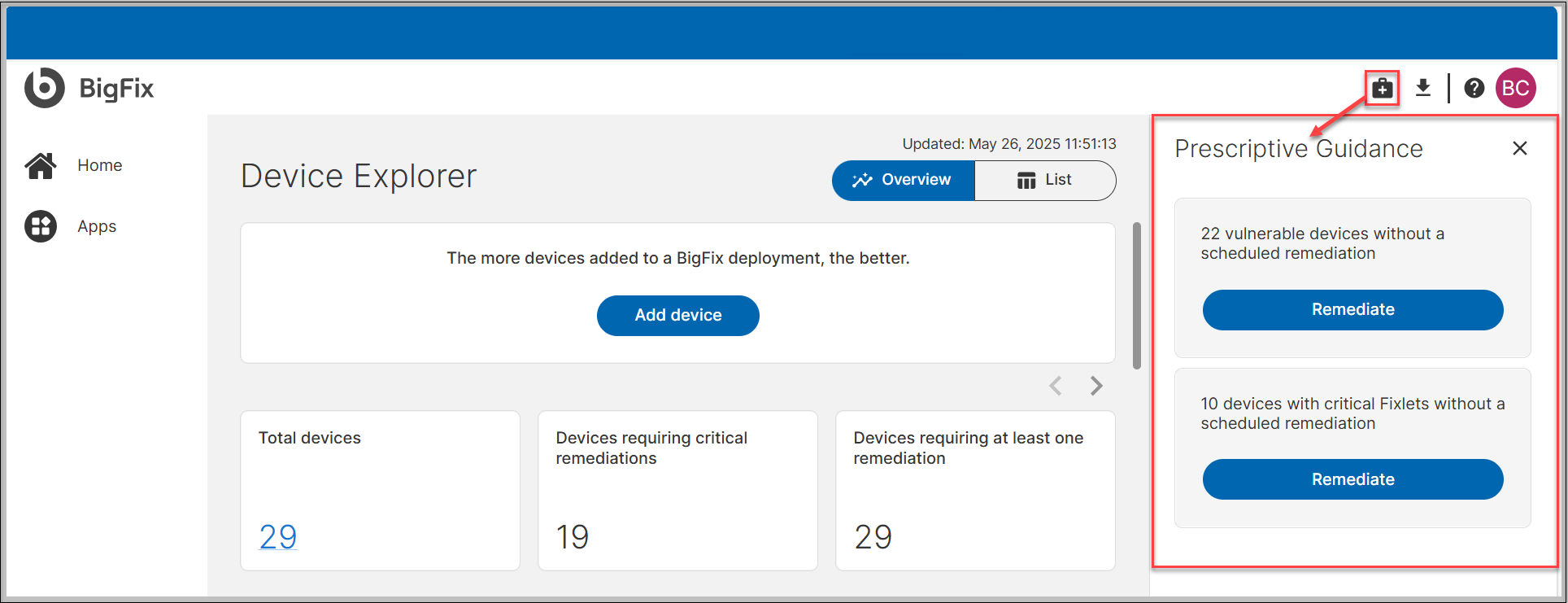
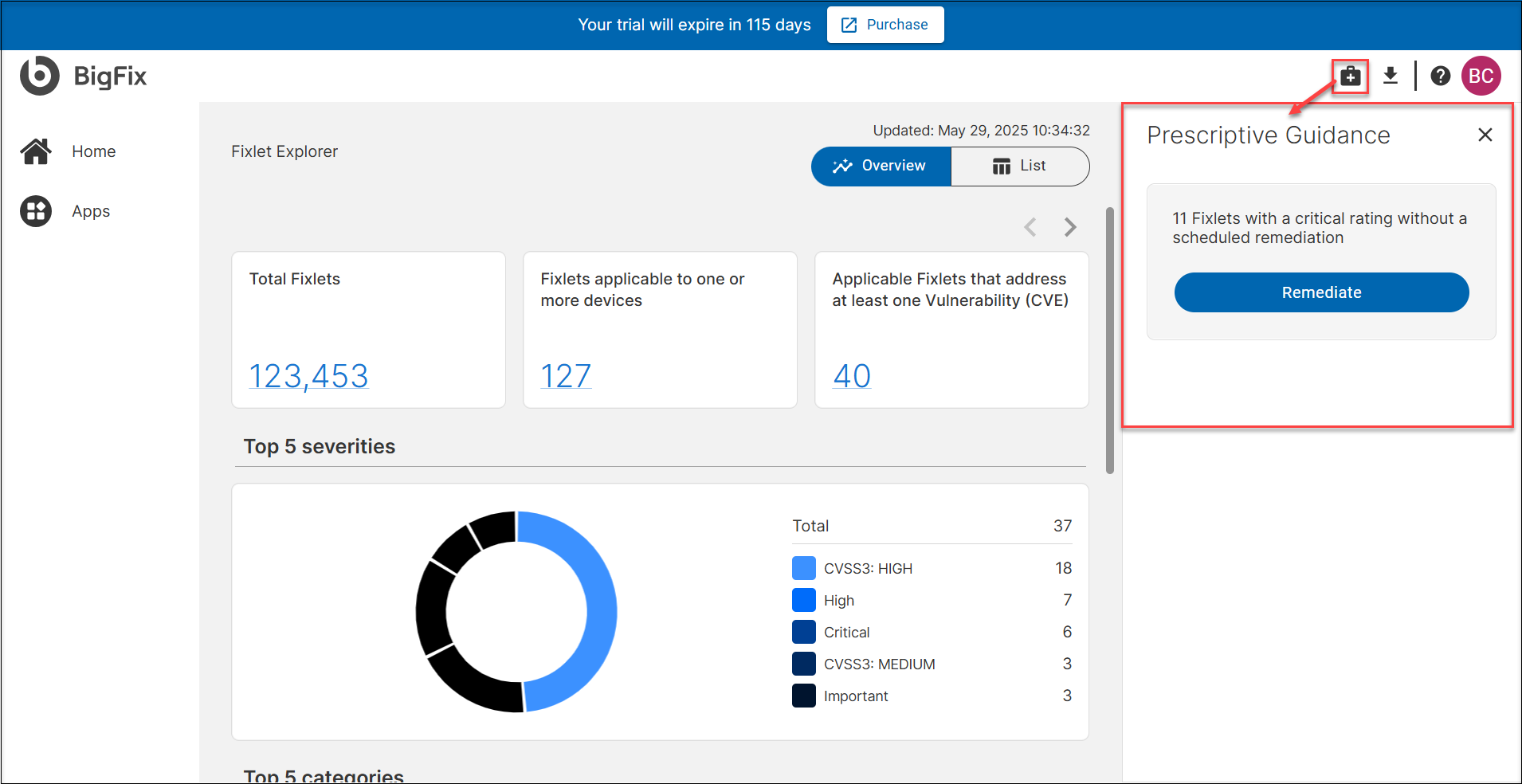
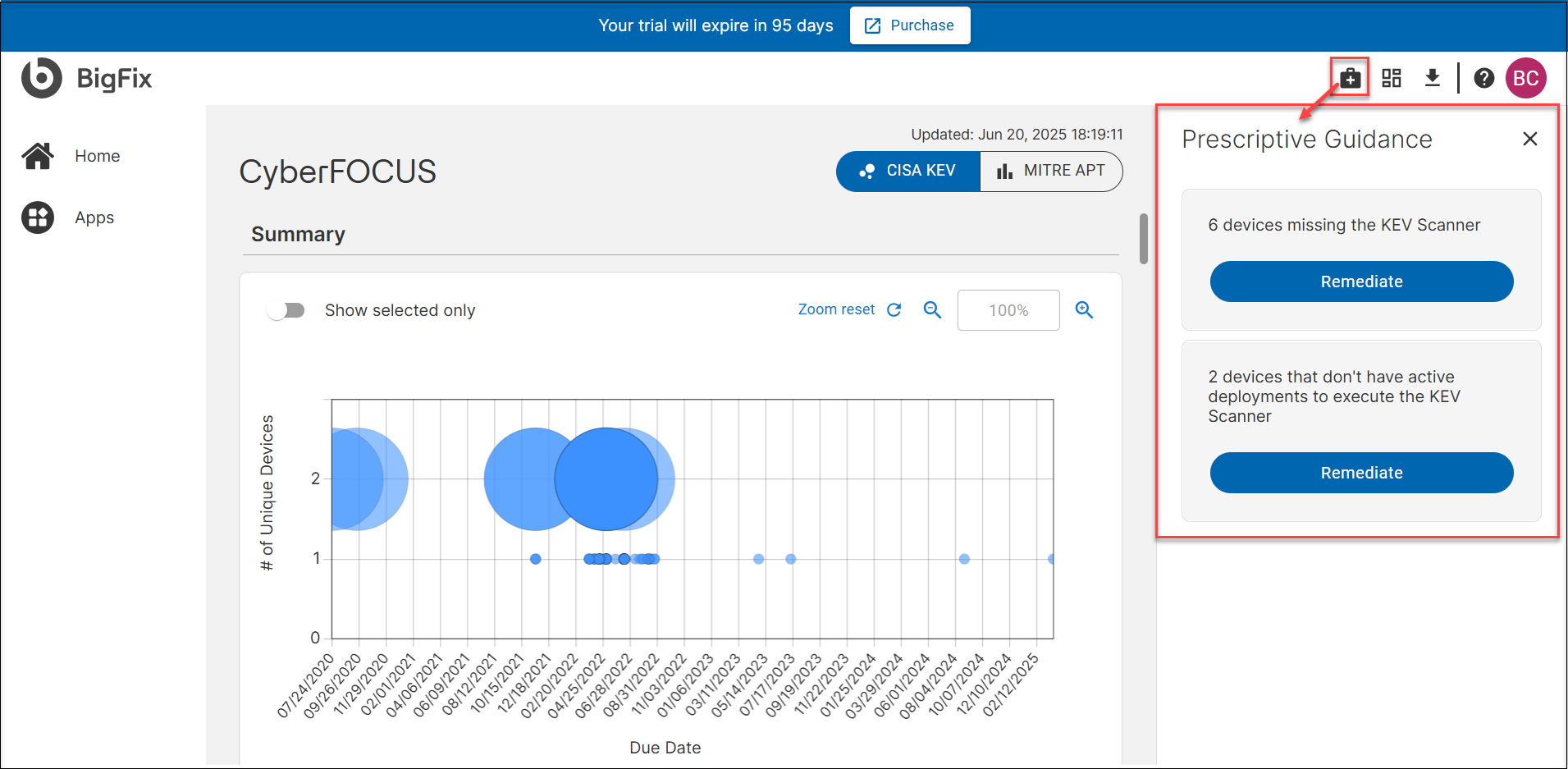
The Prescriptive Guidance feature automatically identifies devices in your environment that are vulnerable and do not have a scheduled remediation action. It helps you take timely action by highlighting risks and streamlining the remediation process.
-
The recommendations are based on your environment’s current state.
-
The guidance helps prioritize high-risk vulnerabilities and streamlines the remediation steps needed to address them.
- The Remediate button appears when vulnerabilities are detected.
-
Clicking the Remediate button opens the Remediation Workflow, where:
-
All applicable fixlets and devices are pre-selected automatically based on the prescriptive guidance.
-
You can review and modify the selection before proceeding.
-