
Access and security
Learn how to securely log in and out of the application, change your password, and update your profile information. Regularly updating your password and keeping your profile information current helps maintain the security and accuracy of your account.
Logging In
- Open the BigFix SaaS application URL:Launch your preferred web
browser and navigate to https://login.bigfix.com to access BigFix
SaaS application.
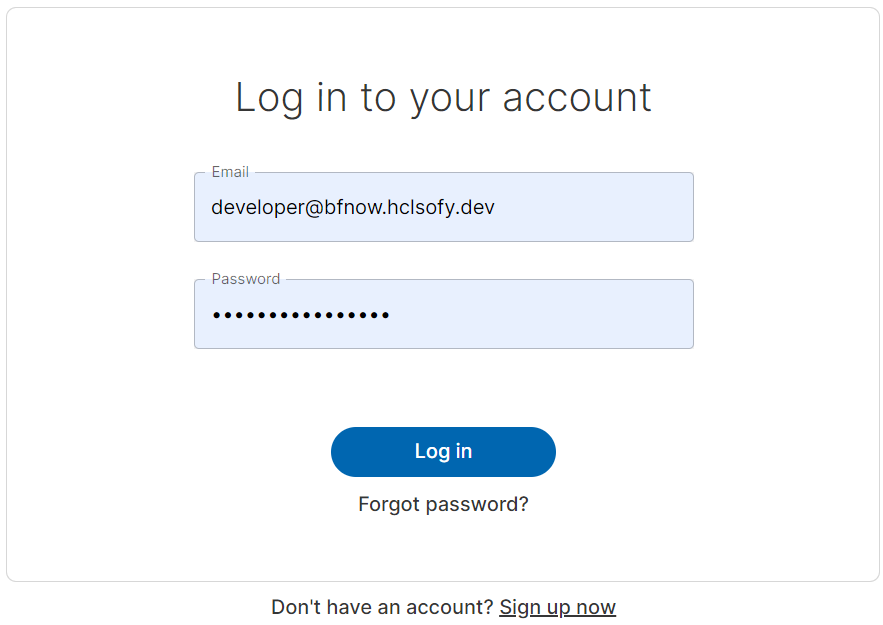
- Enter Your Credentials: On the login page, enter your user name and
password in the respective fields.Note:If you are a first time user, check the email you have received from BigFix for the credentials.
- Click 'Log in': Once you have entered your credentials click the 'Log in' button.
- Changing temporary password: First time user receives a welcome email containing a temporary password. On first login, the application prompts you to change the temporary password.
- Multi-factor Authentication:
- If the BigFix SaaS admin enforced Multi-Factor Authentication (MFA) for your account, you will be redirected to activate Time-Based One-Time Password (TOTP).
- If MFA is not enforced, you will be logged in immediately after changing the password.
-
TOTP Activation
-
When prompted, you will be guided to install an authenticator app (Google Authenticator or Microsoft Authenticator).
-
A QR code is shown for easy configuration.
-
After scanning the code, you must enter the 6-digit TOTP to complete the set up. On success, you will be logged into BigFox SaaS.Note:If incorrect TOTP is entered repeatedly, login attempts are temporarily blocked to increase friction for attackers.
-
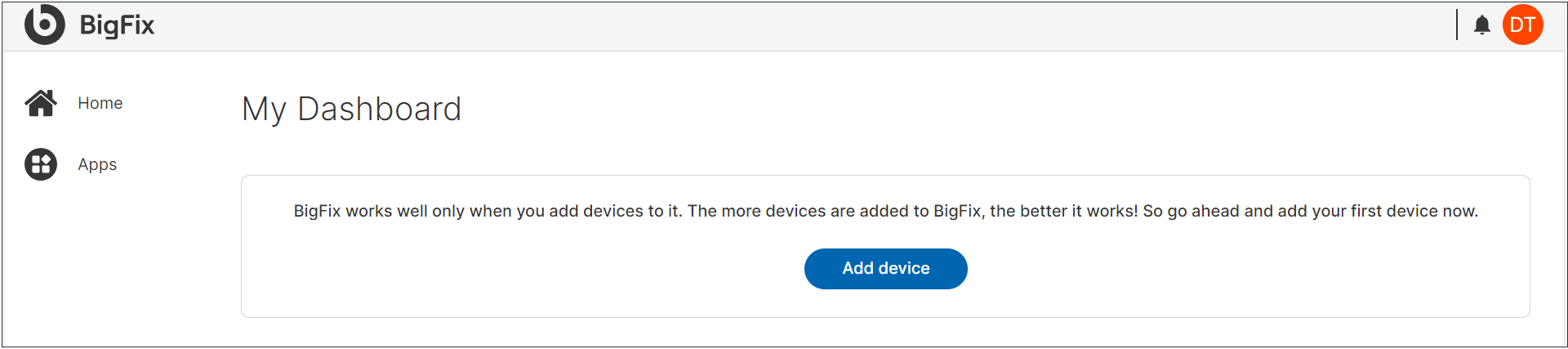
- After you log in successfully, you are taken to My Dashboard, the home page
of BigFix.
Logging Out
To ensure the security of your account, always log out when you are finished using the application:
- Access the User Menu: Click on your profile icon at the top-right corner of the application window.
- Log out: Click 'Log out'. This securely logs you out of your account and redirects you to the login page.
Changing Your Password
If you need to change your password for security reasons or periodic updates, follow these steps:
- Open Profile Settings: Click on your profile icon at the top-right corner to display your account information.
- Navigate to Password Settings: Click on the label 'Password' within your
account settings.
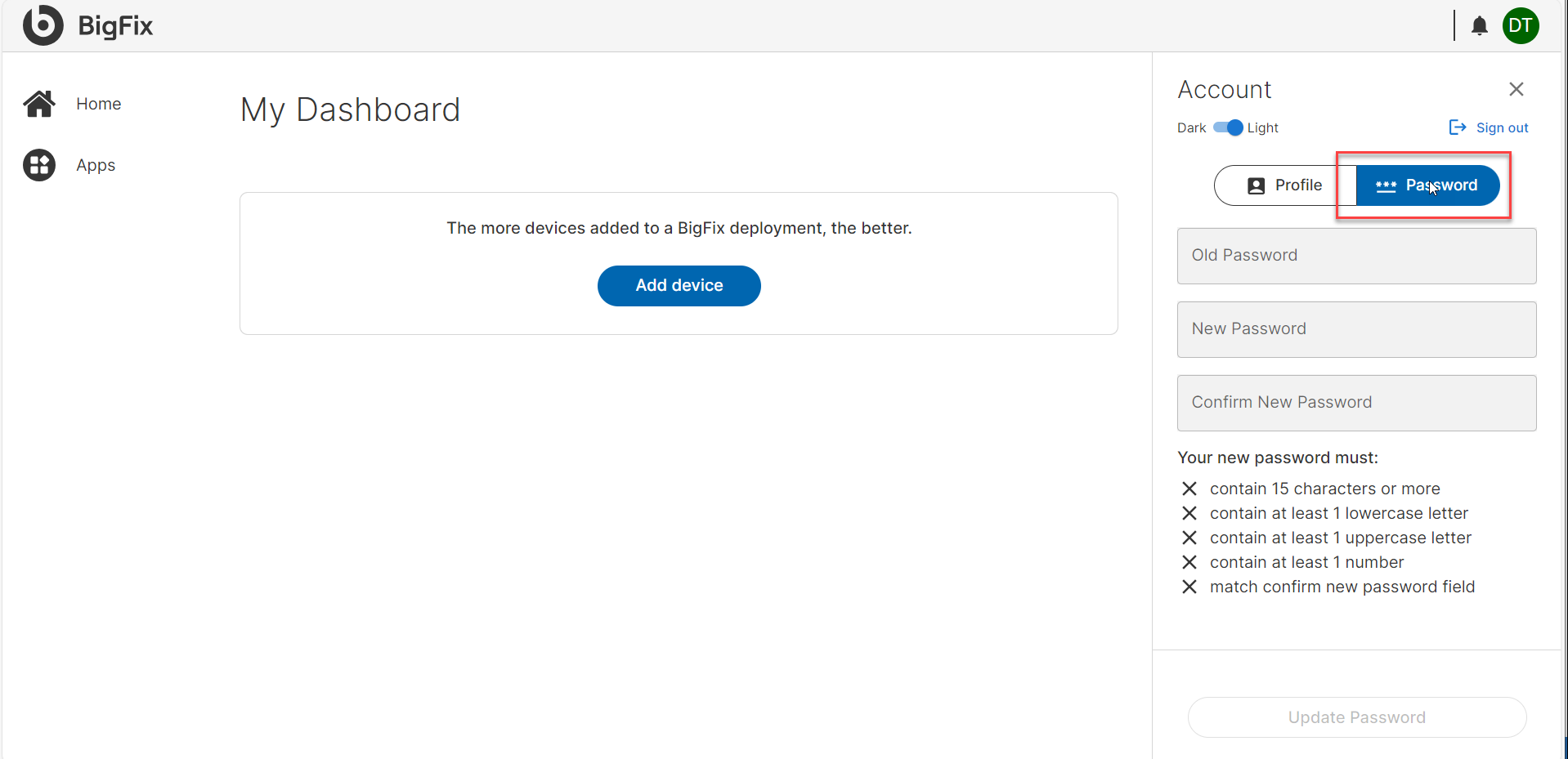
- Enter Current Password: Enter old password for verification.
- Enter New Password: Type your new password in the designated field. Ensure it meets the security requirements specified.
- Confirm New Password: Re-enter the new password to confirm.
- Update Changes: Click the Save button to apply the changes. You need to log in again using your new password.
Changing Profile Information
To update your profile information, such as your first name and last name:
- Access Profile Settings: Click on your profile icon at the top-right
corner and select 'Profile'.
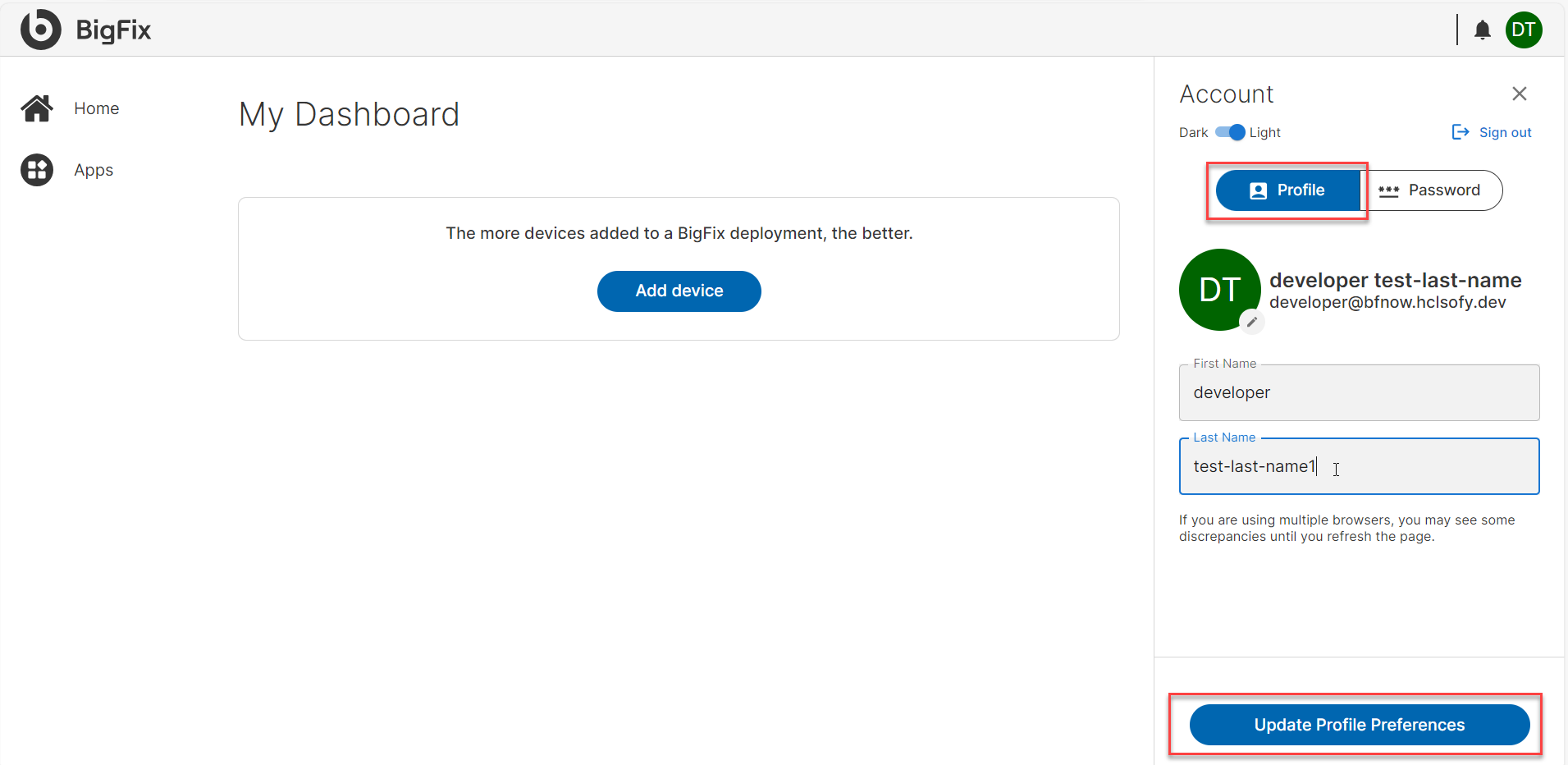
- Update the Fields: Modify the information as needed. Ensure the required fields are filled in.
- Save Changes: Click the Save button to save your changes. Your profile information updates immediately.