
Updating the rootvg boot device
You can use the AIX Advanced Deployment Wizard to update the rootvg boot device to identify where the boot device of the current running system is located in the list of boot devices. When the device is located, the new boot device is inserted before the current device in the boot list unless stated otherwise. The wizard provides options if you want to replace the boot list to contain only the new device that you specified.
Procedure
- From the BigFix console, click .
- Under the Alternate Disk Tasks tab,
click Update rootvg Boot Device to expand the
bootlist modification options pane.
Figure 1. Update rootvg boot device 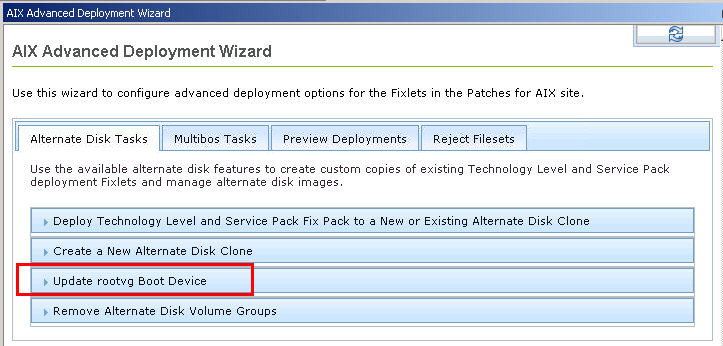
- Enter the name of the new boot device or the name of the
new volume group that you want to use instead of the current rootvg
boot device.Note: Boot device names that start with fd, scdick, badisk, cd, rmt, or tok are passed to the target systems as specified and considered as the device name. Inputs that do not contain any of the prefixes are considered to be the names of volume groups, which are translated to their corresponding device names by using the AIX lspv command.Note: You can enter boot device attributes with the new boot devices. For example: cd0 hdisk1 net gateway=123.45.67.1 bserver=123.45.67.10 client=123.45.67.89.
Figure 2. Options to modify the list of possible boot devices 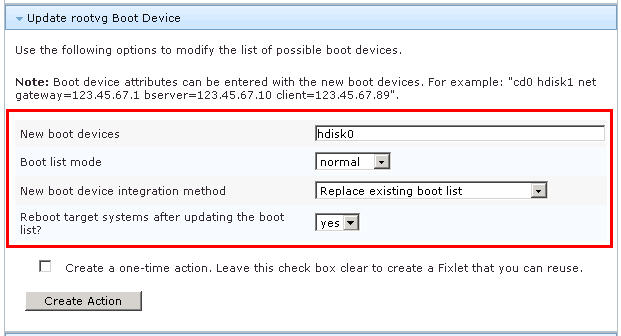
- Select the mode that you want to use for the boot list.
- Specify whether you want to preserve
the existing boot list options.Note: Selecting no to this option removes all boot list entries and replaces them with the new entry that you provided in step 3, which is followed by the current rootvg device name.
- Specify whether you want to replace the existing boot list or use the existing one. You can have the new devices either at the beginning or end of the boot list.
- Verify that the reboot option is at the preferred setting.
- Optional: Select the check box to create a one-time action rather than to create a reusable Fixlet.
- Click Create Action.
- Deploy the action.