

Out-of-the-box/historical reporting
BigFix DEX provides Out-of-the-Box (OOTB) Historical reports that are pre-configured to see DEX score trends over the current year.
Viewing Out-of-the-box reports
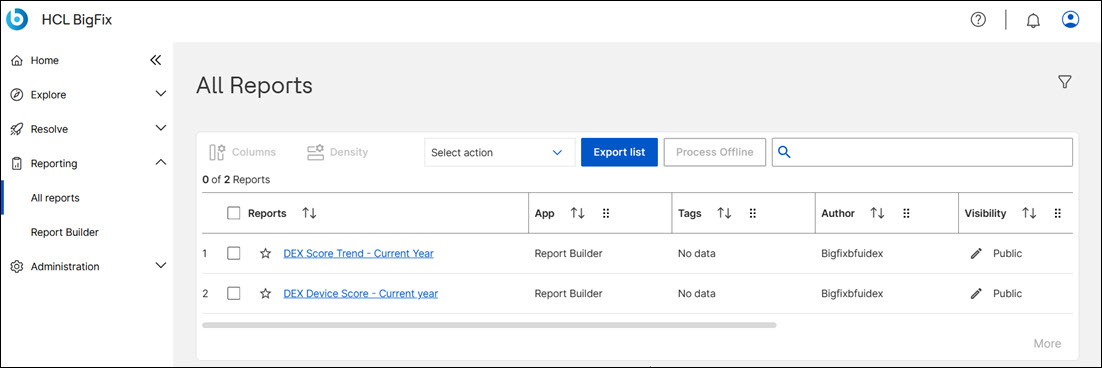
To see Out of the box reports that user has to have dex role and report visibility.
Go to and click on a report.
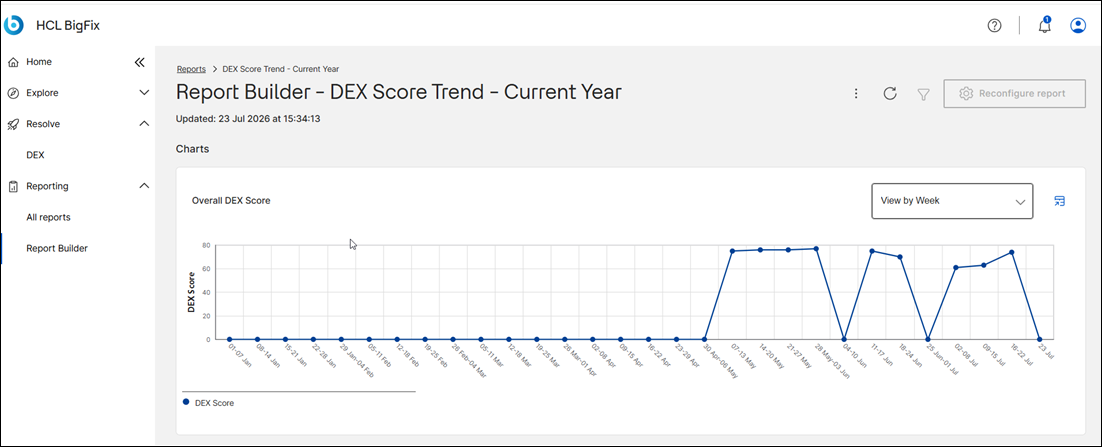
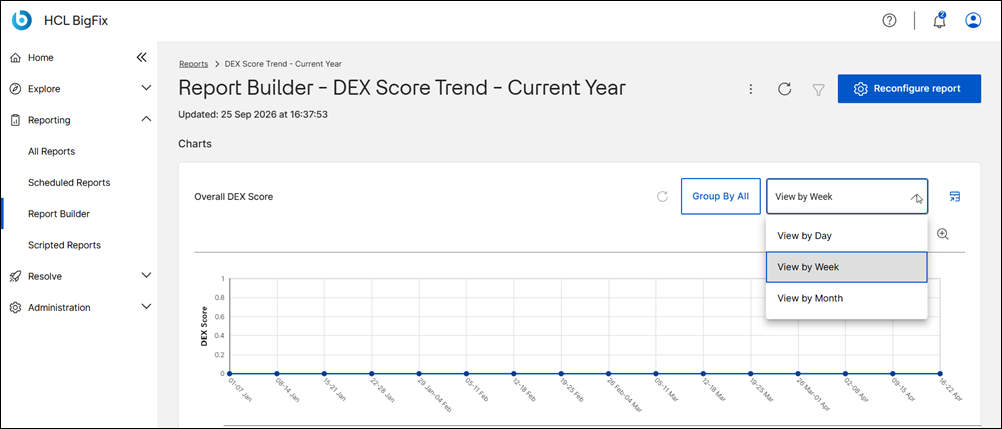
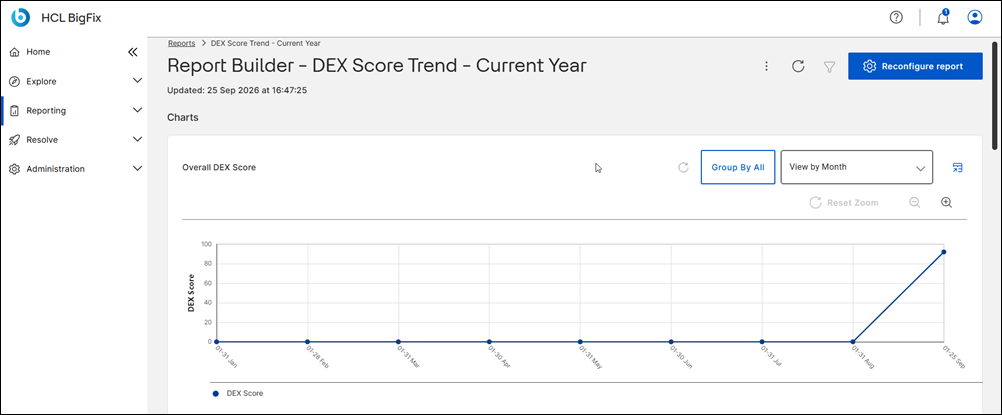
The report's Score Trend view for the current year appears.
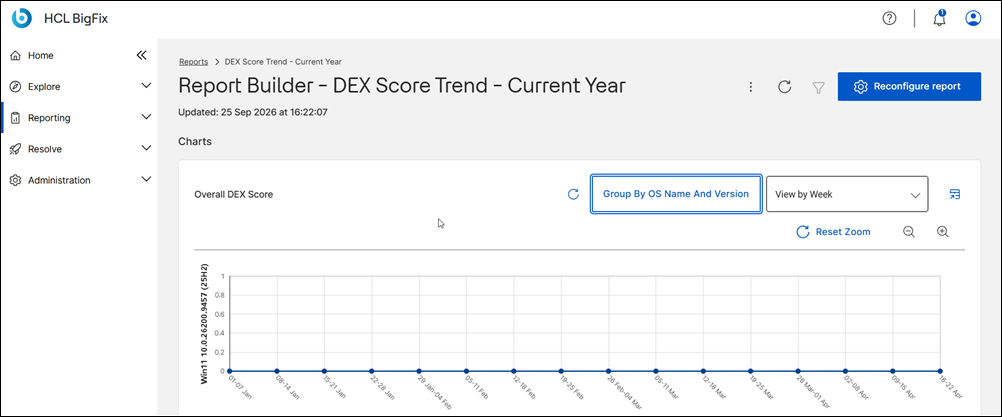
- Group By All
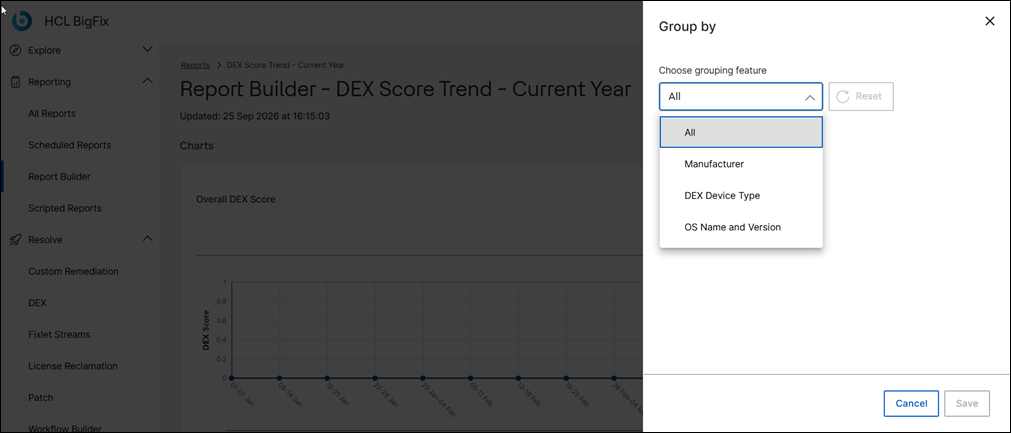
- Version 2.2.0 provides a 'Group By All' option to group the report as
per your preference. The dropdown includes grouping options, such as
Manufacturer, DEX Device Type, and OS Name and Version. Once you select
an option, further options appear, which you need to select and click
Apply and then Save.
The report appears as per your selected preference.
- View By Week
- To view the report by week, month, or year, choose this option.
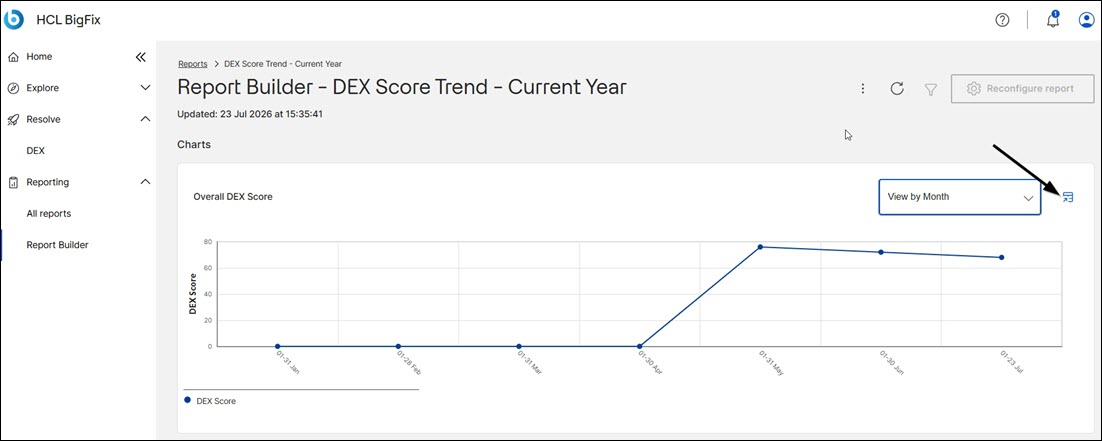
- Copy reports
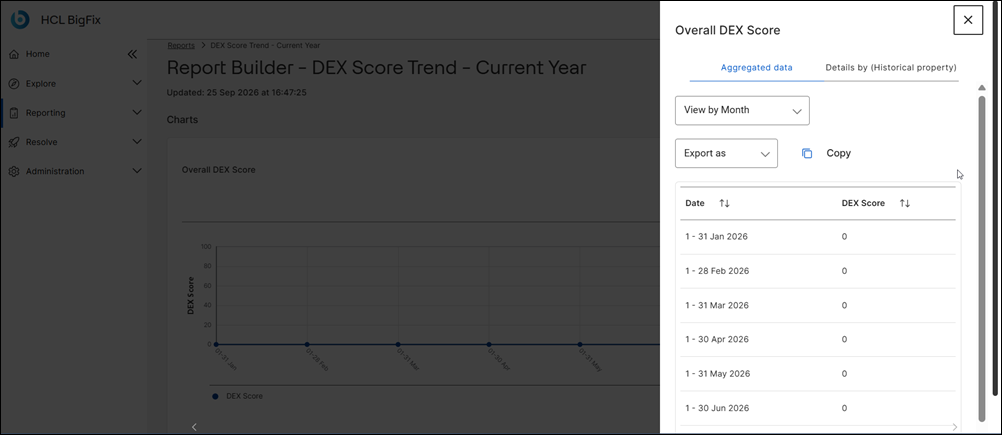
- You can copy reports with your preferred settings. Click on the copy
icon and then select your preferred options to copy a report.
Exporting reports
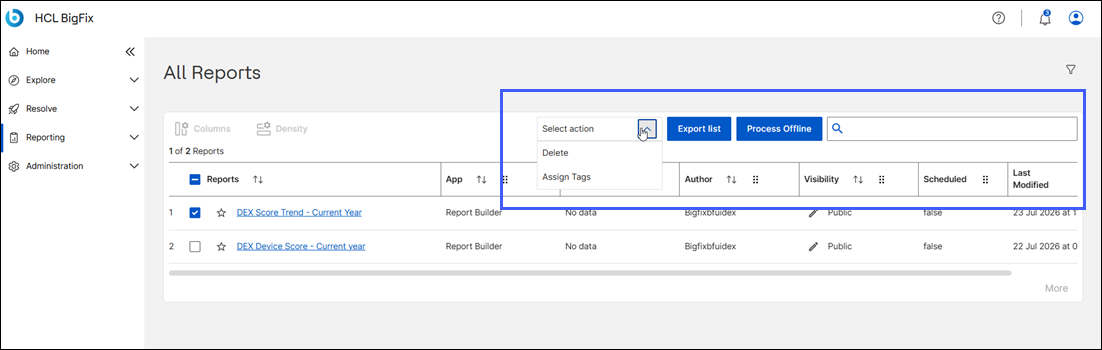
This feature allows you to export your preferred reports in CSV or Excel format.
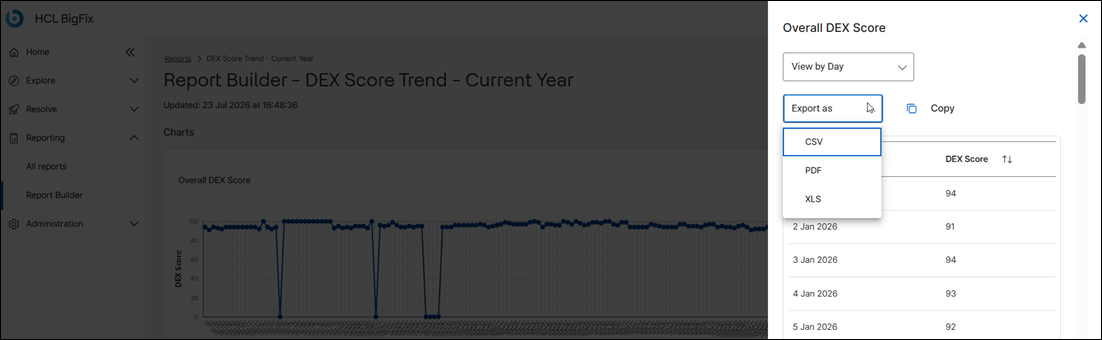
You can also export the report in CSV, PDF, and XLS format from the tabular view.
Create reports
The Report Builder option allows you to create new reports.
Go to and click on a report.
In the device, data set can be found all the dex properties.
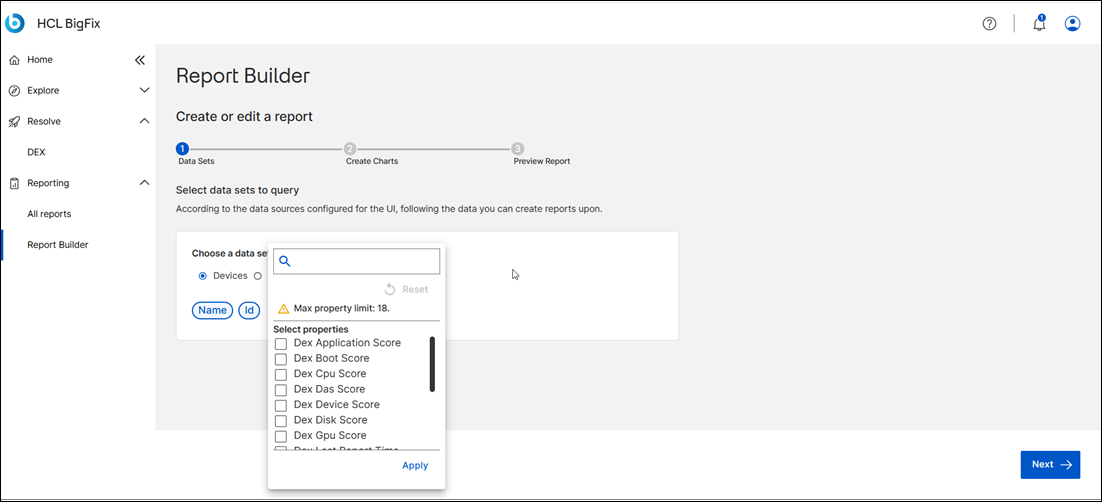
New historical report can be created selecting the property.
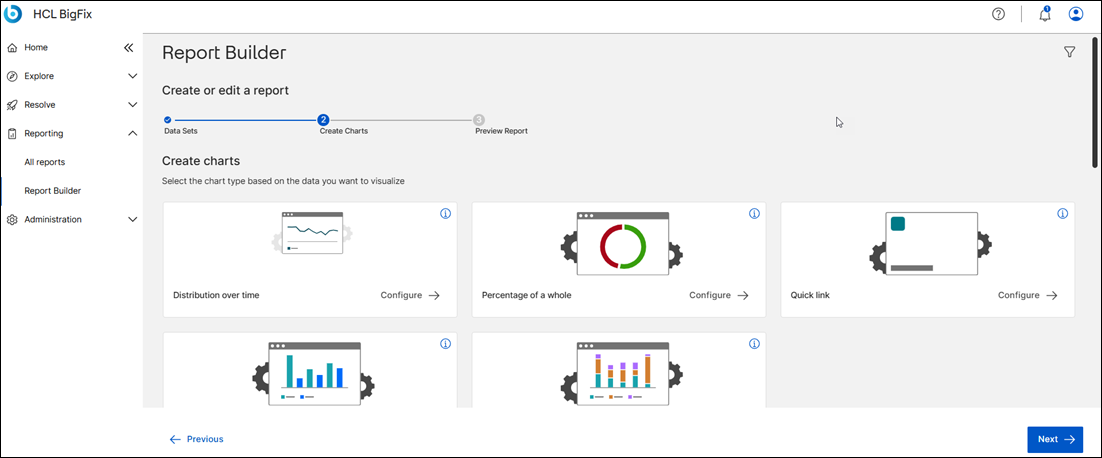
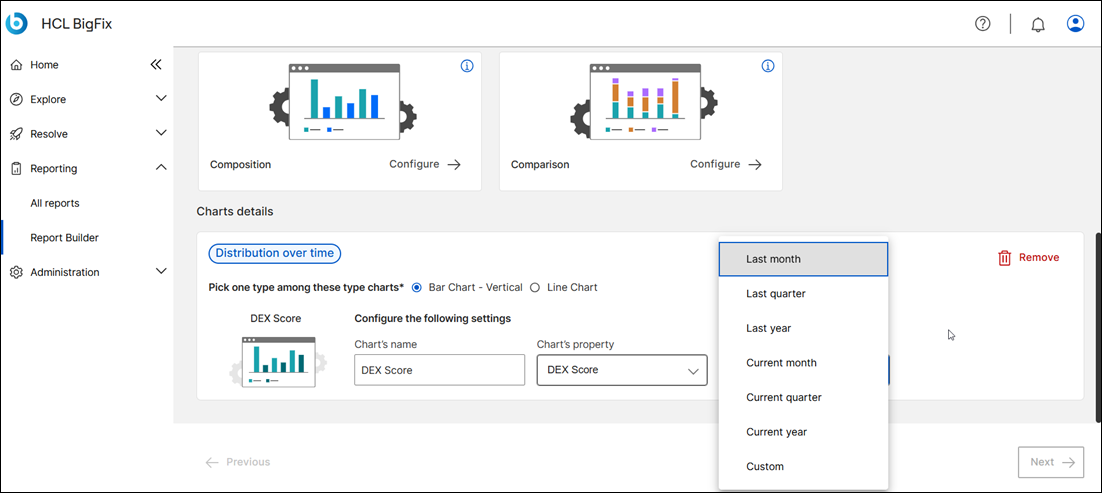
Once you click on Next, provide name and description.
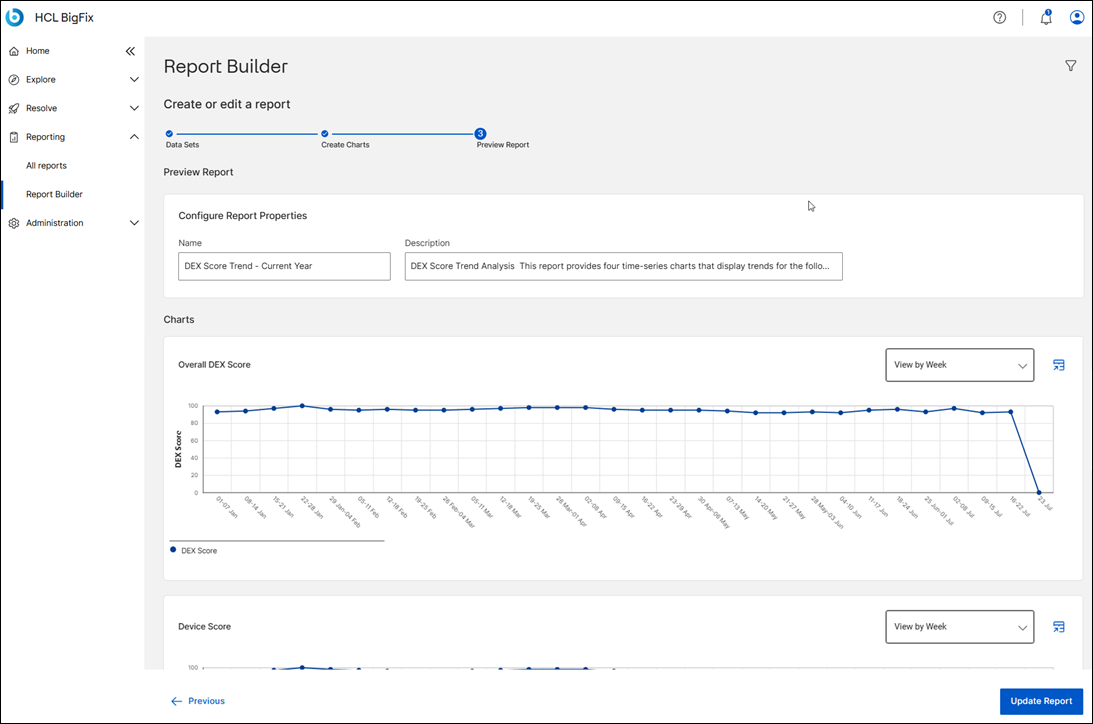
Once you click on Update, the report is generated and it appears in the report list.
