
Configuring the Ubuntu plug-in settings
Use the Manage Download Plug-ins dashboard to configure the basic properties, such as mirroring and proxy settings, of the Ubuntu Pro plug-in.
About this task
Note: Ensure that the BigFix server and the BigFix client are on the same version to avoid a null error.
Procedure
- From the Patch Management domain, click .
- From the Servers and Relays table, select the server on which the download plug-in is to be configured.
- From the Plug-ins table, select Ubuntu Plug-in.
-
Click Configure.
The Configure Ubuntu Plug-in wizard displays.
Figure 1. Configure Ubuntu Plugin Wizard 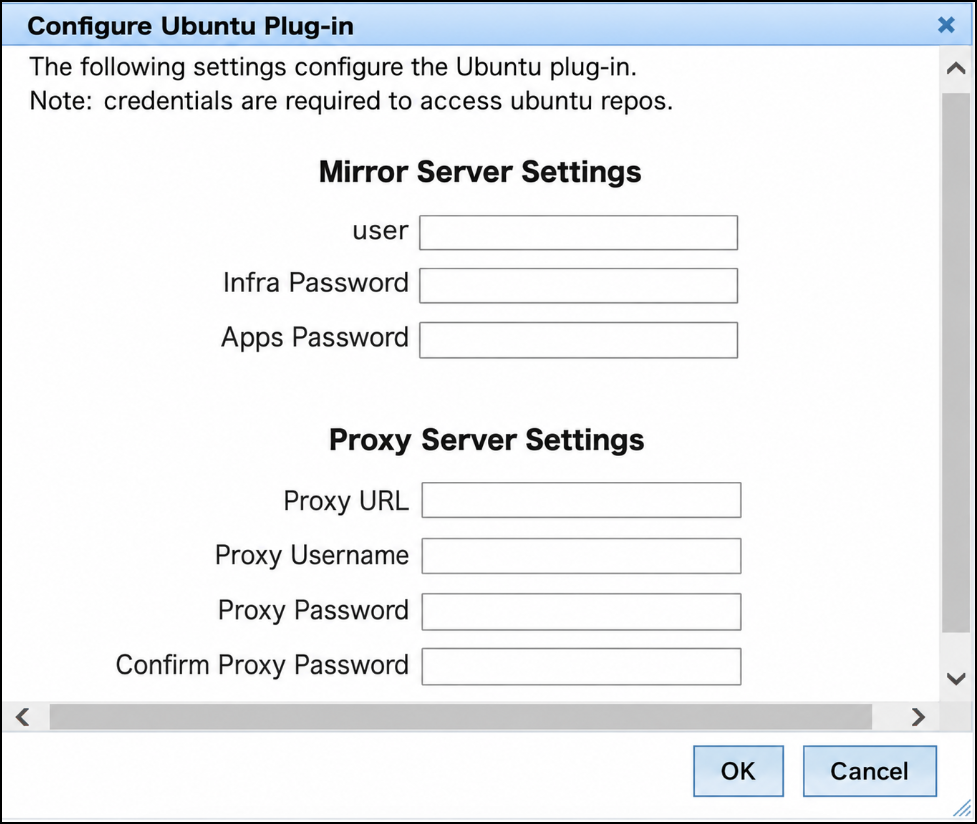
-
Enter your ubuntu pro infra and apps credentials to configure
download plugin. To get user and infra/apps password, refer Obtaining Ubuntu Pro credentials for the Ubuntu Download Plug-in.
- Proxy URL
- The URL of your proxy server. It must be a well-formed URL that contains a protocol and a
host name. The URL is usually the IP address or DNS name of your proxy server and its port,
which is separated by a colon. For example:
http://192.168.100.10:8080.
- Proxy Username
- Your proxy user name if your proxy server requires authentication. It is usually in the
form of
domain\username.
- Proxy Password
- Your proxy password if your proxy server requires authentication.
- Confirm Proxy Password
- Your proxy password for confirmation.
-
Click OK.
The Take Action dialog displays.
- Select the target computer.
- Click OK.