
Get started with Patch
Patch in the BigFix UI has two entry points: the Fixlet explorer under Explore, where you find the patches that apply to your devices and deploy them, and the Patch dashboard under Resolve, which gives you a risk-prioritized overview of what is outstanding.
Patches are delivered to BigFix as Fixlets. Deploying a patch therefore means finding the right Fixlet and deploying it to the devices on which it is applicable. The Fixlet explorer is where you do that; the Patch dashboard tells you which Fixlets and devices to look at first and links back to the Fixlet explorer for the action.
Fixlet explorer
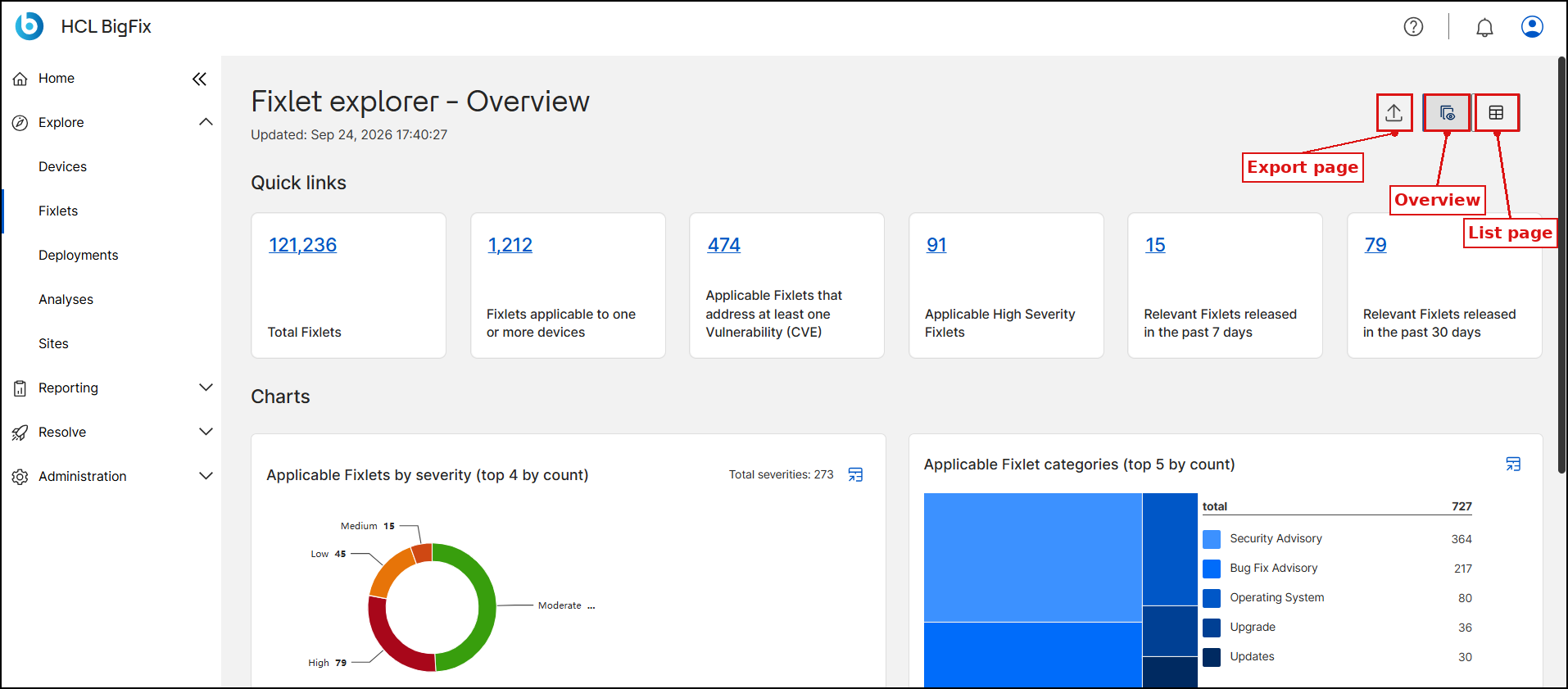
The Fixlet explorer has two views, Overview and List view, switched with the two buttons in the top-right corner of the page. The Export icon next to them downloads the current view.
Find the patches that need attention:
- Click . The Fixlet explorer opens on the Overview view.
- Pick a starting point:
- Quick links: click the number on a card to open a pre-filtered list. Cards include Fixlets applicable to one or more devices, Applicable High Severity Fixlets, Applicable Fixlets that address at least one Vulnerability (CVE), and Relevant Fixlets released in the past 7 days or past 30 days.
- Charts: see where applicable patches concentrate by severity, category or source. Click the Data Table icon on a chart to view or export its values.
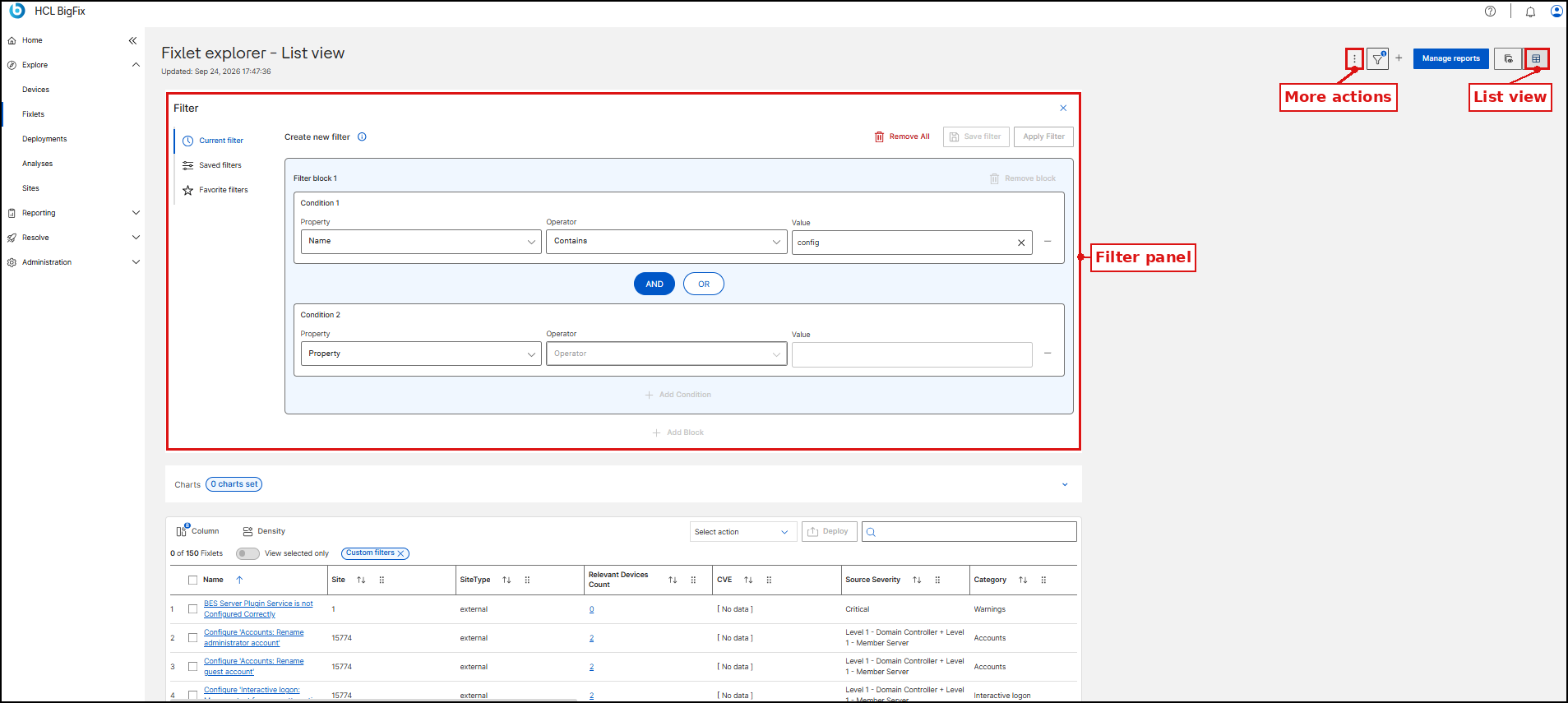
- To narrow the list further, switch to List view and click the Filter icon.
- In the Filter panel, set a condition: choose a Property (for example Source Severity, Category, CVE or Name), an Operator and a Value.
- Optional: click Add Condition or Add Block to combine criteria.
- Click Apply Filter. A Custom filters chip appears above the table while the filter is active; click its × to clear it.
- Optional: click Save filter to reuse the criteria later from Saved filters or Favorite filters.
For step-by-step instructions on deploying patches, refer to Deploying Fixlets.
Overview
For a risk-prioritized picture of your whole environment, use the Patch dashboard: click .
For details of the dashboard, its filters, exports, and troubleshooting, see Patch Dashboard.
For audit-ready deployment progress per patch, see Patch Compliance Report.