Installation
This topic explains how to install the BigFixUI.exe file to initiate the BigFix UI Setup. It also outlines the steps to configure settings using the BigFix UI Configuration Manager tool.
Before you begin
Downloading the BFUI installer: Log in to My HCL Software and download the BFUI installer.
Stopping a running instance: BigFix UI runs as a single instance. Stop the
BES UI service, and close any other running
BFUI.exe process, before you run
--setup.
About this task
Procedure
-
Download and extract the BigFix UI build.
Unzip the BigFixUI-<build_number>.zip file to a directory of your choice. This directory is referred to as the extracted directory.
The extracted directory contains the artifacts and cmd folders.
-
Navigate to the folder containing the BFUI.exe file.
Go to the cmd\bfui folder inside the extracted directory and verify that the BFUI.exe file is present.
For example: C:\BFUI\BuildExtractDir\cmd\bfui\BFUI.exe.
-
Run the executable.
Open a command prompt as an administrator (right-click Command Prompt and select Run as administrator), navigate to the folder that contains BFUI.exe, and then enter one of the following commands.
-
To install BigFix UI in the default directory, enter:
BFUI.exe --setup
The default installation directory is C:\Program Files (x86)\BigFix Enterprise\BES UI.
The command prompts you to confirm the default setting. Enter yes to install in the default directory. Enter no to cancel the command and rerun it with the
--folderparameter. -
To install BigFix UI in a custom directory, add the
--folderparameter followed by the full path:BFUI.exe --setup --folder "<path>"
For example:
BFUI.exe --setup --folder "D:\BigFix\BES UI"
Enclose the path in quotation marks if it contains spaces.
Restriction:The custom installation directory cannot be a subfolder of the extracted directory. The setup rejects such a path as invalid. For example, BFUI.exe --setup --folder "<ExtractedDir>\cmd\bfui" fails.
The command extracts the required artifacts to the target location and opens the BigFix UI Configuration Manager in the default web browser.
Restriction:Install BigFix UI in an existing folder path that contains no special characters. A path that does not exist, or that contains special characters such as#,@, or$, can leave the installation incomplete.Note:Setup records the installation path in the Windows registry under HKEY_LOCAL_MACHINE\SOFTWARE\BigFix\BES UI in theInstallFoldervalue.Important:BigFix UI must be the only running instance when you run BFUI.exe. The setup mode does not start while the BES UI service runs. Stop the service first, then run the command again to open the BigFix UI Configuration Manager.
If BigFix UI detects that another instance is already running, it stops on its own.
The
--upgradeflag is the only exception. It detects a running service and asks you to confirm the stop. For details, see Upgrade.Note:In addition to
--setup, the BFUI.exe command-line utility supports the following flags. Use these flags to configure mutual TLS (mTLS) certificates and connection settings for external application resources.Flag Help text Description --configure-dexConfigure DEX resource. Configures mTLS and connection settings for the Digital Employee Experience (DEX) resource. --configure-ivrConfigure IVR resource. Configures mTLS and connection settings for the Insights for Vulnerability Remediation (IVR) resource. --configure-wfbConfigure Workflow Builder resource. Configures mTLS and connection settings for the Workflow Builder (WFB) resource. Run these flags independently of
--setup. For the detailed procedure, see Configure External Application Resources.To list all supported flags, run
BFUI.exe --help. -
-
After execution, the browser opens the Legal Notes page.
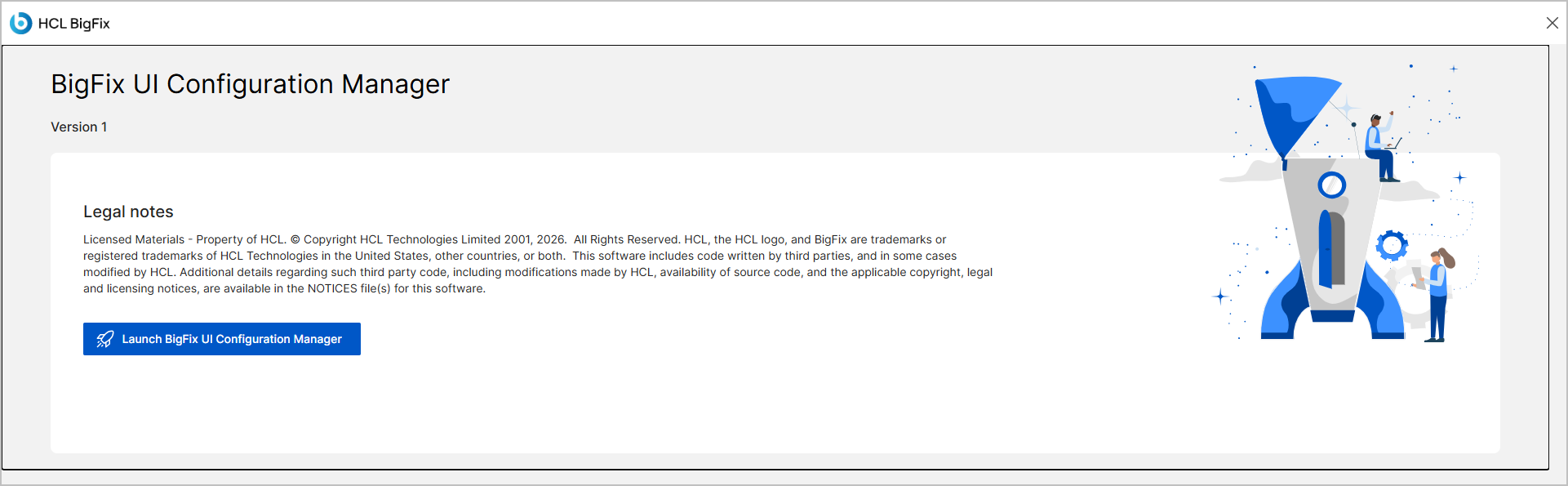
- Click Launch BigFix UI Configuration Manager.
-
The BigFix UI Configuration stepper process starts, beginning with the
Application instance credential page.
After you set the application instance credential, a progress indicator shows the following seven configuration steps:
- Administrative Credentials
- Database Configurations
- HTTPS Certificates Configuration
- Application Configurations
- MTLS Certificate Configurations
- BES Explorer Configurations
- Frontend
Each step provides Previous, Reset, and Next controls. Next remains disabled until you complete the mandatory fields for that step.
If a step is already configured, it opens in a read-only summary that lists the current values. To edit the values, click the here link in the
Click here to change your ... configuration
text.
What to do next
Changing the configuration later
To change a configuration after the setup completes, for example the database, the HTTPS certificate, the application settings, or the mTLS certificate, run BFUI.exe --setup again. The command reopens the BigFix UI Configuration Manager, where each completed step shows a read-only summary that you can edit.
Stop the BES UI service before you rerun the command. The Configuration Manager does not launch while the service runs.
- Stop the BES UI service from the Windows Services console,
or run
BFUI.exe --stop. - Run BFUI.exe --setup from the cmd\bfui folder.
- Update the required settings in the BigFix UI Configuration Manager.
- Start the BES UI service again. See Starting BigFix UI.
--setup. See
Configure External Application Resources.