Configure mTLS Certificate
Use this step to configure mutual TLS (mTLS) certificates for secure internal and external communications.
About this task
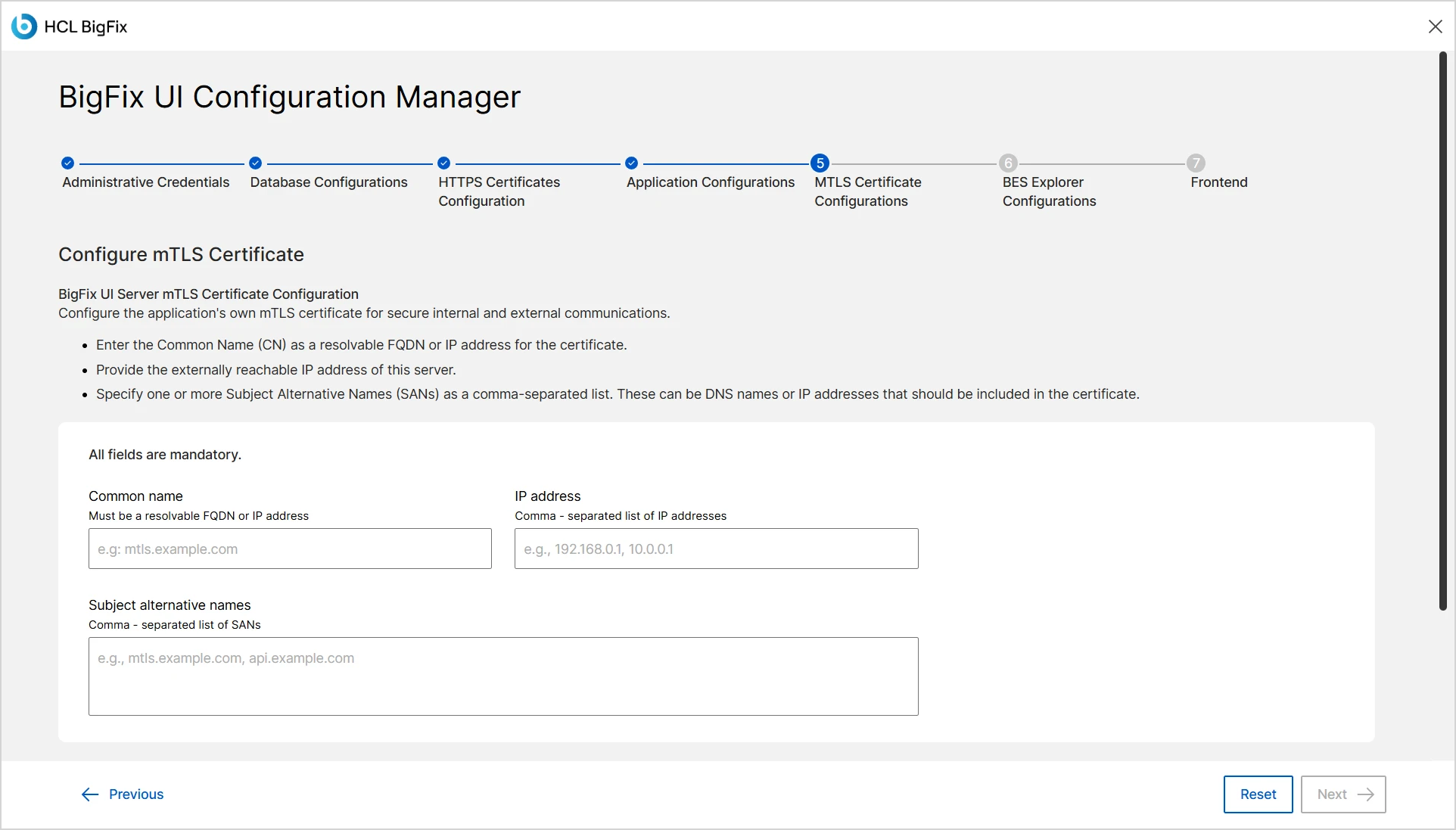
The Configure mTLS Certificate step ensures encrypted and
trusted communication between the BigFix UI application and its endpoints. The
screen shows the subtitle BigFix UI Server mTLS Certificate
Configuration and the description Configure the application's own
mTLS certificate for secure internal and external communications.
The screen lists the following guidance:
- Enter the Common Name (CN) as a resolvable FQDN or IP address for the certificate.
- Provide the externally reachable IP address of this server.
- Specify one or more Subject Alternative Names (SANs) as a comma-separated list. These can be DNS names or IP addresses that should be included in the certificate.
All fields are mandatory.
Procedure
-
After completing Application Configuration, click Next
button to open the Configure mTLS Certificate
screen.
-
If the mTLS certificate is already configured, review the Current
mTLS Configurations summary.
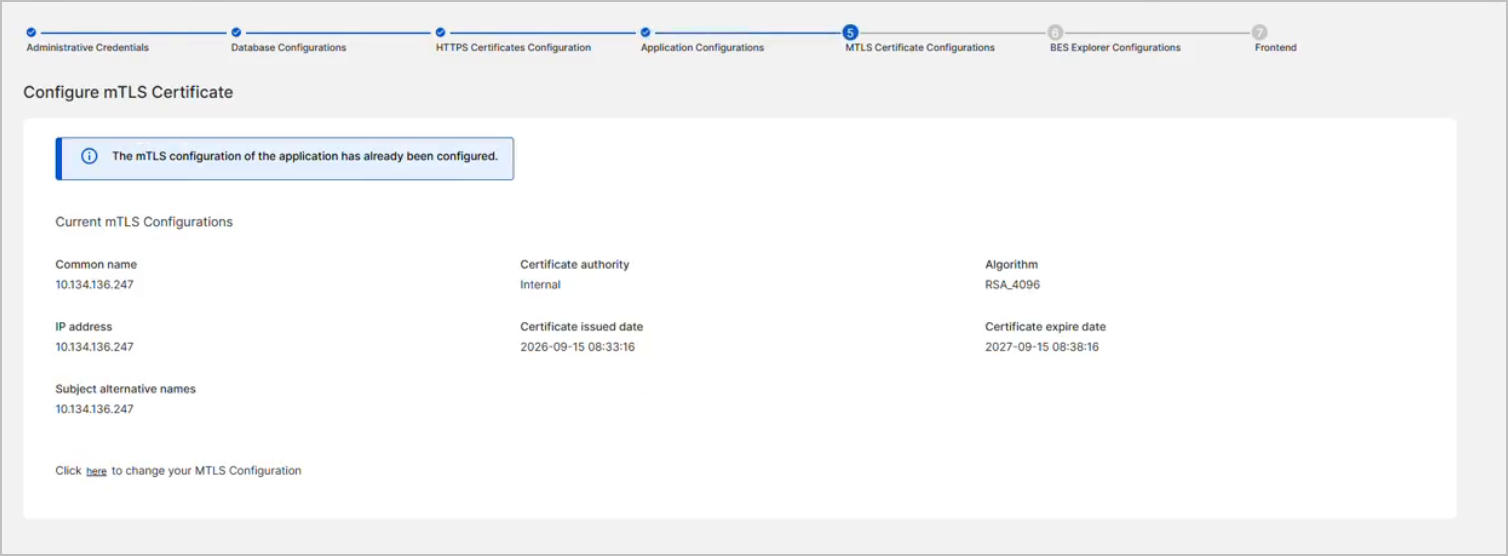
The summary lists the following read-only values:
- Common name
- Certificate authority
- Algorithm
- IP address
- Certificate issued date
- Certificate expire date
- Subject alternative names
To change these values, click the here link in the
Click here to change your MTLS Configuration
text. To keep the current configuration, click Next.Note:The internal CA issues the certificate with a validity period of one year from the issued date. -
In the Common name field, enter a resolvable FQDN or IP
address for the certificate.
The field helper text reads
Must be a resolvable FQDN or IP address
.Example: mtls.example.com.
-
In the IP address field, provide the externally reachable
IP address of this server.
The field helper text reads
Comma - separated list of IP addresses
. Separate multiple IP addresses with commas.Example: 192.168.0.1, 10.0.0.1.
-
In the Subject alternative names (SANs) field, specify
one or more DNS names or IP addresses.
The field helper text reads
Comma - separated list of SANs
. Separate multiple SANs with commas.Example: mtls.example.com, api.example.com.
- Review all entries carefully. After saving, the application generates and uses this certificate for mTLS-secured endpoints.
-
Click Next to continue to the BES Explorer
Configurations step.
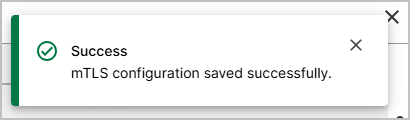
If the mTLS configuration is accepted, a success message is displayed.